
Batch Create Shelves
Table of Contents
1. Features
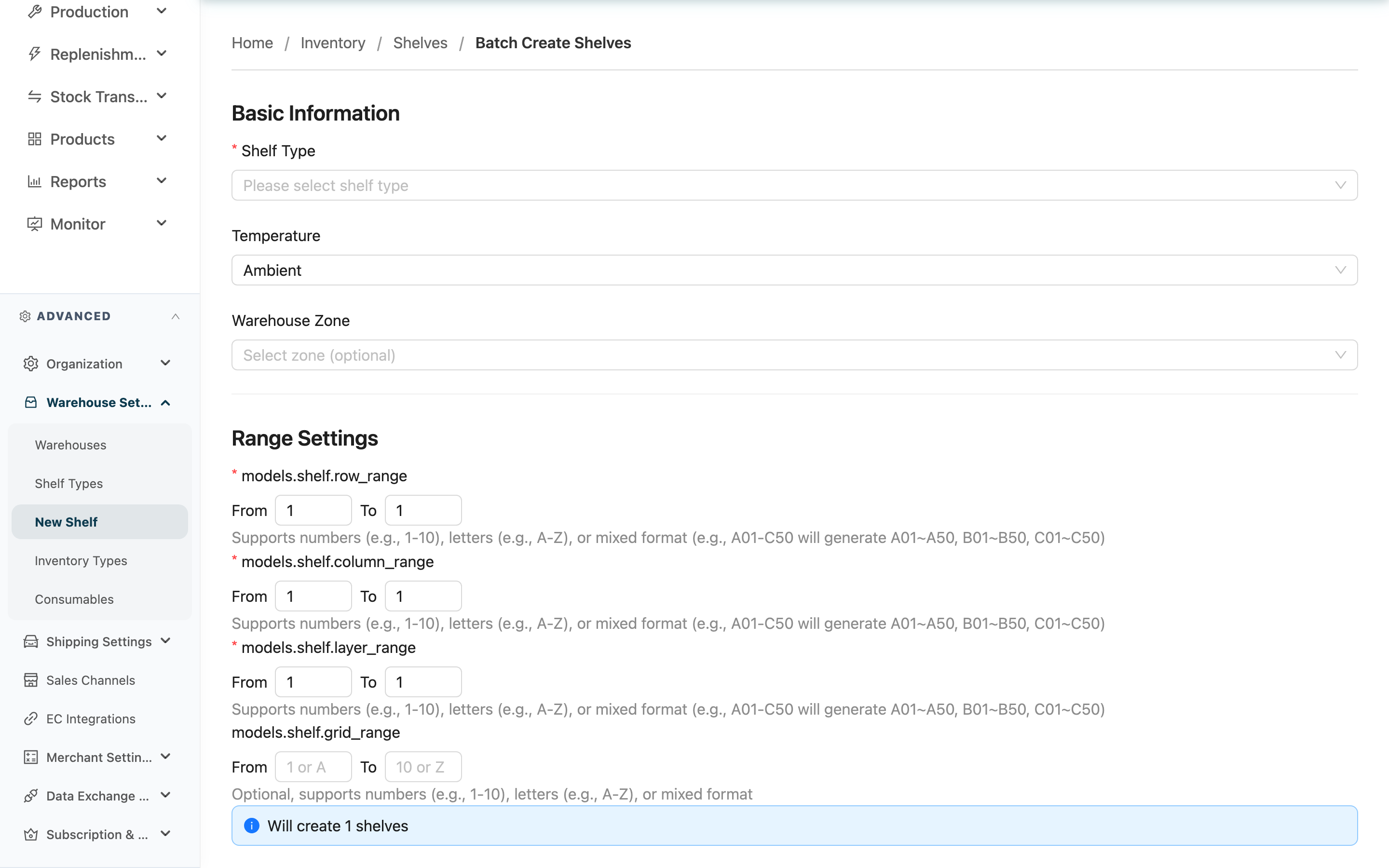
When you install a new rack or re-zone an area, you often need to create dozens to hundreds of spots at once. This page lets you set a row-column-layer range and one numbering rule, and the system generates the whole batch of shelf codes for you — no need to create each cell by hand. The created shelves appear in the Shelf List, ready to use for put-away during receiving.
Quick jump: Basic Info | Range Settings | Numbering Rule | Other Options | Preview & Create
1.1 Basic Info
Fields marked with * are required
| Field | How to fill | Notes |
|---|---|---|
| *Shelf type | Choose the classification for this batch (e.g. pallet rack, bin rack) | The list shows only types you created; system-reserved types don't appear. If the type is missing, add it under "Shelf Type Management" and reload |
| Temperature | Choose the storage temperature condition for these spots | Defaults to "Ambient"; the whole batch shares one temperature |
| Warehouse zone | Choose the warehouse zone these spots belong to | Optional; if the zone is missing, create it on the warehouse settings page first |
Temperature options explained
| Temperature | Description |
|---|---|
| Ambient | Normal environment |
| Controlled | Temperature-controlled environment |
| Refrigerated | 0~8°C |
| Frozen | Below -18°C |
| Air conditioned | Air-conditioned environment |
1.2 Range Settings
A shelf location is defined by three dimensions — row, column and layer. Fill a start and end value for each, and the system cross-combines the three dimensions into all the spots.
Dimensions marked with * are required
| Dimension | Start / end value example | Notes |
|---|---|---|
| *Row | 1 to 3, or A to D | Required; start value cannot exceed end value |
| *Column | 1 to 10, or A to J | Required; same format as row |
| *Layer | 1 to 5 | Required; same format as row |
| Grid | 1 to 4 | Optional; only when you need to further subdivide cells within a layer |
- All three dimensions support digits (0-9) and letters (A-Z), and may mix them. Both ends must be the same length; if both ends are pure numbers of different lengths (e.g. 1 to 10), the system auto-pads them to 01 to 10.
- The page shows "N shelves will be created" live; the count = rows × columns × layers ×(grids).
- At most 5,000 shelves per batch — exceeding it is blocked, so narrow the range and create in several batches.
1.3 Numbering Rule
Each spot's "Shelf Location" is auto-filled by a template using the row-column-layer values.
Standard Format (default)
- The template is
{row}-{column}-{layer}, producing codes like1-1-1,A-2-3.
Custom Format
- Compose your own template with the variables
{row},{column},{layer},{grid}. - Zero-padding
{row:02d}pads1to01.
| Template example | Output example |
|---|---|
{row}-{column}-{layer} | A-1-1 |
{row:02d}-{column:02d}-{layer} | 01-01-1 |
R{row}_C{column}_L{layer} | RA_C1_L1 |
WH-{row}-{column}-{layer}-{grid} | WH-A-1-2-1 |
While editing the template, the "Example Preview" below shows the resulting code style live.
Click "Save as Default Template" to store the current template as this warehouse's default, so it's pre-filled next time and the numbering rule stays consistent across the warehouse.
1.4 Other Options
| Option | Description |
|---|---|
| Pick face | When checked, the whole batch is marked as pick faces. The system prioritizes pick faces when computing picking suggestions, shortening the picking path |
| Lock shelf | When checked, the whole batch is created in a locked state, not yet open for normal operations |
1.5 Preview & Create
▸ Preview and confirm
- Check whether the "N shelves will be created" count makes sense.
- The preview table lists the first 10 entries with their Shelf Location, row, column, layer and Temperature — confirm the code format is correct.
▸ Submit to create
- Click "Create".
- If the count exceeds 100, the system pops up a confirmation first; creation starts only after you confirm.
- If some codes clash with existing shelves, the system pops up the "Existing Shelves Detected" dialog for you to decide how to handle them (see FAQ: What if codes clash).
Creation runs in the background; when done, the new shelves appear in the "Shelves" list. For larger batches, track progress and results in the "Background Tasks" panel.
2. FAQ
2.1 FAQ
▪ Can a range mix digits and letters?
Yes. Each dimension supports 0-9 and A-Z, and they can be mixed (e.g. A01 to C50 expands to A01–A50, B01–B50, C01–C50). The key is that both ends have the same length (number of characters); if both ends are pure numbers of different lengths (e.g. 1 to 10), the system auto-pads them.
▪ How many shelves can I create at once?
Up to 5,000 per batch. If the live "N shelves will be created" count exceeds the limit, submitting is blocked — narrow the row, column and layer ranges and create in several batches.
▪ What if codes clash with existing shelves?
Before creating, the system checks whether codes already exist. If some clash, a dialog lets you choose: "Skip Existing" creates only the new codes and leaves existing spots untouched; "Update Existing" overwrites the existing spots' attributes (type, temperature, pick face, locked, etc.) with this batch's settings. If a clashing spot holds inventory, the dialog flags it specifically — choosing update only changes attributes and never moves the goods, but confirm before submitting.
▪ Can I edit or delete them after creating?
Yes. Go to the Shelf List, click the "Shelf Location" to open Shelf Detail and edit a spot; to retire spots, select them in the list and batch delete. Batch creation has no one-click full undo, so a mistake must be removed one by one or via batch delete.
▪ Why did creation fail or some spots not get created?
Common causes: no "Shelf Type" selected, a range whose start value exceeds its end value, or a total over 5,000. Also, a virtual warehouse does not support physical shelves and cannot create them. Fix per the on-page error message and retry.
▪ When do I need "Grid"?
"Grid" is a fourth dimension, used only when you need to further subdivide a layer into multiple cells (e.g. with dividers). Leave it empty in normal cases.
2.2 Notes
⚠️ Important Notes
- At most 5,000 shelves per batch; exceeding it is blocked.
- Batch creation has no one-click full undo; a mistake must be removed one by one or via batch delete.
- Choosing "Update Existing" overwrites existing spots' type, temperature and other attributes; if a spot holds inventory the system flags it, so confirm before submitting.
- Virtual warehouse mode does not support physical shelves and cannot create them here.
💡 Tip: Decide the warehouse-wide numbering rule before creating, and store it with "Save as Default Template" so every future batch applies it automatically and codes stay consistent.
3. Related Features
| Feature | Description | Link |
|---|---|---|
| Shelves | View and manage all shelves | Go |
| Shelf Detail | View or edit a single shelf and what it holds | Go |