
Edit Inbound
Contents
1. Feature Guide
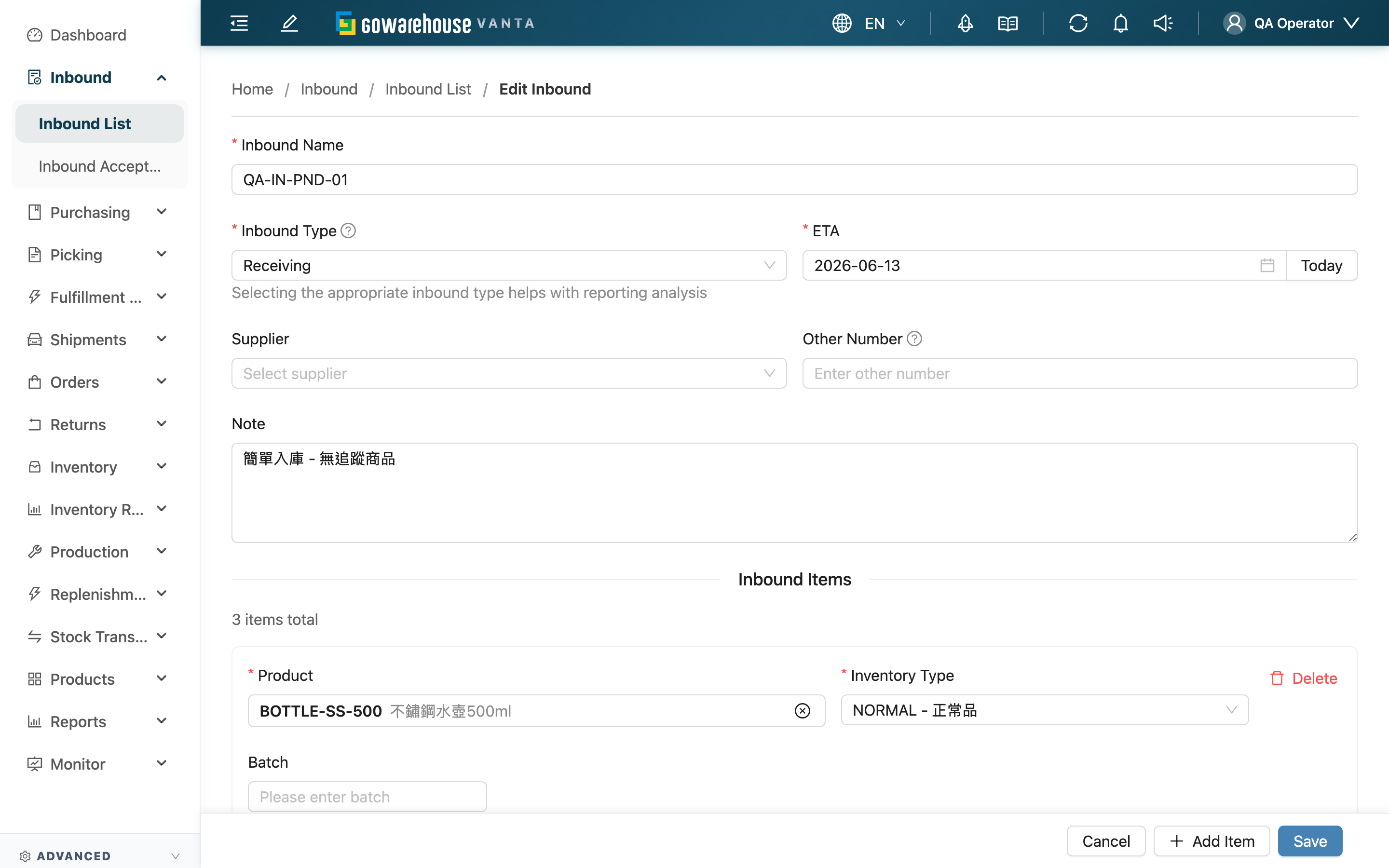
Fix an inbound's planned data here when you find it wrong or incomplete before verification starts. For example, when a merchant announces a last-minute quantity change, a product was missed at creation, or the wrong product was selected, you can adjust the item lines, change the ETA, or fill in the Batch. After editing, click "Save" to return to the detail page and start verification.
Quick Jump: Differences from Create | Which Status Can Be Edited | Items That Cannot Be Edited
1.1 Differences from Create
The edit form is exactly the same as Create Inbound — Inbound Name, Inbound Type, ETA, Supplier, Other Number, Note, plus the Inbound Items lines. For how to fill each field, see the form fields on Create Inbound; it is not repeated here. Compared with Create, the edit page differs in three places:
| Difference | Create Inbound | Edit Inbound |
|---|---|---|
| Merchant | Select the merchant first on entering the page | Locked to the inbound's original merchant; auto-filled and cannot be changed |
| Get a number | Has a "Suggest Name" button | None; keeps the original number (still editable manually) |
| Submit button | "Create", plus "Save and Add Another" | Only "Save"; returns to the detail page after saving |
As with Create, the Batch, Expiration Date, Manufacturing Date, and custom attributes are not required when editing — an inbound is a "plan", so leaving them blank means you will fill in the actual values during verification.
1.2 Which Status Can Be Edited
Only inbounds in "Pending" status (verification not yet started) can be edited. Once verification starts, the "Edit" entry no longer appears for this inbound — neither the list page nor the detail page can open the edit page.
This is intentional. After verification starts, the system records "what was actually received"; if the original plan could still be changed at that point, the planned and verified quantities would no longer match and differences could not be traced. So the plan is locked once verification begins — to reflect reality, record it truthfully during verification (see Inbound Acceptance) rather than going back to change the plan. For what each status means, see Inbound Details.
1.3 Items That Cannot Be Edited
Even in the editable "Pending" status, the following cannot be changed:
| Item | Notes |
|---|---|
| Merchant | Locked to the original merchant and auto-filled. Products and stock are bound to this merchant, and switching would corrupt stock ownership. If the wrong merchant was chosen, cancel this inbound and recreate it |
| Status | Advanced automatically by verification and putaway operations; it cannot be changed manually |
The item lines (Inbound Items) can be freely added, deleted, and modified, but at least one product must remain. Changing the lines only affects this inbound's planned content and does not affect other documents; you can cancel to discard changes before saving.
2. FAQ
Quick Jump: FAQ | Important Notes
2.1 FAQ
▪ Why can't I find the "Edit" button or open the edit page for this inbound?
Because it is no longer in "Pending" status. As soon as verification starts (or any later status), the edit entry disappears — see Which Status Can Be Edited.
▪ Verification has started but I found a mistake in the plan — what do I do?
Don't go back to change the plan — you can't at this point. Record the actual goods truthfully during verification, and the system automatically keeps the "plan vs. actual" comparison. If the whole inbound is already completed and posted when the error is found, you must use a stocktake adjustment. For how to verify, see Inbound Acceptance.
▪ Can I change the inbound's merchant?
No. The merchant is locked at creation, and the edit page does not allow changing it (see Items That Cannot Be Edited). If the wrong merchant was chosen, cancel this inbound and recreate it under the correct merchant.
▪ What does changing the item lines affect?
Only this inbound's planned content (which products are expected and in what quantities). Because verification has not started, no stock or receiving records have been touched, so changes do not affect other documents. During verification, the goods are checked against the plan you edited.
▪ Can deleted item lines be recovered?
Before saving, you can cancel the edit to discard all changes. After saving, deleted lines cannot be recovered and must be re-added.
▪ Where do I land after editing?
After clicking "Save", you return to this inbound's detail page, where you can continue checking it or start verification.
▪ I want to edit many inbounds at once — do I have to edit them one by one?
For a small number of one-off changes, editing on the page is fastest. For bulk changes, use the list page's Import Inbounds: export first, edit in Excel, then import with "Override existing data" checked.
▪ Are edit records kept?
Yes. Every save records which fields changed and the before/after item lines in the detail page's "Histories", including the operator and time.
2.2 Important Notes
⚠️ Reminders
- Only "Pending" status can be edited; the plan can no longer be changed once verification starts
- The merchant is locked and cannot be changed; if the wrong merchant was chosen, cancel and recreate
- After saving, deleted item lines cannot be recovered
💡 Tip: For major changes (such as a large quantity adjustment or swapping the main product), leave a note in the Note to make later reconciliation and tracing easier.
3. Related Features
| Feature | Description | Link |
|---|---|---|
| Inbound Detail | The page you return to after saving; view the plan and verification progress | Go |
| New Inbound | Field-by-field instructions live here; editing shares the same form | Go |
| Inbound Acceptance | After verification starts, record the actual goods truthfully | Go |
| Inbound List | Back to the inbound list | Go |