
Add Product
Table of Contents
1. Features
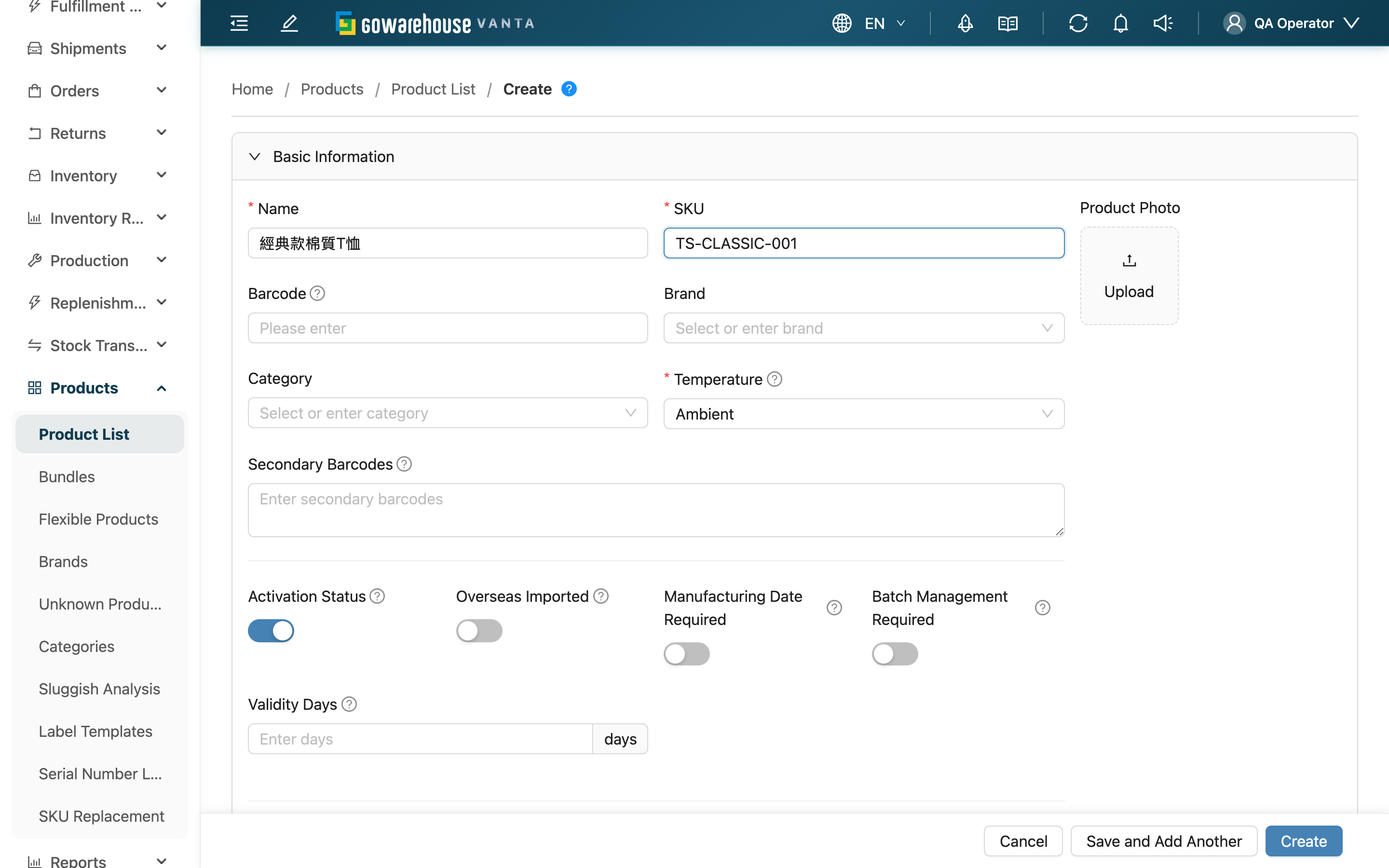
This is where you create product records one at a time. Once a product is created, receiving, putaway, picking, and stock-takes all rely on this record to match items and recognize scans. The form is split into collapsible sections; the only required fields are name, SKU, and temperature in the basic info section — fill in the rest based on the actual product. In a multi-merchant environment, you first choose which merchant this product belongs to.
Quick jump: Basic Info | Receiving & Shipping Rules | Units & Pallet | Other Sections
1.1 Basic Info
Fields marked with * are required.
| Field | How to fill | Notes |
|---|---|---|
| *Name | Enter the full product name | Required |
| *SKU | Enter the internal product code | Required; must be unique within the merchant — the system checks in real time when you leave the field |
| Barcode | Enter the product's main barcode | Matched first when scanning |
| Other Barcode | One per line, multiple allowed | Case codes, supplier codes, etc. can be attached here; scanning any of them resolves to this product |
| Brand | Select from the list | If missing, create it first under "Brands" |
| Category | Select from the list | If missing, create it first under "Categories" |
| *Temperature | Choose ambient / controlled / refrigerated / frozen / air-conditioned | Required, defaults to ambient; determines which temperature zone the product should be stored in |
| Activation Status | Active / inactive toggle | Defaults to active; deactivating suspends all inbound/outbound for this product |
| Product Photo | Upload one product image | Optional |
| Note | Enter a note | Optional |
If this product belongs to a dedicated warehouse, the basic info section also shows "Default Shelf", where you can assign the shelf to recommend first during putaway.
If the merchant has "Product Custom Attributes" set up, the corresponding fields appear in this section; fill them in by attribute type (text, number, date, select, yes/no). Custom attributes marked required cannot be left blank or the product won't save.
1.2 Receiving & Shipping Rules
These switches determine what must be logged when receiving and shipping on the floor, and are part of the product's identity:
| Field | How to fill | Notes |
|---|---|---|
| Validity Days | Enter days | After logging the manufacturing date at receiving, the system can derive the expiry from this |
| Manufacturing Date Required | On / off | When on, the manufacturing date must be logged when receiving this product |
| Batch Management Required | On / off | When on, the batch must be logged when receiving this product |
| Overseas Imported | On / off | Flags whether the item is an overseas import |
| Required Serial Numbers | First turn on the "needs serial number" switch, then enter the number of serials to log per unit | Once set above 0, serial numbers must be entered per unit at shipping |
After turning on "needs serial number", you can also add "Serial Number Pattern" (constrains the serial format) and "Box Serial Number Delimiter" (the delimiter for multiple serials in a box).
"E-commerce Stock Sync" controls whether this product's stock is synced to e-commerce platforms; when on, you can adjust the stock percentage pushed to each e-commerce account.
1.3 Units & Pallet
Used to describe the product's packaging tiers and dimensions, so the warehouse can calculate capacity and volume:
| Field | How to fill | Notes |
|---|---|---|
| Base Unit Name | Base unit name, e.g. "piece" or "bottle" | Cannot start with a digit |
| Mid Unit Name / Items Per Mid Unit | Mid-unit name and how many base units per mid-unit | e.g. a box of 12 |
| Large Unit Name / Items Per Large Unit (Box Quantity) | Large-unit name and how many base units per large-unit | e.g. a case of 144 |
| Length / Width / Height / Weight (kg) | Single-item dimensions and weight | Cannot be negative |
| Total Large Units Per Pallet | How many large units stack on a pallet | Auto-filled from per-layer count and layers, and can be manually overridden |
Each unit can have its own barcode (mid-unit barcode, large-unit barcode) for scan recognition.
1.4 Other Sections
- Substitutes: Search and add other products that can substitute for this one at shipping, with a priority order; substitutes must belong to the same merchant.
- Export Info: Enter the customs declaration title, manufacturer country, HS code, and material for export customs.
- Shelves (dynamic warehouse): Assign this product's Default Shelf.
When done, click "Create" at the bottom to save. To create several in a row, use "Save and Add Another" instead — after saving, the form clears and stays on this page.
2. FAQ
2.1 FAQ
▪ What if the SKU (SKU) shows as already existing after I enter it?
It means a product with the same SKU already exists under this merchant. The SKU must be unique within a merchant — use a different SKU, or confirm whether the product has already been created.
▪ What's the difference between Barcode and "Other Barcode"?
The main barcode is the product's representative barcode, matched first when scanning; other barcodes cover the additional codes that may appear on the physical item (case codes, supplier codes). Scanning either resolves to the same product; the difference is that the main barcode is a single code while other barcodes can be multiple.
▪ Can't find the brand or category I want to select?
Brands and categories are maintained as separate lists. Create them under "Brands" or "Categories" first, then reopen the dropdown on this page to select them.
▪ After turning on "needs serial number", must I fill in the serial count?
Yes. Turning on the switch means this product logs a serial per unit at shipping, so "Required Serial Numbers" must be a number greater than 0. If serials aren't needed, turn the switch off and the count resets to zero.
▪ Where do the custom attribute fields come from?
They are the "Product Custom Attributes" set up by the merchant. Different merchants have different attributes, so the fields change when you switch merchant; attributes marked required will block saving if left blank.
2.2 Notices
⚠️ Important
- In a multi-merchant environment, once created a product belongs to the merchant chosen at the time; all dropdowns (brand, shelf, etc.) only show that merchant's options. Confirm the right merchant before creating.
- Receiving and shipping rules (batch required, manufacturing date required, serial required) directly affect floor operations — set them according to the product's real needs, not just to get past the form quickly.
💡 Tip: When creating many similar products for the same merchant in a row, use "Save and Add Another" to save the time of repeatedly leaving and reopening the page.
3. Related Features
| Feature | Description | Link |
|---|---|---|
| Product List | Back to the product list | Go |
| Import Products | Import products in bulk | Go |
| Brands | Add / maintain brands | Go |
| Categories | Add / maintain categories | Go |