
SKU Replacement
Table of Contents
1. Use Cases
Quick links: Fix a mistyped SKU | Merchant-wide code rename
Case 1: A SKU was created wrong and needs the correct code
Situation: A product was created with a wrong SKU (an extra digit, a missing digit, or a leftover test code), but it has already received stock, been put away, and shipped. You want to change it to the correct code without losing its accumulated inventory and shipping records.
Use this feature: Under "Products" → "SKU Replacement", upload a mapping that contains just this one "Old SKU, New SKU" row. The system changes this product's code to the new one directly (see Batch replacement flow). The product itself is not deleted and no new product is created, so all inventory, locations, fulfillments, and edit history stay with the original product.
Result: The product code becomes correct; scanning on the floor and later lookups all use the new code, with no loss of past inventory or records.
Case 2: A merchant renames a whole batch of product codes at once
Situation: A merchant has reworked its coding rules (for example, adding a brand prefix across the board, or switching to a new part-number format) and asks the warehouse to change dozens or hundreds of SKUs for that merchant at once, rather than editing each product one by one.
Use this feature: Download the CSV template on the page, fill in every "Old SKU → New SKU" mapping, and upload it in one go. The system first checks each row to see whether it can be replaced (see Upload and preview), then runs them all together once everything looks right.
Result: A single mapping file renames the whole batch of products, with each product keeping its inventory and shipping records on the original product. No re-creation is needed, and historical data is not scattered.
2. Feature Overview
Replace SKU is a batch tool that changes an existing product's code to a new code. It only edits the SKU field on the product; it does not delete the old product or create a new one. As a result, the product's accumulated inventory, locations, fulfillments, and edit history all stay exactly where they are — the only difference is that the product is identified by the new code from now on. You specify which products to change with a single CSV mapping file. The system checks each row, shows a preview, and only executes after you confirm.
Quick jump: Upload and preview | Validation rules | Batch replacement flow
2.1 Upload and Preview
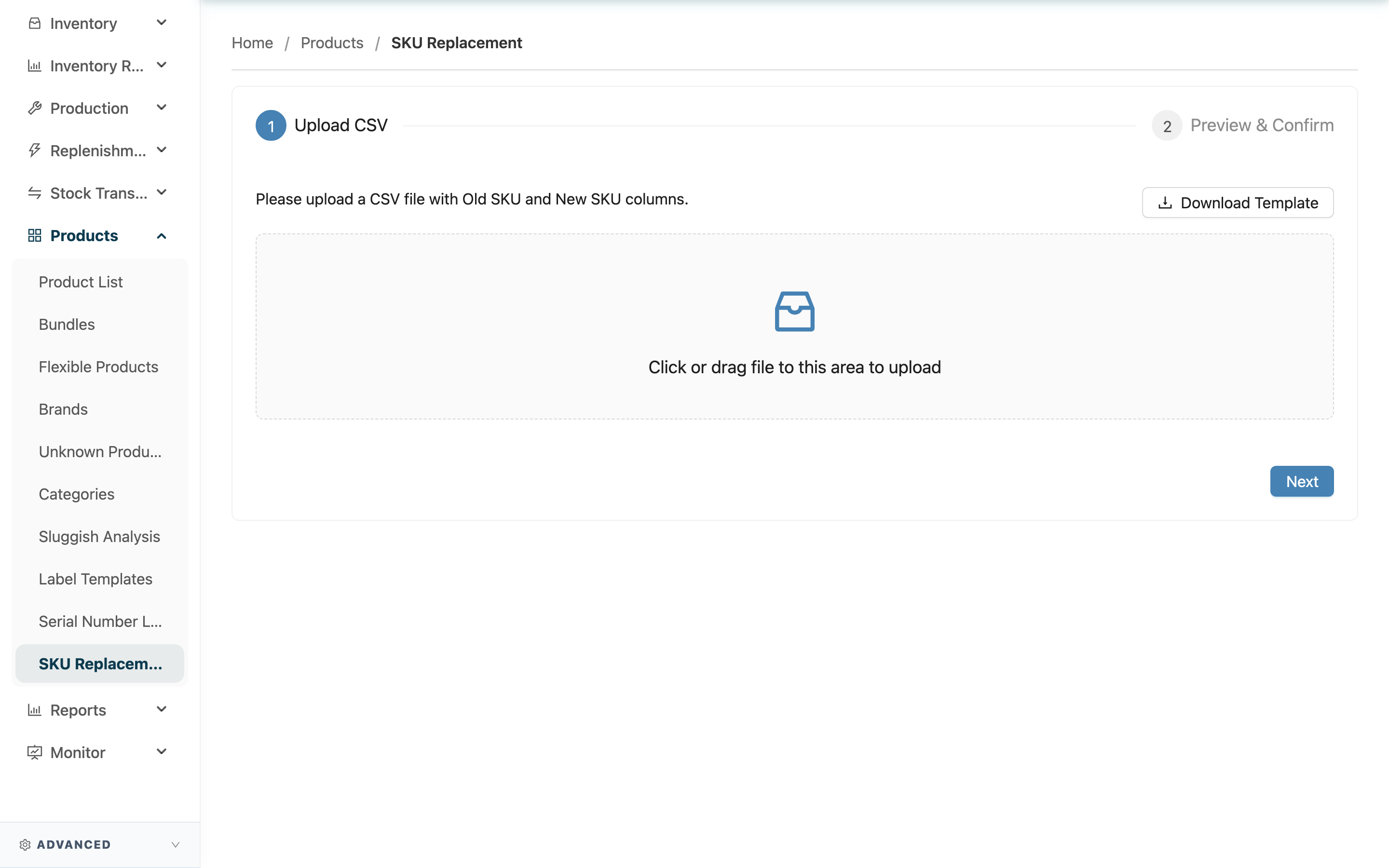
The page has two steps: Upload CSV and Preview & Confirm.
First, prepare the mapping: click "Download Template" to get the CSV template. It has only two columns — Old SKU and New SKU. Fill in the products to replace (one product per row: the product's current code on the left, the new code on the right), save, drag or click to upload, then click "Next".
Fields marked with * are required
| Field | How to fill | Notes |
|---|---|---|
| *Old SKU | The product's current code | Must be a product that already exists under this merchant; if not found, the row is marked invalid |
| *New SKU | The new code to change to | Cannot duplicate an existing product code, and cannot be the same as the old code |
After you click "Next", the system runs a full check and lists the results in the preview table. No product is actually changed at this point. Each row shows a status of Valid or Invalid; invalid rows explain the reason in the "Message" column (see Validation rules). After reviewing the preview, click "Confirm" to actually execute.
2.2 Validation Rules
During preview, the system checks each row and marks rows that cannot be replaced as Invalid with the reason. The following situations block a row from being executed:
| Preview shows | What's wrong with this row |
|---|---|
| SKU cannot be blank | The Old SKU or New SKU column is empty |
| Old and New SKU cannot be the same | The Old SKU and New SKU are identical, so there is nothing to change |
| Old SKU not found | No product with this Old SKU exists under this merchant |
| New SKU already exists | The New SKU is already taken by another product under the same merchant |
| Duplicate New SKU in CSV | Two or more rows in the same CSV want to change to the same New SKU |
When a row is marked invalid, only that row is skipped; it does not affect the other valid rows in the same file.
2.3 Batch Replacement Flow
After you click "Confirm", the system only executes rows whose preview status is Valid, changing each product's code to the new one row by row and recording the change in that product's edit history.
- What changes: Only the product's SKU code. The product itself (inventory, locations, fulfillments, barcodes, brand, all settings) stays unchanged — it is still the same product.
- Each row is independent: Each row runs on its own. If one row fails at execution time (for example, the old SKU was just changed by someone else, or the new SKU was taken by someone else after preview), only that row counts as failed; the rest complete as normal.
- Result: When finished, the top of the page shows the success/failure counts in "Execution Result: {{success}} Success, {{failed}} Failed", and each row in the preview table updates to Success or its failure reason.
After replacement, search by the new code in the Product List to confirm the product has been renamed.
3. FAQ
3.1 FAQ
▪ After replacing a SKU, will the old product's inventory and shipping records be lost?
No. Replacing a SKU only changes the same product's code to a new one; it does not delete the old product or create a new one. Its inventory, locations, fulfillments, and edit history all stay on the same product — it is simply identified by the new code from now on.
▪ The product still has unshipped orders. Can I replace its SKU?
Yes. The system does not require you to clear orders before changing the code. Because you are changing the code of the same product, unshipped fulfillments still point to this product and will not be disconnected by the rename.
▪ Can I undo a wrong replacement?
There is no one-click undo. If you replace incorrectly, run Replace SKU again, using the new code as the "Old SKU" and the original code as the "New SKU" to switch it back (as long as the original code is not currently taken by another product).
▪ Why does my row show "New SKU already exists"?
It means the new code you want to switch to is already used by another product under this merchant. Replace SKU does not merge two products into one, so when codes collide it blocks that row. Make sure the new code is not in use, or handle the product that is occupying it first.
▪ What happens if some rows in the file are invalid when I confirm?
Invalid rows are skipped and not executed; the system only executes rows whose preview status is Valid. After execution it shows the success and failure counts. You can fix the blocked rows and upload a new file containing only those rows.
▪ I can't find the "SKU Replacement" feature?
Replace SKU requires product edit permission and is only available on certain plans. If you don't see it in the menu, contact your administrator to confirm your permission and plan.
3.2 Notes
⚠️ Important
- Replace SKU has no one-click undo; clicking "Confirm" takes effect immediately. To revert, you can only run a reverse replacement again.
- Replace SKU only processes rows whose preview status is Valid; invalid rows are always skipped and it will not pause partway to wait for you.
💡 Tip: Before a large batch, try one or two rows first to confirm the result, then upload the full mapping. The template is a plain two-column file — edit it in a spreadsheet and save as CSV.
4. Related Features
| Feature | Description | Link |
|---|---|---|
| Product List | Search products by the new code to confirm the result | Go |
| Product Inventory | View the inventory and locations the product keeps after the code change | Go |
| Stock Inquiry | Confirm from the inventory side that stock is unaffected by the code change | Go |