
New Work Order
Table of Contents
1. Features
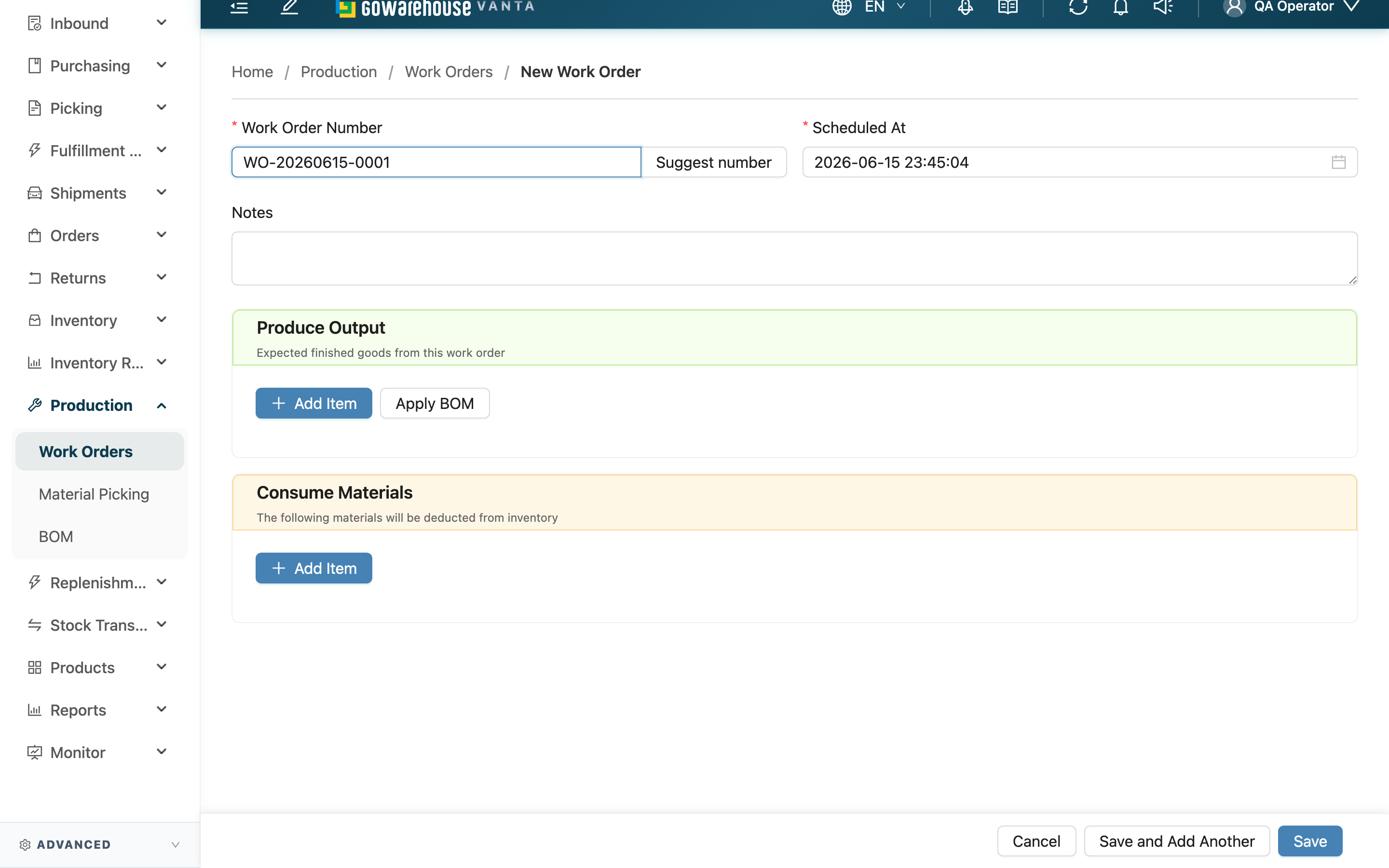
This page is for creating a new work order: fill in the basic info, list the materials to consume and the goods to produce, and once saved you can move into the confirm, pick, and complete flow. Every work order must have both "Consume Materials" and "Produce Output", because the essence of a work order is turning one batch of stock into another. For a common material combination, apply a BOM recipe to fill everything in one click, saving line-by-line entry.
Quick jump: Basic Info | Output & Input Items | Apply BOM Recipe | Save
1.1 Basic Info
Fields marked with * are required.
| Field | How to fill | Notes |
|---|---|---|
| *Work Order Number | Enter this work order's number or name | Required; must be unique within the same merchant; press "Suggest number" next to it to generate one automatically |
| *Scheduled At | Pick the date the work is planned for | Required; defaults to today |
| Notes | Enter a note for this work order | Optional |
The work order is created in the warehouse you are currently in — no need to pick a warehouse separately. When serving multiple merchants, select the merchant at the top of the page before filling in the form.
1.2 Output & Input Items
Below are two line-item cards, both of which need at least one item:
- "Produce Output": Expected finished goods from this work order.
- "Consume Materials": The following materials will be deducted from inventory.
Press "Add Item" in each card to add products one by one; each one needs:
Fields marked with * are required.
| Field | How to fill | Notes |
|---|---|---|
| *Product | Search and select a product | Required; only products under the current merchant can be selected |
| Inventory Type | Pick which inventory type to consume or receive as | Defaults to the first inventory type; if an option is missing, add it in the inventory type settings first |
| *Quantity | Enter the quantity to consume or produce | Required; cannot be negative |
| Batch | Enter the batch | Fill in if the product manages batches |
| Manufacturing Date | Pick the manufacturing date | Fill in if the product manages manufacturing dates |
| Expiration Date | Pick the expiration date | Fill in if the product manages expiration |
| Inventory Custom Attributes | Fields defined by the merchant (e.g. supplier lot), filled in as needed | Only appears when the merchant has defined extra attributes; always optional, and entering a value restricts allocation to stock whose attribute exactly equals it |
| Note | Enter a note for the item | Optional |
💡 Tip: Batch, Manufacturing Date, Expiration Date, and Inventory Custom Attributes can always be left blank at creation — even if the product or the merchant marks them as required, creation will not block you. A work order records "what you plan to consume and produce"; the real batch and expiry are only known once processing finishes and you check the produced goods in at "Inbound Acceptance", which is where the required check runs.
Leaving a "Consume Materials" line blank is not the same as "no restriction", though: which stock it can draw from depends on the merchant's "Fulfillment Lot Policy" (set on the merchant detail page). Only the default "Flexible" lets the system pick stock automatically; under "Strict", blank means "match only stock that likewise carries no value for that attribute", so the line runs short of material if every unit in the warehouse is tagged.
1.3 Apply BOM Recipe
If this finished good has a ready production recipe, press "Apply BOM" in the "Produce Output" card: search and select a recipe, enter "Sets" (how many sets of finished goods to make), and the system fills in the finished good and all materials by the recipe ratio, with material quantities multiplied by the number of sets.
Items filled this way are tagged "BOM linked": when you later adjust the output quantity, the quantities of still-linked materials recalculate proportionally. If you manually change a material's quantity or product so it no longer matches the recipe, that item automatically breaks its link and is tagged "Unlinked from BOM"; press "Reset to BOM" to restore it to the recipe default.
If the card already has items, applying a recipe prompts a confirmation, warning that the current items will be replaced by the recipe contents and cannot be undone.
1.4 Save
Once filled in, press the save button at the bottom:
- After a successful save, you go straight to this work order's Detail page, where you can proceed to confirm-and-allocate.
- To create several in a row, press "Save and Add Another": after saving, the form clears and stays on this page so you can build the next one.
A freshly created work order is in "Draft" status with no stock reserved yet; the system starts reserving materials only after you press confirm on the detail page.
2. FAQ
2.1 FAQ
▪ Why must I fill in both "Consume Materials" and "Produce Output"?
Because the essence of a work order is "consume one batch of stock, produce another" — neither side can be missing. If you fill in only materials without goods, or only goods without materials, saving is blocked with a reminder that both inputs and outputs are required.
▪ Does creating a work order deduct or reserve stock right away?
No. A freshly created work order is "Draft", purely a draft still being edited, holding no stock. Only after you press "Confirm" on the Detail page does the system begin reserving the materials.
▪ What format is the number from "Suggest number"?
The system generates a number that increments per day for the merchant and fills it into the name field. You don't have to use it — you can enter your own name, as long as it's unique within the same merchant.
▪ Can I still adjust material quantities after applying a BOM?
Yes. After applying, you can still manually change any item's quantity or product. Note that a manual change breaks that item's "BOM linked" so it no longer recalculates with the output quantity; to restore the recipe default, press "Reset to BOM" on that item.
▪ What if I can't find the product or inventory type I want?
Products and inventory types only list the options under the merchant you currently have selected. When serving multiple merchants, select the right merchant at the top of the page first; if the merchant is correct and you still can't find it, the product or inventory type hasn't been set up under this merchant yet — add it in the corresponding settings page first, then come back.
▪ Can I build a work order by hand without a ready BOM recipe?
Yes. "Apply BOM" is just a convenience to fill in a common combination at once, not a required step. Add materials and goods one by one with "Add Item" and the resulting work order is exactly the same as one built from a recipe.
2.2 Notes
⚠️ Important Reminders
- Once a work order is created, its merchant is fixed and cannot later be changed to a different merchant.
- When applying a BOM recipe, if the card already has items, it replaces the existing items in bulk and cannot be undone — confirm before applying.
- A work order is created in the warehouse you are currently in; to process in another warehouse, switch warehouses first, then create.
💡 Tip: Set up recipes for your common material combinations in BOM first; then when building a work order, applying one fills everything in one click and the quantities scale with the number of sets — faster and less error-prone than entering line by line.
3. Related Features
| Feature | Description | Link |
|---|---|---|
| Work Orders | Back to the list of all work orders | Go |
| Work Order Detail | After creating, view the line items and run confirm, pick, complete | Go |
| BOM | Maintain production recipes for one-click apply when building orders | Go |