
New Shipping Rate Card
目錄
一、功能介紹
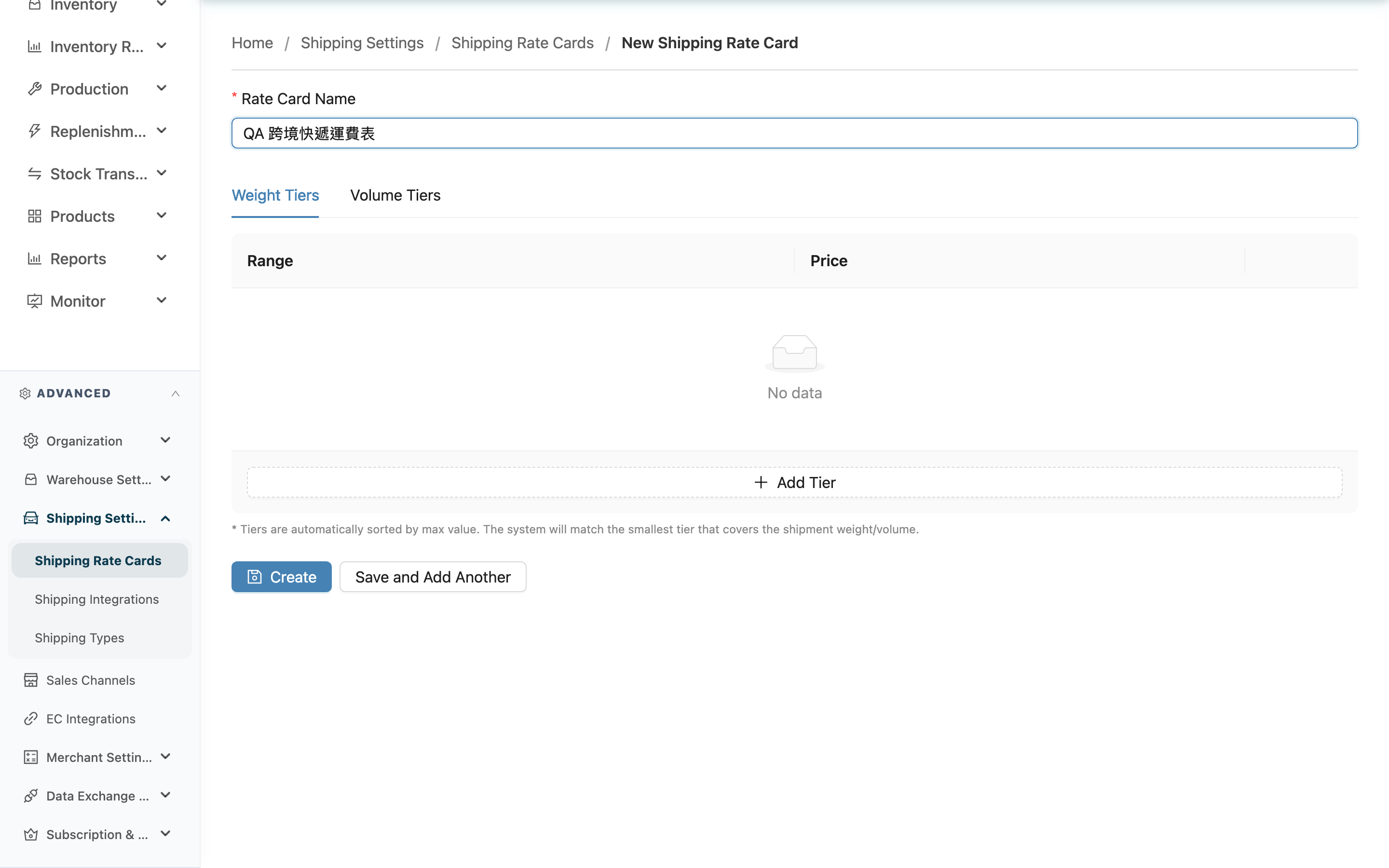
Create a new Shipping Rate Cards on this page: first give it a name, then set up the individual tiers for Weight Tiers and Volume Tiers separately. Each tier only needs a start value; its upper bound is determined automatically by the next tier's start value. The first tier always starts at 0, and the last tier is always "and above", covering all weight/volume above it. Once created, go to Merchant Shipping Types to attach this rate card to a merchant's shipping type; the system will then calculate the shipping fee per parcel from the tiers you set and sum the parcels (for how values are sourced, see Shipping Rate Cards).
快速跳轉:Basic Fields | Weight and Volume Tiers | Save
1.1 Basic Fields
標示 * 的欄位為必填項目
| 欄位名稱 | 如何填寫 | 注意事項 |
|---|---|---|
| *Rate Card Name | Enter the rate card name; include the quote target or shipping plan (e.g. merchant name, home delivery / convenience store) | Required; used to recognize it in merchant shipping settings later |
| Return Shipping Fee | The return shipping fee for this rate card — a flat amount that does not use tiers | Defaults to 0 when not set |
1.2 Weight and Volume Tiers
Tiers are set up in two separate tabs:
- Weight Tiers: in kg, billed by the shipment's total weight.
- Volume Tiers: in cm³, billed by the shipment's total volume.
In either tab, click Add Tier to add a tier row. Fill in, in order:
標示 * 的欄位為必填項目
| 欄位名稱 | 如何填寫 | 注意事項 |
|---|---|---|
| Start value | For every row except the first, enter this tier's start value (kg in the weight tab, cm³ in the volume tab), up to three decimal places | The first row always starts at 0 and has no input field on screen; every other row is required and must be greater than the previous row's start value, or the save is rejected |
| *Price | Enter the fee charged when the shipment falls in this tier, up to two decimal places | Required, cannot be less than 0 |
Each row's coverage is "greater than or equal to this row's start value, and less than the next row's start value", shown on screen as "under N". The last row has no upper-bound field and always shows "and above", covering all weight/volume above it. At shipping time, the system looks up the total weight and total volume separately and takes the price of whichever tier the value falls into; weight and volume are each looked up once, and the higher of the two is charged as the fee.
1.3 Save
After filling in, there are two buttons:
- Create: creates this rate card; after a successful save you enter the edit page to keep adjusting.
- Save and Add Another: after creating, clears the form and stays on this page, making it easy to create multiple rate cards in a row.
二、常見問題
2.1 FAQ
▪ Do I have to fill in both weight tiers and volume tiers?
No. You can create a rate card with only one of them; the system will only look up the one that has data. When both are filled, each is looked up at shipping time and the higher amount is charged.
▪ Do I need to enter the upper bound of a tier myself?
No. Each row only needs a "start value"; the upper bound is determined automatically by the next row's start value (see Weight and Volume Tiers). The last row always shows "and above" and has no upper-bound field.
▪ Can the start value or price be 0?
The first row always starts at 0 and cannot be edited; every other row's start value must be greater than the previous row's, so it cannot be 0. The price can be 0 (meaning this tier is free of charge) but cannot be negative.
▪ What happens if two rows have the same start value, or a later row is smaller than an earlier one?
The save is rejected, with a hint on the field that it "must be greater than the previous tier's start value". Fix it into a strictly increasing sequence before you can save.
▪ Where does the data go after I click "Save and Add Another"?
The rate card has been created and can be found in Shipping Rate Card List. The form is cleared so you can create the next one.
▪ A required field is missing or wrong and I can't save — what should I do?
The name, each tier's start value (except the first row), and price are all required; start values must strictly increase (each greater than the previous row's), and the price cannot be less than 0. If validation fails, the system shows a hint on the corresponding field; fix it and save again.
2.2 注意事項
⚠️ 重要提醒
- Tier start values must strictly increase with no duplicates; the save is rejected with an error if this is violated.
- A rate card does not take effect automatically after creation; go to Merchant Shipping Types and attach it to a merchant's shipping type before it applies to shipments.
- The same rate card can be shared by multiple merchants; changing one affects every merchant using it.
💡 提示:Build one rate card covering common weight bands first, then use "Save and Add Another" to quickly duplicate variants and fine-tune, saving repeated input.
三、相關功能
| 功能 | 說明 | 連結 |
|---|---|---|
| Shipping Rate Cards | Back to the list of all shipping rate cards | 前往 |
| Edit Shipping Rate Card | Edit an existing rate card and its tiers | 前往 |
| Merchant Shipping Types | Attach a rate card to a merchant's shipping type to make the fee take effect | 前往 |