
Exception Monitor
Table of Contents
1. Use Cases
Quick links: Clear every exception before end of shift | Check temporary locations when stock doesn't match
Case 1: Sweep exceptions before clock-out so nothing carries over
Situation: Over a day the warehouse accumulates loose ends — totes not emptied, goods left in staging, products that won't scan, returns accepted but not yet turned into inbound. The supervisor wants to confirm these are all cleared before end of shift, instead of letting them carry over and snowball.
Use this feature: Put the Exception Monitor on the big screen (see The six exception cards); any card with a number is an exception not yet cleared, and red means serious.
Result: Which items still have work to do is obvious, so you assign people to wrap them up, and once all six cards show "–" you can clock out with confidence.
Case 2: Stock doesn't match — first check whether goods are stuck in totes or staging
Situation: During a stock take or an inventory check the book quantity doesn't match the actual, and you suspect goods are still sitting in totes or staging, not yet put away to a formal location.
Use this feature: Look at the Exception Monitor's "Tote Inventory" and "Staging Inventory" cards (see The six exception cards); a number means inventory is still parked in those temporary locations.
Result: Ship out or put away those goods first so inventory returns to formal locations and the books match, then go back and reconcile the numbers.
2. Features
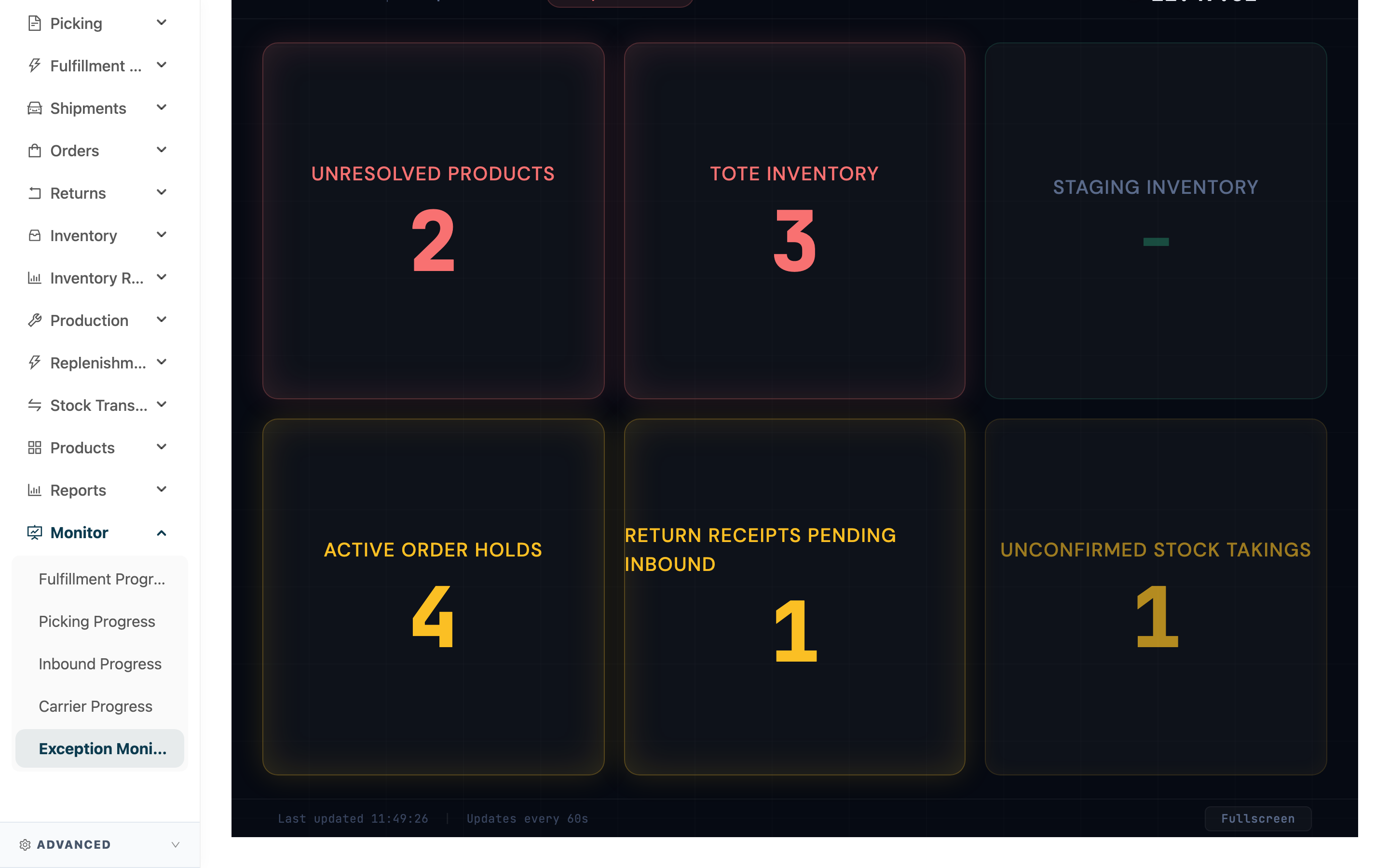
The Exception Monitor brings together, on a single screen, six situations that tend to pile up day to day and that drag down both operations and inventory accuracy. On the big screen, supervisors and leads don't have to check each feature page one by one — a glance shows which exceptions are still open today and how serious they are, so they can be handled within the shift. Each card is the live count of one exception; a zero count (shown as "–") means that item is clear. Enter from the left menu "Monitor" → "Exception Monitor".
Jump to: How it works | The six exception cards
2.1 How it works
- Auto-refresh every 60 seconds: pulls the latest counts automatically (the refresh interval is shown at the bottom right); no manual refresh needed.
- Overall signal: the light at the top right aggregates all cards — it turns red if any card is red (serious), yellow if any is yellow (reminder) or info, and green when all are clear.
- Made for the big screen: click "Fullscreen" at the bottom right for full-screen on a large TV; while it's open the screen won't sleep.
- Connection loss is flagged: if a refresh fails to fetch data, the board shows "Data may be stale", clearing automatically on the next successful refresh.
The refresh interval, full-screen and other shared traits match the progress boards; for the full description see Progress Boards.
2.2 The six exception cards
Each card shows the live count of one exception, color-coded by severity: serious (red) needs handling first, reminder (yellow) handle soon, info handle at leisure. The cards are for monitoring only — once you see a number, handle it on the corresponding feature page.
| Card | What it means | Severity | What to do when there's a number |
|---|---|---|---|
| Unresolved Products | Items that scanned but match no product in the system and are not yet handled | Serious | Go to "Unresolved Products" to register or map them to the correct product |
| Tote Inventory | Inventory still parked in totes (picking carts), not yet put away | Serious | Ship out or put away the goods in the totes |
| Staging Inventory | Inventory still parked in staging, not yet put away | Serious | Shelve or put away the staging goods to a formal location |
| Active Order Holds | Orders currently on hold | Reminder | Open the order to see why it's held, then release or handle it |
| Return Receipts Pending Inbound | Returns accepted but not yet turned into an inbound | Reminder | Go to "Return Receipts Pending Inbound" to convert them |
| Unconfirmed Stock Takings | Stock takes not yet finalized | Info | Go to Stock Takings to finalize them |
3. FAQ
Jump to: FAQ | Important notes
3.1 FAQ
▪ What does "–" on a card mean?
It means that item currently has no exception (count is 0) and needs no action. Getting all six cards to show "–" means today's exceptions are all wrapped up.
▪ What do the card colors and the overall signal at the top right mean?
A card's color is that exception's severity: serious (red), reminder (yellow), info. The overall signal at the top right aggregates all cards — it turns red whenever any card is red, yellow when any is yellow or info, and only green when everything is clear.
▪ What are the numbers on "Tote Inventory" and "Staging Inventory"?
They are the inventory quantities still parked in temporary locations such as totes (picking carts) or staging, meaning the goods haven't been put away or wrapped up. To clear them, ship the goods out, or shelve / put them away to a formal location.
▪ Which returns does "Return Receipts Pending Inbound" mean?
Returns that have been accepted but not yet turned into an inbound. Once you convert them in "Return Receipts Pending Inbound", the number drops.
▪ Can I click a card to jump to the matching feature?
No. The Exception Monitor is a monitoring-only screen and can't operate anything; once you see a number, handle it on the corresponding feature page (Unresolved Products, Returns, Stock Takings, etc.).
▪ How often does it update, and can I put it on the big screen?
Every 60 seconds. Click "Fullscreen" at the bottom right for full-screen on a large TV; while it's open the screen won't sleep.
3.2 Important Notes
⚠️ Important reminders
- The Exception Monitor reflects "the current live situation", not a history; once an exception is cleared it no longer shows, so trace the handling on the corresponding feature page.
- The board is for monitoring only and can't operate documents; do the actual handling on each feature page.
- "Tote Inventory" and "Staging Inventory" count temporary-location inventory in the current warehouse; switch warehouse and the numbers change to that warehouse.
💡 Tip: A fixed end-of-shift routine is getting all six cards to zero (showing "–"); if one card stays stuck with a number, use the matching feature page to find the document that's holding it up.
4. Related Features
| Feature | Description | Link |
|---|---|---|
| Progress Boards | The Fulfillment, Picking, Inbound and Carrier progress boards | Go |
| Unresolved Products | Handle items that scan to no matching product | Go |
| Stock Takings | Handle stock takes not yet finalized | Go |