
New Inventory Transformation
Table of Contents
1. Feature Overview
Create an inventory transformation to convert selected inventory from one "identity" to another — for example reclassifying normal stock as near-expiry, or correcting a mistyped batch or expiry. A single entry can process multiple inventory items at once. After submission the entry is created in "Pending" status and only changes inventory after someone with approval permission approves it; until then it can still be edited or rejected. A transformation does not change quantity and does not move the shelf — it only changes the inventory's attributes.
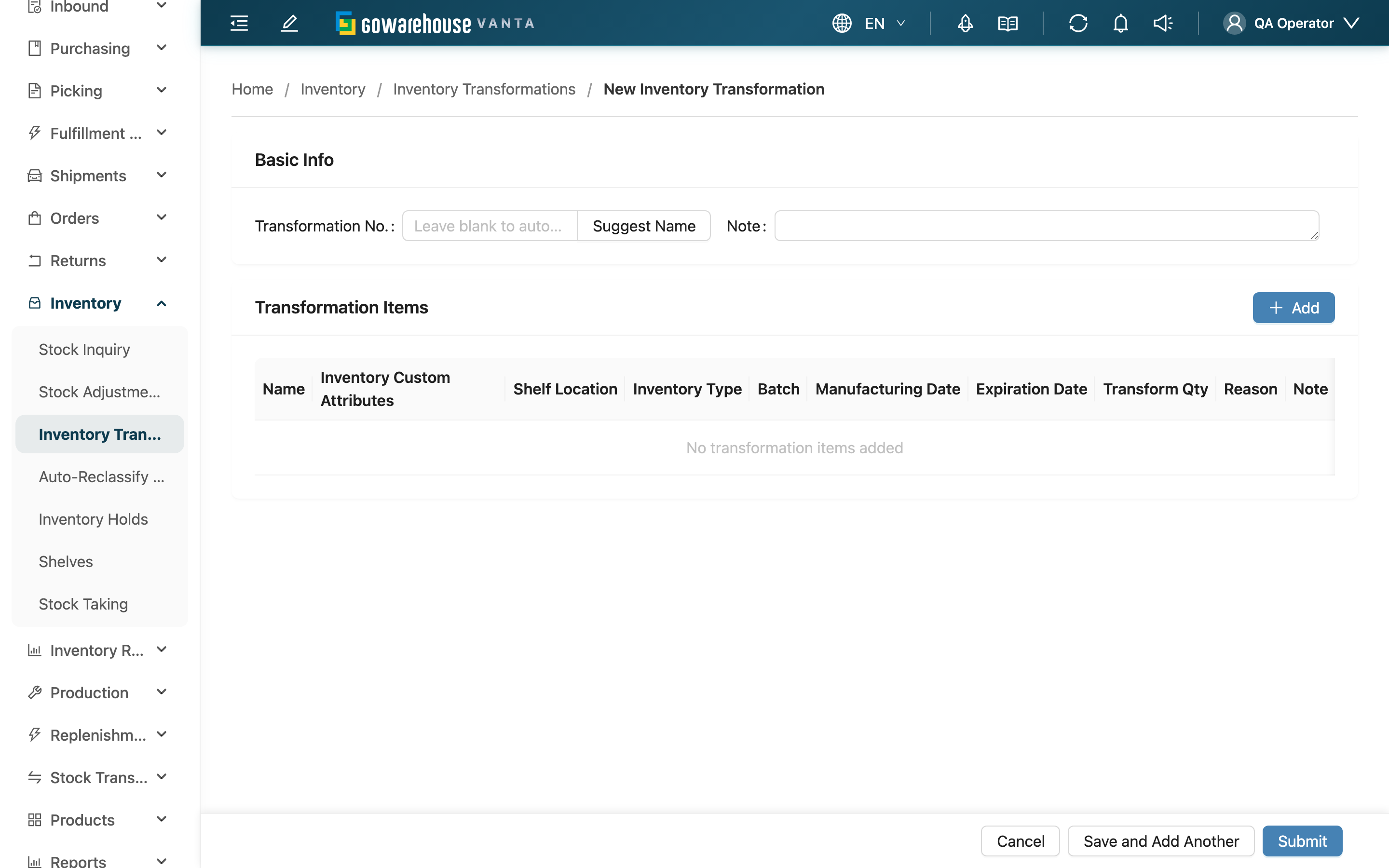
Quick jump: Basic Info | Add Transformation Items | Set Target Attributes & Quantity | Submit
1.1 Basic Info
| Field | How to fill | Notes |
|---|---|---|
| Transformation No. | Enter the number for this transformation | Leave blank to auto-generate a unique number on submit; or click "Suggest Name" to fill one in |
| Note | A note for the whole entry | Optional |
1.2 Add Transformation Items
Click "Add" in the top right of the "Transformation Items" section to first search for and select the inventory to transform (pick the inventory item by product), then move on to set its target attributes. An entry must have at least one transformation item before it can be submitted. Repeat this step to add multiple items to the same entry.
All items in one transformation must belong to the same merchant; the system checks this on submit.
1.3 Set Target Attributes & Quantity
After selecting inventory, a setup dialog appears showing a live "source attribute → target attribute" diff. Target attributes default to the source's current values, so you only need to change the few you want to transform:
Fields marked with * are required
| Field | How to fill | Notes |
|---|---|---|
| Inventory Type | Choose the target inventory type after transformation | For example, switch normal stock to near-expiry |
| Batch | Enter the batch after transformation | Leave blank to keep the source batch |
| Manufacturing Date | Pick the manufacturing date after transformation | Leave blank to keep the source manufacturing date |
| Expiration Date | Pick the expiry date after transformation | Leave blank to keep the source expiry |
| Inventory Custom Attributes | Modify the merchant's custom inventory attributes | Appears only when the merchant has set custom attributes; attributes marked required must have a value |
| *Reason | Choose a reason for this transformation (damaged, expired, failed QC, etc.) | Required, recorded on each item for later audit |
| Item note | A note for this transformation item | Optional, separate from the whole-entry note |
Setting quantity: The lower part of the dialog lists this inventory's available quantity at each shelf. You can enter a quantity to transform per shelf, or fill the "Total Quantity" total and let the system distribute it. Each shelf has a cap — you can transform at most the quantity currently available at that shelf (the part held by unshipped orders cannot be transformed).
At least one attribute must change. If the target attributes are identical to the source, the system shows "No attribute has been changed. Please modify at least one attribute to create a transformation." because there is nothing to transform.
1.4 Submit
After filling everything you can submit in two ways:
- Submit: Create the transformation and go to its details page.
- Save and Add Another: Create it then clear the form and stay on this page, handy for creating several transformations in a row.
After submission the transformation is created in "Pending" status, and no inventory has changed yet — it is only executed after approval.
2. FAQ
2.1 FAQ
▪ Does inventory change as soon as I create a transformation?
No. Submitting only records "how you intend to transform"; the entry is Pending and inventory is untouched. Only after someone with approval permission approves it on the details page does the system actually transform the goods item by item from the source identity to the target.
▪ What happens if I leave some target attribute fields blank?
A blank field means that item keeps the source's current value. For example, to change only the inventory type without touching batch and expiry, change just the type and leave the rest blank — the system fills in the source batch and expiry automatically.
▪ Why can't I confirm, or why does it say "no attribute changed"?
Because the target attributes are identical to the source, meaning there is nothing to transform. Change at least one attribute (type, batch, expiry, manufacturing date, or a custom attribute) before this item can be added.
▪ Why is there a quantity cap, and why is it not enough even at the cap?
Each shelf's transformable quantity is what is "currently available" there — the part reserved by unshipped orders, or held by an inventory hold, cannot be transformed. If the cap is lower than you expected, check this inventory's available and allocated quantity in the Stock Inquiry, or first handle the Inventory Holds.
▪ Is Reason required?
Yes, every transformation item must have a reason code. It is recorded on the item and is how you later trace "why was this batch transformed to near-expiry".
▪ Can one entry transform several inventories at once?
Yes. Just repeat "Add" to add multiple items, but all items must belong to the same merchant. At approval the system executes each item independently, so one item failing does not affect the others that succeed.
2.2 Notes
⚠️ Important Reminders
- A transformation must have at least one item before it can be submitted
- All items in one entry must belong to the same merchant
- Every item must have a "Reason" and must change at least one attribute
- After submission it is only pending and does not affect inventory; once approved and in effect it cannot be reversed
💡 Tip: To create transformations for several inventories in a row, use "Save and Add Another" to clear the form after saving and keep going, without re-entering this page each time.
3. Related Features
| Feature | Description | Link |
|---|---|---|
| Inventory Transformation List | View and track all transformations | Go |
| Inventory Transformation Details | Approve, reject, and review each item's execution result | Go |
| Stock Inquiry | Look up inventory type, batch, expiry, and available / allocated quantity | Go |
| Inventory Holds | View and release inventory holds that lock available quantity | Go |