
Return Receipt Detail
Table of Contents
1. Feature Overview
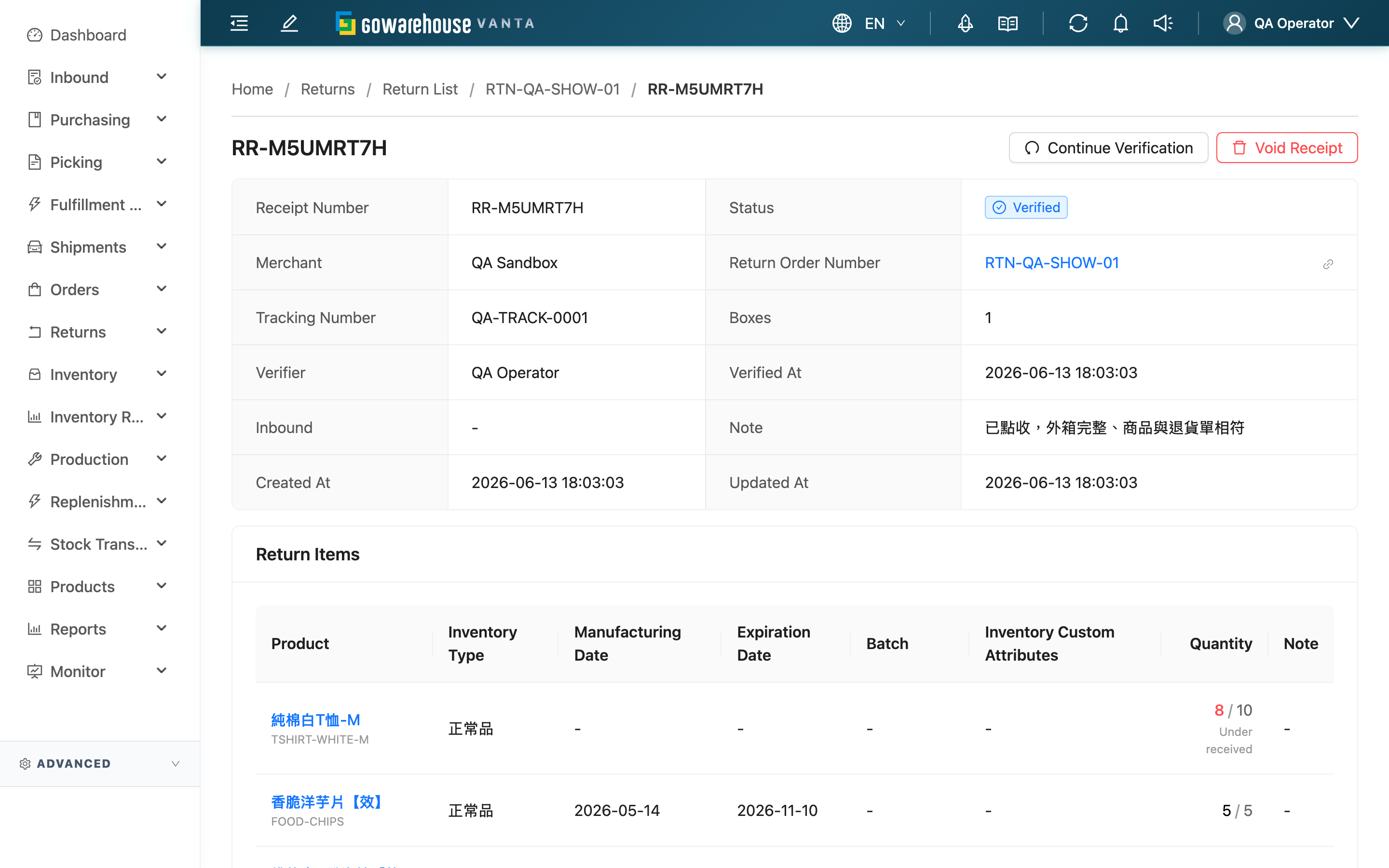
Every time you finish checking a batch of returned goods, the system creates a Receipt Number that records exactly what you received this trip, how much, and each item's batch, expiration date and serial numbers. If a single return order arrives in several batches, each batch gets its own receipt. This page is where you go back to cross-check after verification: confirm whether actual received matches expected, replay the verification video you recorded at the time, look up the scanned serial numbers, and when needed, void the whole receipt or reopen it for re-verification.
Quick jump: Basic Info | Verified Items | Verification Videos | Serial Numbers | Action Buttons
1.1 Basic Info
The top of the page lists the receipt's overall status and source. Most fields are self-explanatory; the following are worth noting:
| Field | Description |
|---|---|
| Status | Where this receipt currently stands. The full meaning of all five statuses is explained under 1.2 Verified Items; this only shows which stage it is on |
| Return Order Number | The return order this receipt belongs to. Click to go back to the return order and see the whole batch plus all its receipts; the arrow icon beside it opens the same return order in a new tab |
| Verifier and Verified At | Who confirmed verification, and when. Empty while not yet verified (Pending/In Progress) |
| Inbound | Once the verified goods are converted into an inbound and put back into stock, an inbound number link appears here — click to view the stock-return details. Shows "-" before it is converted |
1.2 Verified Items
Lists the goods you counted, one row per returned item. The Quantity column is shown as "actual / expected" — expected is the quantity the return order originally planned to receive, actual is what you actually counted and recorded. When the two differ, the actual number is highlighted in red and labelled below as Over received (actual greater than expected) or Under received (actual less than expected).
A receipt has five statuses, reflecting where it sits in the return flow:
| Status | What it means |
|---|---|
| Pending | Created but counting not yet started |
| In Progress | Counting saved midway, not yet confirmed |
| Verified | You have confirmed verification, but goods are not yet back in stock |
| Stored | The verified result has been converted into an inbound; goods are back in stock |
| Canceled | This receipt has been voided and does not count toward stock |
Each row also shows the following data recorded during counting:
| Field | Description |
|---|---|
| Product | The returned product; click to go to the product page when a product record exists; the grey text below is the SKU |
| Inventory Type, Batch, Manufacturing Date, Expiration Date, Inventory Custom Attributes | The stock attributes you recorded for this returned item, which decide which stock batch it joins after conversion |
| Note | A note added to this item during verification, e.g. its physical condition |
1.3 Verification Videos
The video you recorded during verification, used as evidence of the returned goods' actual condition (e.g. damage, quantity mismatch). Click to play what was recorded at the time. If this receipt has no recording, the video section does not appear.
1.4 Serial Numbers
The serial number tab at the bottom lists every product serial number scanned into this receipt, including the serial number itself, its Product SKU and Product Name. Use the search box to filter by serial number, SKU or product name. Only products that require serial number management appear here.
1.5 Action Buttons
The top-right corner offers two action buttons depending on the receipt's current status. Both appear only while the receipt has not yet been converted to an inbound (the Inbound field in Basic Info is empty); once the goods are back in stock, neither is shown.
| Button | When it appears | What happens when clicked | Reversible? |
|---|---|---|---|
| Continue Verification | Status is Verified and not yet converted | Sends the receipt back to Pending, clears the verifier and verified time, letting you re-count this batch; if the related return order had been advanced, it is also pulled back to an unfinalized status | Re-verifying restores it; no returned-item data is lost |
| Void Receipt | Status is Pending, In Progress or Verified, and not yet converted | Voids the whole receipt (status becomes Canceled); this batch no longer counts toward the return order's actual-received total; if it was the last active receipt under the return order, the order is pulled back to an unfinalized status | A voided receipt cannot be restored; you must re-verify the returned goods to record them again |
Both buttons open a confirmation dialog and only run after you confirm. If you cannot see these buttons, first check whether the receipt has already been converted, or ask your supervisor to confirm you have return-handling permission.
2. FAQ
2.1 FAQ
▪ What is the difference between a receipt and a return order?
A return order records "which goods are expected to come back"; a receipt is the result after you actually receive and count them. One return order can map to several receipts — when a customer ships back in batches, each arriving batch is verified once, so under one return order you will see several receipts, each recording part of the goods.
▪ Why do actual and expected quantities differ (red number)?
Red means this item's actual and expected do not match, with Over received or Under received noted below. Actual is whatever you count on the spot, and differing from the return order is normal — the customer may have returned a different quantity than stated, or unregistered items may have been mixed in. This is an honest record; stock is returned based on the actual quantity.
▪ When does this receipt put goods back into stock?
After a receipt reaches Verified, it still needs the return-to-inbound step before the system converts the result into an inbound and the goods officially go back into stock; the status then becomes Stored and an inbound link appears in Basic Info. Conversion is done on the Return to Inbound page, happens only once, and a converted receipt is never put back twice.
▪ I already confirmed verification but received the wrong thing — what now?
As long as the receipt is not yet converted, click Continue Verification in the top-right to send it back to Pending and re-count. Once converted (Stored), the button disappears and you cannot reopen it here — handle it with a stock adjustment instead.
▪ What is the difference between "Void Receipt" and "Continue Verification"?
Continue Verification sends the receipt back for re-counting and keeps this trip's returned goods; Void Receipt voids the whole receipt so this batch no longer counts toward the return total. Use the former to redo a mistaken count, the latter only when the whole verification should not count.
▪ How does the serial number status of returned goods change?
For products requiring serial number management, serials you scan during verification first enter a return-pending state, meaning the customer has returned them but they are not yet back in stock. Only after the receipt is converted and goods go back into stock do these serials become available stock and bind to the new stock batch. The scanned serials are listed on the Serial Numbers tab.
2.2 Notes
⚠️ Important
- Item quantities are based on your actual count, which may differ from the expected quantity on the return order; stock is returned based on the actual quantity.
- Continue Verification and Void Receipt are available only while the receipt has not been converted; once goods are back in stock, the receipt can no longer be reopened or voided here.
- After Void Receipt, this receipt cannot be restored; to still record this batch of returned goods, you must verify again.
💡 Tip: When actual and expected differ (red number) or the verification video shows a problem, click the return order link above to go back to the return order and review the whole batch before deciding the next step.
3. Related Features
| Feature | Description | Link |
|---|---|---|
| Return Order Detail | View the whole return order and all its receipts | Go |
| Return Verification | Scan and count returned goods, generating a receipt | Go |
| Return to Inbound | Convert verified receipts into an inbound and put goods back into stock | Go |