
Create Operator
Table of Contents
1. Features
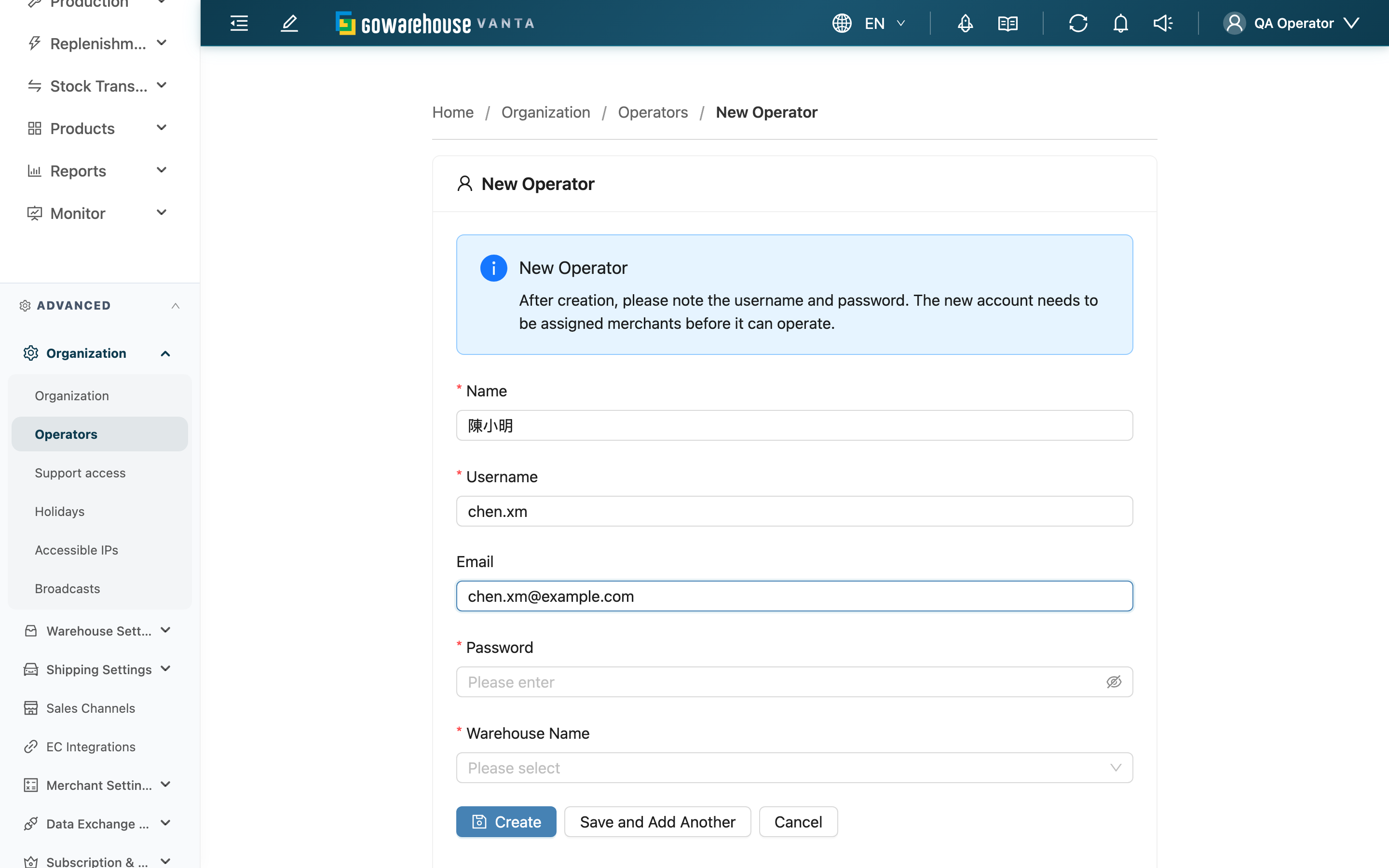
Create Operator lets you build a login for a new member on the spot, with the account and password you assign directly; after creating, hand the credentials to the member. This path suits temporary, contract, or members without an email; if you want the person to set their own password, use "Invite" at the top right of the Operators page instead. A newly created account has no merchants assigned yet — you still need to add accessible merchants and function permissions on the Edit Operator page before the member can actually work.
Quick Jump: Fill in fields | Create and add another
1.1 Fill in fields
Fields marked with * are required
| Field | How to fill | Notes |
|---|---|---|
| *Name | Enter the member's display name | Required |
| *Username | Set the login account | Required; cannot duplicate an existing member within the organization, flagged on submit |
| Enter a contact email | Optional; if entered, must be a valid email format | |
| *Password | Set the initial login password | Required, at least 6 characters |
| *Warehouse Name | Choose the home warehouse from the list | Required; if not found, create the warehouse in Organization Settings first |
1.2 Create and add another
After filling in the fields, there are two ways to submit:
| Button | Behavior |
|---|---|
| Create | Creates the account and goes to that member's Edit Operator page, where you can then assign merchants and permissions |
| Save and Add Another | Creates the account, clears the form, and stays on this page so you can create several members in a row |
When creating a batch of new hires at once, "Save and Add Another" saves you from returning to the list and re-entering this page each time.
2. FAQ
2.1 Questions
▪ What is the difference between adding directly and inviting?
Adding directly means you type the account and password on the spot and hand the credentials to the member; inviting sends a link so the person sets their own password, which you never know. Members without an email, or temporary/contract staff, suit direct creation; use invitation when you want the person to set their own password. The invitation entry is at the top right of the Operators page.
▪ After creating successfully, can the person log in and work right away?
They can log in, but cannot operate on any merchant's data yet. A new account has no merchants or function permissions assigned, so go to Edit Operator next to check accessible merchants and set permissions before they can work normally.
▪ Is it okay to leave Email blank?
Yes, email is optional. Direct creation logs in with the Username, so no email is needed; it only makes notifications and password resets less convenient later.
▪ Why does it say the username is already taken on submit?
Login accounts cannot duplicate within the same organization. Choose a different Username and submit again.
▪ What are the password requirements?
At least 6 characters. After creating, be sure to note the account and password and hand them to the member, since you set this password.
▪ What if the warehouse I want is not in the list?
Create or activate that warehouse in Organization Settings first, then come back and select it.
2.2 Notices
⚠️ Important
- The password for direct creation is set by you, so note the account and password and hand them to the member right after creating — the system will not show them again.
- A new account has no merchants assigned; until merchant access assignment is complete, the member sees no data even after logging in.
💡 Tip: To create several members at once, use "Save and Add Another" to stay on this page and enter them in a row instead of returning to the list each time.
3. Related Features
| Feature | Description | Link |
|---|---|---|
| Operators | Return to the operator list, or use "Invite" to let the person set their own password | Go |
| Edit Operator | Assign merchants, set permissions, and adjust details for the new account | Go |
| Organization Settings | Create or maintain warehouses for the home-warehouse choice | Go |