
Order Details
Table of Contents
1. Features
The order details page is your workbench for handling a single order. Here you see an order's full picture: recipient information, product details, fulfillments and shipments, allocated stock, action history and attachments — and you can hold, correct, cancel, resume, or print this order. The order's current status shows at the top, and all available action buttons appear or hide automatically by status, so you only see what you can do right now.
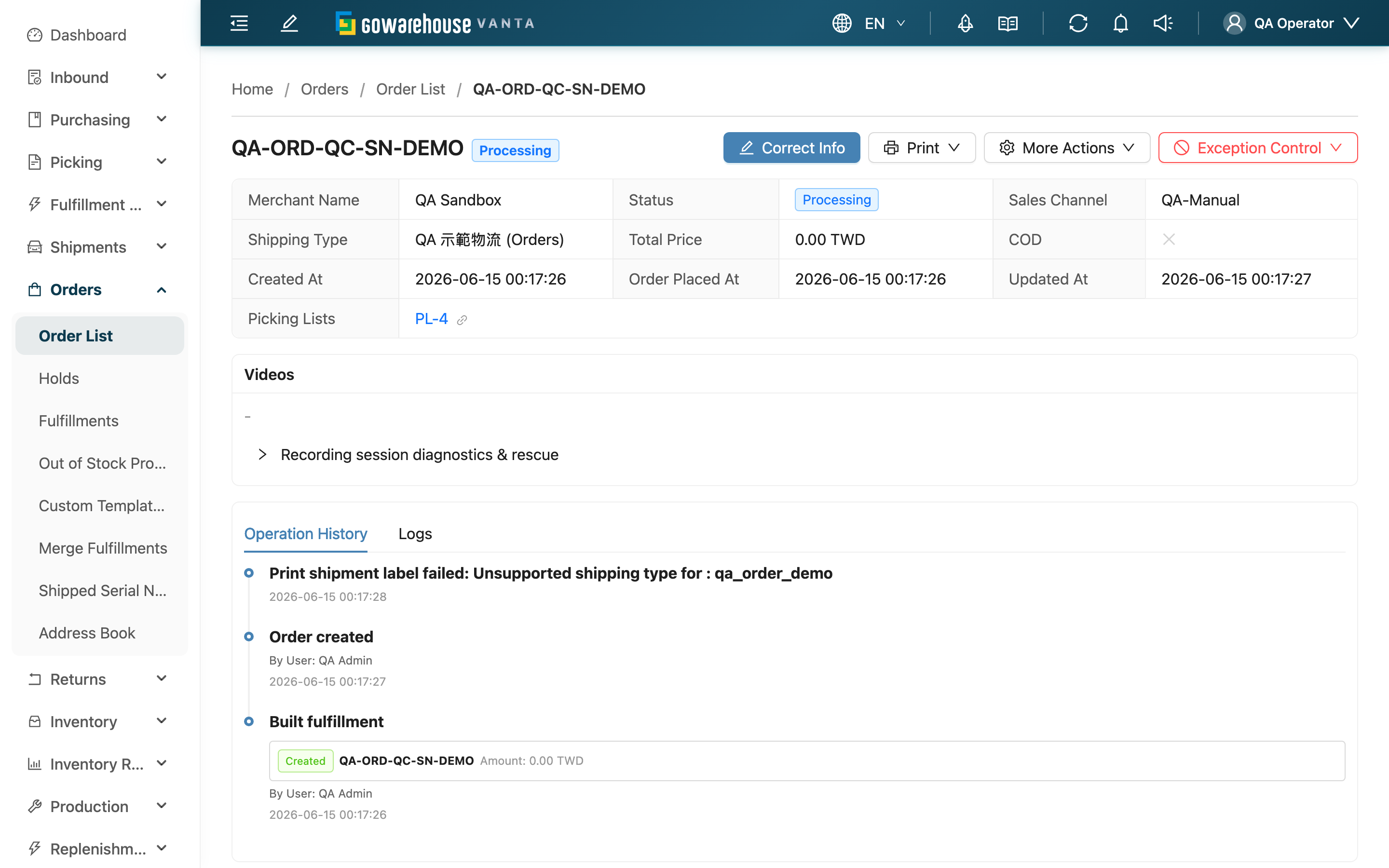
Quick jump: Page sections | Action buttons | Fulfillments and shipments
1.1 Page Sections
The page is split into the basic information at the top and the tabs below. The main sections are:
| Section | Content |
|---|---|
| Receiver Info | Recipient, phone, address, convenience-store code and other delivery info |
| Shipping Info | Shipments and delivery status |
| Items | Order line items: product, quantity, shipped quantity, batch, expiration, allocated stock |
| Fulfillments | Fulfillment list; see Fulfillments and shipments |
| Serial Numbers | Shipped serial number records |
| Parcels | Parcel contents, used to restore QC progress; a parcel the system generated automatically (created when a fulfillment ships without ever being packed) has no consumables |
| Value Added Services | Value-added service items; warehouse staff can add or adjust them here |
| Attachments | Order attachments to upload and download; attachments brought in by an import batch are shown read-only |
| Operation History | Action history, recording who changed what and when |
| Logs | E-commerce platform / integration sync records; failed webhook deliveries can be resent here |
In the "Logs" tab, any webhook delivery showing "Failed" or "Awaiting Retry" gets a "Retry" button on its row, so you can resend without leaving the order or digging through the data exchange log. The row turns to "Awaiting Retry" immediately; the system resends in the background, and that row's delivery status and "Retries" refresh automatically within about ten seconds. If they haven't updated by then (the target timed out, or this attempt failed again and was queued for the next automatic backoff), reload the page to see the latest result. Both your manual resend and the system's next scheduled retry go to the webhook's current URL: after you correct a wrong address, rows still sitting at "Awaiting Retry" switch to the new address on their own, with nothing to handle row by row; rows already at "Failed" are no longer retried automatically and still need this button. Expand the row to see the address each attempt was actually sent to — that is how you tell a target that never answered apart from one you were still calling at a retired address. Delivered webhooks, and rows from platform integrations or the Partners API, do not get this button. If a webhook fails 10 times in a row the system deactivates it and notifies you; while it is deactivated none of its rows show this button — reactivate it on the webhook settings page (reactivating resets the consecutive-failure count) and the button comes back.The action requires the "Logs - Write" permission.
If the order is held, a hold warning at the top of the page lists all hold reasons and who placed the hold.
1.2 Action Buttons
The action buttons at the top appear based on the order status. What each button does and when it's available:
| Action | What it does | When available |
|---|---|---|
| Edit | Open Edit Order to change recipient, products, shipping, etc. | Cancelable / canceled / partially shipped, and no fulfillment a picker is actively working on |
| Correct Info | Correct only address, phone, convenience-store code and other fields that don't affect picking | When the order is held, or can be held (it auto-holds first, then corrects) |
| Hold Order | Hold the order to pause shipping | When the order can be held and has no active hold |
| Release Holds | Release the hold to resume the normal flow | When the order is currently held |
| Cancel Order | Cancel the order | When the order is cancelable (partially shipped and completed cannot be canceled) |
| Resume Order | Recover a canceled order and reallocate stock | When the order is canceled |
| Recheck Stock | Reallocate against current stock | Pending / allocated / partially allocated / out of stock / partially shipped |
| Finalize Draft | Convert a draft to a formal order and start allocating | When the order is a draft |
| Duplicate Order | Copy an identical new order, often for reshipping; a copy of a platform-imported order is no longer linked to the platform — see Copied orders are no longer linked to the platform | Any time |
| Generate PDF | Generate and download the fulfillment-sheet PDF | When the order has fulfillments |
| Reprint Shipping Label | Upload a shipping label | When there is a fulfillment with a reprintable label |
The full side effects and reversibility of change actions with preconditions (hold / cancel / correct / resume) are under Order List — Batch actions; the single-order actions here follow the same rules as the list's batch actions.
⚠️ Correcting info auto-holds first
When the order is not yet held but can currently be held, clicking "Correct Info" automatically holds the order first, then lets you edit the delivery info. This prevents the goods from being picked while you change the address. Correcting can only change address, phone, email, convenience-store code, note, and delivery / scheduled dates — fields that don't affect picking content. It cannot change products.
⚠️ Copied orders are no longer linked to the platform
Once an order imported from an e-commerce platform is copied, the copy leaves the platform behind and becomes the warehouse's own order. What that means in practice:
- Later platform-side changes land on the original order only: when the buyer changes the address or items on the platform, or the platform cancels the order, the sync updates the original order and never touches the copy. To change the copy, edit it here with "Edit" or "Correct Info".
- Shipping the copy does not report the tracking number back to the platform: the original order still reports as usual; the copy does not. This prevents two orders pointing at the same platform order, where the one shipped later would overwrite the earlier tracking number. Because no request goes to the platform either, a copy that still carries a platform-exclusive shipping type (one the platform ships for you) cannot obtain a tracking number at all: switch its shipping type to one of the warehouse's own carriers, request the tracking number again, and then pass that number on to the buyer yourself.
- The copy still carries the same e-commerce account: platform-specific settings such as the shipping type need it to resolve their names. The "EC Account" field on the order detail page gains a "Not linked to platform" tag so you can tell it apart from orders that are genuinely still syncing; orders still linked to the platform do not carry this tag.
1.3 Fulfillments and Shipments
An order maps to one or more fulfillments — the work order the warehouse actually uses to pick and ship. In the fulfillments tab, warehouse staff can do the following per fulfillment:
- Complete Shipment: Mark an in-progress fulfillment complete (ship it).
- Change: Change this fulfillment's shipping method.
- Split: Split one fulfillment into several by out-of-stock items or specified products.
- Merge: Select multiple fulfillments of the same status (allocated or out of stock) and merge them into one, handled under Merge Fulfillments.
Each fulfillment shows its allocated stock, line items, shipments and status. If a fulfillment is shared with other orders (merged), the related orders shipping together are listed.
Complete Shipment's packing check and auto-pack: If this fulfillment has never been packed at all, the system automatically creates one parcel containing the products and quantities actually picked, with no weight, dimensions, or consumables recorded. If it has already been packed but some picked products are still not in any parcel, the system blocks completion and lists which products are short and by how many — return to the QC station to finish packing, or put the unpacked products back first, then try again. A fulfillment that was short-picked but fully packed (packed everything it actually picked) is not affected and ships normally: the check compares against the quantity actually picked, not the quantity originally expected. The outbound QC fee follows whether this fulfillment was actually packed earlier: one already packed at the outbound QC station is charged, one that was never packed and only got the parcel auto-created by this button is not — an auto-created parcel is a system record, it does not count as QC.
2. FAQ
2.1 FAQ
▪ I can't find the "Edit" button — why can't I edit?
An order can be edited only when it is "cancelable / canceled / partially shipped" and has no fulfillment a picker is actively working on. If the order is in progress (Processing) or completed, the edit button does not appear. You can first use "Correct Info" to correct address-type fields.
▪ What's the difference between "Correct Info" and "Edit"?
Correct can only change delivery info (address, phone, convenience-store code, note, delivery dates, etc.); it doesn't touch products or rebuild fulfillments, and suits in-progress or partially shipped orders that still need an address change. Edit can change products and all fields, but rebuilds the unshipped fulfillments.
▪ Why does the order get held when I click Correct?
This is by design. If the address isn't held while you correct it, the goods may be in the middle of picking and the change comes too late. The system auto-holds with reason "Manual Hold"; just release it after correcting.
▪ How do I reship an identical order?
Use "Duplicate Order" to copy an identical new order, commonly for reshipping or resending. If the original came from an e-commerce platform, the copy no longer follows the platform — see Copied orders are no longer linked to the platform.
▪ After copying a platform order, does the copy follow address changes or cancellations made on the platform?
No. Platform-side address changes, item changes, and cancellations apply to the original order only; the copy is already detached from the platform, so every change to it has to be made in the system. Orders whose "EC Account" field carries the "Not linked to platform" tag are exactly these.
▪ Why can't I find the tracking number on the platform after shipping a copy?
This is by design. A copy does not report its tracking number back to the platform — with two orders pointing at the same platform order, the one shipped later would overwrite the earlier tracking number and the original order's tracking number would disappear.
For the same reason, a copy never asks the platform for a tracking number either. If the copy still carries a platform-exclusive shipping type, requesting a tracking number fails (the picking wave records one allocation failure): switch that order's shipping type to one of the warehouse's own carriers, request the tracking number again, and then take it from the "Fulfillments" tab and pass it on to the buyer yourself.
▪ How do I print the uploaded label or fulfillment sheet for this order?
Use "Generate PDF" to generate the fulfillment-sheet PDF; to add a shipping label, use "Reprint Shipping Label".
▪ What happens when I cancel this order?
Canceling releases allocated stock and cancels cancelable fulfillments, but the fulfillment a picker is actively working on is kept. If this order is merged with other orders for shipping, the system first reverts the merge into separate fulfillments before canceling, leaving the other orders unaffected. The shipped portion cannot be undone.
▪ What changes can I see in the order details history?
"Operation History" records the order's key changes: holds and releases, cancels and resumes, item edits, fulfillment rebuilds, shipment deletions and more — including who did it and when, for later tracing.
▪ Clicking "Complete Shipment" shows "Some items are not fully packed" — what do I do?
This means the fulfillment has already been packed, but some picked products are still not in any parcel; the message lists which products and how many are short. Return to the QC station and pack the remaining products, or put the unpacked products back, then click complete again.
▪ The order was short-picked — can the fulfillment still be completed?
Yes. As long as everything actually picked is already packed (fully packed), a short pick is a normal, supported shipping outcome and is not blocked. Completion is only blocked when the fulfillment has already been packed but some picked products are still not in any parcel.
2.2 Notices
⚠️ Important Notice
- "Correct Info" auto-holds the order when it's holdable; remember to release the hold after correcting, or the order won't continue shipping.
- Canceling an order releases allocated stock and cancels cancelable fulfillments; the shipped portion cannot be undone.
- When correcting the delivery info of a merged order (one that shares a fulfillment with other orders), the change applies to the related orders shipping together; the page warns which orders are affected before you proceed.
💡 Tip: Actions you don't see are usually disallowed by the current status, not a permission issue; just check the order status first. If a feature you should have is genuinely missing, contact your administrator to confirm permissions.
3. Related Features
| Feature | Description | Link |
|---|---|---|
| Order List | Back to the order list | Go |
| New Order | Create a new order manually | Go |
| Merge Fulfillments | Merge fulfillments of the same status | Go |
| Holds | Manage held orders in one place | Go |