
Return to Inbound
Table of Contents
1. Use Cases
Quick Links: Put Returns Back on the Shelf | Combine Multiple Returns | Warehouses with Auto-Convert
Scenario 1: Checking Is Done — Get the Goods Back into Stock
Situation: A batch of returns was scanned and counted at "Return Check". The goods are still sitting in the receiving area, but the stock numbers haven't moved — checking only confirms "what actually arrived"; the quantities aren't back in sellable stock yet.
Use this feature: The last step of the return process is "convert to inbound" — it turns verified receipts into an inbound record and adds the quantities back into stock. See Convert Steps.
Result: The system creates an inbound record and opens its detail page automatically. The returned quantities go back into stock, and only then is the return truly finished.
Scenario 2: Several Returns of the Same 貨主, Posted in One Go
Situation: The same 貨主 had several returns arrive and get checked one after another today. Converting them one by one means repeated put-away work.
Use this feature: The list is grouped by 貨主, so you can tick several receipts within one group and combine them into a single inbound record; quantities of identical products with identical inventory attributes are summed automatically. See What Happens After Converting.
Result: Multiple returns are consolidated into one inbound record, fewer records to open, and stock entries map back more clearly.
Scenario 3: The Warehouse Has Auto-Convert, So This Page Is Usually Empty
Situation: Your warehouse is set to convert to inbound automatically after checking. This page is usually empty, and you want to confirm nothing was missed.
Use this feature: In auto-convert warehouses, the moment checking is confirmed the system converts for you, so this page lists only receipts that still need manual conversion. An empty list means there are no pending returns. See Pending List.
Result: You can tell at a glance whether any returns are stuck and not yet posted; if none, every return is already back in stock.
2. Features
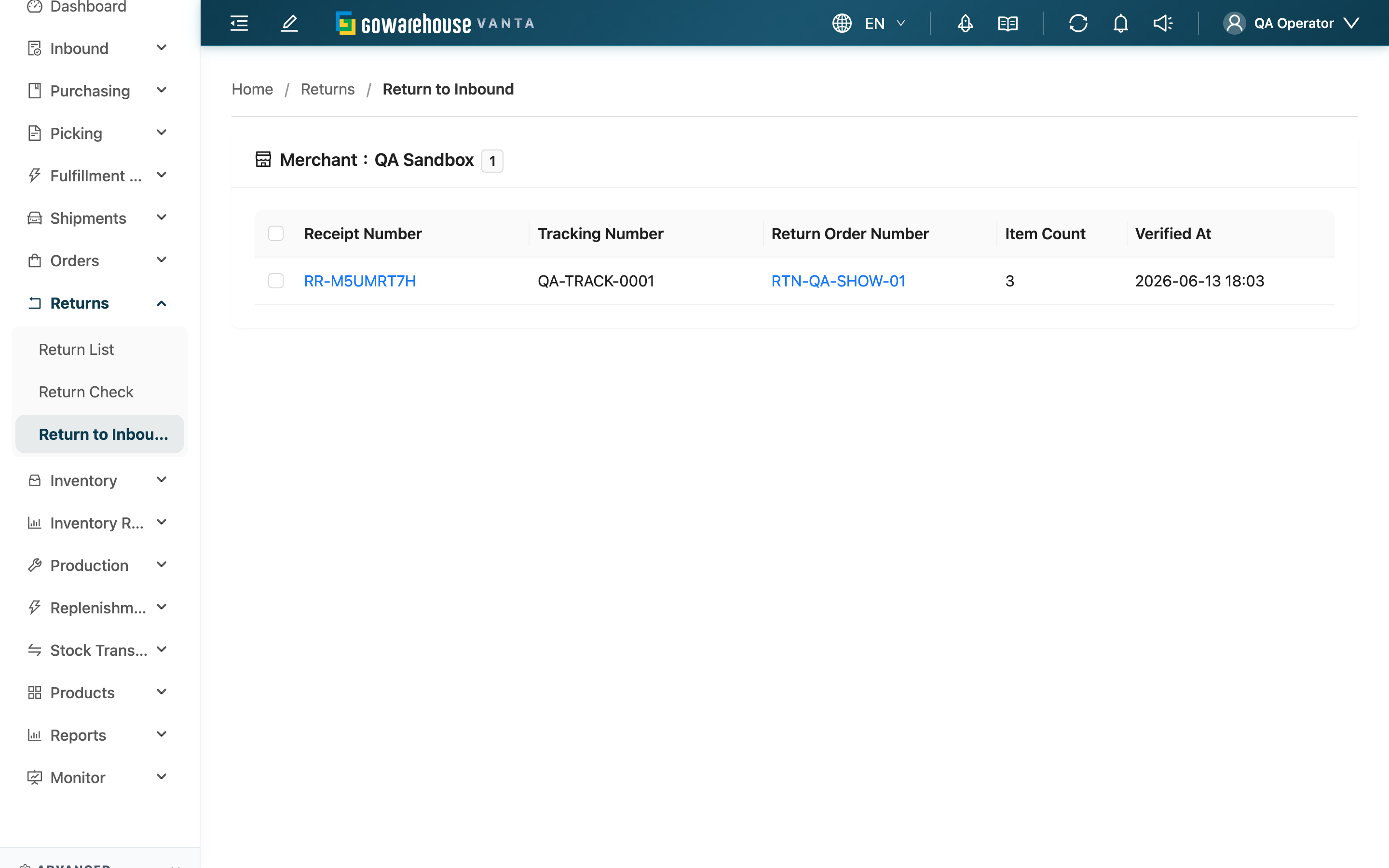
Return checking only confirms "what actually arrived" — the quantities are not back in sellable stock yet. On this page you convert verified receipts into inbound records, the final step of the return process. The list gathers every receipt in your current warehouse that is "verified but not yet converted". You can tick several at once, and multiple returns of the same 貨主 can be combined into one inbound record.
Quick Jump: Pending List | Convert Steps | What Happens After Converting
2.1 Pending List
The list is grouped by 貨主 and only shows receipts in your current warehouse whose status is "Verified" and not yet converted:
| Column | Description |
|---|---|
| Receipt Number | The receipt number generated during checking; click to open the related return order's details |
| Tracking Number | The logistics tracking number of the return package |
| Return Order Number | The related return order; click to view details |
| Item Count | Number of product lines on the receipt |
| Verified At | When the checking was completed |
2.2 Convert Steps
▸ Tick the Receipts to Convert
Tick one or more receipts. When ticking several, they must belong to the same 貨主 — mixing 貨主s shows a reminder to convert them separately (an inbound record can only belong to one 貨主).
▸ Review the Details and Confirm
Click "Convert to Inbound" at the bottom. The confirmation window summarizes what you are about to convert:
| Item Shown | Description |
|---|---|
| Receipts | How many receipts you selected |
| SKUs | How many distinct products after merging |
| Total PCS | Total pieces after merging |
| Product Details | The merged received quantity per product |
After reviewing, you may add a note, then click "Convert to Inbound" again to confirm. The system creates the inbound record and opens its detail page automatically.
2.3 What Happens After Converting
Converting is an irreversible action — always review the details and total pieces before confirming.
- Creates an inbound record: The system automatically creates a "sales return" type inbound record, merging the received quantities of identical products with identical inventory attributes (inventory type, expiry date, batch, custom attributes) across the selected receipts into one line.
- Receiving completes automatically: The goods were already counted item by item and recorded on video during checking, so the inbound record completes receiving and put-away automatically — no second inbound verification is needed, and stock quantities update right away.
- Statuses advance: The converted receipt's status becomes "Stored"; once every active receipt of a return order is converted and its receiving is closed, the return order becomes "Done".
- Preconditions for converting: Only receipts that are "Verified" and not yet converted can be converted; their return order must be "Partial Received" or "Received".
📌 Note: Splitting "checking" and "convert to inbound" into two steps lets returns that arrive in several packages be checked individually and then consolidated into one inbound record, while keeping stock records clearly traceable to each actual delivery. Some warehouses are set to convert automatically after checking, so this page then shows no receipts to handle manually.
3. FAQ
Quick Jump: FAQ | Important Notes
3.1 FAQ
▪ Why is the list empty?
There are no "verified but not yet converted" receipts in your current warehouse. Checking may not be finished and confirmed yet, the receipts may already be converted, or your warehouse is set to convert automatically (posted to stock as soon as checking is done). If returns really are pending, complete the checking at "Return Check" first.
▪ Why can't I find a particular receipt?
Check three things: its status is "Verified", it belongs to your current warehouse, and it hasn't already been converted. If any one of these fails, it won't appear on this page.
▪ Can I tick receipts of different 貨主s and convert them together?
No. An inbound record can only belong to one 貨主. When you mix 貨主s, the system reminds you to convert them separately.
▪ Do I still need inbound verification after converting?
No. The goods were counted item by item and recorded on video during return checking, so the inbound record created by the conversion completes receiving and put-away automatically and stock quantities update right away.
▪ If several receipts share the same product, are lines listed separately or merged?
Merged. When converting, lines with the same product and identical inventory attributes (inventory type, expiry date, batch, custom attributes) are summed into one inbound line; if any attribute differs, they are listed separately.
▪ Can a conversion be undone?
No. After converting, both the receipt and the return order are completed and cannot be reversed within the return features. To correct an error, contact your supervisor and follow the inventory adjustment process. Before confirming, carefully review the product details and quantities in the confirmation window.
▪ Where can I view the inbound record?
After a successful conversion the system opens the new inbound record's detail page automatically; you can also find it later in the Inbound List.
3.2 Important Notes
⚠️ Important
- Conversion cannot be undone — review the product details and Total PCS before confirming
- Only receipts of the same 貨主 can be converted in one go
- The list only shows receipts in your current warehouse
- Finishing the checking does not finish the return — come back here to convert, or the stock quantities will not update
💡 Tip: If your warehouse already uses auto-convert, you normally don't need to open this page; only convert manually when you see receipts waiting here.
4. Related Features
| Feature | Description | Link |
|---|---|---|
| Return Check | Complete checking first so receipts appear on this page | Go |
| Return List | Track the overall progress of return orders | Go |
| Return Order Detail | View each receipt and the cumulative received quantities | Go |
| Inbound List | View the inbound records created by conversion | Go |