
Shipment List
Table of Contents
1. Use Cases
Quick Links: Handling returns & problem packages | Tracking down print failures | Answering delivery-status inquiries
A shipment is the delivery record the warehouse hands to a logistics provider, holding the Tracking Number and the delivery Status reported back by the carrier. Once an order ships, everything that follows — delivery, sign-off, returns — happens at the carrier, beyond the warehouse's reach. This list pulls the delivery progress of every carrier and every 貨主 into one screen, so the warehouse can stay on top of package status and handle exceptions without logging into each carrier's portal one by one.
Scenario 1: Handling logistics returns and problem packages
Situation: The carrier reports packages that failed delivery or were returned because the recipient didn't pick them up (Return in Transit, Returned to Sender), or Problem packages in transit. The returned physical packages keep arriving back at the warehouse, and if no one watches, they pile up in the receiving area.
Use this feature: Use the Status filter to pin down the exception statuses and pull out every return and problem package that needs attention in one go. When a returned package arrives, you can also scan the Barcode on it to jump straight to the matching shipment.
Result: You get a list of everything "currently stuck in an exception state," so you can notify the relevant 貨主 for follow-up or arrange returned goods to be put away, preventing packages from piling up.
Scenario 2: Tracking down print failures that block shipping
Situation: After picking, the carrier label doesn't generate successfully (toner, carrier system outage, label format issue), so those few boxes are stuck in the warehouse and miss the carrier's daily pickup cutoff.
Use this feature: Use the Status filter to pin down "Print Failed", or look at the Label Status showing "Print Failed", to find exactly which boxes never got a label.
Result: You precisely identify the stuck packages, go back to the order to regenerate the label or contact the carrier, and get the goods out before the pickup cutoff.
Scenario 3: Answering delivery-status inquiries from merchants or recipients
Situation: A 貨主 or recipient asks "where is my package, when will it arrive," and you need to give the tracking number and current status right away.
Use this feature: Type the Order Number or Tracking Number in the search box to call up all shipments for that order — an order split into multiple batches or boxes maps to several shipments, and the list shows them all at once.
Result: You can directly tell the other party the current delivery Status and Tracking Number, and have them track it on the carrier's website, without logging into each carrier's portal one by one.
2. Feature Guide
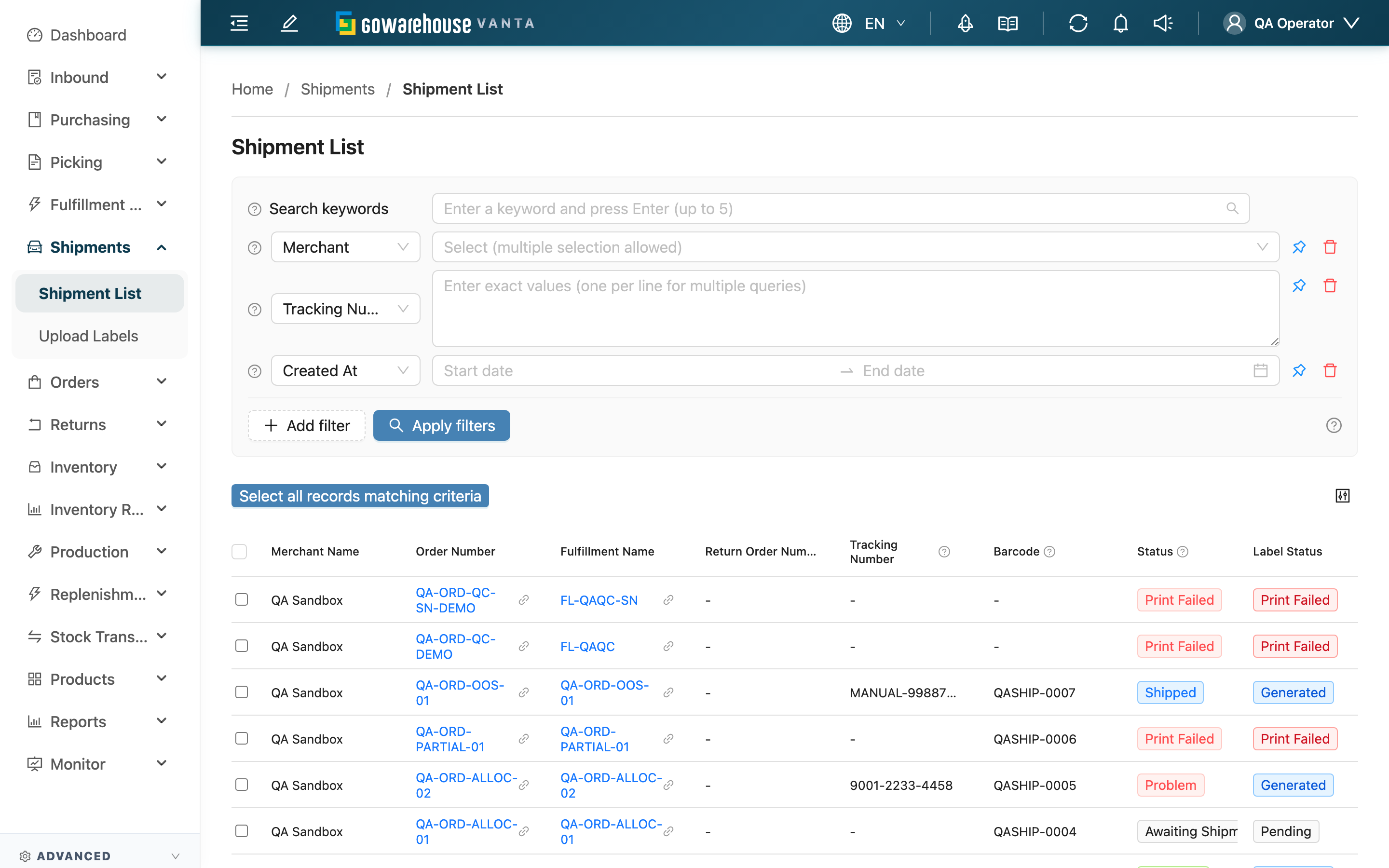
The Shipment List is the warehouse's entry point for tracking delivery progress after goods ship. Each shipment represents one handoff to a carrier; the delivery Status syncs from the carrier and updates automatically — it cannot be edited by hand. Here, warehouse staff check status, find exception packages, and Export data for carrier reconciliation or shift handover; deleting and restoring individual shipments is done on the order detail page. You only see shipments for your current warehouse and the 貨主s you are authorized for.
Quick Jump: Search & Filter | List Columns | Batch Actions
2.1 Search & Filter
The search box supports Tracking Number, Barcode, Order Number, Fulfillment Name, and Return Order Number. It matches by prefix — typing "A01" finds "A01", "A0123", and anything else starting with A01; press Enter, comma, or space to enter multiple keywords at once (up to 5).
Click "Add filter" to stack the conditions below. Most are self-explanatory by name (the various document numbers); only those needing extra explanation are listed:
| Filter | How to use |
|---|---|
| 貨主 | Show only shipments for a specific 貨主; multi-select |
| Status | Pin down a delivery stage or exception; the main entry for finding returns, problem packages, and print failures; multi-select (full status list under List Columns) |
| Shipping Type | Filter by carrier, e.g. when reconciling with a specific carrier; multi-select |
| Created At | Time range when the shipment was created (usually = when it shipped) |
| Updated At | Time range of the last status change; useful for finding "recently changed" shipments |
2.2 List Columns
The Order Number, Fulfillment Name, and Return Order Number columns are clickable and jump to the corresponding document detail. Of the rest, Status and Label Status need the most explanation; see below.
Click "Configure columns" at the top-right of the table to customize which columns show; adjust rows per page at the bottom of the list.
Shipment Status
The delivery Status updates automatically after the carrier reports it, shown as a colored tag by delivery stage:
| Status | Color | Description |
|---|---|---|
| Awaiting Shipment | Gray | Shipment created; package not yet handed to the carrier |
| Print Failed | Red | The label didn't generate / wasn't obtained — effectively not yet shipped |
| Shipped | Blue | Goods handed to the carrier |
| In Transit | Blue | Package is on its way |
| Arrived at Hub | Blue | Package reached the carrier's transit hub |
| Arrived at Destination | Green | Reached the store or pickup point; awaiting recipient pickup / sign-off |
| Received | Green | Recipient has signed for it |
| Return in Transit | Red | The carrier is returning the package (in transit or already at the hub) |
| Returned to Sender | Orange | Recipient didn't pick up; package returned to the sender |
| Problem | Red | An issue occurred during delivery; the carrier reported an exception |
Label Status
Label Status shows the carrier label's generation progress — a separate thing from the delivery Status:
| Label Status | Description |
|---|---|
| Pending | Label generation hasn't started |
| Processing | Label is being generated with the carrier |
| Generated | Label generated; downloadable and printable from the order detail |
| Print Failed | Label generation failed; needs reprocessing |
2.3 Batch Actions
The only batch action on the list is "Export", which exports the selected shipments to Excel — commonly used for carrier reconciliation or shift-handover records.
Export contents: Tracking Number, Order Number, quantity, Merchant Name, recipient name, address, phone, Shipping Type, Status, COD amount, mode (forward / reverse logistics), reference number, logistics history, arrival date.
To export everything matching your filters (not just the current page), first check the header checkbox, then click "Select all records matching criteria" to select all, and finally click "Export". The file downloads automatically, and is also available from the "Background Tasks" panel via "Download".
💡 Tip: The Shipment List has no delete button. To delete or restore an individual shipment, go to "Order List", open the order detail, and work in the shipment section (see FAQ).
3. FAQ
Quick Jump: FAQ | Important Notes
3.1 FAQ
▪ How is a shipment different from a Fulfillment?
A Fulfillment is the warehouse's outbound work order built from an order, recording which goods to ship this time; a shipment is the delivery document handed to the carrier, recording the Tracking Number and delivery Status. One Fulfillment may map to multiple shipments (see the next question).
▪ Why does one order have multiple shipments?
Three common cases: split shipping (some items out of stock, ship what's in stock first), multi-box delivery (goods exceed a single package's limit, split into several boxes), and reshipping (first delivery failed and returned, ship again after correction). Search by Order Number to see all shipments for that order.
▪ What's the difference between Tracking Number and Barcode?
The Tracking Number is the tracking code from the carrier, used for external tracking on the carrier's website; the Barcode is the system's internal identifier — scan the package to quickly locate this shipment, which is especially handy when handling returns.
▪ Can I edit the delivery status by hand?
No. The delivery Status syncs automatically after the carrier reports it, and is pushed back to the sales platform to update its status. Editing it by hand would make it inconsistent with the carrier and the platform, so the system doesn't allow changing status here — this list is for "viewing status," not "changing status."
▪ The delivery status hasn't updated for a while — what do I do?
Update frequency depends on the carrier. If it stays stuck, first confirm the Tracking Number is correct, then check it on the carrier's website; if the carrier site also shows nothing or a discrepancy, contact that carrier's support.
▪ Can I delete a shipment? What happens if I do?
The Shipment List page has no delete function. Go to "Order List", open the order detail, and in the shipment section click "Delete"; deletion is a soft delete, so a mistaken deletion can be undone with "Restore" in the same place. A shipment whose label is still "Processing" shows no delete button — you must wait until the label finishes generating or fails before deleting.
Deleting only removes this record in the system; it does not cancel a package already handed to the carrier. To intercept an already-shipped package, contact the carrier, wait for the package to be returned, or have the recipient refuse it.
▪ Why can't I find a particular shipment?
Check in order: clear all filters and search again; confirm you haven't limited to a specific 貨主 (the shipment may belong to another 貨主); confirm the Tracking Number or Order Number is entered correctly (prefix match, so type from the start of the number); confirm the order has shipped and created a shipment.
▪ Why can't I see some 貨主s' shipments?
The list only shows shipments for your current warehouse and the 貨主s you are authorized for — this is the system's data isolation. To switch to another warehouse or get access to more 貨主s, contact your administrator.
3.2 Important Notes
⚠️ Important Reminders
- Returns need timely handling: "Problem", "Return in Transit", and "Returned to Sender" mean a package has an exception or is being returned to the warehouse. Leaving them causes packages to pile up — we recommend a daily sweep using the Status filter.
- Deleting is not intercepting: Deleting a shipment only removes the system record; a package already handed to the carrier still gets delivered, and must be intercepted separately by contacting the carrier.
- Limited data scope: You can only see shipments for your current warehouse and authorized 貨主s; always confirm the correct 貨主 and document before taking action.
💡 Tip: Search matches by prefix and accepts multiple keywords (up to 5); to export an entire filtered batch, remember to click "Select all records matching criteria" before exporting, otherwise only the items checked on the current page are exported.
4. Related Features
| Feature | Description | Link |
|---|---|---|
| Order List | Create, delete, and restore shipments and download labels in order detail | Go |
| Upload Labels | Batch upload carrier labels and auto-create shipments | Go |
| Return List | Manage return orders and reverse-logistics shipments | Go |