
Edit Stock Adjustment
Table of Contents
1. Features
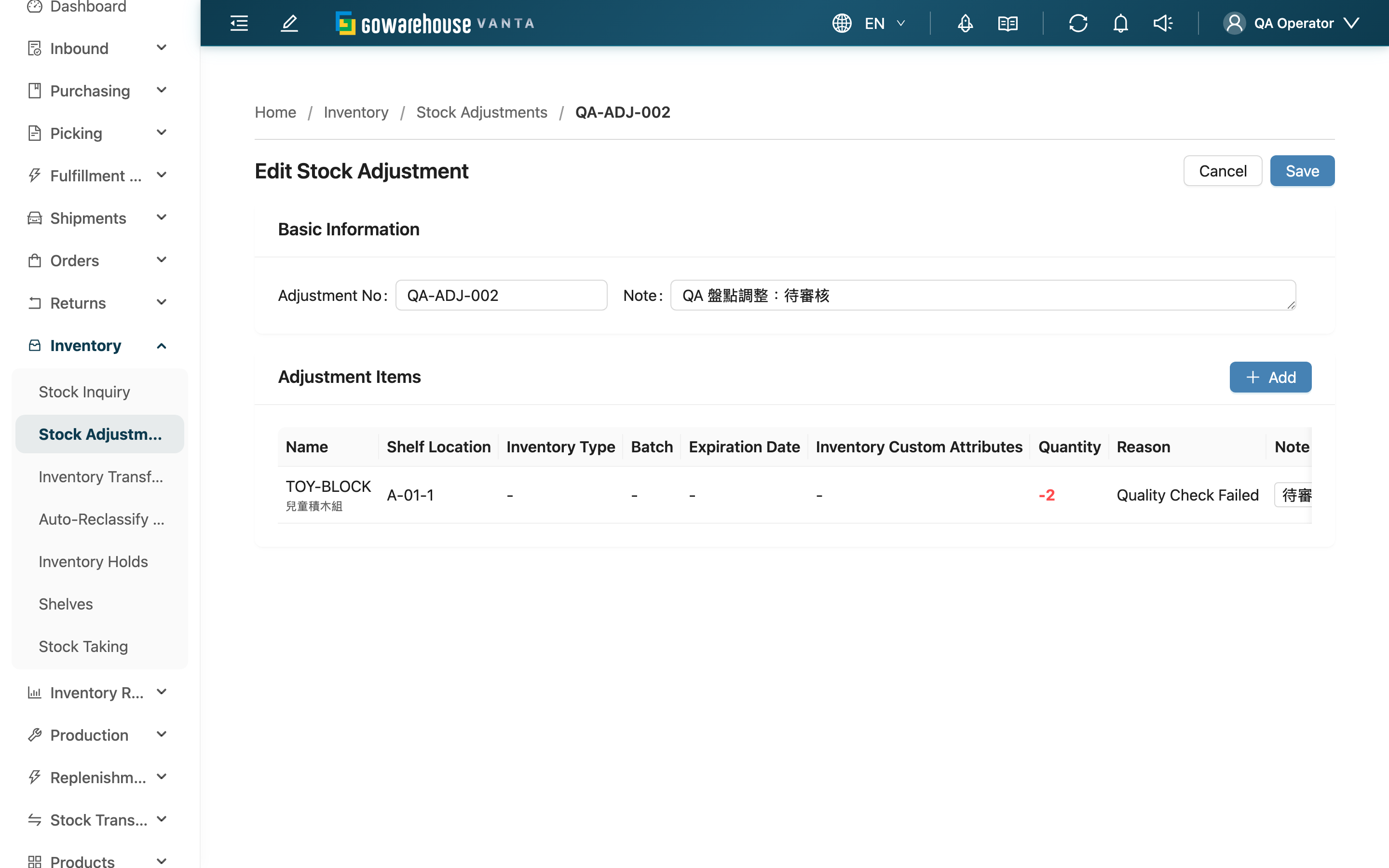
After an adjustment is submitted but before it's approved, you can come back and edit it — change the number, the note, or add and remove adjustment items. Once approved, stock has truly changed and this adjustment can no longer be edited.
Quick jump: When it can be edited | Edit Basic Info | Add or Remove Items | Save
1.1 When it can be edited
Only adjustments in "Pending" status can be edited, and stock-edit permission is required. Adjustments that are approved ("Completed") or rejected ("Rejected") can no longer be modified. The "Edit" button only appears on the detail page while the adjustment is pending.
1.2 Edit Basic Info
| Field | How to fill |
|---|---|
| Adjustment No. | You can rewrite the number; leave it blank on save to keep the original |
| Note | Edit the note for the whole adjustment |
1.3 Add or Remove Items
The items area brings out all the adjustment's original items. You can:
- Remove: delete items you no longer want to keep.
- Add: click "Add" to pick inventory, enter actual quantity and reason, and add it — the same as Create Adjustment.
Each item still needs an "Reason"; an item missing a reason will be blocked at the approval step.
1.4 Save
Click "Save" to store it; the system replaces the original items entirely with the items currently on screen (removed ones are gone, added ones are kept), and after saving you return to the adjustment list. Saving only updates the content — it does not change stock; stock still changes only after approval.
2. FAQ
2.1 FAQ
▪ Why is there no "Edit" to click on this adjustment?
Only "Pending" status can be edited. If it has already been approved or rejected, it can no longer be changed; an approved one can only be corrected by creating a separate reversing adjustment. Not seeing the button may also mean you lack stock-edit permission — ask your administrator to confirm.
▪ Can I save after removing all the items?
No. An adjustment must keep at least one item with a difference to be saved, so keep or add at least one.
▪ Can I switch to a different merchant's product while editing?
No. All items in a single adjustment must belong to the same merchant; adding inventory from a different merchant is blocked on save.
▪ Does stock change immediately after I save?
No. Editing only updates the adjustment's content; stock changes only after the adjustment is approved.
2.2 Notes
⚠️ Important
- Saving replaces everything: on save, the system overwrites the original list with what's currently on screen, so any item not on screen disappears — confirm they're all there before saving.
- Only pending can be edited: once approved, the adjustment is locked; to correct it, you can only create a separate reversing adjustment.
3. Related Features
| Feature | Description | Link |
|---|---|---|
| Stock Adjustments | Back to the adjustment list | Go |
| Inventory List | View a product's current stock across locations | Go |
| Inventory Movements | View the actual stock changes after approval | Go |