
Out of Stock Products
Table of Contents
1. Use Cases
Quick Links: Triage Orders Stuck on Shortage | Replenish or Wait for Inbound | Report Shortages to the Merchant
Scenario 1: See Which Orders Are Stuck on Shortage at the Start of the Shift
Situation: You come on for the morning shift and a batch of orders failed stock allocation and can't ship. Before planning the day's work, you need to know which products are short, how much is short, and how many orders are affected.
Use This Feature: This page groups every out-of-stock order line by product, so one row is one short product, showing its Shortage Quantity and Order Count at a glance. See List Columns for what each column means.
Result: You grasp the full shortage picture for today and know which products, once replenished, release the most orders.
Scenario 2: Decide Whether to Replenish or Wait for Inbound
Situation: A product is short, but the merchant has already created an inbound order and stock is on its way. You're not sure whether to just wait for it to be shelved or to ask the merchant for more.
Use This Feature: Compare the In-Transit Qty against the Shortage Quantity on the same row — if in-transit covers the shortage, wait for inbound; if not, ask for more. See List Columns for the definitions.
Result: The decision is based on in-transit quantity, avoiding duplicate orders and missed replenishment.
Scenario 3: Report the Shortage List Back to the Merchant
Situation: Orders are stuck on shortage long-term, and you need to compile which products are short, and by how much, for a specific merchant or sales channel, then report back so they can follow up or adjust the orders.
Use This Feature: Use Search & Filters to narrow to a specific Merchant Name or Channel, leaving only the matching short products; Order Details lists every affected order.
Result: You get a shortage list organized by merchant/channel that maps cleanly to each affected order when you report it.
2. Features
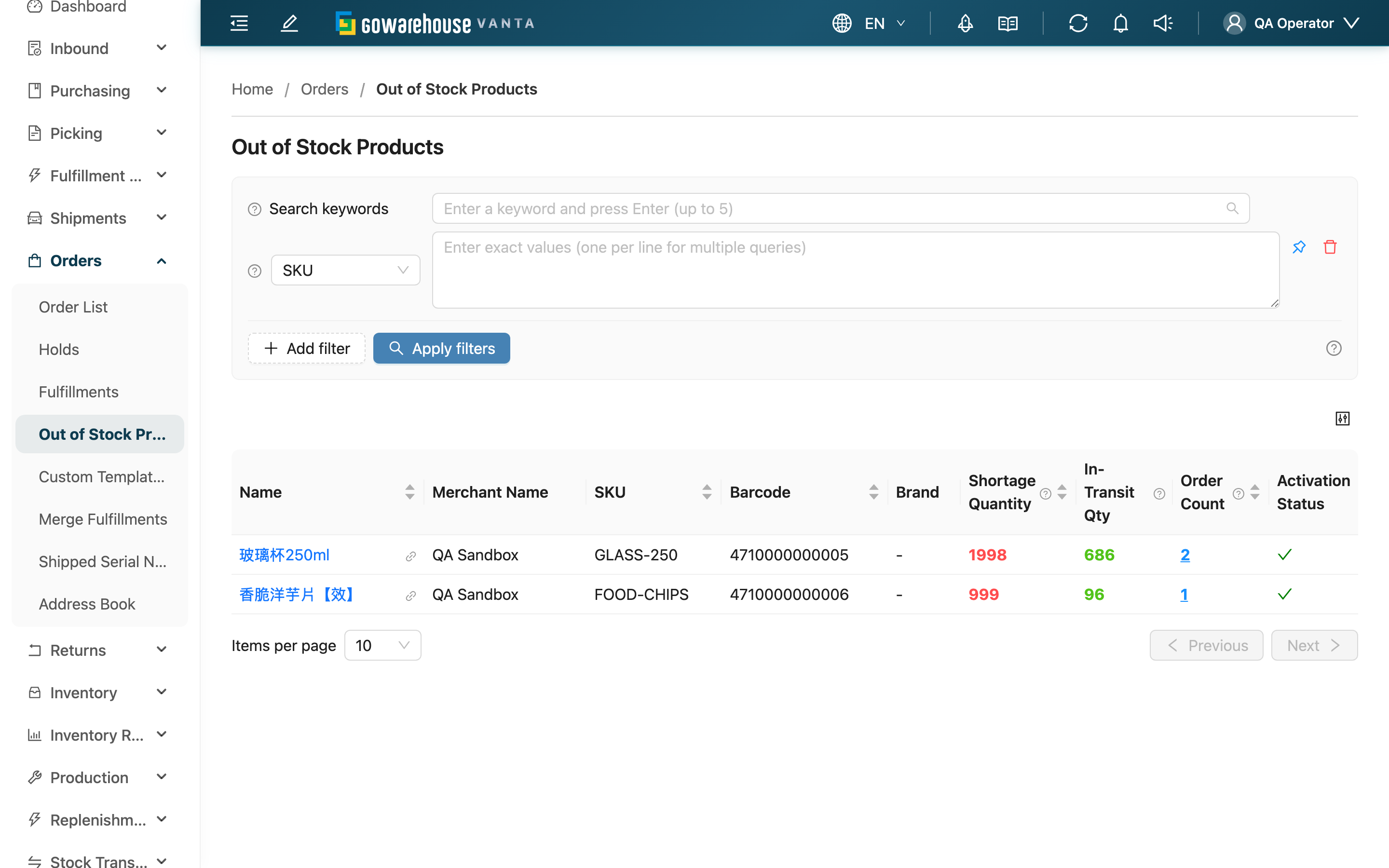
When an order fails stock allocation, the short products in that order show up here. The system groups every out-of-stock order line by product — one row per short product — telling you the total shortage, how many orders are affected, and how much is in transit. This is your daily starting point for clearing stuck orders: see which products are shortest and release the most orders, then compare in-transit to decide between replenishing and waiting. Once stock is replenished and the order's stock is rechecked, the product drops off this list.
Quick Links: List Columns | Search & Filters | Order Details | Export the Shortage List
2.1 List Columns
| Column | Description |
|---|---|
| Shortage Quantity | Total shortage of this product across all out-of-stock orders (shown in red). The list sorts by this column from high to low by default, so the largest shortages come first |
| In-Transit Qty | Quantity the merchant has created on inbound orders but not yet shelved into this warehouse (shown in green). Use it to judge whether to wait for inbound or ask the merchant to replenish |
| Order Count | Number of orders containing this short product; click the number to open the Order Details |
| Activation Status | Whether the product is currently active |
The remaining columns (Name, Merchant Name, SKU, Barcode, Brand) are self-explanatory by name; click the product name to open its detail.
2.2 Search & Filters
Type the beginning of a SKU, Name, or Barcode in the top search box to quickly locate a short product.
Advanced filters combine both product and order criteria, commonly used to narrow the list to one merchant or channel:
| Filter | How to Use |
|---|---|
| Merchant Name | Multi-select; show short products for chosen merchants only |
| Channel | Multi-select; show shortages caused by orders from chosen channels only |
| Order Number | Narrow to short products in specific orders |
| Order Date / Order Placed At | Filter by when the order was created or the customer placed it |
| Item Note / Order Note | Find shortages for a specific batch by note keyword |
The remaining criteria (SKU, Barcode, Other Barcode, Name, Brand, Activation Status) are entered or selected by name.
2.3 Order Details
Click the Order Count number on any row to open a popup listing every order that contains this short product, each showing:
| Column | Description |
|---|---|
| Order Number | Click to open the order in a new tab |
| Merchant Name | The merchant the order belongs to |
| Shortage Quantity | How much of this product is short in this order |
| Created At / Order Placed At | When the order was created and when the customer placed it |
In the popup you can filter by order number or merchant name using the search box at the top, and sort by clicking a column header. Any filters you set on the list page are applied to these details as well.
2.4 Export the Shortage List
Select products and the "Export" action appears above the list, turning the shortage list into an Excel file; download it from "Background Jobs" when done. The checkbox in the header row selects every product under the current conditions, up to 50,000 at a time.
The file has a single "Out of Stock Products" worksheet: one row per product, with the same columns as List Columns (SKU, Name, Barcode, Brand, Merchant Name, shortage quantity, out-of-stock order count, in-transit quantity, Activation Status) — send it straight to the merchant as the basis for replenishment.
Two things decide what lands in the file: the search and filters you currently have applied, and the products you selected. Filter by merchant or channel first, then export, and you get a shortage report for that single merchant. The file only ever contains merchants you may access and data belonging to this warehouse. If you cannot see this feature, contact your administrator to confirm your permissions.
3. FAQ
3.1 FAQ
▪ How is the shortage quantity calculated?
It is the sum of the unshipped quantity of this product across all out-of-stock orders. When the same product appears in several short orders, the shortage from each is added up, so this number represents "how much is still short in total to release everything."
▪ Which inbound orders does the in-transit quantity include?
The quantity on inbound orders the merchant has created but not yet finished shelving — covering pending inspection, under inspection, inspected, and being-shelved states; inbounds already shelved or canceled are excluded. The already-shelved portion becomes current stock directly and is not double-counted as in-transit. In addition, in-transit only counts inbound orders for this warehouse — incoming stock for another warehouse won't replenish yours.
▪ Why do some orders appear here when only one product is short?
As long as any one product in an order can't be allocated stock, that product is listed, even if every other product in the order is already allocated. These "only one product short" orders are often the top replenishment priority — replenish that single product and the whole order can be released to ship.
▪ After a product is replenished and shelved, how do I get the order shipping again?
Go to the Order List list and run "Check Stock" on the short order to re-allocate stock; once re-allocation succeeds, the product drops off this shortage list. If the merchant has enabled automatic stock recheck on inventory changes, it is handled automatically once stock is shelved.
▪ I clicked the order count but see no orders?
Usually the short orders for that product have already been handled — for example, the order was canceled, or after replenishment the stock recheck succeeded and the order shipped. In those cases the product no longer has any out-of-stock orders. Also, if you set filters on the list page, the details only show orders matching those filters.
▪ Can I view shortages for a specific channel or merchant only?
Yes. Use the Channel or Merchant Name filter, and the list keeps only short products from that channel's orders or that merchant, making it easy to compile reports separately.
▪ Why does the export say there is no data?
The export recalculates the shortage using the filters you currently have applied. If you changed the filters after selecting products, or the product has been replenished and is no longer short, nothing matches and the system does not produce an empty file. Refresh the list, confirm the product is still there, and export again.
3.2 Notices
⚠️ Important
- Handle shortages promptly; orders stuck on shortage long-term affect the merchant's shipping.
- In-Transit Qty only counts inbound orders for this warehouse; in-transit stock for other warehouses is not reflected here, so be careful when judging replenishment across warehouses.
💡 Tip: The list sorts by Shortage Quantity from high to low by default; working from the top is usually most efficient, and orders that only need one product to be released are worth prioritizing.
4. Related Features
| Feature | Description | Link |
|---|---|---|
| Order List | Run "Check Stock" on short orders to re-allocate | Go |
| Inventory List | Check products' current stock and locations | Go |
| Product List | View and manage product data | Go |