
Warehouses Detail
Table of Contents
1. Features
The warehouse detail page shows this warehouse's full profile and lets you edit it inline, as well as manage this warehouse's "Warehouse Zones". You can only edit the warehouse profile and zones when this warehouse is the one you are currently working at; otherwise the page is view-only. Editing the warehouse profile works the same as adding a warehouse, except the storage mode is locked and unchangeable once this warehouse starts operating.
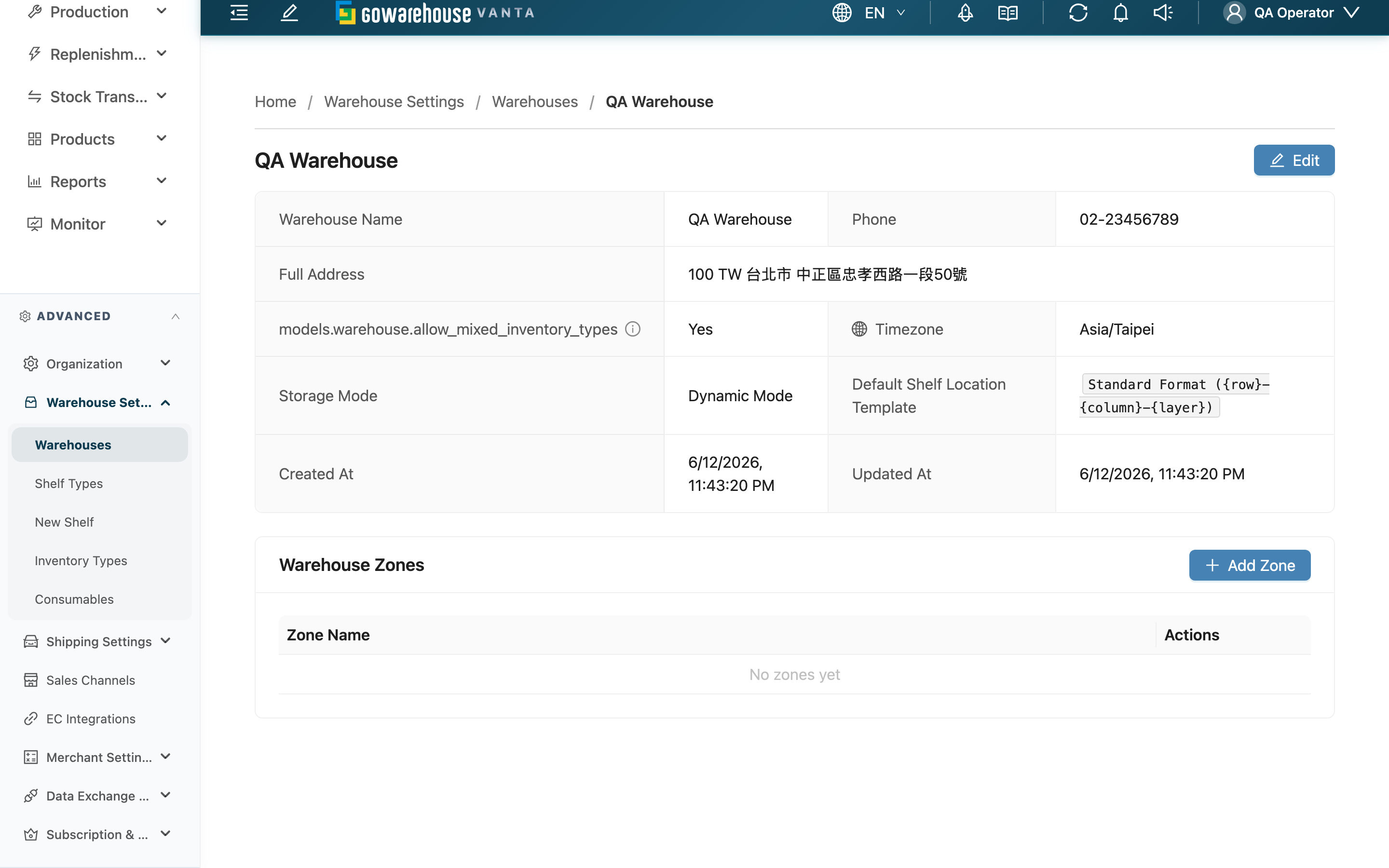
Quick jump: Warehouse Profile | Edit Warehouse | Warehouse Zones
1.1 Warehouse Profile
Outside edit mode, the page presents this warehouse's settings as a list:
| Field | Description |
|---|---|
| Warehouse Name | Warehouse name |
| Phone | Warehouse contact phone |
| Full Address | The combined full address |
| Allow Mixed Inventory Types | Shown only for dynamic-mode warehouses; whether the same location may mix different inventory states of the same product |
| Timezone | The timezone this warehouse sits in |
| Storage Mode | This warehouse's storage mode |
| Default Shelf Location Template | The default code format when batch-creating locations; shows the standard format when unset |
| Created At / Updated At | When it was created and last updated |
1.2 Edit Warehouse
When this warehouse is the one you currently work at, an Edit button appears at the top right. Clicking it switches the page to an edit form where you can modify name, phone, address, timezone, shelf location template, and more; an action bar appears below — click Save to save or cancel to discard changes.
Whether the storage mode is editable depends on whether this warehouse has started operating:
- Not yet operating: the storage mode can be re-selected.
- Already operating: the storage mode field is locked, showing "This warehouse has started operations — storage mode cannot be changed. Create a new warehouse to switch modes.", and cannot be changed.
If you are not working at this warehouse, the edit button is hidden and the page is view-only. The way each field is filled and its restrictions are covered in adding a warehouse.
1.3 Warehouse Zones
The "Warehouse Zones" section at the bottom is used to group this warehouse's locations (e.g. cold storage, Building A, returns staging). Likewise, you can only add, edit, and delete zones while working at this warehouse; otherwise the add button is disabled with the hint "Switch your current warehouse to this one to edit".
| Action | Description |
|---|---|
| Add Zone | Enter a Zone Name to create a new zone |
| Edit Zone | Rename an existing zone |
| Delete | Delete a zone; if the zone still has locations, you must first decide how to handle them (see FAQ below) |
2. FAQ
2.1 Questions
▪ Why can't I see the "Edit" button?
A warehouse can only be edited by the operator currently working at that warehouse. If the one you are working at is not this warehouse, the edit button is hidden and the warehouse profile and zones are view-only. Switch your current working warehouse to this one, then come back to edit. Editing also requires the warehouse settings edit permission; if you still can't see it, contact your administrator to confirm your permissions.
▪ Why is the storage mode field locked and unchangeable?
This warehouse has already started operating. Once any real activity has occurred (inbound, receiving, picking, stock take, stock adjustment, shelf movement, inventory transformation, or it holds actual inventory or non-system locations have been created), the storage mode is permanently locked. To switch modes you must create a new warehouse.
▪ What does "Storage mode cannot be changed once the warehouse has started operations." on save mean?
It means real activity occurred at this warehouse between when you opened the edit form and when you submitted (e.g. a colleague or another tab created an inbound), locking the mode in that window. The system blocks this change and reloads the latest data, and you'll see the mode field become locked.
▪ If I delete a zone that has locations, what happens to them?
When deleting a zone that still has locations, the system shows a dialog to choose how to handle them: Transfer to another zone (reassign those locations to another zone you pick), or Clear zone from shelves (clear the zone setting on those locations so they belong to no zone). If you choose "transfer", you must pick a replacement zone before it can complete. The locations themselves are not deleted — only their zone assignment changes.
▪ Can a zone be restored after deletion?
No. Once deleted, a zone is removed from the list and cannot be restored; re-add it if you need it. Its locations are unaffected, only their zone assignment changes per your choice.
▪ Can zone names be duplicated?
When adding or editing a zone, the Zone Name is required. Enter a recognizable name (e.g. cold storage, returns staging) to group locations for easier management.
▪ What if I change my mind midway through editing?
Click cancel on the action bar to discard this round of changes and return to view mode; the original data is unaffected. None of the edits take effect until you click save.
2.2 Notices
⚠️ Important
- The storage mode is permanently locked and cannot be reverted once this warehouse starts operating.
- A deleted zone cannot be restored; if the zone still has locations, be sure to choose how to handle them before deleting.
- Warehouse profile and zones can only be modified by the operator currently working at this warehouse.
💡 Tip: Group locations by physical position or purpose (building, temperature zone, returns staging) to make picking and stock takes easier to navigate later.
3. Related Features
| Feature | Description | Link |
|---|---|---|
| Warehouses | Back to the warehouse list to see all warehouses | Go |
| New Warehouses | Create another new warehouse | Go |
| Shelf List | Manage the actual locations under this warehouse | Go |
| Inventory List | View this warehouse's inventory quantities and states | Go |