
BOM
Table of Contents
1. Use Cases
Scenario 1: Lock a repeatedly made processing kit into a single recipe
Situation: Your warehouse repeatedly makes the same kit — for example, assembling the same gift box every month (6 mooncakes, 1 pack of tea, 1 box of packaging), or assembling loose parts plus packaging into finished goods, often seven or eight ingredients at once. Until now, each work order relied on memory to add these ingredients one by one and type in quantities, and whenever the shift or person changed, items got missed, the wrong item got picked, or proportions went wrong.
Use this feature: Write the "ingredient set + output product" into one recipe (see Create BOM), fixing the output product, each ingredient, and the per-set quantity. Then on the work order press "Apply BOM" and enter how many sets to make; the system brings in all ingredients and the output at once based on the recipe (see Create Work Order). A BOM is only a template — it never touches any inventory.
Result: Creating a work order changes from typing item by item to two steps — pick a recipe and enter the set count; the recipe becomes a shared standard kit for the warehouse, so anyone creating a work order pulls from the same one, items and quantities no longer vary by person, and missed items and quantity errors drop sharply.
2. Features
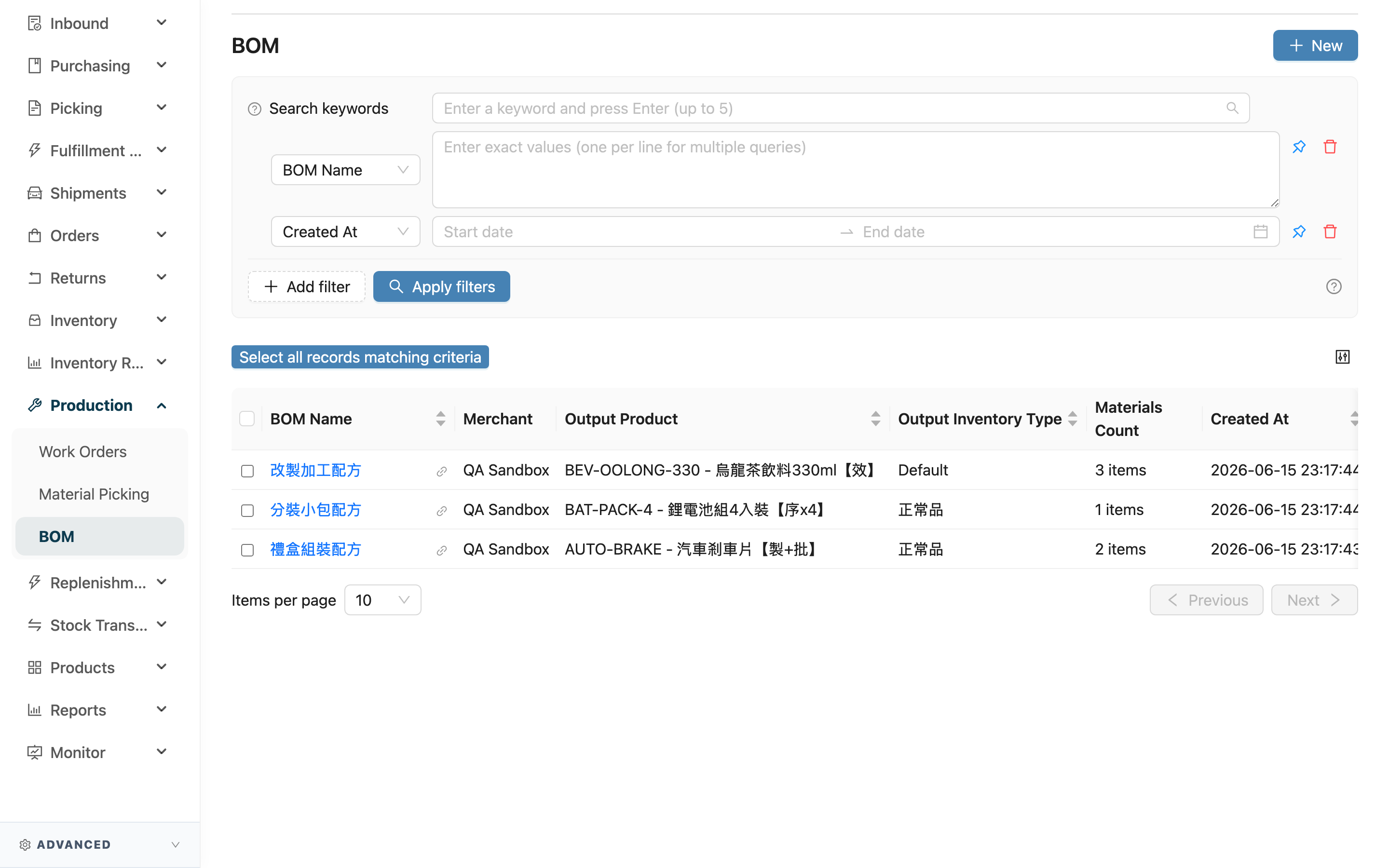
A BOM is your "processing recipe book". One recipe records a single output product plus the ingredient list and per-set quantities needed to make it — in effect standardizing a repeatedly made "ingredients → finished goods" kit. The recipe itself neither consumes nor produces any inventory; it is a template for work orders to reuse, and the actual consuming and producing happens on the work order. This page is the entry point for all recipes, where you can find, view, create, and export recipes.
Quick Jump: Search & Filter | List Columns | Action Buttons
2.1 Search & Filter
| Filter | How to use |
|---|---|
| Merchant | Pick a merchant from the list to see only that merchant's recipes (hidden when there is only one merchant) |
| Output Product SKU | Enter the finished good's SKU to find recipes that produce it |
| Output Product Name | Enter the finished good's name to find recipes that produce it |
For the remaining filters (BOM Name, Created At), simply type the name or pick a date range. Recipe name and the top search box both match by prefix, so type from the start of the name.
2.2 List Columns
| Column | Description |
|---|---|
| Recipe Name | The recipe's identifying name; click to open the detail page and see the full ingredient list |
| Output Product | The finished good this recipe makes, shown as SKU and name |
| Output Inventory Type | The inventory type the finished good is stocked under; shows "Default" when unspecified |
| Number of Materials | How many ingredients the recipe contains, so you can tell at a glance how simple or complex it is |
The Merchant column (hidden with a single merchant) and Created At column are self-explanatory from their names.
2.3 Action Buttons
| Button | Description |
|---|---|
| New | Top-right of the page; opens Create BOM to build a recipe |
| Export | Select one or more recipes first and the button appears above the list; after exporting, go to "Import/Export Records" to view and download the file |
3. FAQ
Quick Jump: FAQ | Important Notes
3.1 FAQ
▪ What is the difference between a BOM and a work order?
A BOM is a "recipe template" that only describes which ingredients to use and what finished good to make — it never touches inventory. A work order is the "actual processing job" that allocates ingredients, picks them, and produces finished goods. You prepare common kits as BOMs first, then on the work order press "Apply BOM" to bring in ingredients and output at once instead of filling them in by hand.
▪ Can one recipe be applied to many work orders?
Yes. A recipe is a template and can be reused by any number of work orders. When a work order applies a recipe, it "copies" the recipe content as it is at that moment, so later edits to the recipe do not change work orders that already exist.
▪ Can I create a work order without a recipe?
Yes. A work order also supports adding ingredients and output items manually, with no recipe required. The value of a recipe is locking down a repeated kit to reduce missed items and quantity errors during manual entry.
▪ Is the "Output Inventory Type" required?
No. It specifies which inventory type the finished good is stocked under when processing completes; leave it blank to use the default, and the list shows "Default". Set it only when the finished good needs to go into a specific type, such as good stock.
▪ Can each ingredient specify an "Inventory Type"?
Yes, each ingredient can specify its own, or leave it blank for the default. Setting it means the ingredient is taken from that inventory type — for example, specify near-expiry stock to consume soon-to-expire material first.
▪ How do I delete a recipe after creating it?
Open the Recipe Details page — the "Delete" button at the top right removes the whole recipe; the list page itself has no delete button. A confirmation dialog appears, and once confirmed the recipe is removed from the list and cannot be undone. Deletion does not affect existing work orders, since they already copied the recipe content when applied. If you only want to pause it, simply stop applying it to avoid creating duplicate recipes with the same name.
▪ Why can't I find the "BOM" menu?
BOM is an advanced feature related to processing and production. If you cannot see it in the menu, contact your administrator to confirm whether your plan and permissions have this feature enabled.
3.2 Important Notes
⚠️ Important Reminders
- Recipe names cannot repeat under the same merchant: If the name matches an existing recipe on save, it is blocked; use a distinguishable name (such as adding a style or version).
- Ingredients and finished goods must belong to the same merchant: The output product and every ingredient can only be chosen from the merchant the recipe belongs to; cross-merchant products cannot be added.
- A recipe needs at least one ingredient: It cannot be saved with no ingredients added, or with an ingredient row that has no product selected.
💡 Tip: Put the output product or style into the recipe name (such as "Mooncake Gift Box Style A") to make it easier to recognize both in the list search and when applying it on a work order.
4. Related Features
| Feature | Description | Link |
|---|---|---|
| Work Orders | Run the actual processing job; can apply a BOM to bring in ingredients and output at once | Go |
| Material Picking | Picking work for processing ingredients | Go |
| Product List | Maintain the ingredient and finished-good product data used by recipes | Go |
| Inventory List | View the actual inventory of ingredients and finished goods | Go |