
Supplier List
Table of Contents
1. Use Cases
Quick links: Scenario 1: Register a supplier before creating a purchase order | Scenario 2: Update the record when a supplier changes contact or payment terms | Scenario 3: Deactivate a supplier you no longer work with
Scenario 1: Register a supplier before creating a purchase order
Situation: A merchant wants to buy from a new vendor and you're about to create a purchase order for it, but the vendor isn't in the system yet.
Use this feature: First create the supplier here, filling in contact info, payment terms, and the default currency and tax rate. Later, when you create a purchase order and pick this supplier, the currency and tax rate fill in automatically.
Result: Once registered, the supplier is selectable in the purchase order's supplier dropdown — no need to retype vendor details, currency, and tax rate each time.
Scenario 2: Update the record when a supplier changes contact or payment terms
Situation: A supplier you work with has changed its contact person or phone, or renegotiated payment terms (e.g. from net-30 to prepaid).
Use this feature: Find the supplier in the list, open its Supplier Detail, and edit the contact name, phone, payment terms, and other fields.
Result: With the record updated, purchasing contact and reconciliation always use the latest info, avoiding contacting the wrong person or mismatched payment terms.
Scenario 3: Deactivate a supplier you no longer work with
Situation: A supplier is no longer a partner, and you don't want it appearing in the dropdown to be picked by mistake when creating future purchase orders.
Use this feature: Open that supplier's detail page and click "Delete" to remove it from the supplier list.
Result: The supplier disappears from the list and from purchase orders' supplier dropdown; existing purchase orders that used it are unaffected and keep their original supplier info.
2. Features
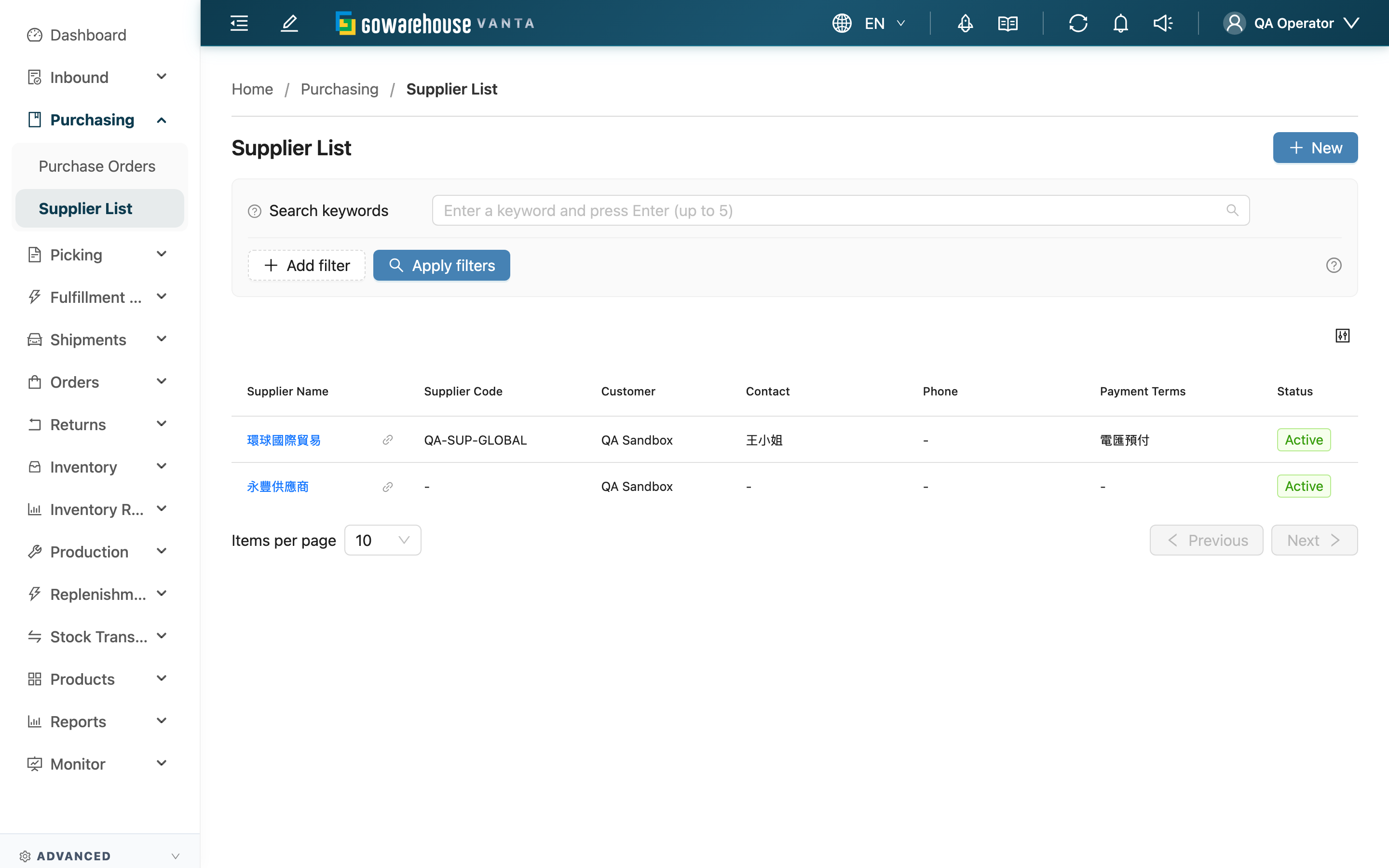
A supplier is the vendor a merchant buys stock from. Every purchase order must specify a supplier, and a supplier can have a default currency and tax rate that fill in automatically when creating a purchase order. This page is the overview of all suppliers, where you can search suppliers, open them to maintain contact and payment info, or create new ones.
Quick jump: Search & filter | List columns
Open it from the left menu: "Purchasing" → "Supplier List".
2.1 Search & Filter
The search box matches the leading characters of "Supplier Name" or "Supplier Code". If you handle multiple merchants, you can also filter by "Customer" to focus on suppliers under a specific merchant.
2.2 List Columns
| Column | Description |
|---|---|
| Supplier Name | Supplier name; click to open the Supplier Detail |
| Supplier Code | Supplier code; shows "-" when empty |
| Customer | Which merchant this supplier belongs to |
| Contact | Contact person |
| Phone | Contact phone |
| Payment Terms | Payment terms agreed with the supplier |
| Status | A colored tag showing "Active" or "Inactive" |
📌 The list shows only "Active" suppliers; deleted (deactivated) suppliers do not appear here.
3. FAQ
3.1 FAQ
▪ Do I have to create a supplier before creating a purchase order?
Yes. The "supplier" field on a purchase order is required, and the dropdown only lists existing suppliers. If you can't find a supplier when creating a purchase order, create it here first.
▪ What are a supplier's default currency and tax rate for?
When you pick this supplier on a purchase order, the system fills in its default currency and tax rate automatically, saving manual input; you can still adjust them for that specific order afterward.
▪ What happens when I delete a supplier? Are purchase orders that used it affected?
Deleting removes the supplier from the list (deactivates it), so it no longer appears in the purchase order's supplier dropdown; but purchase orders that already used it are unaffected and keep their original supplier info. See Notices.
▪ Can the same supplier name be duplicated?
Supplier names must be unique within the same merchant; different merchants can each have a supplier of the same name.
▪ Why can't I find some suppliers in the list?
The list shows only "Active" suppliers. If a supplier was deleted (deactivated), it won't appear; if you handle multiple merchants, also check that the "Customer" filter isn't limiting you to a different merchant.
▪ What is the "Customer" column for?
It shows which merchant each supplier belongs to. Suppliers are maintained separately per merchant, and this column helps you tell them apart when you handle multiple merchants at once.
3.2 Notices
⚠️ Important
- Deleting a supplier deactivates it and removes it from the list, and you cannot bring it back or reactivate it from the screen — make sure you no longer work with it before deleting
- Even after deletion, purchase orders that used the supplier keep its info; it is not cleared
💡 Tip: Fill in "Default Currency" and "Tax Rate" when registering, so future purchase orders fill them in automatically — fewer repeated entries and mistakes.
4. Related Features
| Feature | Description | Link |
|---|---|---|
| Create Supplier | Create a new supplier | Go |
| Supplier Detail | View a single supplier, edit or delete | Go |
| Purchase Order List | Purchase orders placed with suppliers | Go |