
Picking List Detail
Table of Contents
1. Features
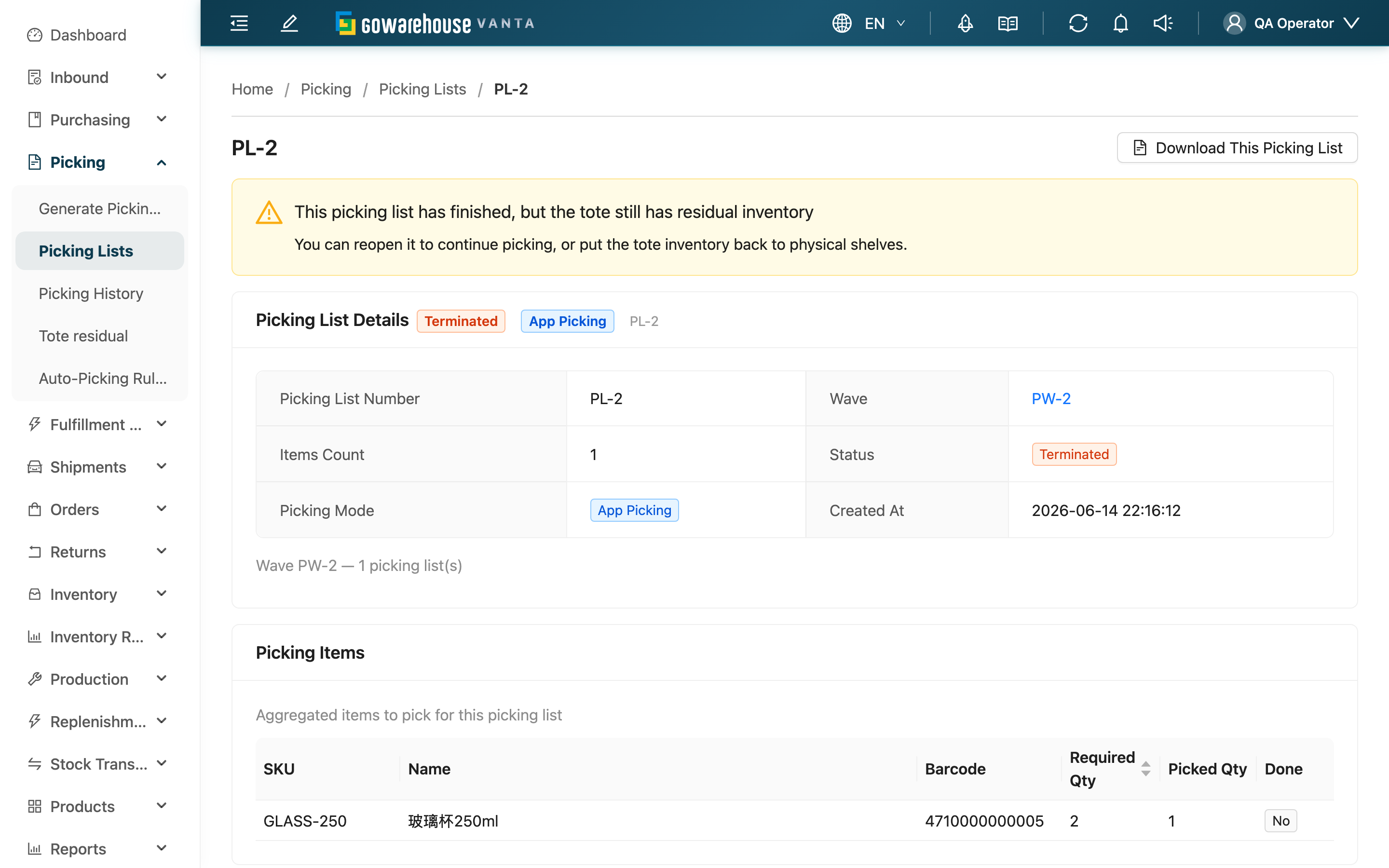
The full contents you see after opening a picking list. Here you can check the list's status, which products to pick and how many have been picked, and after picking handle the residual inventory left in the tote. With App picking you scan to pick on this page; with paper picking you print the detail sheet, pick, then confirm the results. If this list belongs to a wave, you can also jump to the other picking lists in the same wave from here.
Quick Jump: Basic Info & Wave | Picking Items | Picking & Confirmation | Tote Residual Handling | Picking Records
1.1 Basic Info & Wave
The top of the page shows the picking list name, Status, Picking Mode, item count, and creation time. If this picking list belongs to a wave, the other picking lists in the same wave are listed, and you can click to switch between them. The three statuses mean the same as on the Picking Lists list.
If the wave contains an intercepted order, a notice appears at the top of the page; you need to handle that fulfillment in the wave detail.
1.2 Picking Items
All the products to pick on this picking list are listed here:
| Column | Description |
|---|---|
| SKU | Product code |
| Name | Product name |
| Barcode | Product barcode |
| Required Qty | Quantity to pick on this list |
| Picked Qty | Quantity picked so far |
| Done | Whether this item is fully picked |
1.3 Picking & Confirmation
The picking method depends on the Picking Mode:
- App Picking: warehouse operators use a handheld device to scan barcodes as they pick, and the system updates the picked quantity in real time; once everything is picked, the picking list automatically turns to done.
- Paper Picking: print the paper detail sheet first to pick with, then return to the system. While the picking list is still processing, a Verify Picking button appears here; click it to go to Confirm Picking List and report the actual quantity at each shelf.
There is also a button at the top to download the current picking list, which regenerates the paper file for this picking list.
1.4 Tote Residual Handling
Each picking list corresponds to a "tote" — picked goods are first placed in this tote and wait to be packed and shipped. When the picking list has ended (done or terminated) but the tote still holds residual inventory, it is listed here as Tote Residual Inventory, with two side-by-side actions for you to choose based on the situation on the floor.
Continue Picking (reopen this list to keep picking)
| Item | Description |
|---|---|
| When available | Shown when the picking list has ended (done / terminated) and the tote still has residual. If it is done and every item is fully picked (no quantity left to pick), the button is hidden — there is nothing left to pick |
| Preconditions | The wave this picking list belongs to must still exist, and at least one fulfillment in the wave must not yet be shipped; if every fulfillment in the wave is already shipped, the system blocks the action and notes there is nothing left to pick |
| Effect | The picking list changes from done / terminated back to Processing; the tote contents and picked quantity stay unchanged, and you can continue picking the part that was not finished. Paper picking recalculates the suggested shelves still to pick |
| Reversibility | A pure status switch; no inventory is moved. Just complete it again after picking — non-destructive |
After a paper picking list is reopened, the system recalculates the remaining quantity using the shelf suggestion rules from Confirm Picking List: it first takes the available full-pallet multiples from eligible sources, then fills every other unmet quantity in the normal order. If there are no eligible full-pallet sources, the normal order is preserved.
Put Back Tote (move the residual in the tote back to a shelf)
| Item | Description |
|---|---|
| When available | The picking list has ended, the tote still has residual, and you are sure these goods will not ship. Paper picking is done on this page (web); App picking is done on the handheld device |
| Permission required | Requires the Orders - Write permission; with read-only permission the button is still shown but locked and not clickable |
| Preconditions | The quantity field defaults to that item's residual quantity in the tote; you can change it to put back only part of it (capped at the tote's residual, cannot exceed it). Specify the Target shelf for each item you are putting back; it must be a storage shelf in the same warehouse — no cross-warehouse, and not into another tote. Items left at 0 are not submitted; if every item is 0, the system blocks the submission and prompts you |
| Effect | The system moves back to the specified shelf only the items you actually entered a quantity for, deducts the corresponding picked quantity, and leaves a record; items left at 0 stay in the tote unaffected. If this ended picking list still has unfinished items after the put-back, it automatically reverts to Processing. Fulfillments are not affected |
| Reversibility | This is a physical move; once the goods are back on the shelf they return to normal inventory. To ship this batch again later, you must pick it again |
1.5 Picking Records
All picking and put-back actions for this picking list are recorded here, and you can click export to get a file:
| Column | Description |
|---|---|
| Shelf Location | Which shelf the goods were picked from (or put back to) |
| SKU / Name | Product code and name |
| Type | Picked or put back |
| Quantity | The number of pieces in this action |
| Name | The warehouse operator who performed it |
| Created At | Action time |
For a warehouse-wide summary of picking actions across picking lists, see Picking Records.
2. FAQ
Quick Jump: FAQ | Important Notes
2.1 FAQ
▪ What is the difference between Continue Picking and Put Back Tote? When do I use which?
Both appear when the picking list has ended and the tote still has residual; the difference is intent: if you still want to finish picking this list, use Reopen (goods stay in the tote); if you are sure this batch will not ship and you want to empty the tote, use Put Back Tote (goods move back to a shelf). See 1.4 Tote Residual Handling for the detailed effects.
▪ Why don't I see the Continue Picking button?
Three cases hide it: the picking list is still processing (you are already picking, no need to reopen), the tote has no residual, or the picking list is done and every item is fully picked (nothing left to pick).
▪ Why can't I find the Target shelf to select when putting back?
The target shelf can only be a storage shelf in the same warehouse. Shelves in other warehouses, other totes, and staging or loading positions do not appear in the options. If the list is empty, first check the Shelves list to confirm the warehouse has an available storage shelf.
▪ What is tote residual? Why is there residual after I finished picking?
Tote residual is goods that have already been picked into the tote but not yet packed and shipped. It commonly happens when some fulfillments are temporarily held, or when a single tote holds goods for several fulfillments and one of them is cancelled. Finishing picking does not mean the goods have necessarily left the tote — you need to decide how to handle them next.
▪ What do I do when the picked quantity is less than the quantity to pick (short pick)?
With paper picking, fill in the actual quantity picked truthfully on Confirm Picking List; a short pick is flagged but can still be submitted. If you receive more stock later and want to pick again, you can use Continue Picking to reopen this list.
▪ A few fulfillments on this picking list need to be pulled out temporarily — how do I do that?
Pulling out an entire fulfillment is not on this page; you need to return that fulfillment in the wave detail. Put Back Tote only empties this picking list's tote and does not touch fulfillments.
▪ What can I still do with a terminated picking list?
You can still view the items and records. If the tote has residual, you can use Put Back Tote to empty it; if you actually still want to keep picking, you can also Reopen it (terminated lists are not subject to the "fully picked" restriction).
2.2 Important Notes
⚠️ Important Reminders
- Put Back Tote is a physical move: physically move the goods back to the shelf first, then confirm in the system, otherwise the books and the floor will not match.
- Put Back Tote only handles "this picking list's tote" and does not touch fulfillments; to pull an entire fulfillment out of the wave, use the return in the wave detail instead.
- Terminating a picking list does not automatically empty the tote, nor does it automatically return fulfillments; you must handle the tote residual and the fulfillments separately.
💡 Tip: If you pressed done or terminate by mistake but actually still need to keep picking, use Continue Picking to recover — the goods already picked into the tote do not need to be re-picked.
3. Related Features
| Feature | Description | Link |
|---|---|---|
| Picking Lists | Back to the list of all picking lists | Go |
| Confirm Picking List | Report the actual quantity at each shelf after paper picking | Go |
| Tote residual | View all totes with residual in one place | Go |
| Picking Wave Detail | Return fulfillments, print, and manage the whole wave | Go |