
Organization Settings
Table of Contents
1. Use Cases
Quick links: Standardize timezone, units, and currency for the whole organization | Enforce two-step verification login across the organization
Case 1: Standardize timezone, units, and currency for the whole organization
Situation: You have just taken over this warehouse's back office and noticed that report times don't match actual operation times, the currency has to be reset every time you create a new merchant, and product length/width/height/weight units have no consistent standard. You want to set the organization-wide baseline first so that all later operations follow it.
Use this feature: Go to Timezone, System Language, Default Currency to set organization-level defaults, and use Unit Settings to unify length, weight, and volume units. These settings apply across the entire organization.
Result: Scheduling and reports are calculated in the timezone you set, the default currency is filled in automatically when creating a new merchant, and product dimensions and weights are shown in one consistent set of units across the organization.
Case 2: Enforce two-step verification login across the organization
Situation: Company security policy requires everyone to pass two-step verification at login. You need to apply this rule to all warehouse users (and, depending on plan, merchants too) at once, rather than notifying each person individually to turn it on themselves.
Use this feature: Go to Two-Step Verification Policy and enable the forced two-step verification for the relevant role. Once enabled, users who haven't set it up yet are guided to complete the setup on their next login.
Result: The rule takes effect across the organization immediately and login security is leveled up, without you having to track who has enabled it and who hasn't one by one.
2. Feature Overview
Organization Settings is the page for the organization's shared baseline. The timezone, language, default currency, and units of measure set here become the defaults for organization-wide scheduling, reports, notifications, and new merchant creation; the two-step verification policy decides whether two-step verification is enforced at login. Every setting is configured once and applied across the whole organization — this is the warehouse supervisor's entry point for setting organization-level standards.
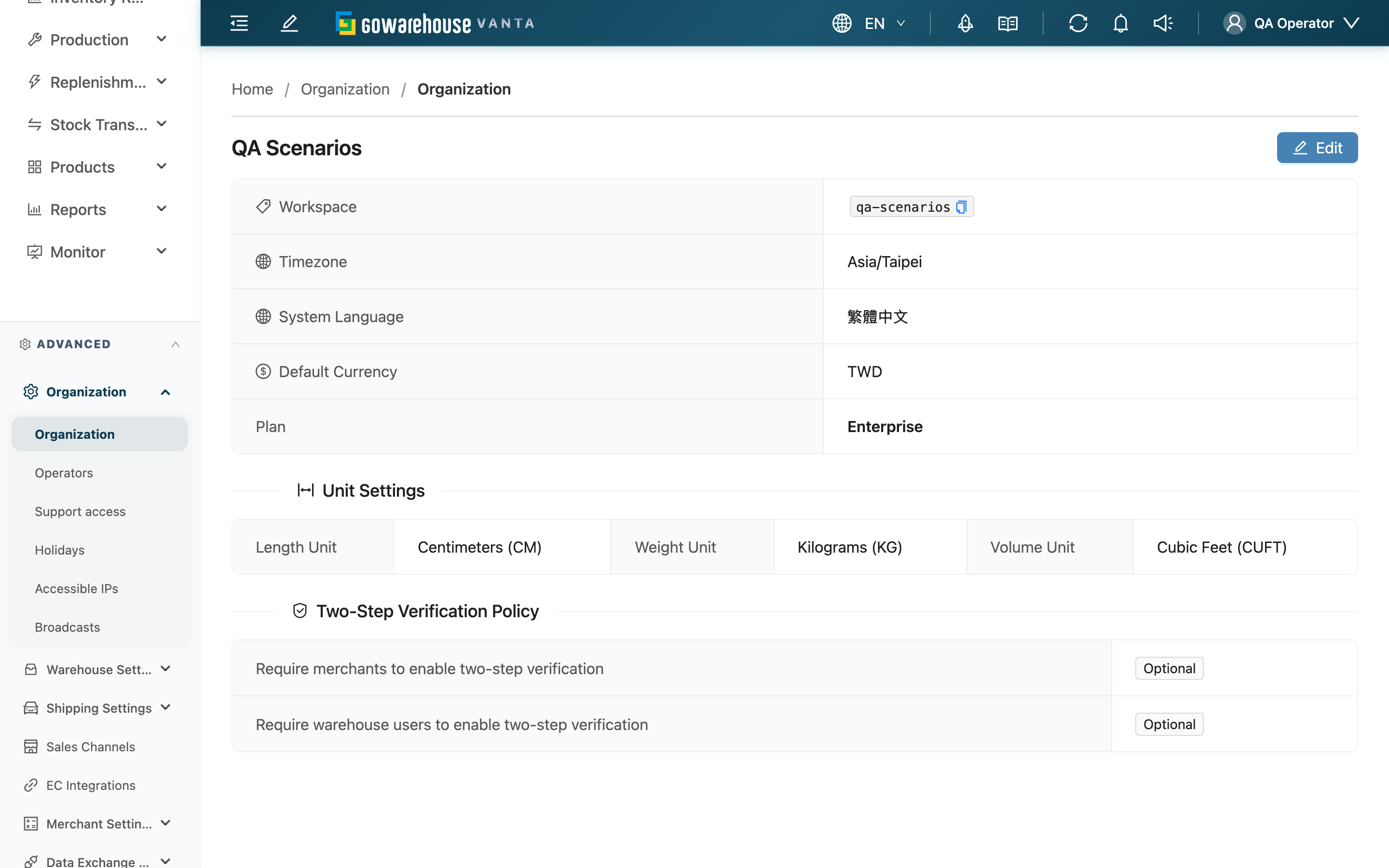
Quick jump: Basic Information | Unit Settings | Two-Step Verification Policy | Editing Settings
2.1 Basic Information
The upper part of the page shows the organization's shared baseline; most fields can be adjusted after entering edit mode.
| Field | How to fill in | Notes |
|---|---|---|
| Workspace | Generated by the system; cannot be edited here | Shows the organization's identifier code; click to copy |
| Timezone | Select the organization's timezone from the list | Used for time calculations in scheduling and reports |
| System Language | Select the organization's default language from the list | Used for notification emails and system notifications; merchants can override individually |
| Default Currency | Select a currency from the list | Filled in automatically when creating a new merchant |
| Plan | Set by the system; cannot be edited manually | Shows the current plan (Standard / Pro / Enterprise) |
2.2 Unit Settings
Unify the units used to present product dimensions and weight across the organization, with three separate choices:
| Field | How to fill in |
|---|---|
| Length Unit | Choose Centimeters (CM) or Inches (IN) |
| Weight Unit | Choose Kilograms (KG) or Pounds (LB) |
| Volume Unit | Choose Cubic Meters (CBM) or Sai (材, 27,000 cm³) |
2.3 Two-Step Verification Policy
Decides whether two-step verification (TOTP) is enforced at login. After enabling the policy for a role, all users of that role must use two-step verification at login; users who haven't set it up are guided to complete the setup after logging in.
| Field | How to fill in | Notes |
|---|---|---|
| Require warehouse users to enable two-step verification | Toggle the switch to enable or disable | When enabled, all warehouse users must use two-step verification at login |
| Require merchants to enable two-step verification | Toggle the switch to enable or disable | When enabled, all merchants must use two-step verification at login; this option only appears on Pro plan and above, and is not available on the Standard plan |
When viewing the status, an enabled policy shows the "Required" tag, and a disabled one shows the "Optional" tag.
2.4 Editing Settings
The page is in view mode by default. Click Edit in the top-right corner to enter edit mode, then submit to save after adjusting, or cancel to discard changes. After a successful save, the page shows a success message and returns to view mode.
Adjustments apply to the entire organization immediately, with no additional review or activation step.
3. FAQ
3.1 FAQ
▪ Why can't I see the Edit button?
Editing requires write permission for organization settings. If you only have view permission, the page is shown in view mode without the edit button. If you can't see this button, please contact your administrator to confirm your permissions.
▪ Why is there no "Require merchants to enable two-step verification" option?
Requiring merchants to enable two-step verification is only available on Pro plan and above. If your organization is on the Standard plan, this option will not appear; the warehouse-side two-step verification policy, however, is not restricted by plan and can always be set.
▪ After changing System Language, will all merchants' languages change too?
System Language is the organization's default language, used for notification emails and system notifications. Merchants can override it individually in their own settings, and once overridden they are not affected by the organization default.
▪ If I change Default Currency, will the currency of already-created merchants change too?
No. Default Currency is only filled in automatically as a default when creating a new merchant; the currency of existing merchants is not affected.
▪ Why can't Workspace and Plan be edited?
These two are set by the system and cannot be edited manually on this page. Workspace is the organization's identifier code and Plan is the current subscription plan; both are view-only.
▪ After enabling forced two-step verification, are users blocked immediately?
They are not blocked right away. Users who haven't set up two-step verification are guided to complete the setup after their next login, rather than being locked out directly.
3.2 Notices
⚠️ Important Reminders
- Enabling a two-step verification policy applies to all users of that role. Make sure your whole team can comply before enabling it.
- Units of measure and currency are organization-level shared baselines; adjusting them affects the presentation across the whole organization and the default for new merchants — not just a single warehouse or a single merchant.
💡 Tip: Timezone directly affects the time calculations for scheduling and reports. Before setting it, confirm it matches the location where the warehouse actually operates.
4. Related Features
| Feature | Description | Link |
|---|---|---|
| Operators | Manage warehouse user accounts and permissions | Go |
| Holidays | Set the organization's holidays and business days | Go |
| Accessible IPs | Set the IP ranges allowed to log in | Go |
| Warehouse Broadcasts | Publish warehouse announcements to operators | Go |