
Inbound List
Table of Contents
1. Use Cases
Quick links: Sizing up today's receiving | Tracking split deliveries | Creating a record on the floor
Use Case 1: Starting the morning shift — knowing how much is coming in today
Situation: The morning shift begins, trucks are queuing at the dock to unload, and you need to know how many inbound records are waiting and which are urgent before you can assign people and decide which truck to receive first.
How this helps: The list lays out all your inbound records on one page. Use the expected-arrival and status filters to narrow down what is due today, and read the progress columns to tell apart records not yet started (Pending) from those mid-receiving (Receiving).
Result: You know the day's receiving workload and priorities before work even starts, instead of scrambling once a supplier's truck is already at the door.
Use Case 2: Suppliers deliver in batches — tracking cumulative progress for one record
Situation: For a single purchase, the supplier sends 60 boxes today and the rest two days later. The goods on one inbound record do not all arrive at once, so you need to know at any time how much has been received and how much is still outstanding.
How this helps: An inbound record supports receiving in multiple rounds. The received and put-away progress columns automatically roll up every receiving round, showing the cumulative completion against plan as a percentage and color — no need to add up receipt details by hand.
Result: You can tell at a glance which records are still waiting on later batches and which are fully received and ready to close out, so nothing slips through even as goods trickle in.
Use Case 3: A merchant calls in an unexpected delivery — creating the record on the floor
Situation: A merchant calls to say a shipment is arriving today, but there is no matching inbound record in the system yet — and the truck is already on its way.
How this helps: Use New Inbound in the top-right of the list to create an inbound record on behalf of the merchant on the spot, capturing the incoming products and expected quantities. For details see New Inbound.
Result: There is a record ready to receive against the moment the goods arrive, so even unplanned deliveries enter the normal receiving and put-away flow instead of becoming loose stock with no paper trail.
2. Features
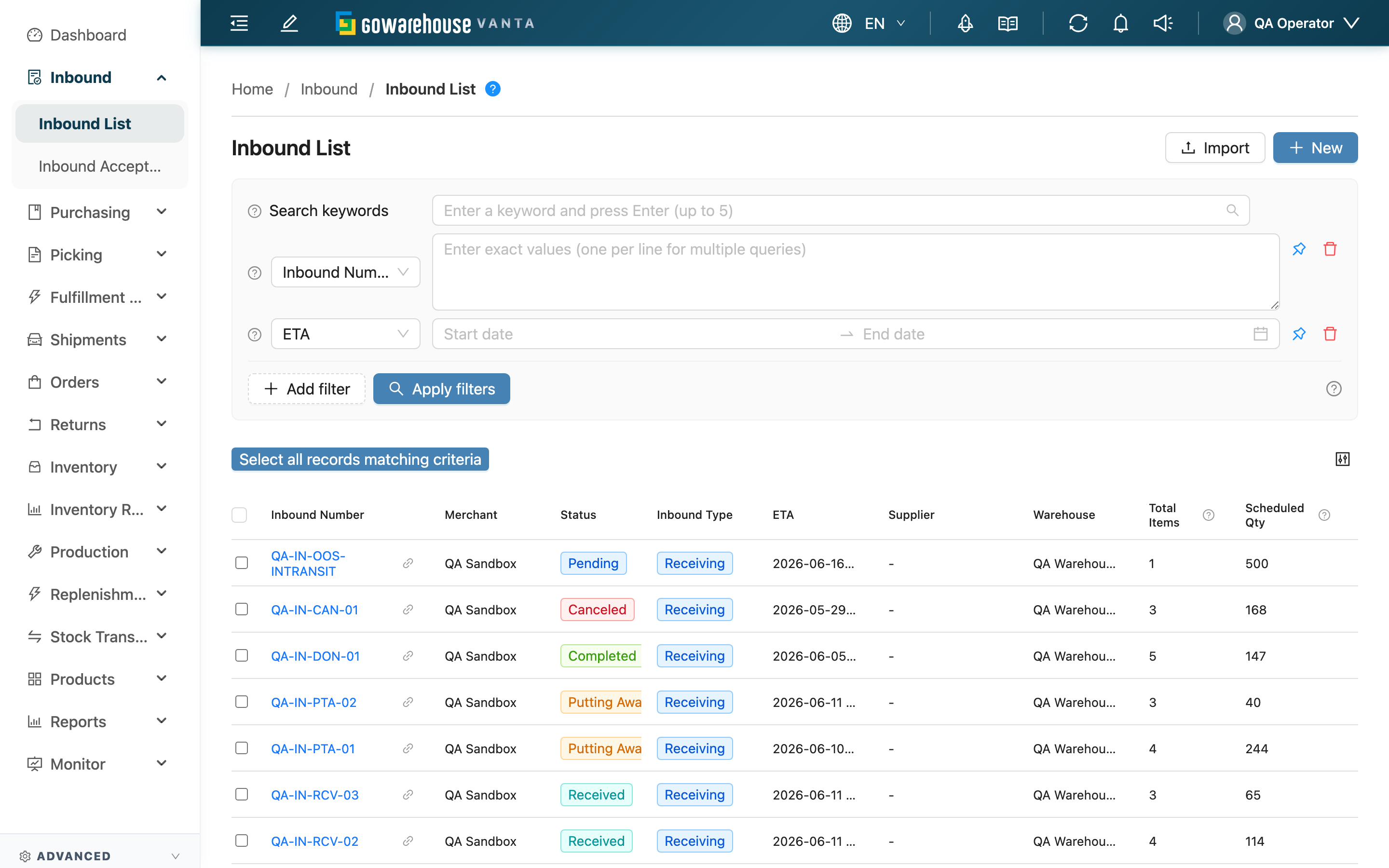
This is the entry point for your daily receiving work. Whether a supplier delivers or a merchant ships goods into the warehouse, the first step starts here: see every inbound record waiting to be handled, filter by expected arrival to frame today's receiving, read the progress columns to tell which stage each record has reached, then click the inbound number to open the detail page and start receiving. When goods arrive unannounced with no record, you can also create one here on the spot.
Quick jump: Search & Filter | List Columns | Action Buttons
2.1 Search & Filter
Search box: Type the first few characters to match across Inbound Number, Inbound Barcode, Other Number, Product SKU, and the product's Barcode.
Filters (all accept multiple values / selections; combine as needed):
| Filter | How to use |
|---|---|
| Inbound Number | One number per line to look up several records at once |
| Merchant | Pick merchants from the list; shown only on multi-merchant plans |
| Status | Check among the six statuses; the most common way to frame "what to do today" |
| Inbound Type | Distinguish Receiving, Sales Return, and Production |
| Supplier | Pick a supplier from the list to find deliveries from a specific source |
| Serial Number | One serial number per line to trace back the inbound record containing it |
| Product SKU | One SKU per line to find records containing a specific product (e.g. temperature-sensitive items to prioritize) |
| ETA | Pick a date range to frame records expected today / this week |
| Received At | Pick a date range to look up records received within a period |
| Created At | Pick a date range to search by creation time |
💡 Tip: For conditions you use every day (such as expected arrival and status), click "Pin this filter" to pin them above the list so you don't have to set them again next time.
2.2 List Columns
Each row is one inbound record; click Inbound Number to open the detail page and start receiving. Besides the self-explanatory columns — number, Merchant (multi-merchant plans only), Supplier, Warehouse, ETA — the following are the ones that tell you the work progress:
| Column | How to read it |
|---|---|
| Status | Which stage the whole record has reached, shown as a colored tag (see the status color table below) |
| Inbound Type | The inbound type, shown as a colored tag |
| Total Items | How many distinct products this record contains |
| Scheduled Qty | The planned total quantity to receive (the expected amount entered by the merchant / administrator when creating the record) |
| Received Qty | Quantity already received, shown as a percentage against plan with a completion color |
| Putaway Qty | Quantity already placed on shelves, shown as a percentage with a completion color |
| Received At | When receiving was completed; blank means not yet finished |
| Actions | Only Pending records show an "Edit" link (see FAQ) |
Status colors (Status tag):
| Color | Status | Meaning |
|---|---|---|
| Blue | Pending | Receiving not yet started |
| Dark blue | Receiving | Receiving in progress |
| Cyan | Received | Received, awaiting put-away |
| Orange | Putting Away | Put-away in progress |
| Green | Completed | Fully completed, stock recorded |
| Red | Canceled | Canceled |
Progress colors (the percentages in the Received Qty and Putaway Qty columns):
| Color | Completion | What it means when you see it |
|---|---|---|
| Green | 100% or above | This item is fully received / put away |
| Orange | 50%–99% | Over half done, not yet complete |
| Red | Below 50% | Just started, much still missing |
| Gray | 0% | Not yet started |
2.3 Action Buttons
| Button | Purpose |
|---|---|
| Import | Opens the import dialog to bulk-create multiple inbound records from Excel; see Import Inbound |
| New | Create a single inbound record on behalf of a merchant; opens New Inbound |
| Export | Select the records to export in the list first, then click this button to bulk-export to Excel (see 3.2 Notes) |
💡 Tip: The blue question mark next to the list title opens an explanation of the inbound flow. New colleagues can read it once to quickly understand the whole receiving flow from creating a record through receiving to put-away.
3. FAQ
3.1 FAQ
▪ Why do some records have no "Edit" link?
Only Pending records (receiving not yet started) allow editing the original plan. Once a record enters Receiving, its contents are based on what you actually received and the planned quantity is no longer editable, so the "Edit" link disappears. To change a record that has started receiving, go through the receiving flow to record actual quantities rather than editing the plan.
▪ Why can't I see the "Merchant" column and filter?
The Merchant column and filter appear only on plans that manage multiple merchants. If your warehouse serves a single merchant, every record belongs to the same merchant and the system no longer shows this extra column.
▪ How do I quickly find records not yet finished today?
Use the Status filter to check the unfinished statuses — no need to open each record one by one. The meaning of each status is in the status color table under 2.2 List Columns.
▪ What does a record look like in the list when its goods haven't all arrived?
The record stays in Receiving, and the Received Qty column shows the received amount as a percentage against plan (usually orange or red while incomplete). As the supplier delivers later batches and you receive another round, this percentage rolls up automatically — no manual addition needed. See 2.2 List Columns for how to read it.
▪ After clicking "Export", where do I find the file?
It exports as an Excel file. After submitting, go to the background task notification in the top-right to check progress; the file downloads automatically when done. Each item is one row in the file, with three quantity columns — "Scheduled Inbound Quantity", "Received Quantity" and "Putaway Quantity" — so you can check shortages, overages and whatever is not yet put away. Exporting does not affect any records in the list.
▪ Can I delete or cancel multiple records at once from the list?
No. The list checkboxes are used only for bulk export — there is no bulk delete or bulk cancel. To cancel a single inbound record, open its detail page (canceling is subject to status and type restrictions; see Inbound Details).
▪ How is this list different from the inbound list a merchant sees in their own portal?
In the warehouse operations system you see a "work queue to act on": it can span multiple merchants and lets you receive and put away directly from the detail page. In their own portal a merchant sees only their own records, focused on tracking the arrival status of goods sent to the warehouse — they do not perform the warehouse-side receiving and put-away.
3.2 Notes
⚠️ Important
- On multi-merchant plans, always confirm the correct Merchant before creating or handling a record, to avoid recording merchant A's goods under merchant B.
- Once a record is completed (Completed), stock is officially recorded and the record is closed. After that, any receiving error cannot be fixed on this record — it must be corrected through a stock-take adjustment. Always record actual quantities truthfully during receiving.
💡 Tip: Frame temperature-controlled goods (chilled / frozen) and urgent items first using the Product SKU or ETA filter so they are prioritized and don't sit too long at the dock affecting quality.
4. Related Features
| Feature | Description | Link |
|---|---|---|
| Inbound Acceptance | Scan a record to start receiving arrivals, recording actual quantities, batch, and expiration | Go |
| Inbound Details | View one record's full contents, receipt details, and progress | Go |
| New Inbound | Create a single inbound record on behalf of a merchant | Go |
| Import Inbound | Bulk-import multiple inbound records from Excel | Go |