
Import Templates
Table of Contents
1. Features
This page shows the full content of a single import template: basic info, column mappings (which file header maps to which system field), and default values (which fields are auto-filled with a fixed value at import). From here you can confirm the mappings are correct, and go to edit or delete.
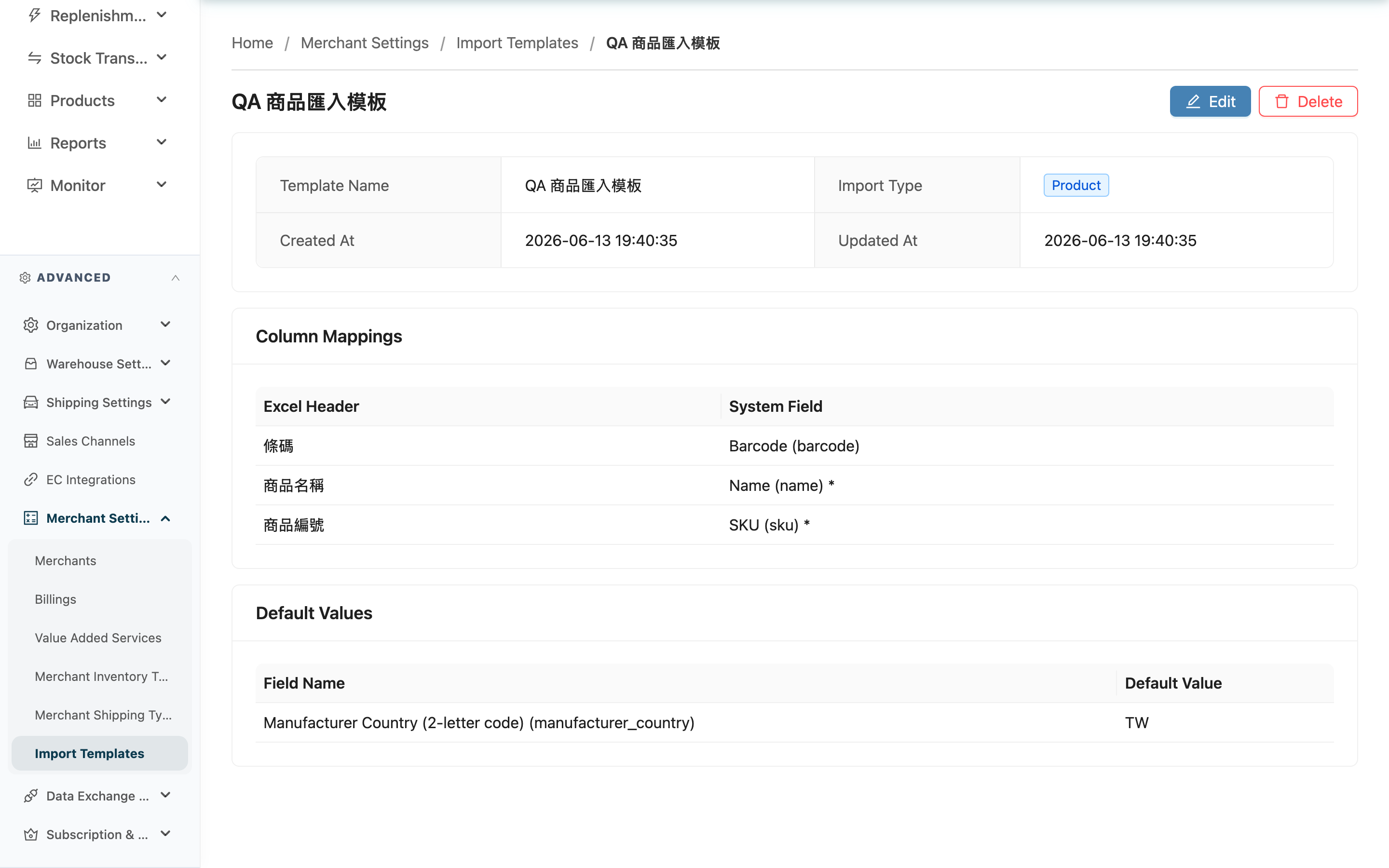
Quick Jump: Basic Info | Column Mappings | Default Values | Edit & Delete
1.1 Basic Info
| Field | Description |
|---|---|
| Template Name | Template name |
| Import Type | The import type the template applies to |
Created At and Updated At are self-explanatory by their names.
1.2 Column Mappings
This section lists all the "header to system field" mappings in the template:
| Field | Description |
|---|---|
| Excel Header | The header name in the merchant's file |
| System Field | The system field this header maps to, shown as "Label (field key)"; required system fields are marked with * |
At import, the system reads the column in the uploaded file that has the same name as "Excel Header" into the matching system field.
1.3 Default Values
This section lists the fields with a fixed value (this section is hidden when no default values are set):
| Field | Description |
|---|---|
| Field Name | The system field with a default value |
| Default Value | The fixed value filled in automatically at import |
Fields with a default value don't appear in the column mappings above — the default value takes precedence, is filled in automatically at import, and is not read from the file header.
1.4 Edit & Delete
The top-right of the page offers Edit and Delete:
- Edit: Go to the edit page to change the template name, column mappings, and default values (see Edit Import Template). The import type and owning merchant are locked during editing and cannot be changed.
- Delete: Delete this template; a confirmation dialog appears first. Deletion cannot be undone.
2. FAQ
2.1 FAQ
▪ What is the key in parentheses after a system field?
That's the field's internal mapping key, to help you confirm exactly which field the mapping points to (a same-looking label may map to a different field). At import the system matches by key; you just need to confirm the "label" is the field you want.
▪ Why does a system field have an * after it?
It means the field is required for that import type. Every required field in the template must have a matching header, or a default value set, otherwise the import will fail.
▪ Why do some fields appear under "Default Values" but not "Column Mappings"?
Because those fields have a default value. Fields with a default value are auto-filled with a fixed value at import and are not read from the file header, so they don't also appear in the column mappings.
▪ I can't see the Edit or Delete button?
These two buttons require merchant write permission. If you can't see them, contact your administrator to confirm your permissions.
▪ If I change the template, will data previously imported with it change too?
No. The template only decides how columns map at the moment of import; already-imported data is independent and changing the template later does not affect it.
2.2 Notes
⚠️ Important
- Deleting a template cannot be undone; you must rebuild it if needed.
- The import type and owning merchant are locked after creation and cannot be changed when editing; to switch type or merchant, build a new template.
3. Related Features
| Feature | Description | Link |
|---|---|---|
| Import Template List | Back to the list of all templates | Go |
| Edit Import Template | Change this template's column mappings and default values | Go |
| Import Products | Select a template when importing products | Go |
| Import Orders | Select a template when importing orders | Go |