
Picking History
Table of Contents
1. Use Cases
Quick Links: Trace a short-pick or wrong-pick — which time, who did it | Stock on a shelf doesn't add up | Audit one person's picks over a period
Scenario 1: A short-pick or wrong-pick is found at packing; trace which time and who picked it
Situation: While reconciling at the packing station, you find a product quantity is off and suspect a picking error. You need to know which picking list this stock came from, which shelf, and who picked it out.
Use this feature: Use the product and shelf filters to find the related records, and read the operator and time from the list columns.
Result: You pinpoint the pick that went wrong, then re-check it or ask the operator on shift to confirm, clarifying the cause of the discrepancy.
Scenario 2: Stock on a shelf doesn't add up; you want to know what was recently picked from it
Situation: During stock taking or replenishment you find a shelf's book quantity doesn't match the actual stock, and you want to confirm which goods were recently picked out from that shelf.
Use this feature: Filter by shelf number to list all recent pick-out actions and quantities for that shelf.
Result: You get the pick-out details for that shelf as a basis for investigating the inventory discrepancy.
Scenario 3: For a handover or audit, view one person's picks over a period
Situation: During a shift handover, or when a supervisor wants to understand what a warehouse operator picked over a given period, as a check or review.
Use this feature: Use the operator and picking time filters to list the picking actions within that range.
Result: You see the picking details for that person or period, useful for handover explanations or an initial check.
2. Features
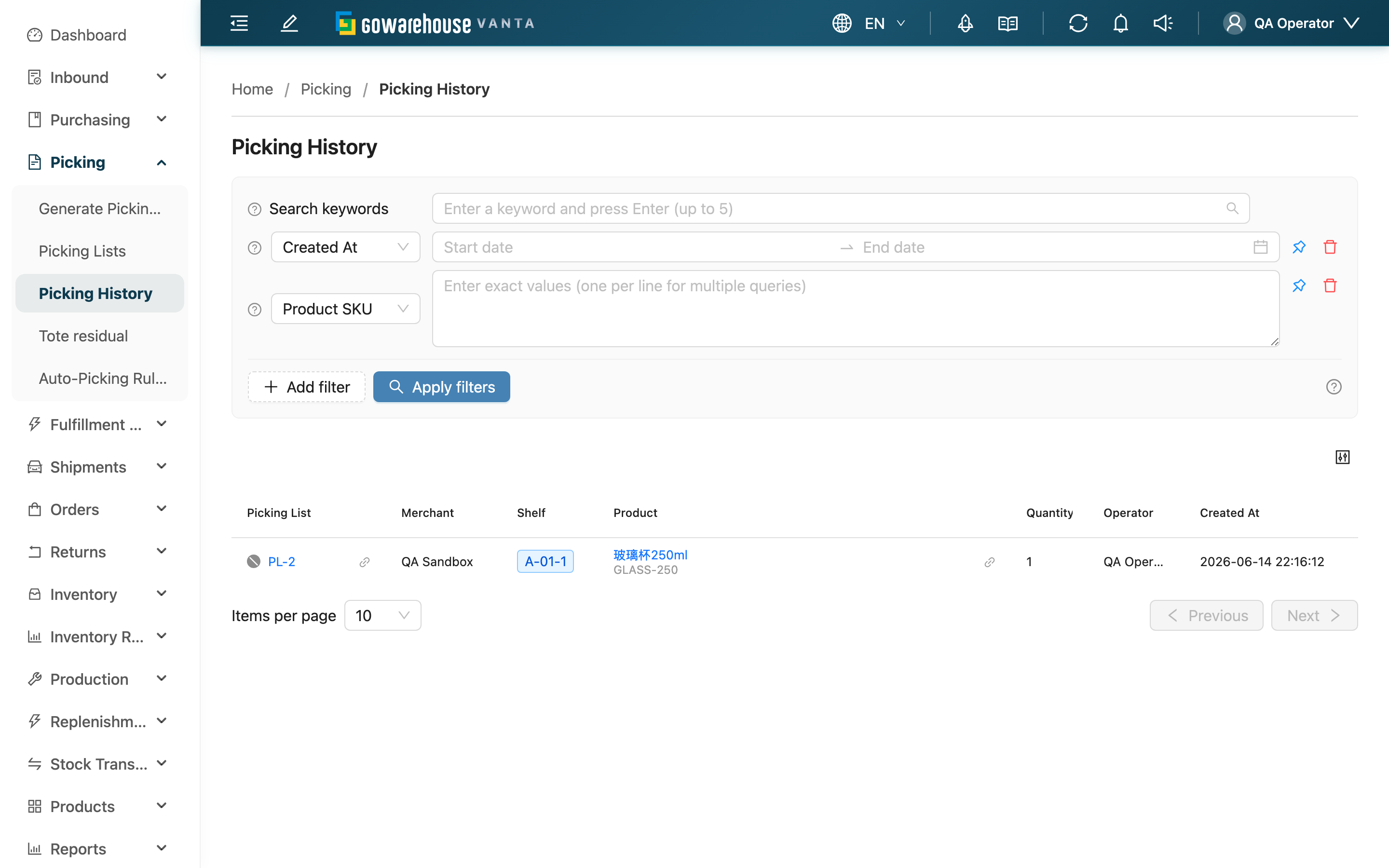
This is a timeline of every "picking action" across the whole warehouse. Each time goods are picked from a shelf into a tote, a record is left here, including which picking list it belongs to, which shelf, what product, how many were picked, who picked them, and when. You can trace by picking list, shelf, product, operator, and time. This page records only "pick-out" actions; put-back records (moving goods back to a shelf) are not listed here — view them in the records section of that list on the picking list detail.
Quick Navigation: Search & Filter | List Columns
2.1 Search & Filter
| Filter | How to filter |
|---|---|
| Product SKU | Find picking records for a product by SKU; multiple supported (one per line) |
| Shelf location | Find picking records for a shelf by shelf number; multiple supported |
| Operator | Filter by operator name |
| Picked At | Filter by picking time range |
| Status | Filter by the picking list's current status |
💡 Filter by SKU and shelf number together to pinpoint the picking records for "a specific product on a specific shelf".
2.2 List Columns
| Column | Description |
|---|---|
| Picking List | Which picking list this pick belongs to, with its current status; click to open the detail |
| Merchant | The merchant of that picking list |
| Shelf | Which shelf the goods were picked from |
| Product | The product picked out (name and SKU) |
| Quantity | The number of units taken from the shelf this time |
| Operator | The warehouse operator who performed the pick |
| Picked At | The time of the pick |
3. FAQ
Quick Navigation: FAQ | Important Notes
3.1 FAQ
▪ Can I see put-back records (moving goods back to a shelf) here?
No. This page records only "pick-out from a shelf" actions. For put-back records, go to the picking list detail; in that picking list's records section you can see both pick-out and put-back actions.
▪ What does the quantity column mean?
It is the number of units actually taken from that shelf in this pick.
▪ How do I trace the picks of a specific product on a specific shelf?
Just filter by SKU and shelf number at the same time — see 2.1 Search & Filter.
▪ If the picking list was later returned or items were removed, are the picking records still there?
Yes. Picking records are kept on a per-tote basis, so even if a later return of the shipping order changes the items, the earlier picking actions remain searchable and do not disappear.
▪ Why can't I see picking records from other warehouses?
This page shows only the picking records for your current working warehouse. To view another warehouse, switch to it first.
3.2 Important Notes
⚠️ Important Reminders
- This page records only pick-out actions, not put-backs or terminations; for put-backs, go to the picking list detail.
💡 Tip: To trace back from an inventory discrepancy, first narrow the scope by shelf + product, then cross-check the operator and time — it's faster than going through records one by one.
4. Related Features
| Feature | Description | Link |
|---|---|---|
| Picking Lists | Back to the list of all picking lists | Go |
| Picking List Detail | View the pick-out and put-back records of a single picking list | Go |
| Tote residual | Find picking lists that are finished but still have residual stock in totes | Go |