
Edit Flexible Product
Table of Contents
1. Features
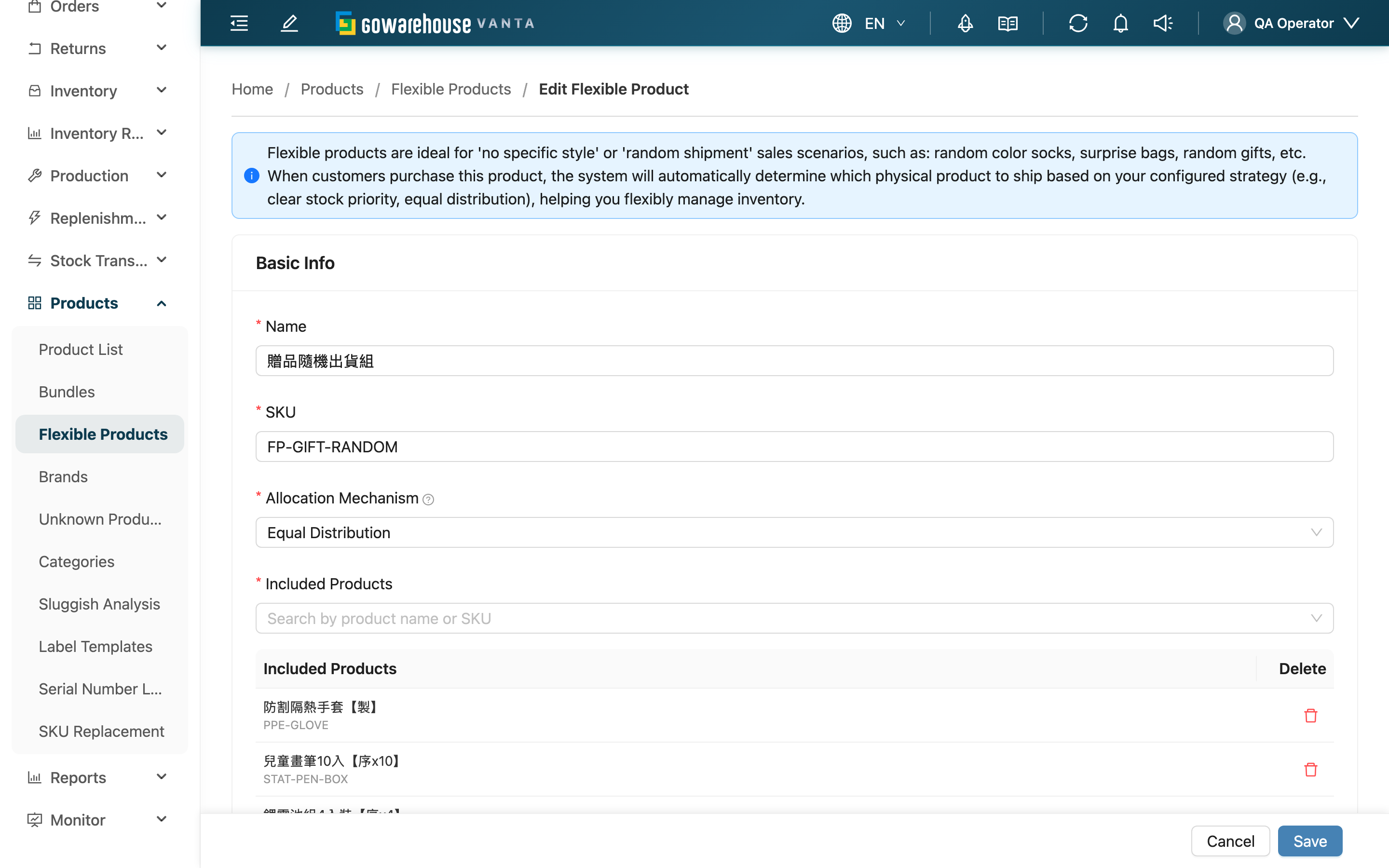
Here you modify an existing flexible product: adjust the external name, SKU, and allocation mechanism, and add or remove the candidate real products underneath. The owning merchant is fixed at creation and cannot be changed when editing. Changes only affect new orders; already-created orders keep the items allocated at that time.
Quick Jump: Basic Info | Included Products | Save
1.1 Basic Info
When the page loads, the flexible product's current settings are filled in. The merchant field cannot be changed.
Fields marked with * are required.
| Field | How to Fill | Notes |
|---|---|---|
| *Name | Modify the flexible product's external display name | Required |
| *SKU | Modify the flexible product's SKU | Required; must be unique within the same merchant. After changing the SKU, update the channel's external SKU in sync, or orders won't match |
| *Allocation Mechanism | Re-select an allocation mechanism | Required |
The Allocation Mechanism decides how an order's quantity is split across candidates:
| Mechanism | How the system allocates | Best for |
|---|---|---|
| Equal Distribution | Distributes quantity to candidates in turn (evenly when stock allows) | Fair rotation across sources |
| Most Stock First | Consumes the highest-stock candidate first, then the next | Balancing stock levels |
| Least Stock First | Consumes the lowest-stock candidate first, then higher-stock ones | Clearing near-expiry, low-stock batches first |
1.2 Included Products
The current candidate products are already listed below. In the Included Products field, search by product name or SKU to add new candidates, and remove any item individually from the chosen list. Only products under the merchant this flexible product belongs to can be selected.
| Field | How to Fill | Notes |
|---|---|---|
| *Included Products | Add or remove interchangeable candidate real products | Keep at least one; if a product is missing, create it in "Product List" first |
1.3 Save
After adjusting, click Save at the bottom. If you remove all candidate products and then save, the system prompts you to select at least one product. After a successful save you return to the previous page.
2. FAQ
2.1 FAQ
▪ If I change the mechanism or candidates, will already-created orders change?
No. A flexible product is already converted into real product line items and written into the order at order creation; editing only takes effect for new orders and does not retroactively change already-created orders.
▪ Can I change the merchant?
No. The merchant is fixed at creation and cannot be changed on the edit page either. To change it, you must delete and recreate.
▪ Why can't I find the product I want in the candidate list?
Only products under the merchant this flexible product belongs to can be selected. If it's not in the list, create the product in the Product List first, then come back to add it.
▪ What should I watch out for when changing the SKU?
Orders match a flexible product by SKU. After changing the SKU, be sure to update the external SKU you give the channel in sync, or new orders won't match this flexible product. SKUs must be unique within the same merchant.
▪ Can I remove all candidate products and then save?
No. A flexible product must keep at least one candidate product; removing all and saving is blocked with a prompt.
2.2 Notes
⚠️ Important
- Changes to the name, SKU, mechanism, or candidate list only affect new orders and are not retroactive to already-created orders.
- After changing the SKU, update the channel's external SKU in sync, or orders won't match this flexible product.
- The candidate list cannot be empty; keep at least one.
💡 Tip: To temporarily switch shipping strategy (e.g., to prioritize clearing low-stock batches), just change the Allocation Mechanism — no need to rebuild the whole flexible product.
3. Related Features
| Feature | Description | Link |
|---|---|---|
| Flexible Product Detail | Return to detail to verify settings | Go |
| Flexible Product List | Return to the list to view all flexible products | Go |
| Product List | View or create candidate real products | Go |