
Edit Operator
Table of Contents
1. Features
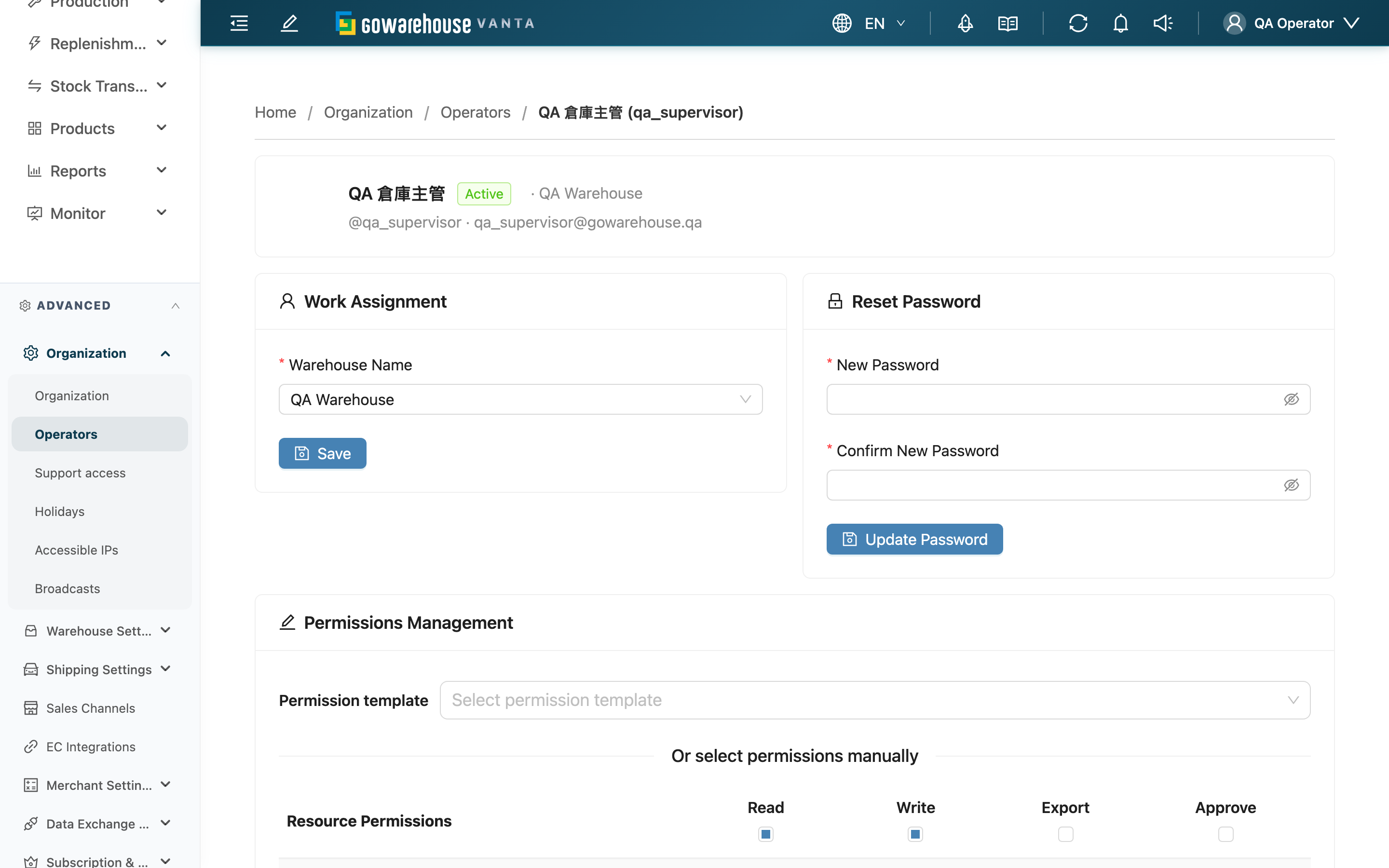
Edit Operator is where you maintain a single member's account: adjust their home warehouse, reset their password, set function permissions, and assign accessible merchants. After a new member is created or accepts an invitation, you usually come here to fill in permissions and merchant scope; you also update it here when a member changes roles or the brands they handle. The top of the page shows the member's name, account, home warehouse, and status, plus who invited or created them.
Quick Jump: Network access policy | Work assignment | Reset password | Permissions | Permission reference | Merchant access assignment
1.1 Network access policy
The "Network access policy" card decides whether this member is subject to the IP Allowlist. The card shows the Current policy, with two policies to choose from:
| Policy | Effect |
|---|---|
| Follow organization policy | Default. Sign-in sources are matched against the warehouse's configured IP Allowlist; an empty list means no restriction |
| Allow access from any network | This member is exempt from the IP Allowlist and can access the system from any network |
Click "Change policy" to open the dialog and choose a policy; clicking "Apply policy" makes it take effect immediately, with no re-login needed. Switching to "Allow access from any network" requires a Business justification (up to 500 characters) explaining why the exception is needed; the reason stays visible on the card and is cleared automatically when you later switch back to "Follow organization policy". Every change is recorded — expand "View policy change history" to see who changed what and when.
Changing the policy requires the operator-management write permission; without it you only see the current policy. The card does not appear when editing your own account — adjust your own policy in Profile settings. The operator list also has a "Network access" column so you can spot exceptions at a glance.
1.2 Work assignment (home warehouse)
In the "Work Assignment" section you can adjust the member's Warehouse Name.
Fields marked with * are required
| Field | How to fill | Notes |
|---|---|---|
| *Warehouse Name | Choose the member's warehouse from the list | Required; after the change, the member appears in the new warehouse's list and no longer in the original one |
Click "Save" to update the home warehouse.
1.3 Reset password
In the "Reset Password" section you can set a new password for the member directly, without entering their current password.
Fields marked with * are required
| Field | How to fill | Notes |
|---|---|---|
| *New Password | Enter the new password | Required, at least 6 characters |
| *Confirm New Password | Enter the same new password again | Required, the two must match |
After setting it, hand the new password to the member. When you are editing your own account, this section does not show the reset-password fields; instead it directs you to change your own password in Profile settings.
1.4 Permissions
Permissions decide which functions the member can use after logging in. If you have operator-management permission, you can check the functions to grant in the permissions section; otherwise you only see a read-only view of the current permissions.
- You can only grant permissions you hold: you cannot grant permissions you do not have, and anything beyond that is stripped.
- Permission changes force the member to log in again: after adjusting permissions, the member's mobile App and back-office logins are invalidated, and they must log in again for the new permissions to apply.
- You cannot remove your own core permissions: when editing yourself, the system does not allow removing your own operator-management (read and write) permissions, to avoid locking yourself out of management.
1.5 Permission reference
Rows in the permission matrix are functions and columns are actions. The four actions mean:
| Action | Meaning |
|---|---|
| Read | Open the function's list and detail pages |
| Write | Create and modify the function's data (including status operations such as cancel and void) |
| Export | Export the function's data as files |
| Approve | Approve or reject submitted documents |
What each permission item controls (actions outside "Available actions" do not appear in the matrix):
| Permission item | Available actions | What it controls |
|---|---|---|
| Orders | Read, Write, Export | The entire outbound flow: orders, fulfillments, picking lists, allocation, outbound inspection, shipment management, held orders, merge fulfillments |
| Inventories | Read, Write, Export, Approve | Inventory management: inventory list, stock adjustments, inventory transformations, stock takings, stock transfer orders, replenishment, shelf snapshots, historical inventory; Approve = approve or reject stock takings, stock adjustments, and inventory transformations |
| Products | Read, Write, Export | Product catalog: products, bundles, flexible products, product categories, serial number lookup, label templates, unknown products, slow-moving lookup, plus viewing the brand pages |
| Inbound Orders | Read, Write, Export | Inbounds and inbound acceptance |
| Purchase Orders | Read, Write, Export, Approve | Purchase orders; Approve = approve or reject submitted purchase orders |
| Return Orders | Read, Write, Export | Returns: return orders, return receipts, return-to-inbound |
| Work Orders | Read, Write, Export | Production: work orders, BOMs, material picking tasks, work item rates |
| Shelves | Read, Write, Export | Shelf movements, shelf adjustments, shelf label templates |
| Warehouses | Read, Write | Warehouse management: warehouse settings, shelf list, shelf type management |
| Merchants | Write, Export | Merchant management and merchant-level settings: merchant settings, sales channels, inventory types, merchant shipping settings, shipping rate cards, import templates |
| Operators | Read, Write | Operator management (this page), unassigned tasks, support access |
| Users | Read, Write | Inviting or canceling a merchant's back-office users on their behalf |
| Suppliers | Read, Write | Supplier list |
| Contact Addresses | Read, Write, Export | Address book |
| Consumables | Read, Write, Export | Consumables management |
| Billings | Read, Write | Billing operations (confirm, close early) and value-added service items |
| Reports | Read | Report center: order reports, workforce statistics, product association analysis |
| Audit Logs | Read, Export | Audit logs |
| Logs | Read | Integration logs: platform API logs, webhook logs, data exchange logs |
| Organizations | Read, Write | Organization settings: organization management, shipping types, holiday settings |
| Governance | Read, Write, Export | Subscription and platform billing: subscription management, plan selection, bills, payment methods, AI usage and cost, PCS ledger |
| EC Accounts | Read, Write | E-commerce integrations |
| Shipping Accounts | Read, Write | Carrier integrations |
| WCS Integrations | Read, Write | WCS integrations (warehouse automation equipment) |
| IP Whitelist | Read, Write | IP whitelist (restricts the network locations that can sign in) |
| Brands | Write | Creating and modifying brands (viewing the brand pages follows the Read permission of Products) |
1.6 Merchant access assignment
Clicking "Manage Merchants" for the member in the operator list opens the merchant access assignment page, which decides which merchants' inventory and orders they see after logging in.
How it works:
- Use the search box to find a merchant, or use "Select All" / "Deselect All" to check or clear in bulk.
- The list shows only the merchants of the current warehouse; if a merchant the member was previously authorized for no longer belongs to this warehouse, it is flagged as an "orphaned" authorization to remind you to handle it.
- You can only check merchants you can access, and cannot grant merchants beyond your own scope.
About this change:
- When it can run: operator-management permission is required to modify; the read-only view is available to anyone.
- Side effects: it takes effect immediately on save, and the next time the member reads data they see only the merchants you checked. At least one merchant must remain; clearing all cannot be saved.
- Reversibility: you can return to this page anytime to re-check and adjust; no merchants or their data are deleted.
2. FAQ
2.1 Questions
▪ Do I need to know the person's current password to reset it?
No. Resetting someone else's password here lets you assign a new password directly, without entering their current one. After setting it, hand the new password to the member.
▪ I changed someone's permissions, why do they say it still doesn't work?
After a permission change, the member must log in again for it to apply, and the system also invalidates their existing login automatically. Have them log in once more.
▪ Why can't I check certain permissions?
You can only grant permissions you hold. Anything missing or uncheckable means you do not have that permission yourself and cannot re-grant it to others.
▪ When editing my own account, why don't I see the reset-password fields?
You do not change your password here when editing yourself; the system directs you to Profile settings to change your own password, where it requires verifying your current password for added safety.
▪ What if the merchant I want to authorize is not in the list?
The merchant list shows only the merchants of the member's current home warehouse. Confirm the merchant is configured to this warehouse, or move the member to the correct warehouse first in Work assignment, then assign.
▪ What does the "orphaned authorization" warning mean?
It means a merchant the member was previously authorized for no longer belongs to their current warehouse. The system lists these merchants as a warning so you can re-check their merchant selections and remove authorizations that no longer apply.
▪ If I change the home warehouse, what happens to the person?
They move from the original warehouse's list to the new warehouse's list, and their operating scope follows the new warehouse. Any assigned merchant that does not belong to the new warehouse is flagged as "orphaned" on the merchant assignment page, and adjusting it is recommended.
▪ Why can a member sign in even though they are not on the IP Allowlist?
First check whether their network access policy is set to "Allow access from any network" — this exception exempts them from the allowlist entirely; the "Network access" column in the operator list helps you spot it quickly. In addition, support staff authorized through Support Access are not subject to the allowlist during the authorized period.
2.2 Notices
⚠️ Important
- "Allow access from any network" lets the member bypass the IP Allowlist entirely — an elevated exception. Enable it only when necessary and review the exceptions on the list regularly.
- Adjusting permissions invalidates the member's login immediately, and they must log in again to keep working.
- Merchant assignment requires at least one merchant; clearing all cannot be saved.
- When editing yourself, you cannot remove your own operator-management permissions, nor reset your own password here.
💡 Tip: For a newly created member or one who just accepted an invitation, confirm here that permissions and merchants are fully assigned, otherwise they will see no operable data after logging in.
3. Related Features
| Feature | Description | Link |
|---|---|---|
| Operators | Return to the operator list to search, disable, or invite members | Go |
| Create Operator | Create a new operator account directly | Go |
| Organization Settings | Maintain the organization and warehouses for the home-warehouse choice | Go |
| IP Allowlist | Configure the warehouse-level sign-in source restriction that the network access policy is matched against | Go |