
Stock Inquiry
Table of Contents
1. Scenarios
Quick links: Confirm shippable quantity before stocking up | Ship near-expiry batches first | Trace allocations when chasing an order
Scenario 1: Confirm a product really has stock to ship before a promotion
Situation: A merchant tells you there is a campaign this weekend and a few hot items will get heavy orders. Before it starts, you want to confirm how much the warehouse can actually ship, so it does not run out the moment the campaign opens.
Use this feature: In the list columns, check the product's Available Quantity — the figure left after subtracting pending putaway, quantity locked by other orders, and held quantity. It is the amount truly available to ship, and differs from Quantity (the total on hand).
Result: You know exactly how much each item can ship. If the figure is low, you can ask for replenishment or have the merchant throttle orders early, instead of discovering mid-campaign that stock exists on paper but cannot actually ship.
Scenario 2: Clear out a near-expiry batch so it gets picked first
Situation: During the morning aisle walk you notice a food batch is close to expiry. The same product has several intake batches in the warehouse, so you first need to confirm how much of this batch is left and where it is, before arranging to clear it first.
Use this feature: Different batches of the same product are separate inventory records here — distinguished by Batch, Expiration Date, and Manufacturing Date. Use Search and filter to narrow to that product and find the near-expiry batch by Expiration Date range. When allocating shipments the system already ships the earliest-expiring stock first; here you can confirm that is happening.
Result: You know the quantity and location of the near-expiry batch and can proactively clear it or report it, reducing write-off losses.
Scenario 3: Customer service reports an order stuck unshipped — trace who is holding the stock
Situation: A merchant forwards a complaint that an order placed long ago still has not shipped. You suspect this product's stock is locked up by a pile of orders and want to confirm how much is "locked" and by which orders.
Use this feature: In the list columns, check the product's Allocated Quantity — the amount reserved by orders but not yet shipped. As an operator, clicking that figure takes you to Orders locking this inventory, where you can review which orders are holding the stock, one by one.
Result: You can see clearly which orders are locking this inventory and how much each holds, judge whether it is awaiting replenishment or a stuck order that needs handling, and give customer service a clear answer.
2. Features
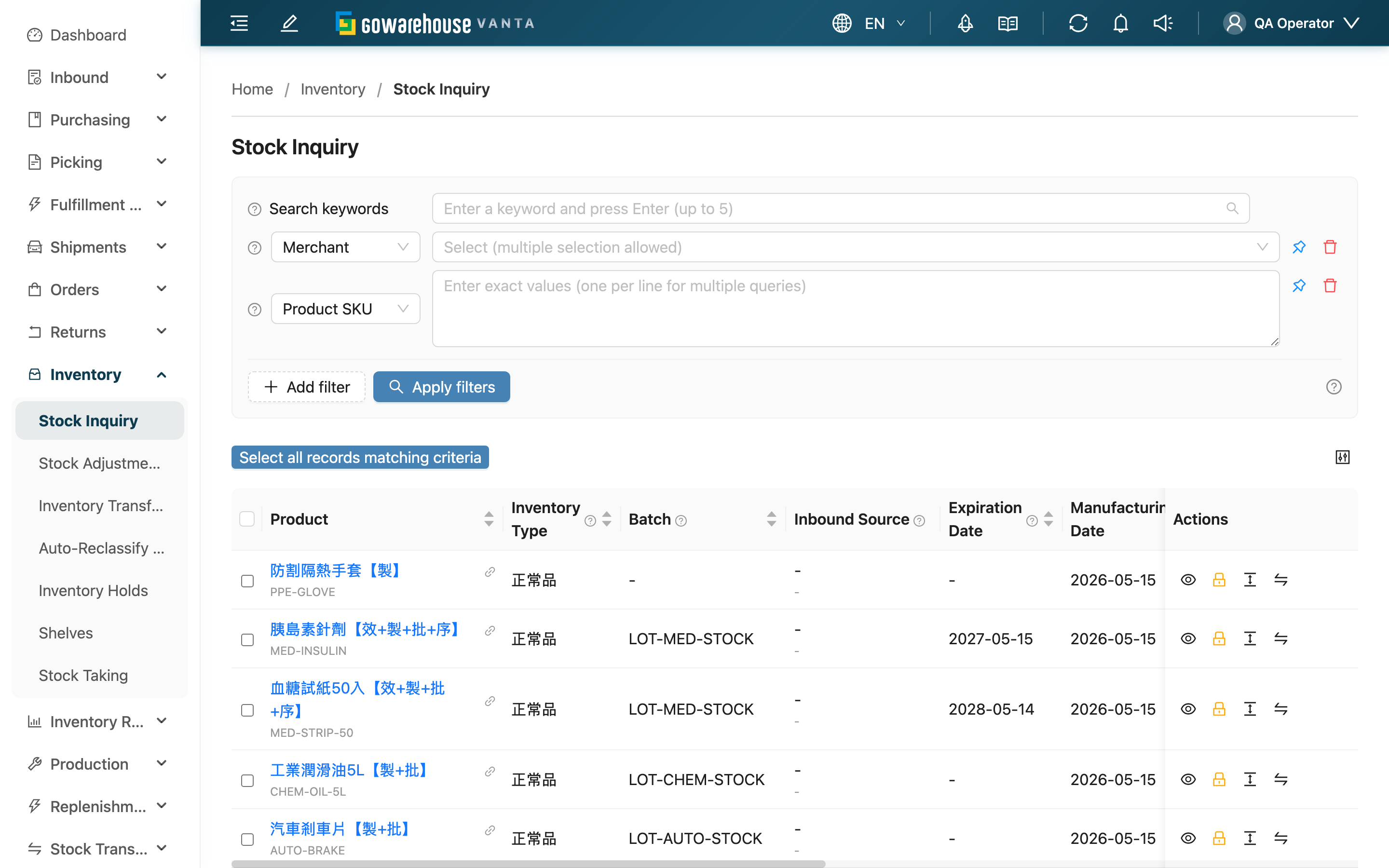
The inventory list is your real-time view of "what stock exists right now, and how much of each can ship." The system splits the same product into separate inventory records by intake batch, expiration date, manufacturing date, inventory type, and custom attributes, each showing total on hand and available quantity in real time. Stocking up, replenishment, expiry management, and tracing shipment allocations all start here.
Quick jump: Search and filter | List columns | Row actions | Batch actions
2.1 Search and filter
The top search box accepts multiple keywords at once and matches Product SKU, Product Name, Batch, and inventory custom attributes. For more precise conditions, use the filters below:
By default the list shows only in-stock records (still holding stock); depleted inventory does not appear.
| Filter | How to use |
|---|---|
| Merchant Name | With multiple merchants, choose the merchant to view; single-merchant accounts do not see this filter |
| Expiration Date | Pick a date range to find batches whose expiry falls within it (e.g. "expiring by month-end") |
| Manufacturing Date | Pick a date range to filter by manufacturing date |
For the rest (Product SKU, Product Name, Inventory Type, Batch), just type or select by name.
2.2 List columns
An inventory record's identity is defined by five attributes together: Inventory Type, Batch, Expiration Date, Manufacturing Date, and Inventory Custom Attributes. If any one of these five differs, it is a different inventory record, counted separately.
| Column | What it means |
|---|---|
| Inbound Source | The source inbound and acceptance date of this batch; click the inbound to trace its origin |
| Inventory Custom Attributes | Extra product attributes (e.g. color, size) used to distinguish variants of the same SKU |
| Quantity | Total on hand for this batch, including locked, held, and available quantities |
| Available Quantity | The amount truly available to ship = total on hand − pending putaway − locked − held |
| Pending Putaway | Quantity accepted but still sitting at staging areas such as the inspection table, not yet put away to formal shelves; not counted as available |
| Allocated Quantity | Quantity reserved by orders but not yet shipped; deducted after shipping (operators can click the figure to see the orders holding it) |
| Held Quantity | Quantity frozen by an inventory hold; excluded from shipment allocation |
| Status | In Stock = has available stock; Out of Stock = quantity is zero; Blocked = the whole batch is suspended |
Multi-merchant accounts also have a Merchant Name column; the remaining columns (product name, SKU, batch, expiry, manufacturing date) are self-explanatory by name.
2.3 Row actions
The right side of each row offers quick actions on a single inventory record:
| Action | Purpose |
|---|---|
| View Inventory | Open the detail dialog to view this record's five identity attributes and its distribution across shelves |
| Hold | Freeze part of this record's quantity; once frozen it is excluded from shipment allocation (shown only when available quantity is greater than zero) |
| Quick Stock Adjustment | Adjust this record's quantity at a shelf directly, without opening a separate stock adjustment |
| Quick Inventory Transformation | Convert this record to another inventory type (e.g. good stock to defective), without opening a separate inventory transformation |
2.4 Batch actions
After selecting multiple records, you can act on them at once:
| Action | Description |
|---|---|
| Batch Hold | Freeze multiple records as held at once, creating the matching inventory hold records |
| Export | Export the selected inventory to a file; check and download the result in "Import/Export Records" |
3. FAQ
3.1 FAQ
▪ Why do Quantity and Available Quantity differ?
Quantity is the total on hand for the batch; Available Quantity is what is truly shippable after subtracting pending putaway, locked, and held quantities. To judge "can I ship right now," look at Available Quantity; a large total but zero available means the stock is all reserved or frozen.
▪ Why does the same product appear several times?
Whenever any of the five identity attributes (inventory type, batch, expiry, manufacturing date, custom attributes) differs, it is a separate inventory record counted separately. Different intake batches and expiry dates of the same product are each independent, which supports first-in-first-out and batch tracing.
▪ Why is there stock but the locked quantity is high and available is zero?
It means most of this batch is reserved by orders (Allocated Quantity) but not yet shipped. As an operator, click that figure to view the orders holding it and confirm whether they are awaiting normal shipment or a stuck order needs handling.
▪ Why isn't accepted stock counted as available yet?
Quantity that is accepted but still sitting at a staging area such as the inspection table, not yet put away to a formal shelf, counts as Pending Putaway and is not available. It moves into available quantity only after putaway is completed.
▪ I can't find an inventory record in the list?
By default the list shows only in-stock inventory; depleted records (quantity reduced to zero) do not appear. If you are sure there is stock but cannot find it, first check whether the filters above (merchant, inventory type, expiry range) have narrowed the scope.
▪ How do I freeze part of the stock so it does not ship?
On the row, click Hold (or select multiple and use Batch Hold). The frozen amount counts as Held Quantity and is excluded from shipment allocation. See Inventory Holds.
3.2 Notes
⚠️ Important Reminders
- Quick Stock Adjustment changes the actual inventory quantity directly; confirm the count result is correct before doing it.
- Quick Inventory Transformation moves stock from one inventory type to another (e.g. good to defective); after the conversion the batch's available and allocated calculations change accordingly.
💡 Tip: To judge "can I take and ship orders right now," always look at Available Quantity, not the total on hand; the total includes the reserved and frozen portions.
4. Related Features
| Feature | Description | Link |
|---|---|---|
| Documents Locking Inventory | See which orders, work orders or transfer orders are locking a given inventory record and how much each holds | Go |
| Stock Adjustment | Adjust inventory quantity in bulk and leave an adjustment record | Go |
| Inventory Transformation | Convert inventory from one type to another | Go |
| Inventory Hold | Freeze part of the inventory so it is excluded from shipment allocation | Go |
| Inventory Movements | View the history of every increase and decrease per inventory record | Go |