
Stock Takings
Table of Contents
1. Use Cases
Quick links: Routinely pull the books back to reality | An audit needs objective numbers | Tracing a phantom stockout
Case 1: Routinely pull the books back to reality
Situation: The warehouse receives, shelves, picks, and ships every day. Items put on the wrong shelf, a pick that grabs one too many or too few, a receiving count that was off — these small gaps pile up. After a while the quantity the system records (the book quantity) and what is actually on the shelf no longer match, and by the time you find missing stock — or stock that shows out while it is really there — during shipping, it is already too late.
Use this feature: Schedule a routine stock taking every month (or quarter): build the shelves you want to count into a stock taking (see Create a Stock Taking), have staff count them on the floor and record the actual quantities, then settle.
Result: The system compares book against counted line by line, adds the overages and deducts the shortages, and the book figures line up with reality again so the next shipping round is not dragged down by old errors.
Case 2: An audit needs objective numbers
Situation: The annual financial audit wants inventory figures that are "not nudged by the system." If a counter can see the book showing "50" while counting, they tend to stop at 50, and discrepancies get masked.
Use this feature: When you create the stock taking, set the count type to Blind (see Create a Stock Taking) so the book quantity is hidden during counting and staff record purely what they see; for the most accurate comparison, also pair it with a Static that snapshots inventory upfront.
Result: The count is not influenced by the book figures, real discrepancies surface, and the numbers stand up to audit scrutiny.
Case 3: Tracing a phantom stockout
Situation: During shipping an item shows stock in the system but cannot be found on the floor. You suspect one area's book and physical stock have been out of sync for a while and want to pin it down and correct the book.
Use this feature: You do not have to count the whole warehouse — build only the suspect shelves into a single stock taking (see Create a Stock Taking), count them on site, and settle. With a Dynamic done by scanning with a handheld, the rest of the warehouse can keep operating during the count.
Result: The problem shelves' book figures are corrected on the spot, you learn whether it was a misplaced item or a real shortage, and the same phantom stockout will not recur.
2. Features
A stock taking is the task of counting the actual quantity on the shelves, comparing it against the system's book quantity, and writing the difference back into inventory. This page is the entry point for all your stock takings: here you create a stock taking, choose which shelves to count, decide between an Normal and a Blind, and between a Static and a Dynamic; once the counted quantities are recorded, you settle and the system adjusts inventory automatically and leaves a movement record.
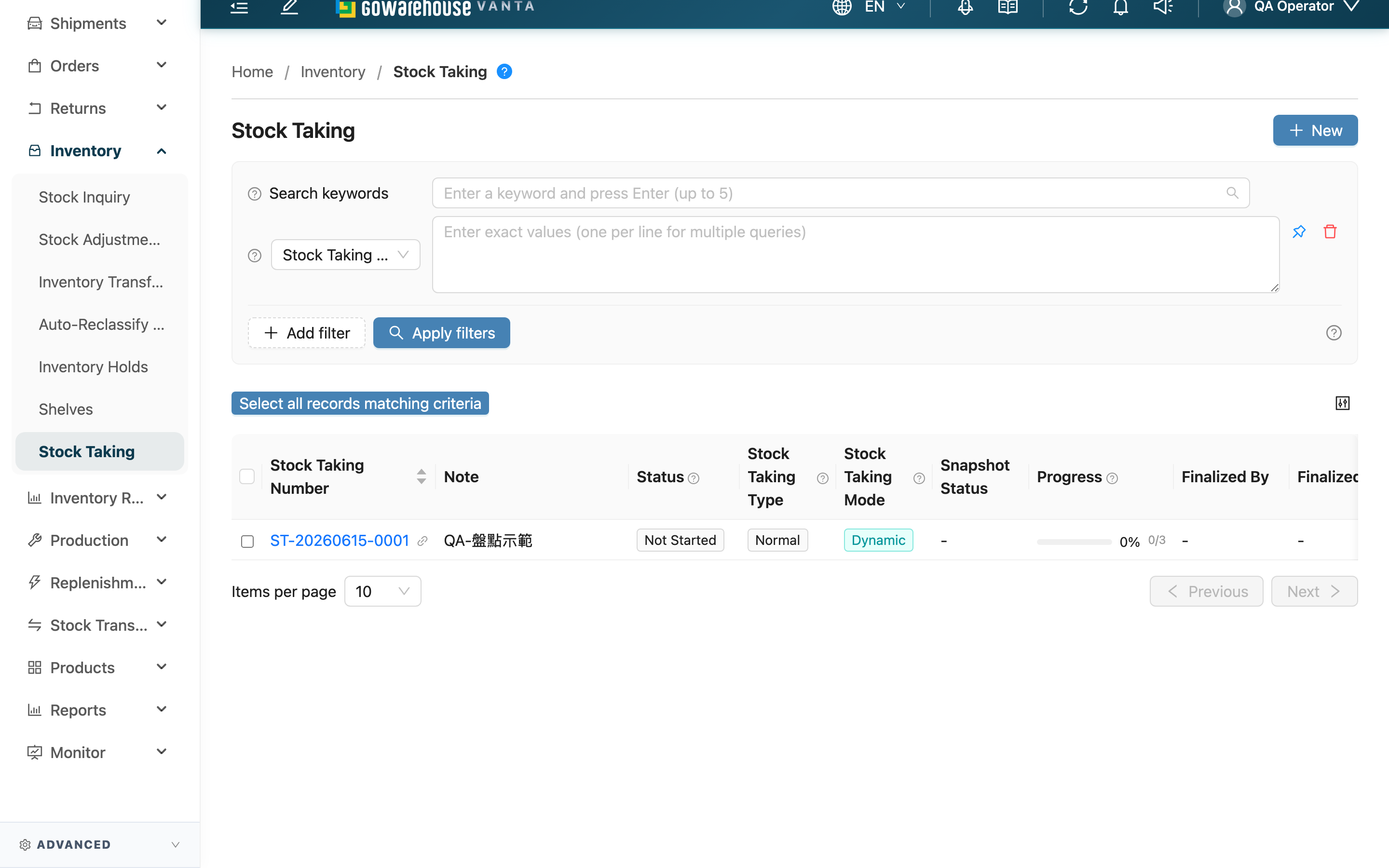
Jump to: Search & Filter | List Columns | Create a Stock Taking
2.1 Search & Filter
The search box at the top finds records by stock taking number or note keyword. The filters below are listed only where they need explanation; self-explanatory fields are selected by name:
| Filter | How to use |
|---|---|
| Stock Taking Number | Enter multiple numbers at once (one per line) |
| Status | Multi-select; filters by the stage the stock taking is in (see the status table in List Columns) |
| Stock Taking Type | Multi-select: Normal, Blind |
| Stock Taking Mode | Multi-select: Dynamic, Static |
| Finalized At | Pick a date range; commonly used to pull settled records from a given period |
2.2 List Columns
The stock taking number in the list is clickable and opens the detail page (see Stock Taking Detail). Most columns are self-explanatory; the three groups below are the keys to reading a stock taking's overall state.
Status
A stock taking goes through four states; the last two are final and cannot be changed:
| Status | What it means |
|---|---|
| Not Started | Created, but no shelf has been counted yet |
| In Progress | At least one shelf has begun counting; awaiting settle or reject |
| Approved | Differences applied; inventory adjusted |
| Rejected | Result not adopted; inventory untouched; record kept for audit |
Stock Taking Type
| Type | Difference |
|---|---|
| Normal | Book quantity is visible while counting — easy to cross-check and faster; suited to routine counts |
| Blind | Book quantity is hidden; staff count independently from what they see; suited to annual counts or audits |
Stock Taking Mode
| Mode | Difference |
|---|---|
| Static | Snapshots inventory at creation; the warehouse must halt inbound/outbound during the count; supports Excel import/export and on-page entry |
| Dynamic | Count by scanning shelves on a phone; the warehouse can keep operating during the count; requires a handheld |
The list also has Progress (completed shelves / total shelves), Snapshot Status, Finalized By, and Finalized At columns, all readable by name.
Batch Actions
After selecting one or more stock takings, click Export to export the selected stock takings to Excel.
2.3 Create a Stock Taking
Click New at the top right to start. Pick the shelves, set the count type and mode, then submit. For the full field entry, shelf filtering, and splitting across multiple counters, see Create a Stock Taking. After creation you enter the detail page to record quantities and settle, see Stock Taking Detail.
3. FAQ
3.1 FAQ
▪ How do I choose between an Normal and a Blind?
With an Normal the book quantity is visible, making it easy to cross-check and confirm quickly — good for routine counts. With a Blind the book quantity is hidden, so staff must count independently before comparing, avoiding the suggestion of the book figure — good for annual counts or when you suspect the book is clearly wrong. The general rule: open for daily, blind for important counts.
▪ What is the difference between a Static and a Dynamic?
The core difference is whether the warehouse can keep moving stock during the count. A Static snapshots inventory at creation into a fixed list; you must halt inbound/outbound for that range, or the snapshot will not update and the comparison will be distorted — suited to precise audits like annual counts, and it supports Excel import/export. A Dynamic counts by scanning shelves on a phone and reads the book quantity at settle time, so movements during the count are factored in automatically and the warehouse does not stop — suited to daily and on-the-spot checks, but it requires a handheld.
▪ Can I undo a settlement?
No. Settlement immediately adjusts inventory based on the recorded quantities and cannot be undone or reverted, so always confirm the differences first. If you do not want to adopt this count's result, use Reject instead — the record is kept but inventory is untouched. For the detailed preconditions and side effects, see Stock Taking Detail.
▪ Can a stock taking be deleted?
Only Not Started stock takings can be deleted. Once any shelf has begun counting (In Progress), or the count is Settled or Rejected, it cannot be deleted, so that work and audit records are preserved. If a count has not been touched and you are sure you will not run it, delete it; for a count already begun, close it out with Reject.
▪ What is Snapshot Status, and why does a dynamic count show "-"?
After a Static is created, the system first snapshots the chosen shelves' quantities as the comparison baseline; the snapshot status (Pending, Processing, Completed, Failed) is the progress of that preparation, and you can only start recording once it is Completed. A Dynamic needs no snapshot, so it shows "-".
▪ My warehouse is a virtual warehouse — why is creating a stock taking different?
A virtual warehouse has no physical shelves, so the entry button is Create Virtual Stock Taking, and you filter the inventory to count directly by "merchant + conditions," up to 1,000 entries. The rest of the recording and settlement flow is the same as a regular stock taking. See Create a Stock Taking.
▪ Why is there no Stock Taking Mode option when I create, only Static?
A Dynamic must submit quantities by scanning shelves on a phone. If your plan does not include handheld operation, the system hides the mode option and always creates a Static Stock Taking, to avoid creating a count that cannot be worked.
3.2 Notes
⚠️ Important
- Settlement is irreversible: after settling, inventory is adjusted immediately and cannot be reverted — always confirm the differences first; close out an unwanted result with Reject.
- Halt inbound/outbound during a static count: a Static uses the snapshot taken at creation as the baseline; movements during the count do not update the snapshot, so the settled adjustment will not match reality.
- An in-progress stock taking cannot be deleted: only Not Started counts can be deleted.
💡 Tip: When there are many shelves, use the split feature while creating the stock taking to break it into several, and assign them to several people working at the same time (see Create a Stock Taking).
4. Related Features
| Feature | Description | Link |
|---|---|---|
| Inventories | View the current quantity on each shelf | Go |
| Inventory Movements | View the inventory changes produced by settlement | Go |
| Shelves | Manage warehouse shelves | Go |
| Stock Adjustments | Adjust a single inventory directly without a count | Go |