
Work Orders
Table of Contents
1. Use Cases
Quick links: Assemble bundle goods | Break down and re-make existing goods
Scenario 1: Assemble loose materials into bundle goods
Situation: You have a batch of loose parts and packaging, and marketing wants them assembled into 50 gift sets to put on sale. The parts and packaging are stock that gets consumed; the gift sets are new stock added to the warehouse once assembled — this is a "work order" job.
Use this feature: Create a work order, list the parts and packaging as "Consume Materials" and the gift sets as "Produce Output" (for a common combination, apply a BOM recipe to fill everything in one click on the New Work Order page), then confirm, pick, and complete following the Features workflow.
Result: The gift set — a new finished good — automatically gets a production inbound order and enters stock through the normal inbound receive-and-putaway flow; the consumed parts and packaging are deducted at completion, keeping the warehouse records aligned with the physical stock.
Scenario 2: Break down or re-make existing goods into another product
Situation: There is a batch of bulk-packaged goods that isn't selling, and you want to break it into smaller packs to re-sell; or off-season branded packaging needs to be swapped for new packaging before re-shipping. The original goods must be consumed, and the re-made goods must be booked in as new stock.
Use this feature: Create a work order, list the original goods to be broken down as "Consume Materials" and the re-made goods as "Produce Output", fill in the quantities to actually go in and come out, then proceed via the Workflow.
Result: The original goods are deducted at completion and the re-made new goods enter stock automatically. The whole breakdown or repack process leaves a paper trail, making it easy to later trace how this batch came to be.
2. Features
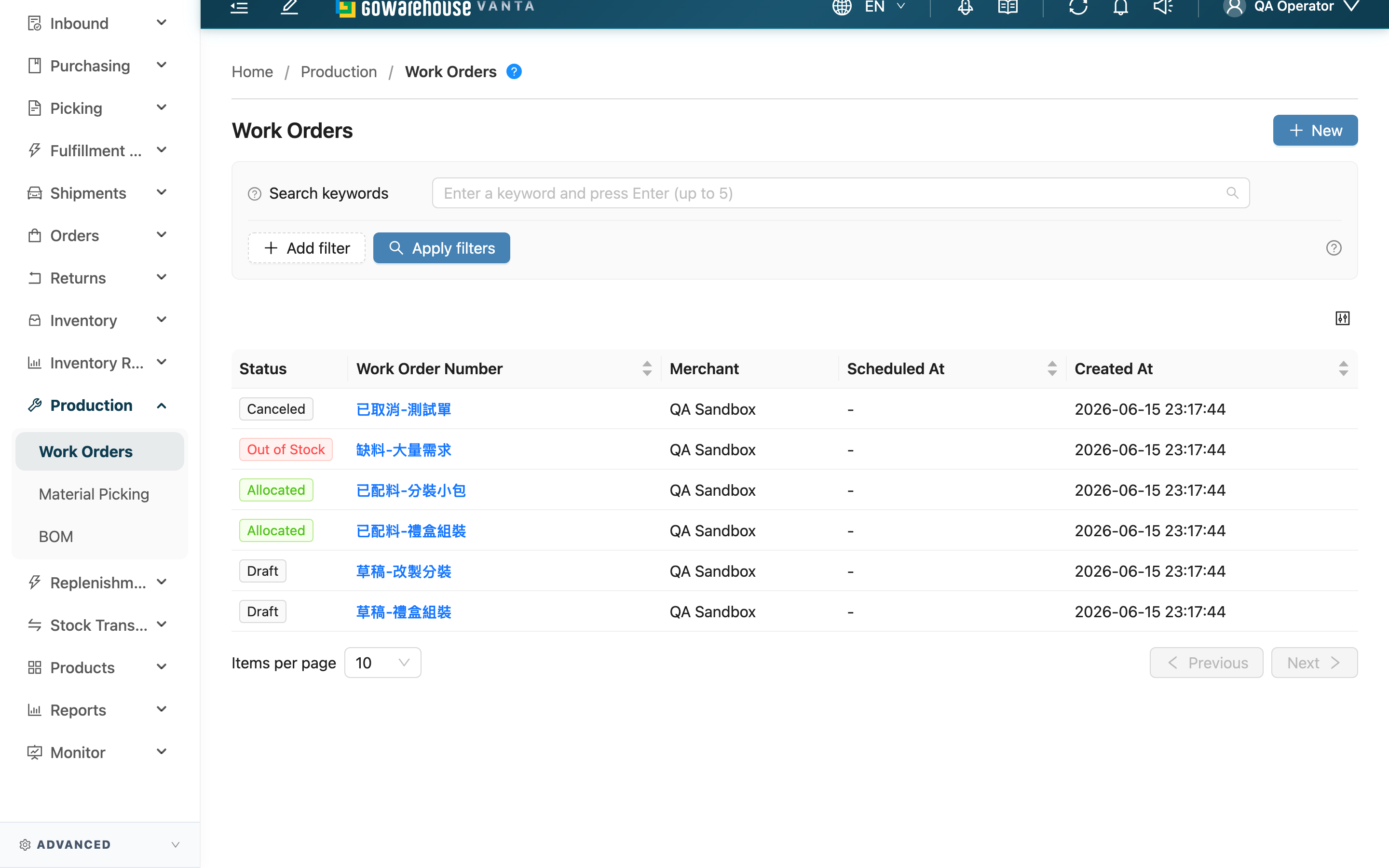
A work order is how you manage "turning one batch of stock into another": every order has items in two roles — "Consume Materials" and "Produce Output". The whole flow is: create the work order, the system reserves the materials after you confirm, you manually create a picking list to pull the materials out, and at completion the materials are deducted while the finished goods automatically get an inbound order. This list is the entry point for all work orders, where you can see which stage each order is at and find the ones to handle by status or by input / output SKU.
Quick jump: Search & Filter | Columns | Workflow
2.1 Search & Filter
| Filter | How to use | Notes |
|---|---|---|
| Status | Tick one or more statuses from the list | Status meanings are in Columns |
| Merchant | Tick merchants from the list | Appears only when serving multiple merchants; hidden when serving a single merchant |
| Search | Enter the work order number or name | Supports multiple entries, one per line |
| Input SKU | Enter the SKU of an input product | Finds all work orders that "use a given material", supports multiple entries, one per line |
| Output SKU | Enter the SKU of an output product | Finds all work orders that "produce a given finished good", supports multiple entries, one per line |
2.2 Columns
| Column | Description |
|---|---|
| Status | The work order's current stage — six in total: Draft (just created, still editable), Out of Stock (materials short, needs restock then re-allocation), Allocated (materials reserved, picking list can be created), Processing (picking and processing underway), Completed (finished goods produced and inbound created), Canceled (whole order voided) |
| Work Order Number | The work order's number / name; click to open the detail |
| Merchant | The merchant this order belongs to; this column is hidden when serving a single merchant |
| Scheduled At | The date the work is planned for |
| Created At | When the work order was created |
Click any row's number to enter the Work Order Detail, where the input and output line items, picking list progress, and all action buttons live.
2.3 Workflow
From creation to completion, a work order moves through several steps in order — each is done on the Work Order Detail page:
| Step | Action | What happens | Resulting status |
|---|---|---|---|
| Create | Fill in the materials and goods on New Work Order | The work order is created | Draft |
| Confirm | Press "Confirm" | The system tries to reserve all material stock; succeeds only when everything is in full, otherwise the whole order goes out of stock | Allocated or Out of Stock |
| Retry allocation | After restocking, press "Retry Allocation" | Tries to reserve the materials again | Allocated or Out of Stock |
| Create picking list | Press "Create Picking List" | The system creates a picking list; pickers pull the materials from their locations into a tote | Processing |
| Complete | Once picking is done, press "Complete" | Deducts the materials from the tote and automatically creates a production inbound for the finished goods | Completed |
Mutating actions like confirm, complete, and cancel each have their own preconditions and effects; for the full reversibility details, see the Work Order Detail doc. On this list page itself you can only view and filter — all status changes happen on the detail page.
3. FAQ
3.1 FAQ
▪ How is a work order different from a normal inbound or fulfillment?
A work order touches both ends of stock at once: one end "Consume Materials" (deducts stock, like a fulfillment), the other end "Produce Output" (adds stock, like an inbound). The system automatically creates a production inbound order for the finished goods at completion, so you don't have to open an inbound order separately — the finished goods enter stock through the normal inbound receive-and-putaway flow.
▪ Why does it become "Out of Stock" after confirm, instead of reserving just the items that are in stock?
Because work requires all materials in full before it can start — reserving only part of them is pointless. If even one material is short, the system puts back everything it already reserved and the whole order lands in out of stock, so it doesn't needlessly tie up stock other orders need. Once restocked, press "Retry Allocation" to reserve again.
▪ Why didn't anyone get sent to pick after confirm?
This is by design. After confirm, the work order stops at "Allocated" and you create the picking list manually. This lets you bundle several work orders together and pick them as a single wave, saving legwork. To start picking, press "Create Picking List" on the detail page.
▪ Why can't I press "Complete"?
Completion requires that a picking list has been created AND picking is done. You cannot complete before a picking list is created or before the materials are picked into a tote. Check the picking list status first and complete once the materials are picked — see Work Order Detail.
▪ What does the warehouse gain and lose after completion?
What it loses are this order's "Consume Materials" — they are actually deducted from the picking tote and officially consumed. What it gains are the "Produce Output" — the system automatically creates a production inbound order, and the finished goods are received and put away through the normal inbound flow; once put away, the warehouse has gained that batch.
▪ Can a work order be canceled? What happens to the reserved materials?
You can cancel any time before completion, and canceling puts back all the previously reserved materials. But there are two cases where you can't cancel: while a picker is mid-pick (the picking list is still in progress), you must first terminate the picking list and return the tote before canceling; and once the finished goods' production inbound has actually been received into the warehouse, the order can no longer be canceled. See Work Order Detail.
▪ What's the difference between building a work order from a BOM recipe versus by hand?
The difference is only in how you enter it. A BOM recipe (production recipe) stores "which materials and how much of each go into one set of finished goods" in advance; when building an order you apply it to fill in materials and goods in one click and just enter how many sets to make, saving line-by-line entry and reducing mistakes. When there's no ready recipe you can add items by hand instead, and the resulting work order is exactly the same. Recipes are maintained in the BOM section.
▪ What are the "Input SKU" and "Output SKU" filters for?
They're handy when you only remember a particular product and want to know which work orders it's involved in. The input SKU filter finds all work orders that "use up this product"; the output SKU filter finds all work orders that "make this product". Both accept multiple SKUs pasted at once.
▪ Can a work order span warehouses?
No. A work order is created in the warehouse you are currently in, and material picking and finished-goods inbound both happen in that same warehouse. To process in another warehouse, switch to that warehouse first, then create the work order.
3.2 Notes
⚠️ Important Reminders
- A work order can only allocate successfully when "all materials are in full"; if even one is short, everything already reserved is put back and the whole order lands in "Out of Stock".
- Completion is irreversible: once materials are deducted from the tote and the production inbound is created, the work order can no longer be canceled.
- Once the finished goods' production inbound has actually been received into the warehouse, the work order can no longer be canceled.
- When canceling a work order, if the picking list is still in progress (a picker is mid-pick), you must first terminate the picking list and return the tote before you can cancel.
💡 Tip: To pick several work orders together, confirm each one to "Allocated" first, then create a picking list for each on the detail page; the picking side can merge these into a single wave, cutting down on movement around the warehouse.
4. Related Features
| Feature | Description | Link |
|---|---|---|
| New Work Order | Create a new work order; apply a BOM recipe to fill in materials and goods in one click | Go |
| Work Order Detail | View one work order's input/output line items and picking progress, and run confirm, pick, complete, cancel | Go |
| Material Picking | View and handle the material-picking tasks generated from work orders | Go |
| BOM | Maintain production recipes to standardize common material combinations | Go |