
Create a Stock Taking
Table of Contents
1. Features
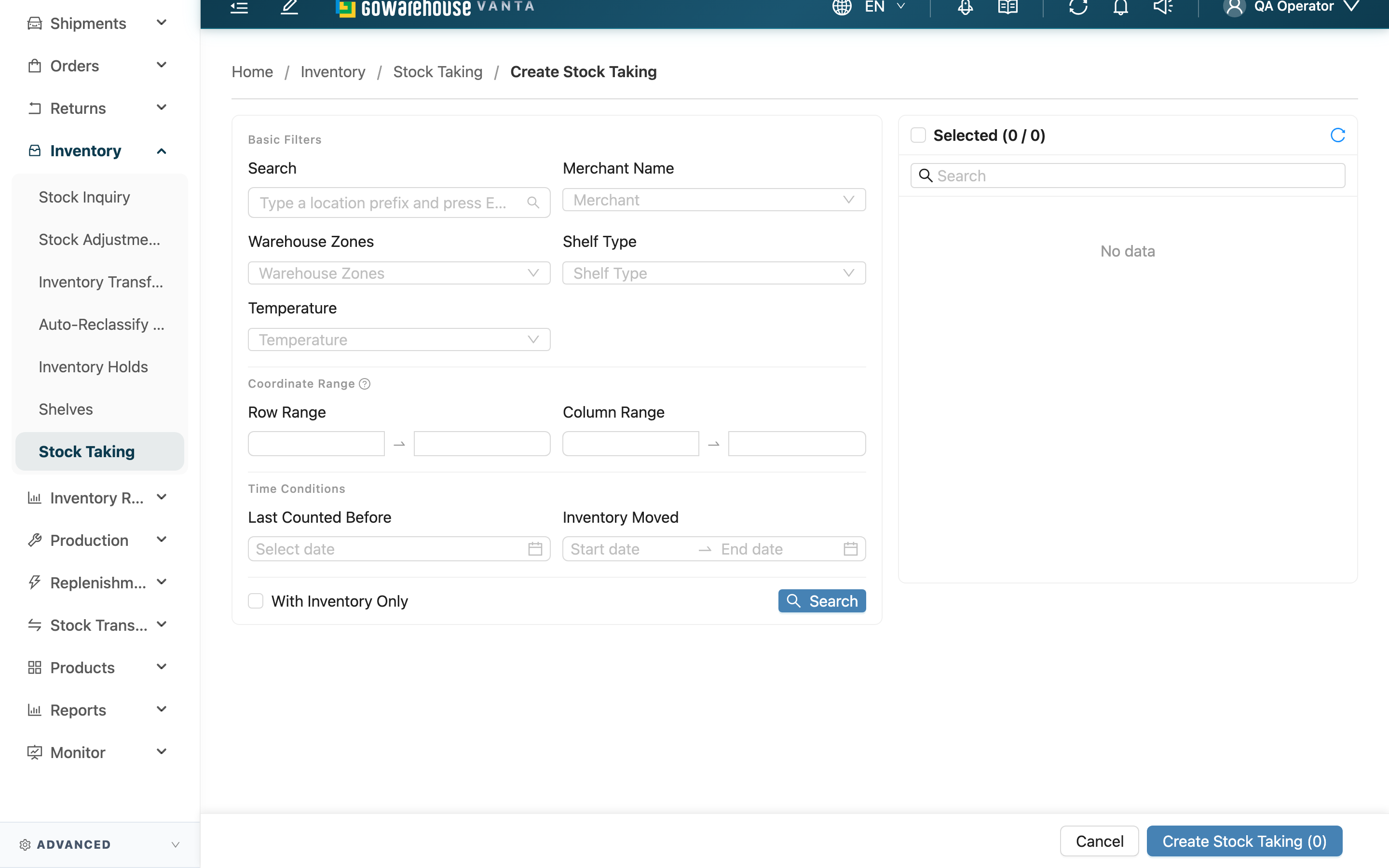
Creating a stock taking has two steps: first filter and select the shelves you want to count this time, then in the settings panel decide the count type, count mode, and whether to split into several. Once created, you move on to the detail page to record actual quantities and settle. The entry point differs for a regular (physical) warehouse versus a virtual warehouse, explained separately below.
Jump to: Select Shelves | Count Settings | Split into Several | Virtual Warehouse Count
1.1 Select Shelves
The main body of the page is the shelf selector: narrow the range with filters, then check the shelves you want to count. Available filters include: Merchant, Shelf Type, Temperature, With Inventory Only, shelf coordinate ranges (Row Range, Column Range), and the time conditions Last Counted Before and Inventory Moved.
💡 Tip: Last Counted Before is great for cycle counting — pull out the shelves that have not been counted in a while in one go, and rotate through the whole warehouse.
After selecting, the Create Stock Taking button at the bottom shows the number of shelves currently selected; click it to open the settings panel.
Selecting more than 300 shelves triggers a reminder (Warning: {{count}} shelves selected. Recommended size is under 300 for efficiency.); the maximum per selection is 1,000 shelves. With many shelves, use Split into Several to share the work.
1.2 Count Settings
After clicking Create Stock Taking, the settings panel on the right has these fields:
Fields marked with * are required.
| Field | How to fill | Notes |
|---|---|---|
| Stock Taking Type | Choose Normal (book visible) or Blind (book hidden) | Blind is suited to audits or when you suspect the book is wrong |
| Stock Taking Mode | Choose Dynamic (scan shelves on a phone, warehouse keeps operating) or Static (snapshot at creation, halt movements during the count) | If your plan does not include handheld operation, this field is hidden and a Static Stock Taking is always created |
| Note | Optional; describe this stock taking | — |
Once set, click Create at the bottom of the panel to submit; or click Create & Select More to create and stay on the selection page to pick the next batch of shelves.
1.3 Split into Several
When there are too many shelves and you want several people counting at once, tick Split into multiple stock takings in the settings panel, and the system divides the selected shelves into several stock takings. There are two split methods:
| Split method | How it splits |
|---|---|
| Split by Zone | Each warehouse zone's shelves become one stock taking |
| Split by Quantity | Set Shelves per batch; each holds an equal number of shelves, with the last possibly slightly fewer |
The Preview below shows in real time how many stock takings will be split out and how many shelves each holds. After confirming, click Create ({{count}}) to create them all at once.
If you choose Split by Zone but none of the selected shelves belong to a zone, the system warns that grouping All selected shelves have no zone, cannot split effectively; in that case switch to splitting by quantity or turn off splitting.
1.4 Virtual Warehouse Count
A virtual warehouse has no physical shelves, so the entry button is Create Virtual Stock Taking, and you filter the inventory to count directly by conditions.
Fields marked with * are required.
| Field | How to fill | Notes |
|---|---|---|
| *Merchant | Choose the merchant to count | Required |
| Keyword (SKU code / name) | Enter a product code or name to narrow the range | Optional |
| Product status | Filter Active or Inactive products | Optional |
| Inventory type | Select one or more inventory types | Optional |
| Movement filter | With Days, filter inventory with Has movement or No movement recently | Optional |
After setting the conditions, click Preview matching items first; the system lists matching inventory with a book quantity greater than 0 (at batch / expiration granularity). Once the list looks right, click Create Stock Taking to build all the previewed entries into the stock taking — what you see is what you build.
If the matches exceed 1,000 entries, the preview is truncated and cannot be submitted; narrow the conditions first so that all matches are shown before you can create.
2. FAQ
2.1 FAQ
▪ Where do I record the counted quantities after creating?
On success you go straight to the new stock taking's detail page, where you record actual quantities and settle. See Stock Taking Detail for the full recording and settlement flow. If you created several at once (split), you return to the Stock Takings list and open each one separately.
▪ I can't find the shelf I want to count?
The shelf selector only lists shelves matching the current filters. First check whether the filters (merchant, shelf type, temperature, coordinate range) exclude it; if the shelf itself has not been created yet, add it first on the Shelves list.
▪ Why can Stock Taking Mode only be Static?
A Dynamic must submit quantities by scanning shelves on a phone. If your plan does not include handheld operation, the system hides the mode option and always creates a Static Stock Taking, to avoid creating a count that cannot be worked.
▪ After splitting, can I set the count type separately for each one?
No. When splitting, all the resulting stock takings share the same settings (count type, count mode, note) and differ only in their shelf range. If you need different settings, create them in separate batches.
▪ The virtual warehouse preview says "over 1,000 entries" and won't create?
A single virtual warehouse stock taking holds at most 1,000 inventory entries. Go back to the conditions and narrow the range (e.g. specify an inventory type, add a keyword or a movement condition), then Preview matching items again; you can only create once all matches are within 1,000 entries and fully shown.
2.2 Notes
⚠️ Important
- Halt inbound/outbound during a static count: a Static snapshots inventory at creation; later movements do not update the snapshot and will make the settled result mismatch reality.
- Maximum 1,000 shelves per selection: anything over is blocked; use the split feature to batch them instead.
💡 Tip: Use Last Counted Before to pull out shelves not counted in a while, and pair it with the split feature to easily plan a cycle count that covers the whole warehouse.
3. Related Features
| Feature | Description | Link |
|---|---|---|
| Stock Takings | View and manage all stock takings | Go |
| Stock Taking Detail | Record actual quantities and settle | Go |
| Shelves | Add and manage warehouse shelves | Go |