
Holidays
Table of Contents
1. Use Cases
Quick links: Stop schedules from auto-creating during the holidays | Keep estimated delivery dates off national holidays
Case 1: Stop schedules from auto-creating during the holidays
Situation: Your warehouse runs a schedule that auto-creates picking lists every day, but the warehouse ships nothing during the entire Lunar New Year week. If the system keeps creating lists on those days, you end up with a pile of picking lists nobody can process while their inventory stays locked.
Use this feature: Register each of those dates as a holiday (see Adding and Editing). As long as the matching auto-picking rule has "exclude holidays" turned on, the holidays you just registered are skipped immediately — the scheduled next run date automatically rolls forward to the next business day.
Result: The schedule no longer auto-creates during the New Year break, and only resumes on the first business day after the holiday. The warehouse won't be left with a backlog of pending lists on days when nobody is in.
Case 2: Keep estimated delivery dates off national holidays
Situation: For shipments going out before the National Day long weekend, the carrier is closed and won't collect or deliver. You want the system's estimated delivery date to avoid landing on a holiday, so customer service doesn't keep explaining "why does the arrival date fall on a closed day."
Use this feature: Register the national holidays here. When the warehouse creates a waybill through a supported carrier, the system's delivery-date calculation automatically skips the holidays you registered (along with Sundays), rolling the delivery date forward to the next deliverable day.
Result: The estimated delivery date shown on fulfillments and notifications won't fall on a holiday you registered, the arrival estimate customers see is closer to reality, and you get fewer unnecessary "where is my order" inquiries.
2. Feature Overview
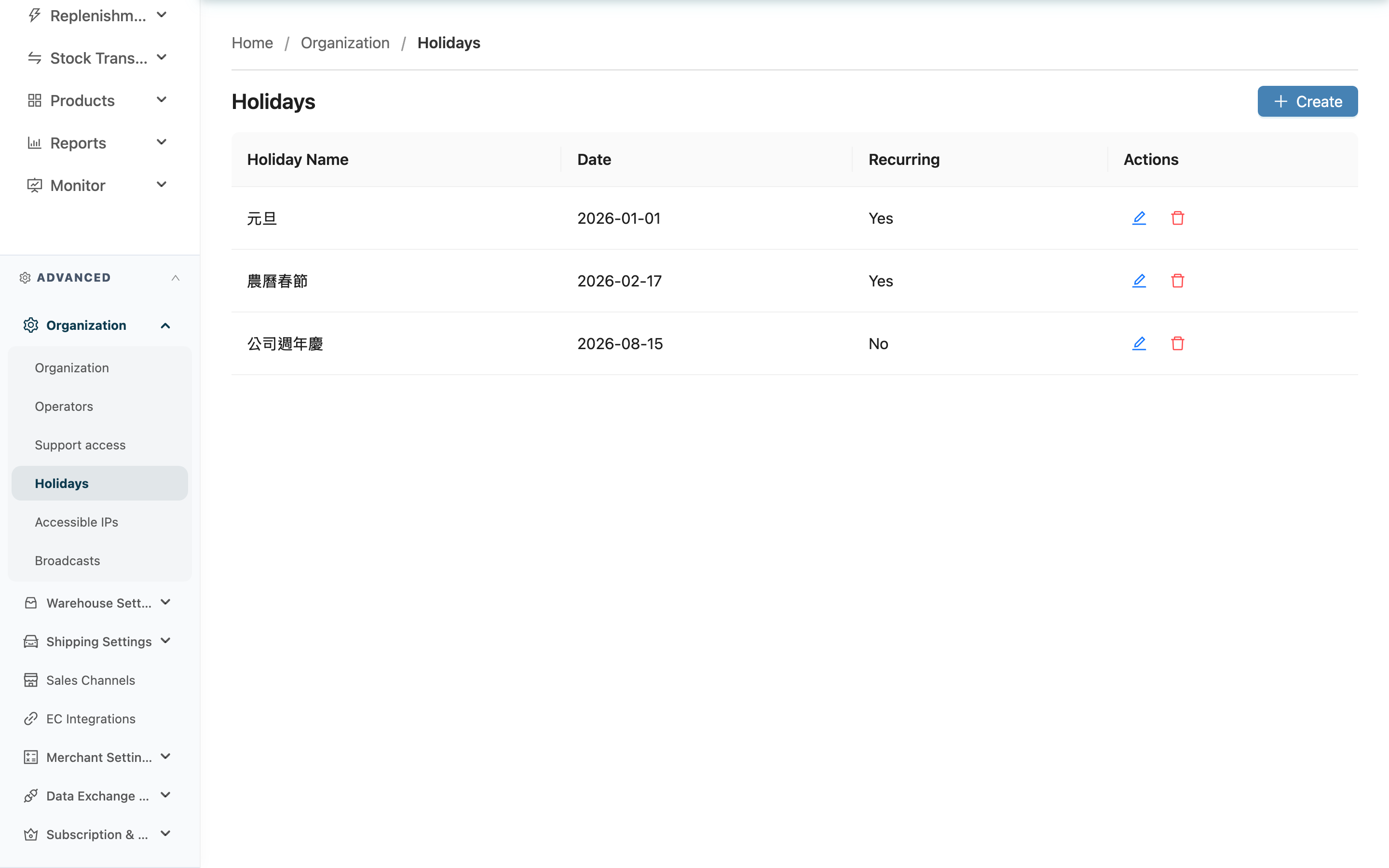
Holiday Settings is where you maintain the shared "closure calendar" for your whole organization. By itself the system only treats Monday through Friday as business days and Saturday/Sunday as non-business days; national holidays, long weekends, and company-defined closures are not added automatically — you must register each of them here. Registered holidays are consumed by two features: the auto-create picking-list schedules (skipped when "exclude holidays" is on) and the estimated delivery-date calculation for carrier waybills. This calendar applies to your entire organization, so maintain it centrally as the warehouse supervisor.
Quick jump: Holiday List | Adding and Editing | Deleting a Holiday
2.1 Holiday List
The list is sorted by date from nearest to furthest and shows every holiday registered for your organization. Column descriptions:
| Column | Description |
|---|---|
| Holiday Name | The name you gave the day, e.g. "Lunar New Year" or "Company Annual Trip". For your reference only; it does not affect calculations |
| Date | The date this holiday falls on |
| Recurring | "Yes" means it repeats every year; "No" means it counts for this one day only. The difference is explained in 3.1 FAQ |
2.2 Adding and Editing
Click Create at the top right to open the add dialog; click the edit icon on a row to open the edit dialog. Both have the same fields.
Fields marked with * are required
| Field | How to fill it in | Notes |
|---|---|---|
| *Holiday Name | Enter a name for this holiday, e.g. "National Day" | Required; for reference only, does not affect schedules or delivery-date calculation |
| *Date | Pick the date of this holiday from the calendar | Required |
| Recurring | On means "repeats every year" — the system compares month and day only and ignores the year; off means it counts only for the selected date | Turn on for fixed annual holidays (e.g. New Year's Day); turn off for one-off company closures |
After filling in the fields, click Confirm to save. On success the dialog closes and the list updates immediately.
2.3 Deleting a Holiday
Click the delete icon on a row and click Confirm in the confirmation box to delete. The record is removed from the list and cannot be restored.
After deletion, any schedule that was previously rolled forward because of this day is recalculated immediately — if this day was the reason those schedules skipped it, the next run date may move back onto this day. Make sure the day is genuinely no longer a closure before deleting.
3. FAQ
3.1 FAQ
▪ Once I set a holiday, which features does it actually affect?
Two places. First, the auto-create picking-list schedules: any rule in Auto-Picking Rules with "exclude holidays" checked will skip the holidays you registered when picking its auto-create run date. Second, the estimated delivery date on carrier waybills: when a waybill is created through a supported carrier, the calculated delivery date skips holidays (and Sundays), rolling forward to the next deliverable day. Schedules without "exclude holidays" checked, and features that don't reference delivery dates, are not affected by Holiday Settings.
▪ What's the difference between "Recurring" on and off?
When on (repeats every year), the system compares "month and day" only and ignores the year — for example, setting January 1 to recurring makes January 1 a holiday every year, with no need to re-register it annually. When off, the system compares the "full date", so only the exact year-month-day you chose counts as a holiday and the same month-day in other years is unaffected. Use on for fixed holidays, off for one-off closures.
▪ Does setting a holiday affect picking lists or waybills that already exist?
No. Holiday Settings only affect "future" calculations: a schedule's next run date and the delivery date calculated when waybills are created later. Picking lists already generated and waybills already created do not change because you add or delete a holiday.
▪ I added a holiday — will the schedule's next run date update automatically?
Yes. As long as a schedule has "exclude holidays" on and its next run date falls on the holiday you just added, the system recalculates immediately after you save and rolls the run date forward to the next business day. You do not need to touch the schedule manually.
▪ Should I register Saturdays and Sundays as holidays too?
No, you don't need to register Saturdays and Sundays for the sake of schedules. Apart from "exclude holidays", there are separate "exclude Saturday" and "exclude Sunday" toggles you can set in Auto-Picking Rules. Reserve Holiday Settings for national holidays, long weekends, and company-defined closures — days that are weekdays but still not working days.
▪ Can holiday names repeat, or can I set two entries on the same day?
Yes. The system has no uniqueness rule on names or dates, so two entries on the same day will save. But duplicates have no extra effect (that day is simply a holiday), so it's best to avoid them to keep the list tidy.
▪ Do holidays apply to a single warehouse or the whole organization?
The whole organization shares one holiday calendar. The holidays you register here apply to the schedules and delivery-date calculations of every warehouse under the organization; you cannot set different holidays per warehouse.
3.2 Notes
⚠️ Important
- Deleting a holiday cannot be undone; after deletion, any schedule that was blocked by this day is recalculated immediately, and the next run date may move back onto this day.
- Holidays only affect schedules with "exclude holidays" checked; schedules without it will still create lists on holidays — check the settings in Auto-Picking Rules as well.
💡 Tip: For national holidays that recur every year, turn on "Recurring" and register them once for long-term reuse, without re-entering them annually. At year-end you can add next year's long weekends and company closures all at once, so schedules don't mistakenly auto-create during the breaks.
4. Related Features
| Feature | Description | Link |
|---|---|---|
| Auto-Picking Rules | Configure the schedules that auto-create picking lists; check "exclude holidays" there for it to reference Holiday Settings | Go |
| Organization Settings | Maintain organization basics such as timezone — an organization-level setting like holidays | Go |
| Operators | Manage warehouse staff accounts and permissions | Go |