
Consumables
Table of Contents
1. Use Cases
Quick links: Packaging running low — count stock before reordering | Onboarding a new merchant — set up dedicated packaging
Case 1: Packaging running low — count stock before reordering
Situation: At the start of the morning shift, you notice only a few size-60 cartons are left on the packing bench, and the bubble bags are almost gone. If they aren't restocked, this afternoon's high volume of shipments will stall for lack of boxes.
How this feature helps: Here you can see the current Quantity of every type of packaging, and flag whatever is low for purchasing to restock. Each time packaging is used during shipping, its barcode is scanned once and the system automatically deducts the used amount from Quantity, so the number here is the actual remaining stock (see the deduction mechanism in the FAQ).
Result: You can tell at a glance which packaging needs restocking and which is still sufficient, instead of discovering there are no boxes left only when it happens.
Case 2: Onboarding a new merchant — set up dedicated packaging
Situation: The warehouse has taken on a new merchant who requires their shipments to use cartons printed with their own logo, and these cannot be mixed with other merchants' or the warehouse's generic boxes.
How this feature helps: Click New to register this dedicated carton, and assign it to this merchant in the Merchant field (see New Consumable for details). Generic boxes and tape are set as "Warehouse-owned" so any merchant's shipments can use them.
Result: Each merchant's dedicated packaging is managed separately, and what gets scanned at the packing bench is the correct box — no more mix-ups.
2. Features
Consumables are the packaging materials used up during shipping, such as cartons, tape, bubble bags, and cushioning fillers. Register each type of packaging here and record its stock; when packing during shipping, scan the packaging barcode and the system automatically deducts the used amount from stock. The stock number reflects the actual remaining quantity in real time, so you always know which packaging needs restocking, and different merchants can use their own dedicated packaging. This list page is the entry point for all packaging, where you can view, search, add, and manage every consumable.
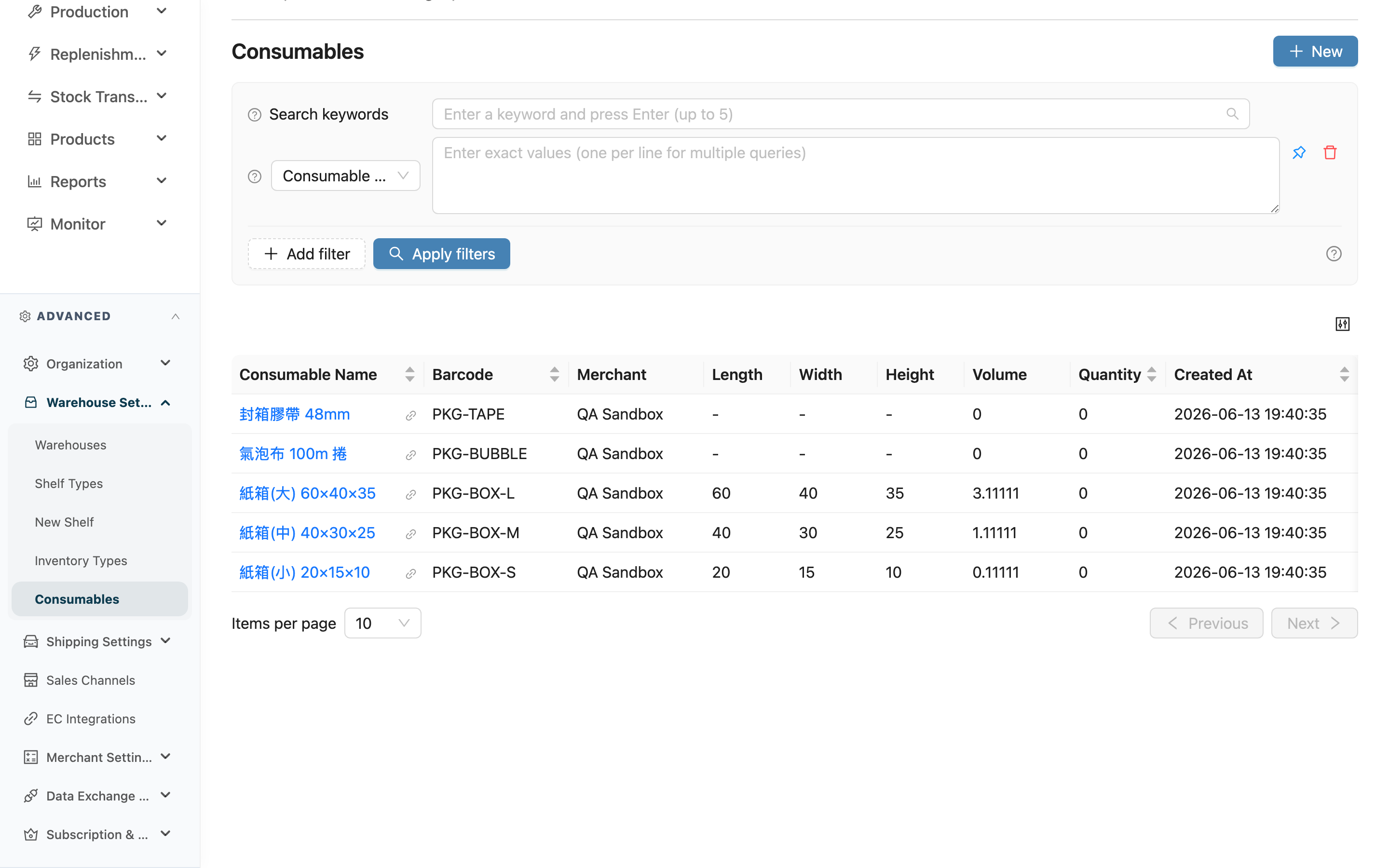
Quick jump: Search & Filter | List Columns | Adding & Managing | Excel Export
2.1 Search & Filter
The search box at the top finds records quickly by Consumable Name or Barcode, using prefix matching (matching from the starting characters).
When you need to combine multiple conditions at once, use the filters:
| Filter | How to use |
|---|---|
| Consumable Name | Enter a consumable name to filter; supports multiple entries, one per line |
| Barcode | Enter a barcode to filter; supports multiple entries, one per line |
2.2 List Columns
Click the Consumable Name to open the detail page for that consumable.
| Column | Description |
|---|---|
| Quantity | The actual remaining stock. Automatically deducted when packaging is scanned during shipping; the main basis for deciding whether to restock |
| Merchant | The merchant this packaging belongs to; generic packaging with no merchant shows "Warehouse-owned" and can be used for any merchant's shipments |
| Volume | Automatically calculated from length, width, and height; the unit follows the warehouse's volume-unit setting (cubic feet or cubic meters) |
| Use as Shipping Volume Basis | Whether this packaging is the outer carton used for shipping. When checked (Yes), shipping uses its length, width, and height directly as the parcel's volume |
The remaining columns (Barcode, Length, Width, Height, Created At) are self-explanatory. Click a column header to sort by that column.
2.3 Adding & Managing
Click New at the top right to register a new packaging (see New Consumable). After opening a consumable's detail page, you can edit its dimensions, stock, and assigned merchant.
2.4 Excel Export
Select the consumables you want to export and Export appears in the toolbar. Narrow the list with search or filters first and then select all, and the export covers exactly the consumables you currently see (select-all is capped at 50,000 rows). The export runs as a background job; download the Excel file from the background job panel once it finishes.
The file has one row per consumable across 13 columns, including the amounts and weight that are not shown on screen: Consumable Name, Barcode, Merchant, Length, Width, Height, Volume, Quantity, Shipped Quantity, Price, Weight (kg), Cost, Created At.
- Consumables with no merchant print "Warehouse-owned" in the Merchant column, matching the list display.
- Volume is converted using the warehouse's volume-unit setting, the same value shown in the list.
- Accounts without the consumables export permission see neither the selection column nor Export.
3. FAQ
3.1 Questions
▪ How does the quantity in the list change? Do I deduct it manually?
No manual deduction needed. When packing during shipping, scan the packaging barcode at the QC station, and the system automatically deducts the used amount from Quantity while accumulating it into the shipped amount. So the quantity shown in the list is the actual remaining stock at the moment. You only need to notify for restocking when the remaining stock is low.
▪ I received a new batch of boxes — how do I add them to the quantity?
Open the edit page for that consumable and change Quantity to the new total after restocking. You can also enter the initial stock directly when creating the consumable.
▪ What's the difference between "Warehouse-owned" and assigning to a merchant?
Packaging assigned to a merchant is for that merchant's exclusive use (for example, boxes printed with their logo); packaging marked "Warehouse-owned" is generic warehouse packaging that any merchant's shipments can use. When scanning during shipping, the system matches the barcode within the range of "that merchant's dedicated packaging" plus "generic warehouse packaging".
▪ Why can't I find the consumable I just created when scanning its barcode?
Check the assignment of this packaging: if it is assigned to merchant A, it can only be scanned when shipping merchant A's goods, not other merchants'. To make it scannable for all merchants, change it to "Warehouse-owned".
▪ Can two consumables use the same barcode?
Under the same merchant (or both marked warehouse-owned), the Barcode cannot be duplicated and will be blocked when registering. Different merchants may each use the same barcode independently.
▪ Can I delete old packaging that's no longer in use?
Yes. Open the detail page for that consumable and delete it there. Once deleted, the record is removed from the list and cannot be recovered; the usage records already deducted from past shipments are not affected.
3.2 Notices
⚠️ Important
- A deleted consumable cannot be recovered. Confirm the packaging is truly no longer in use before deleting.
- The stock quantity is automatically deducted as packaging is scanned during shipping. Do not manually change the number just to "zero it out" — doing so will make it inconsistent with the actual remaining stock and affect restocking decisions.
💡 Tip: Set generic boxes and tape used heavily every day as "Warehouse-owned" so all merchants' shipments share the same stock, with no need to register the same item for each merchant.
4. Related Features
| Feature | Description | Link |
|---|---|---|
| New Consumable | Register a new packaging and enter its dimensions and stock | Go |
| Fulfillments | Scan packaging barcodes when packing during shipping to deduct consumable stock | Go |
| Products | Manage the master records of goods stored in the warehouse | Go |