
Edit Sales Channel
Table of Contents
1. Features
This is where you adjust the fulfillment rules of an existing channel. When you open the edit page, the form is already filled with all of the channel's current settings — primary/secondary inventory types, expiration mechanism, tiered expiration rules, shipping conversion rules, and billing fields. What you see is what is currently in effect; just change it and save.
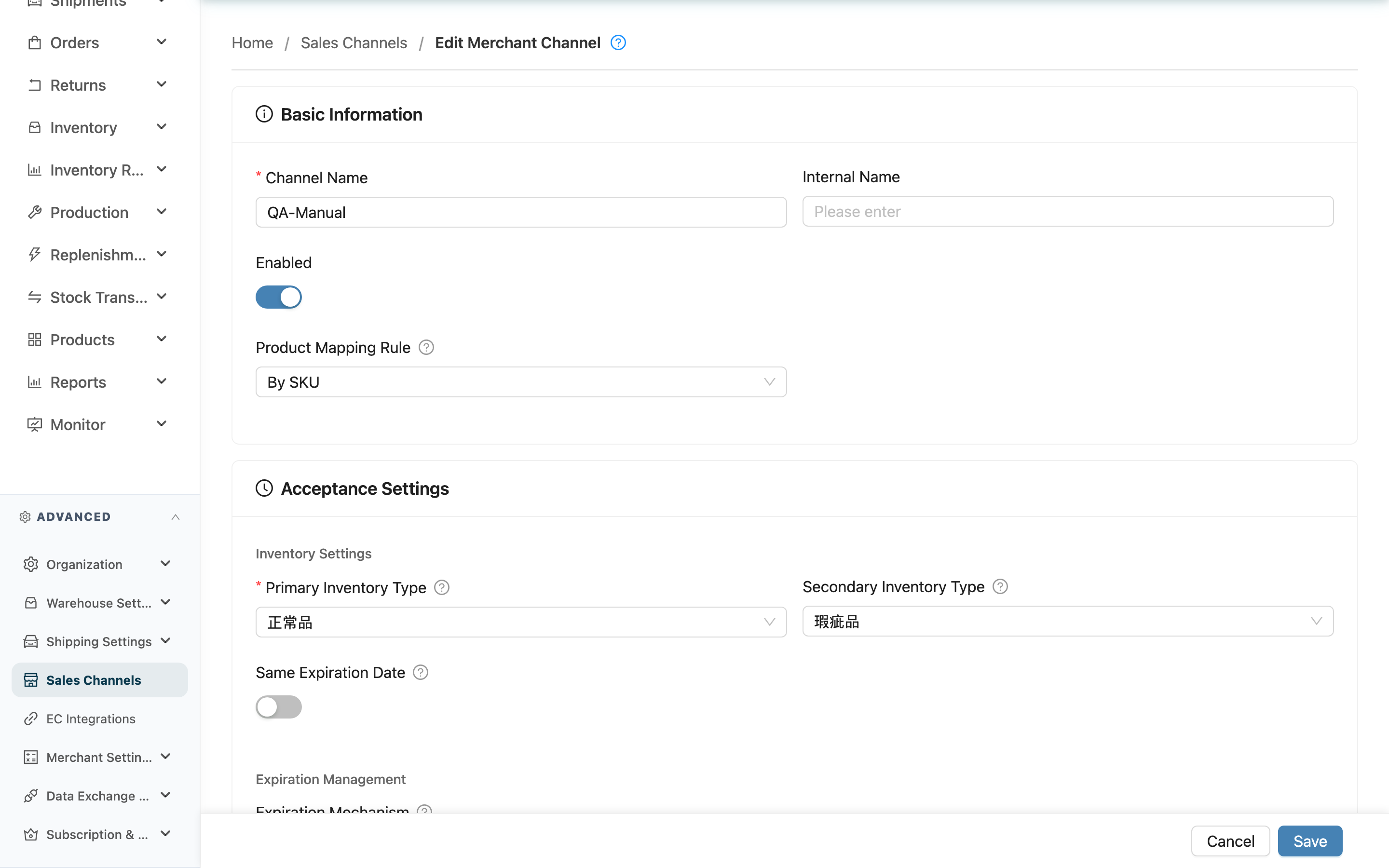
How each field is filled in, how the expiration mechanism is calculated, how to set tiered rules, and how to fill in shipping conversion rules are exactly the same as Add Sales Channel, so they are not repeated here. This page only covers what differs between edit mode and add mode.
1.1 How Edit Mode Differs From Add Mode
- Settings are pre-loaded: When the page opens, the form is already filled with this channel's current settings, including any tiered expiration rules and shipping conversion rules that have been created. A blank form only appears when adding a new channel.
- Owner merchant is locked and cannot be changed: Which merchant the channel belongs to was fixed at creation time and cannot be changed on the edit page. Every merchant-related dropdown (primary/secondary inventory type, shipping type) lists only options belonging to "this channel's owner merchant." Even if you switch to a different merchant at the top and then open this channel, the dropdowns will not show options from other merchants.
- Only Save and Cancel at the bottom: The floating action bar has only the Save and Cancel buttons. The "Save and Add Another" button that exists in add mode does not appear on the edit page.
- You are warned before leaving with unsaved changes: As soon as you have changed any field without saving, pressing cancel, going back, or closing the tab pops up a confirmation dialog (Unsaved Changes) so you don't lose changes by accident.
- Returns to the channel detail page after saving: A successful save automatically redirects to this channel's detail page.
- Channels cannot be deleted: There is no delete button on the edit page; a sales channel cannot be deleted once created.
1.2 What Happens After Saving
- Rules are overwritten as a whole set: On save, this channel's original tiered expiration rules and shipping conversion rules are deleted as a whole set and rebuilt from the current form content. So what you see on the form is the final result after saving — removing a row and then saving means that rule is deleted.
- Only affects orders processed afterward: Changing settings only applies to orders processed after the save. Existing orders that have already had inventory allocated or have already been processed are not retroactively changed.
- Threshold values cannot be duplicated: Each row's threshold in the tiered expiration rules cannot be the same as another row's; a duplicate blocks the save (the same validation as the add page).
2. FAQ
2.1 FAQ
▪ If I change channel settings, will it affect orders that already exist?
No. Changing channel settings only applies to orders processed after the save. Existing orders that have already had inventory allocated or have already been processed are not retroactively changed by your edit. To make existing out-of-stock orders apply the new rules, you need to separately trigger an inventory re-check.
▪ Why do the inventory type / shipping type dropdowns only show options for this one merchant?
Because the edit page locks every merchant-related dropdown to the scope of "this channel's owner merchant." This is intentional: the channel's owner merchant cannot be changed, so its inventory types and shipping types can only be chosen from the same merchant, preventing options from another merchant from being mixed in by mistake.
▪ Why can't I change which merchant the channel belongs to?
The channel's owner merchant is fixed at creation time and the edit page does not allow changing it. A channel's associated orders, rules, and billing are all tied to its original merchant, and switching merchants would make this data inconsistent. To set one up for a different merchant, create a new one in Add Sales Channel.
▪ What happens if I remove a tiered rule / shipping rule and then save?
That rule is deleted. On save, the system deletes this channel's original rules as a whole set and rebuilds them from what remains in the form. So whatever you keep on the form is what is left after saving; remove a row and after saving that rule no longer exists.
▪ If I leave halfway through editing, will I lose my changes?
Not immediately. As long as you have changed a field without saving, pressing cancel, going back, or closing the tab first pops up a confirmation dialog asking whether you are sure you want to leave. Choosing to stay lets you keep editing; only choosing to leave discards this edit.
2.2 Notices
⚠️ Important Reminders
- Saving overwrites rules as a whole set: On save, tiered expiration rules and shipping conversion rules are deleted as a whole set and rebuilt, not added/edited row by row. Before saving, confirm that what remains on the form is the complete set of rules you want.
- Owner merchant cannot be changed: After creation, the channel's owner merchant is fixed and the edit page does not allow changing it.
- Channels cannot be deleted: A sales channel has no delete function, and there is no delete button on the edit page.
💡 Tip: If you want existing out-of-stock orders to apply the new rules immediately after editing, you need to separately trigger an inventory re-check; saving alone only affects orders processed afterward.
3. Related Features
| Feature | Description | Link |
|---|---|---|
| Add Sales Channel | Full explanation of how to fill in each field and the expiration, shipping, and billing rules | Go |
| Sales Channel Detail | View all settings currently in effect for a single channel | Go |
| Sales Channel List | View and search all channels | Go |
| Inventory Types | Manage the inventory types available for channels to use | Go |
| Shipping Types | Manage the shipping types that shipping rules can convert to | Go |