
Unknown Products Detail
Table of Contents
1. Feature Overview
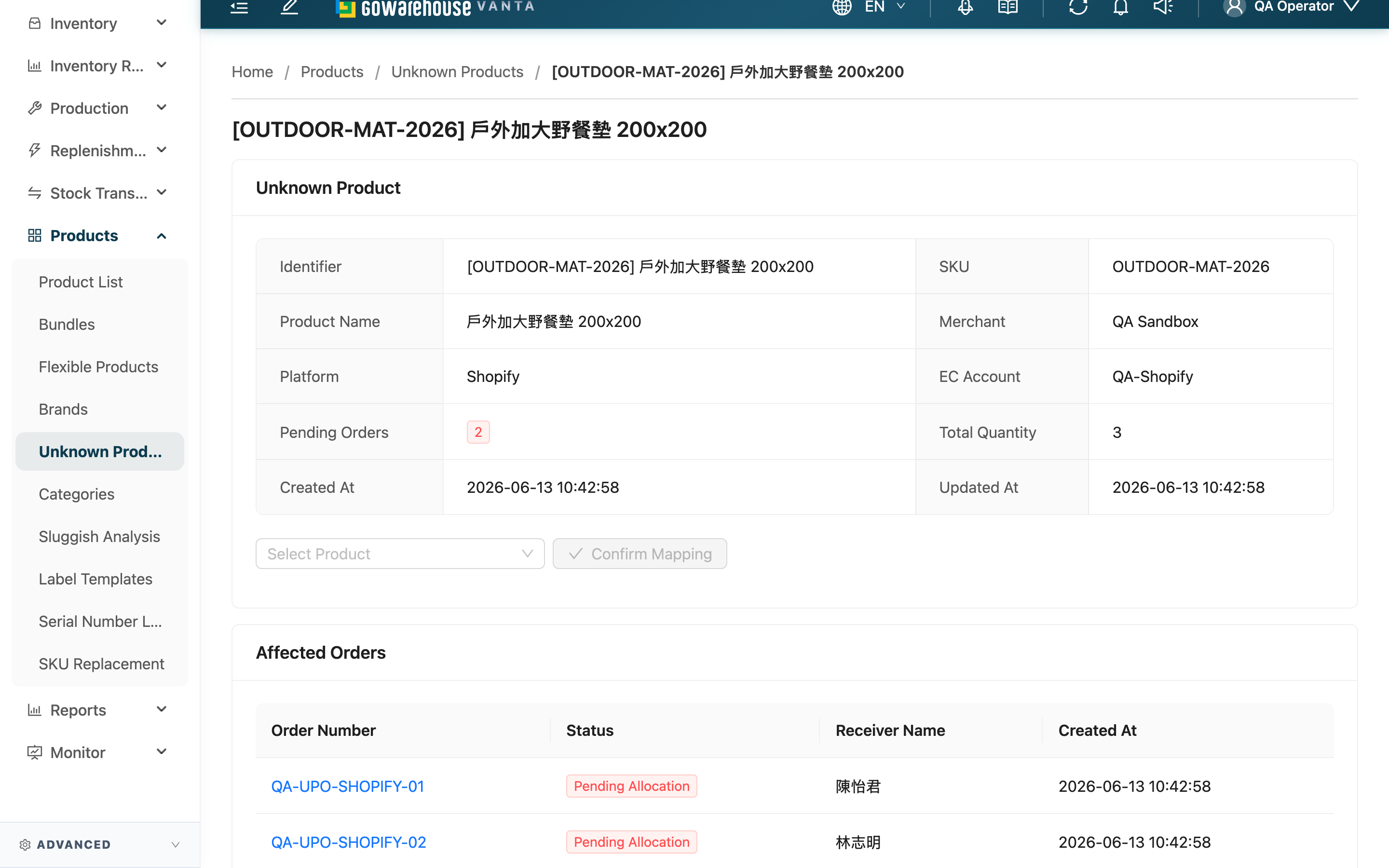
This is where you handle a single Unknown Products. The top of the page lists the product's full details and the number of orders currently stuck on it; the bottom lets you map it to the correct system product. Once mapping is complete, every order using this product automatically recovers, inventory is reallocated, and the orders return to the normal picking and shipping flow — while this Unknown Products record is removed automatically.
Quick jump: Product Information | Affected Orders | Map Product
1.1 Product Information
The card at the top lists the product's full identifying details, helping you decide which system product it actually corresponds to:
| Field | Description |
|---|---|
| Identifier | The product's display name, shown as "[SKU] Name" when a SKU exists |
| SKU | The product's SKU on the e-commerce platform or order source; may differ from the system SKU, shows "-" when none |
| Merchant | Which merchant this product belongs to |
| Platform | Which e-commerce platform it came from; shows "-" when there is no platform source |
| EC Account | The e-commerce account used to pull the order; shows "-" when there is no platform source |
| Pending Orders | How many orders are currently stuck on this product |
| Total Quantity | The combined quantity these orders need |
1.2 Affected Orders
The lower part of the page lists every order stuck because of this product. Each row shows the order number, Status, Receiver Name, and creation time; click the order number to open it in a new tab. Scan this list before mapping to confirm the products in these orders really are the same item, then decide which system product to map to.
1.3 Map Product
After confirming the product's identity, select the correct system product in the product selector and click Confirm Mapping. The system first shows how many orders this mapping will affect; once you confirm, it runs.
After mapping completes, the system automatically: replaces the product in all related orders with the correct one you selected, reallocates inventory, unfreezes the orders so they return to the normal flow, and deletes this Unknown Products record. Once the record is deleted this detail page's address no longer exists, so you are taken straight back to the Unknown Products list, with the number of affected orders shown as a notification.
Prerequisite: You must select a system product before you can click Confirm Mapping; the selector only lists products belonging to the same merchant as this record.
Mapping to a Bundles: Besides individual products, the selector also lists Bundles. If this record is really a bundled set, you can map it straight to a bundle — the affected order items are expanded into each of the bundle's component products, and picking and shipping then follow those components. A bundle with no component products cannot be mapped.
Reversibility: Mapping is irreversible. Once run, the product in the affected orders is replaced and this Unknown Products record is deleted — it cannot be undone. Always confirm you selected the correct product before clicking.
Push back to the platform: If this product comes from a platform that supports backfill (currently Shopee), confirming the mapping adds a prompt asking whether to push the new SKU back to the e-commerce platform. If you push it, the product's SKU on the platform is changed to the system SKU, so future orders for the same product no longer become a Unknown Products; if you decline, only the in-system mapping is completed. A failed backfill does not affect the mapping result — the mapping itself takes effect, and back on the list you get a separate notice explaining why the backfill failed; that notice stays on screen until you close it, and you can retry later or change the SKU manually in the seller portal.
2. FAQ
2.1 FAQ
▪ Can I undo a mapping?
No. Once mapping completes, the product is replaced and the record is deleted — it is irreversible. Check carefully before clicking Confirm Mapping.
▪ What if the product I want to map to isn't in the selector?
The selector only lists products belonging to the same merchant as this record. If that product hasn't been created in the system yet, create it under Product List first, then come back to map.
▪ Will the stuck orders be handled automatically after mapping?
Yes. The system replaces the product in all affected orders with the correct one, reallocates inventory, and unfreezes them, so the orders automatically return to the normal picking and shipping flow — no need to handle them one by one.
▪ Do I have to push the SKU back to the e-commerce platform?
No. The backfill prompt only appears when the product comes from a supported platform (currently Shopee). Choosing No only completes the in-system mapping; choosing Yes also writes the SKU back to the platform so future orders for the same product match automatically and no longer become a Unknown Products.
▪ What does "Mapping completed, but the platform SKU push failed" mean?
It means the mapping itself succeeded (orders recovered, record deleted) — only the step that syncs the SKU back to the e-commerce platform failed. You can retry later, or change the SKU to the system SKU manually in the seller portal.
▪ Why does the affected-orders list contain orders in different statuses?
Any order containing this Unknown Products is listed, so it may include orders in various statuses such as pending, allocated, out of stock, or awaiting payment. After mapping, they all resume processing together.
2.2 Notes
⚠️ Important
- Mapping is irreversible: after it runs, the product is replaced and the record is deleted, with no way to restore them.
- Before mapping, always verify the affected orders to confirm their products really are the same item you intend to map, so you don't map a batch of orders to the wrong product.
- After choosing to push back to the platform, the SKU on the platform is actually overwritten — confirm the system SKU is correct before running.
💡 Tip: Before mapping, glance at the SKU and Product Name, then cross-check against Product List to greatly reduce the risk of selecting the wrong product.
3. Related Features
| Feature | Description | Link |
|---|---|---|
| Unknown Products | Return to the list to view other unknown products awaiting handling | Go |
| Product List | Find or confirm the system product to map to | Go |
| New Product | Create a system item for a product not yet created | Go |