
New Category
Table of Contents
1. Feature Overview
This page is used to create a new product category. Once created, the category appears in the "Category" dropdown when adding or editing products, letting you assign products under it. A category has only a "name" field — fill in the name and it is created, with no other settings required.
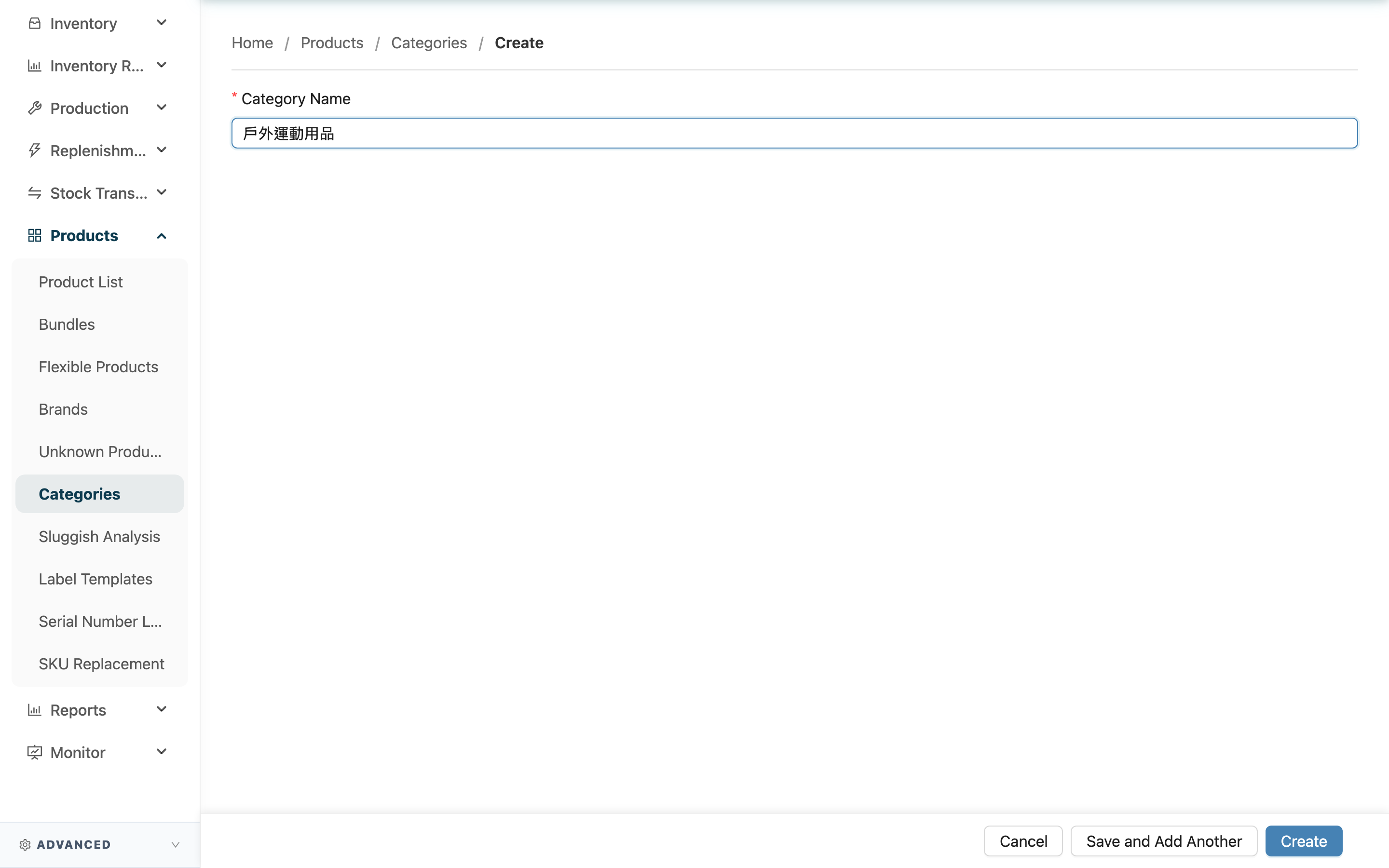
Quick jump: Fill in the Fields | Saving Options
1.1 Fill in the Fields
Fields marked with * are required
| Field | How to Fill | Notes |
|---|---|---|
| *Category Name | Enter a name for this category (for example "Supplements", "Chilled items", "Free gifts") | Required; names cannot be duplicated within the same set of categories |
1.2 Saving Options
After entering the name, there are two ways to save:
- "Create": Creates the category and jumps to its detail page.
- "Save and Add Another": Creates it, then stays on this page and clears the field, so you can create several categories in a row.
Once created, the category immediately appears in the "Category" dropdown for products.
2. FAQ
2.1 FAQ
▪ What can I name a category?
There is no format restriction; any name works. We recommend an instantly understandable grouping term (such as major item type, temperature zone, or use), so all colleagues choose consistently when assigning.
▪ Can I add products while creating the category?
No. This page only creates the category itself. To assign products, go to the Product List to add a product, or edit an existing one, and choose this category in the "Category" field.
▪ Why does it say the name already exists when I save?
It means a category with the same name already exists in this set of categories. Use a different name, or simply reuse the existing one.
▪ Can I rename it after creating?
Yes. You can rename it at any time on the category detail page.
2.2 Notes
⚠️ Important
- A category name cannot duplicate an existing category in the same set, otherwise it cannot be created.
💡 Tip: When creating several categories in a row, "Save and Add Another" is faster than returning to the list and reopening the new page each time.
3. Related Features
| Feature | Description | Link |
|---|---|---|
| Product Categories | Return to the category list to view all categories | Go |
| Product List | Assign products to a category when adding or editing them | Go |