
Confirm Picking List
Table of Contents
1. Features
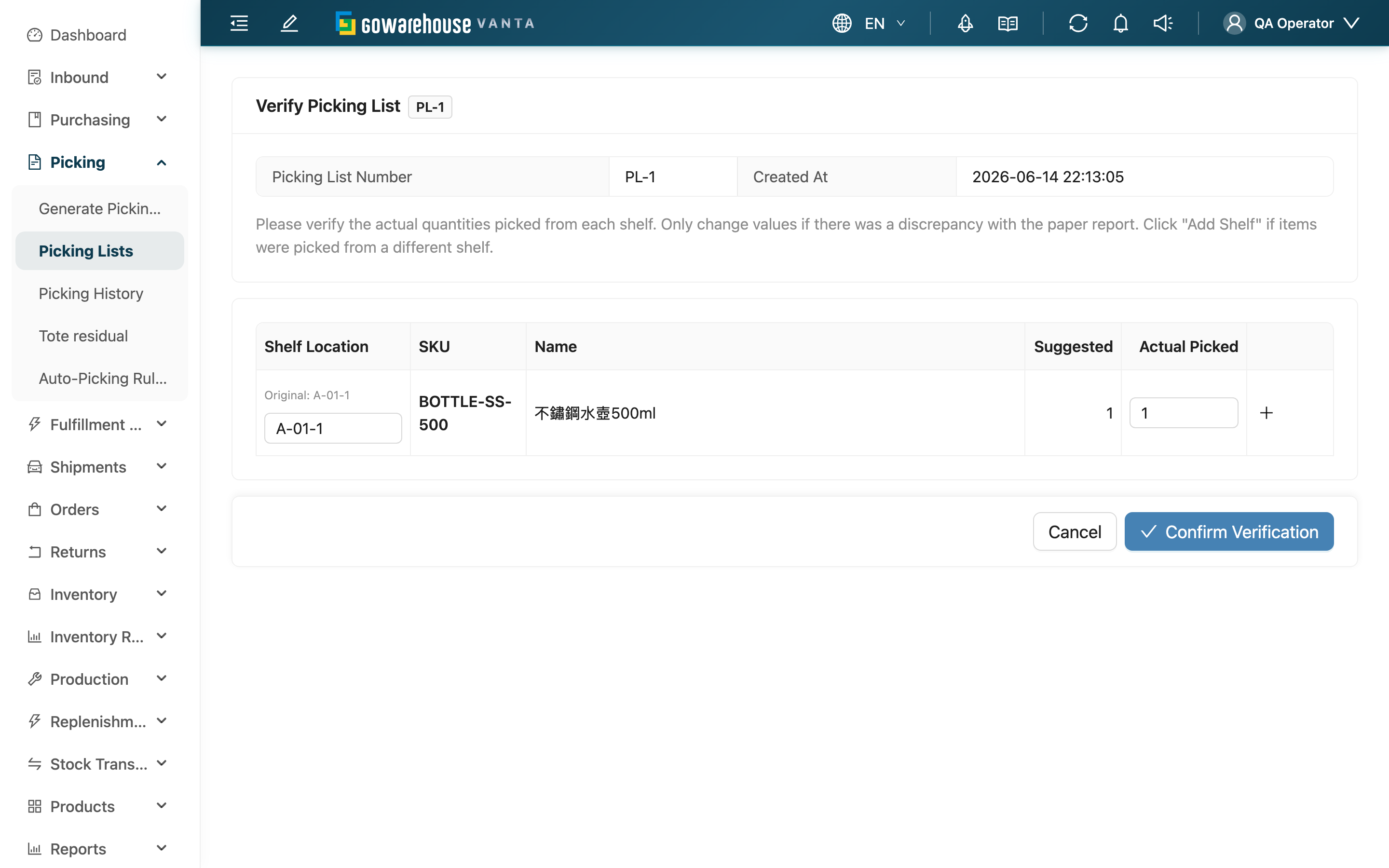
The reporting page used after paper picking is finished. The system lists the line items by the suggested shelf and quantity; you take the picked goods, compare them against the paper sheet, and only change a value when it differs from what you actually picked — leave the rest at the suggested figure. Once confirmed, the picking list becomes done. This page is used only for paper picking while the picking list is still in progress; App picking scans as you go and does not pass through this page.
Quick Jump: Confirmation Table | Short-Pick & Overage Prompts | Confirm
1.1 Confirmation Table
The table lists, row by row, the shelves and products to confirm:
| Column | How to fill in | Note |
|---|---|---|
| Shelf Location | The system fills in the suggested picking shelf; if you actually picked from a different shelf, use add shelf to enter it separately | A manually entered shelf is validated for existence in real time |
| SKU / Name | Filled in by the system; no entry needed | — |
| Suggested | The suggested quantity the system computes from the requirement; no entry needed | — |
| Actual Picked | Enter the quantity you actually picked | The system flags a prompt when it differs from the suggested quantity |
If a product was actually picked from several shelves, use Add Shelf on that row to add another line and enter the actual quantity for each shelf separately.
When generating shelf suggestions, if the product has a configured full-pallet quantity, the system first takes the available full-pallet multiples from shelves whose type can hold at least one pallet and that still have at least one pallet after other paper-picking reservations are deducted. It then fills every unmet part of the requirement in the normal picking order. If eligible full-pallet sources cannot cover the full-pallet portion, this remaining requirement may still be one pallet or more.
Full-pallet eligibility is checked shelf by shelf. If a shelf type has no product capacity configured, or its capacity is below one pallet, that shelf only skips the full-pallet stage and can still be used later in the normal order. If the product has no full-pallet quantity configured, or there are no eligible full-pallet sources, the entire suggestion keeps the normal picking order. This is a quantity-and-configuration decision; it does not mean the system can identify a physically separate pallet on the floor.
1.2 Short-Pick & Overage Prompts
The system compares the actual quantity against the required quantity and shows one of two prompts:
| Situation | System behavior |
|---|---|
| Short ({{diff}} less) (actual less than required) | Shows a prompt, but can still be submitted — it means this is all that was picked this time |
| Exceeds required quantity (actual more than required) | Shows an error and cannot be submitted; the quantity must be corrected first |
1.3 Confirm
Once all quantities are confirmed correct, press Confirm Verification. The picking list turns to Done; if the other picking lists in the same wave have also finished, these fulfillments may automatically advance to shipping according to the sales channel settings. The button cannot be pressed if there are overage items, empty shelves, or shelves that cannot be validated.
2. FAQ
Quick Jump: FAQ | Important Notes
2.1 FAQ
▪ When do I see this page?
Only when picking on paper and the picking list is still in progress do you reach it through confirm picking on the picking list detail. App picking scans as you go and does not pass through this page.
▪ How do I report a quantity that differs from the suggestion?
Just enter the quantity you actually picked in Actual Picked; there is no need to force it up to the suggested quantity. The system compares them and flags the difference — see 1.2 Short-Pick & Overage Prompts.
▪ Can a short-pick be submitted? What about an overage?
A short-pick (picking less than required) can be submitted — it means this is all that was picked this time. An overage (picking more than required) cannot be submitted; the quantity must be corrected first.
▪ How do I report a product picked from a shelf other than the suggested one?
Use Add Shelf on that row to add a line and enter the actual shelf and quantity. A manually entered shelf is validated in real time and prompts you if it cannot be found, so please double-check the shelf code.
▪ What happens after I confirm?
The picking list turns to Done. If the other picking lists in the same wave have also finished, these fulfillments may automatically enter the shipping flow according to the sales channel settings.
▪ I noticed a picking mistake only after confirming — can I still fix it?
Yes. Go to the picking list detail and use Continue Picking to reopen this list and adjust it (provided there are still unshipped fulfillments in the wave).
2.2 Important Notes
⚠️ Important Reminders
- When there are overage items, submission is blocked and they must be corrected first; empty shelves or shelves that cannot be validated also block confirmation.
- Please enter the quantity you actually picked truthfully — it is the basis for keeping the books consistent with the floor; do not enter random figures just to clear a prompt.
💡 Tip: The point of confirming is to "compare against the paper sheet and change only the rows that differ"; for rows with no difference, just confirm at the suggested quantity — there is no need to re-enter every row.
3. Related Features
| Feature | Description | Link |
|---|---|---|
| Picking List Detail | Return to this picking list to view items, records, and remainders | Go |
| Picking Lists | Return to the list of all picking lists | Go |
| Generate Picking List | Generate a new picking list | Go |