
Edit Import Template
Table of Contents
1. Features
This page is for modifying an existing import template: you can change the template name, adjust column mappings, and add or remove default values. The owning merchant and import type are locked when editing and cannot be changed, because the column mappings are built for that type's and that merchant's system fields, and changing them would make the existing mappings no longer match.
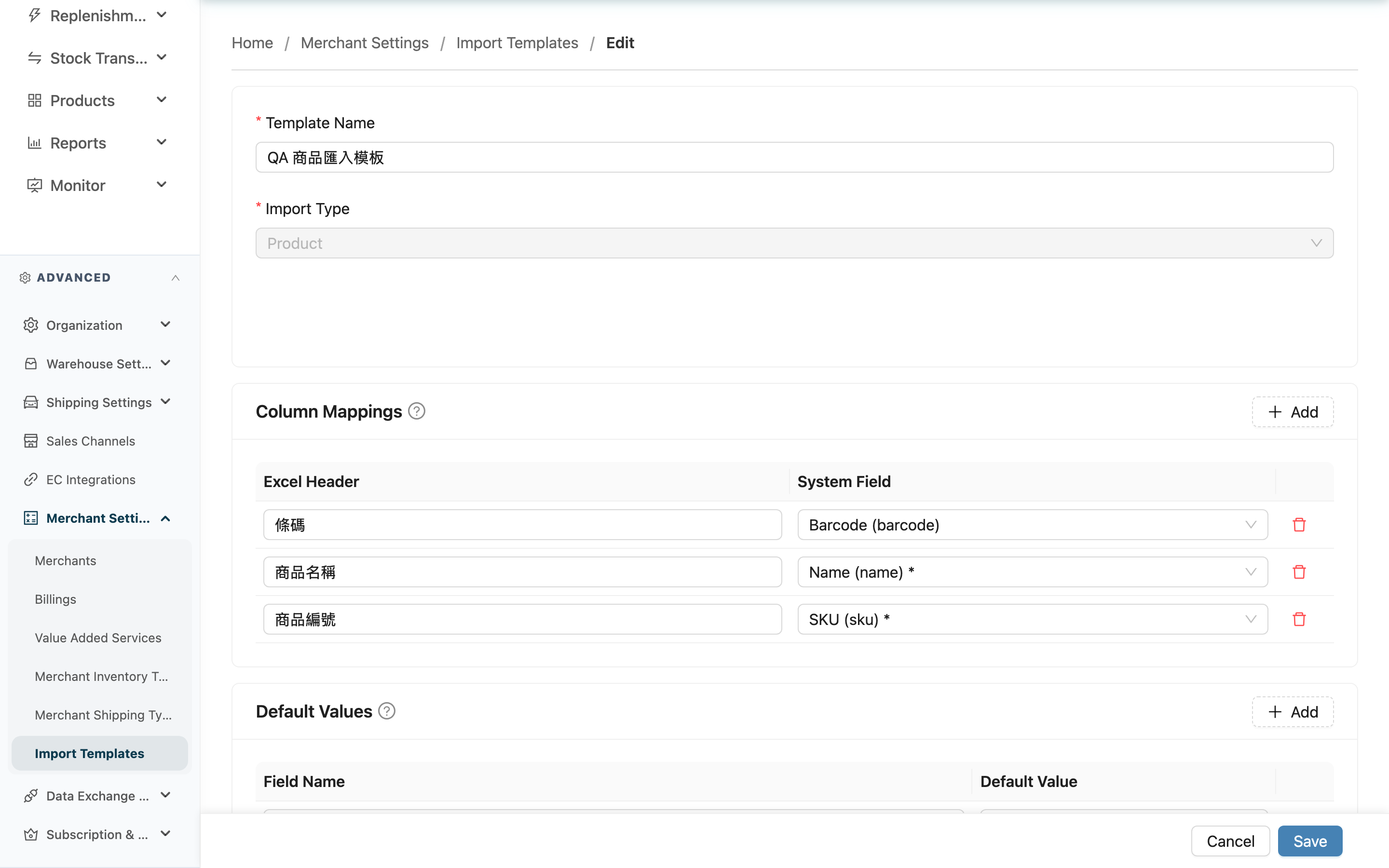
Quick Jump: Basic Info | Column Mappings | Default Values | Save
1.1 Basic Info
Fields marked with * are required
| Field | How to fill | Notes |
|---|---|---|
| *Template Name | Change the template name | Required |
| Import Type | This field cannot be edited | The import type is locked after creation; to change the type, build a new template |
1.2 Column Mappings
The page loads all of the template's existing mapping rows, and you can edit each one:
| Field | How to fill | Notes |
|---|---|---|
| Excel Header | Change the header name in the merchant's file; it must exactly match the file (including spaces and case) | A row left blank will not be saved |
| System Field | Change the system field this header maps to | Each system field can be mapped only once; fields already taken by another row or by a default value won't appear in the list |
Click Add at the top-right to add a mapping row; the delete button on the right of each row removes the whole row.
1.3 Default Values
Adjust which fields are auto-filled with a fixed value at import:
| Field | How to fill | Notes |
|---|---|---|
| Field Name | Choose the system field to set a fixed value for | A field with a default value is automatically removed from the column mappings above |
| Default Value | Change the fixed value to fill in | Depending on the field type, this may be a text input, a number input, or a dropdown |
When you delete a required field's default value or change it to another field, the original required field is added back to the column mappings automatically, so it won't be stuck with neither a default nor a mapping and have its save blocked.
1.4 Save
After editing, click Save at the bottom to save, then return to the template's detail page. On save, the system again checks that every required field has a matching header or a default value; if any is missing, it tells you which fields are missing and does not save.
2. FAQ
2.1 FAQ
▪ Why can't the import type be changed?
The column mappings are built for that import type's system fields; changing the type would point existing mappings at fields that don't exist, silently breaking the import. To change the type, build a new template.
▪ Why can't the owning merchant be changed?
A template is bound to the merchant chosen at creation, and the system fields available for mapping depend on that merchant. To use it for another merchant, build a new template.
▪ If I change the template, will data previously imported with it change too?
No. The template only decides how columns map at the moment of import; already-imported data is independent and changing the template later does not affect it.
▪ I deleted a required field's mapping, but the save is blocked?
A required field must have a matching header or a default value. After deleting its mapping, add a new header mapping for it, or set a default value, then save. The system also adds a field back to the column mappings automatically when you remove its default value.
▪ I can't see the Edit button or get into the edit page?
Editing an import template requires merchant write permission. If you can't see it, contact your administrator to confirm your permissions.
2.2 Notes
⚠️ Important
- Changing column mappings or default values affects imports done "afterward" with this template; already-imported data is unaffected.
- The import type and owning merchant are locked when editing and cannot be changed; to switch type or merchant, build a new template.
💡 Tip: After editing, go to the detail page (see Import Template Detail) and review the column mappings once, confirming no required field is missing before using it for an import.
3. Related Features
| Feature | Description | Link |
|---|---|---|
| Import Template List | Back to the list of all templates | Go |
| Import Template Detail | View this template's full content | Go |
| Import Products | Select a template when importing products | Go |
| Import Orders | Select a template when importing orders | Go |