
Edit Bundle
Table of Contents
1. Feature Overview
The edit bundle page lets you modify an existing bundle: you can adjust the bundle's own name, SKU, barcode, and activation status, and you can add or remove single items, change the per-set quantity, or change the assigned inventory type. The most important point — a change only affects orders placed after the edit. Orders already placed recorded the recipe in effect at the moment they were created and are unaffected.
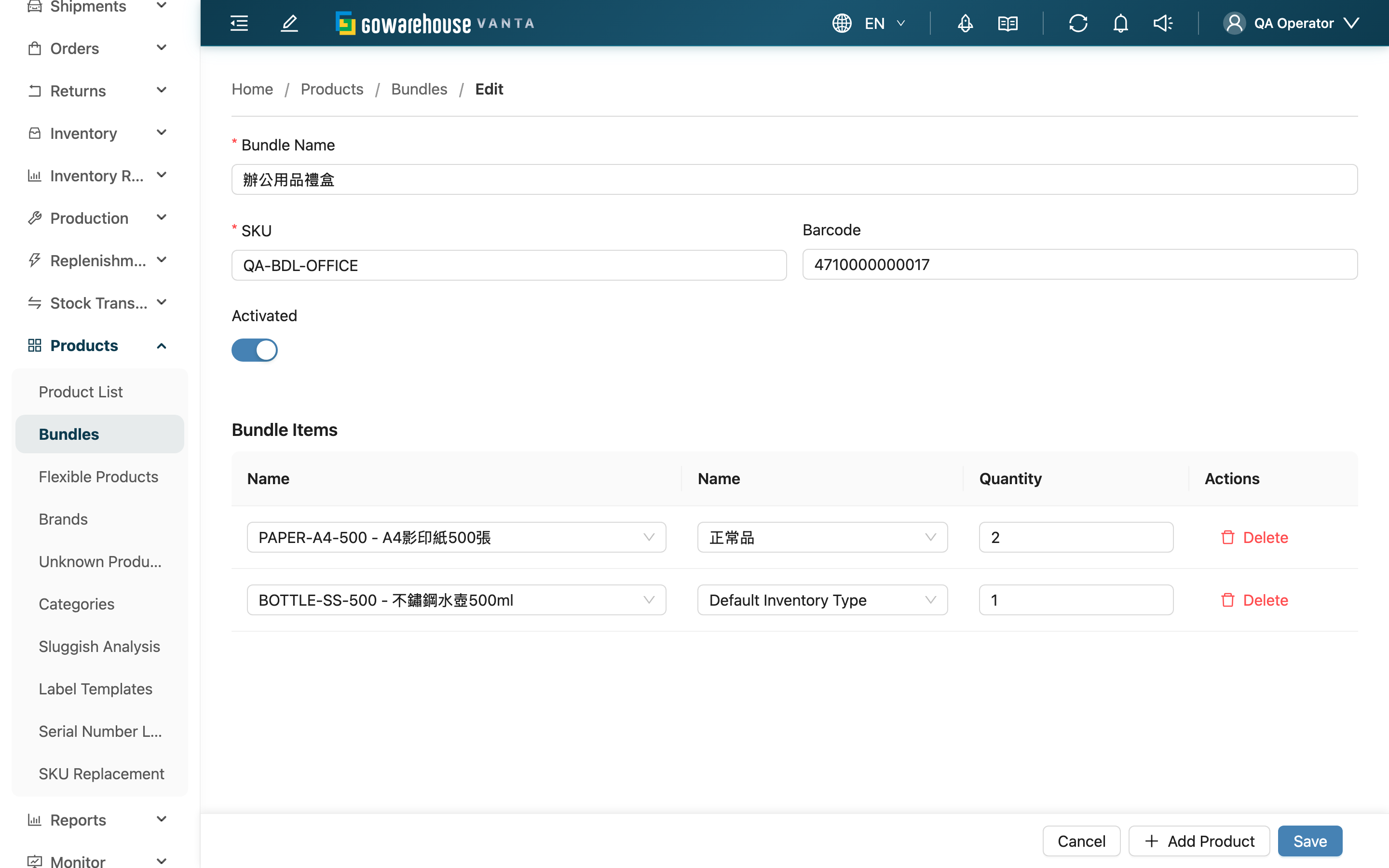
Fields marked with * are required.
Jump to: Editing basics | Adjusting contents
1.1 Editing basics
| Field | How to fill | Notes |
|---|---|---|
| *Bundle Name | Change the bundle's public name | Required |
| *SKU | Change the bundle's SKU | Required; orders match the bundle by this SKU, so sync it with the marketplace after changing |
| Barcode | Change the bundle's barcode | Optional |
| Activated | On to sell normally, off to suspend this bundle's operations | Turn off to pause sales |
1.2 Adjusting contents
The table below shows the current bundle contents; you can add, remove, or adjust them directly:
| Action | How to do it | Notes |
|---|---|---|
| Add an item | Click "Add Product" to add a row, then search and select the item and set its quantity and inventory type | Only items under the same merchant can be chosen |
| Remove an item | Click delete on that row | At least one item must remain to save |
| Change per-set quantity | Edit the row's quantity directly | Must be greater than 0 |
| Change inventory type | Reselect or clear the row's inventory type | Clearing it means the normal picking flow |
After editing, click "Save" to save. On save, if the same single item appears on two rows with the same inventory type, the system automatically merges them into one row by summing quantities.
2. FAQ
2.1 FAQ
▪ If I change a bundle's contents, do already-placed orders change too?
No. Orders already placed recorded the bundle recipe in effect at the moment they were created, so editing only affects orders placed after the change. The orders you are picking ship by the original recipe.
▪ Can I delete all the single items in a bundle?
No. A bundle must keep at least one single item to be saved. To stop selling the bundle entirely, just turn off "Activated".
▪ After I change a quantity or inventory type, when do new orders use the new recipe?
After saving, orders placed afterwards expand by the new contents; orders already placed before saving are unaffected.
▪ What if the same single item appears twice in the table?
If it is the same single item with the same inventory type, the system merges them into one row by summing quantities on save; if the inventory types differ, they are kept separately.
▪ I can't find the item I want to add?
A bundle can only add items already on file under the same merchant. Create the item in the Product List first, then come back and edit.
2.2 Notes
⚠️ Important reminders
- Editing only affects orders placed after the change; it never retroactively alters already-placed orders.
- A bundle must keep at least one single item; the items and inventory types must all belong to the same merchant and be enabled.
💡 Tip: To pause sales temporarily without touching the contents, just turn off "Activated" — there is no need to delete the bundle.
3. Related Features
| Feature | Description | Link |
|---|---|---|
| Bundle Details | See this bundle's full contents after the change | Go |
| Bundles | Back to the list to check available set quantity | Go |
| Product List | Create the single items a bundle will use | Go |