
Documents Locking Inventory
Table of Contents
1. Features
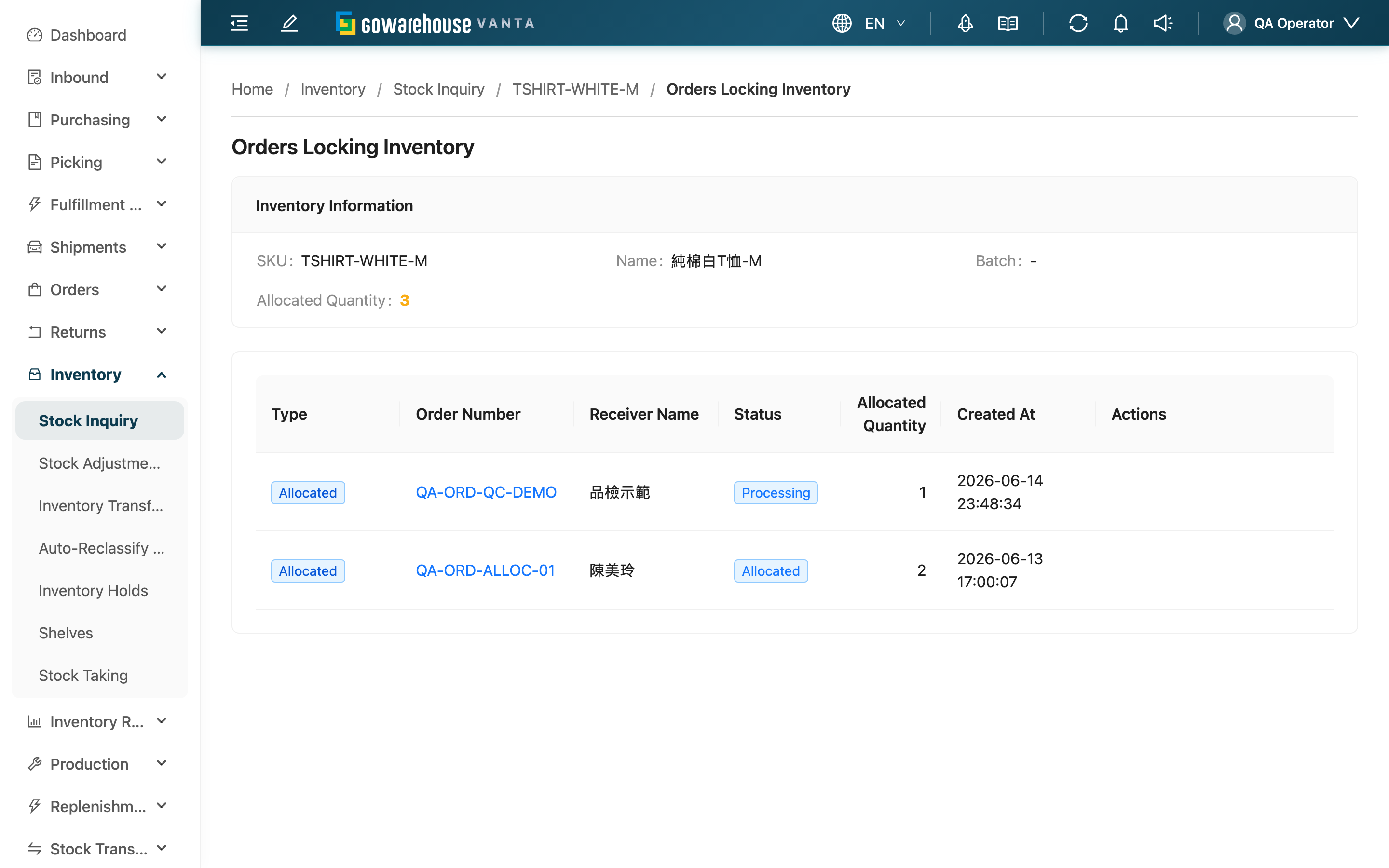
When you see in the inventory list that a record's Allocated Quantity is high and its available quantity is used up, clicking that figure brings you here, where this page lists, one by one, the documents currently holding this batch — which documents reserved the stock, and how much each holds. This is where you trace "who is keeping the stock stuck."
Quick jump: Inventory info | Allocation list
1.1 Inventory info
The top of the page first identifies which inventory record you are viewing:
| Field | Description |
|---|---|
| SKU / Name | The product this inventory record belongs to |
| Batch | This record's batch (different batches of the same product are different records) |
| Allocated Quantity | The total currently reserved by all source documents from this record; should equal the sum of each allocation below |
1.2 Allocation list
Each row represents one allocation that is still in effect. Sources are not limited to sales orders: work orders (consuming this batch as input material) and Stock Transfers (moving this batch to another warehouse) lock stock too, and all three kinds appear in the same table. A single document that took stock from this batch more than once appears on several rows; add those rows up to get the total it holds:
| Column | Description |
|---|---|
| Type | The lock type of this allocation (e.g. Allocated) |
| Source Document Number | The number of the document holding this batch. It shows the order number, the work order number or the transfer order number, depending on which kind of document holds the stock; click the number to open that document's detail page |
| Source Recipient | The order's recipient when the source is an order. Work orders and Stock Transfers are internal documents that have no recipient, so this column shows "-" |
| Source Status | The source document's current status — for orders e.g. Pending Allocation or Allocated, for work orders e.g. Allocated, for Stock Transfers e.g. Picking |
| Allocated Quantity | The quantity this document holds from this inventory |
| Allocated At | When this allocation was created — not when the source document itself was created |
The list shows only allocations that are still in effect; allocations already shipped or released do not appear. After reviewing, you can judge whether the batch is reserved by documents awaiting normal processing or there is a stuck one that needs further handling.
2. FAQ
2.1 FAQ
▪ Does the figure here reconcile with the locked quantity in the inventory list?
It does. The Allocated Quantity at the top is the total reserved by all source documents from this batch, equal to the sum of each allocation below (orders, work orders and Stock Transfers included); the list counts only allocations still in effect, excluding those already shipped or released.
▪ Work orders or Stock Transfers appear in the list — is that expected?
Yes. Besides sales orders, work orders that consume input material and Stock Transfers that move stock between warehouses also lock inventory, so they appear in the same table. Both are internal documents without a recipient, so the source recipient column shows "-". To release or adjust them, go to the work order list or the Transfer Orders respectively.
▪ Where do I go to adjust this batch's quantity or convert it to another type?
Return to the inventory list and use quick adjust or quick transform on that record's row; this page only shows allocations.
2.2 Notes
⚠️ Important Reminders
- This page is read-only and offers no actions: to return stock to available, you must handle the source document on that row (the order, the work order, or the Stock Transfers), then reload this page to see the change.
💡 Tip: Numbers of all three source kinds can be clicked through to their detail (see Allocation list), so there is no need to copy a number and search for it in the work order list or the Transfer Orders.
3. Related Features
| Feature | Description | Link |
|---|---|---|
| Stock Inquiry | View real-time inventory and each record's locked and available quantities | Go |
| Inventory Hold | Freeze part of the inventory so it is excluded from shipment allocation | Go |
| Inventory Movements | View the history of inventory increases, decreases, and releases per record | Go |