
Create Supplier
Table of Contents
1. Features
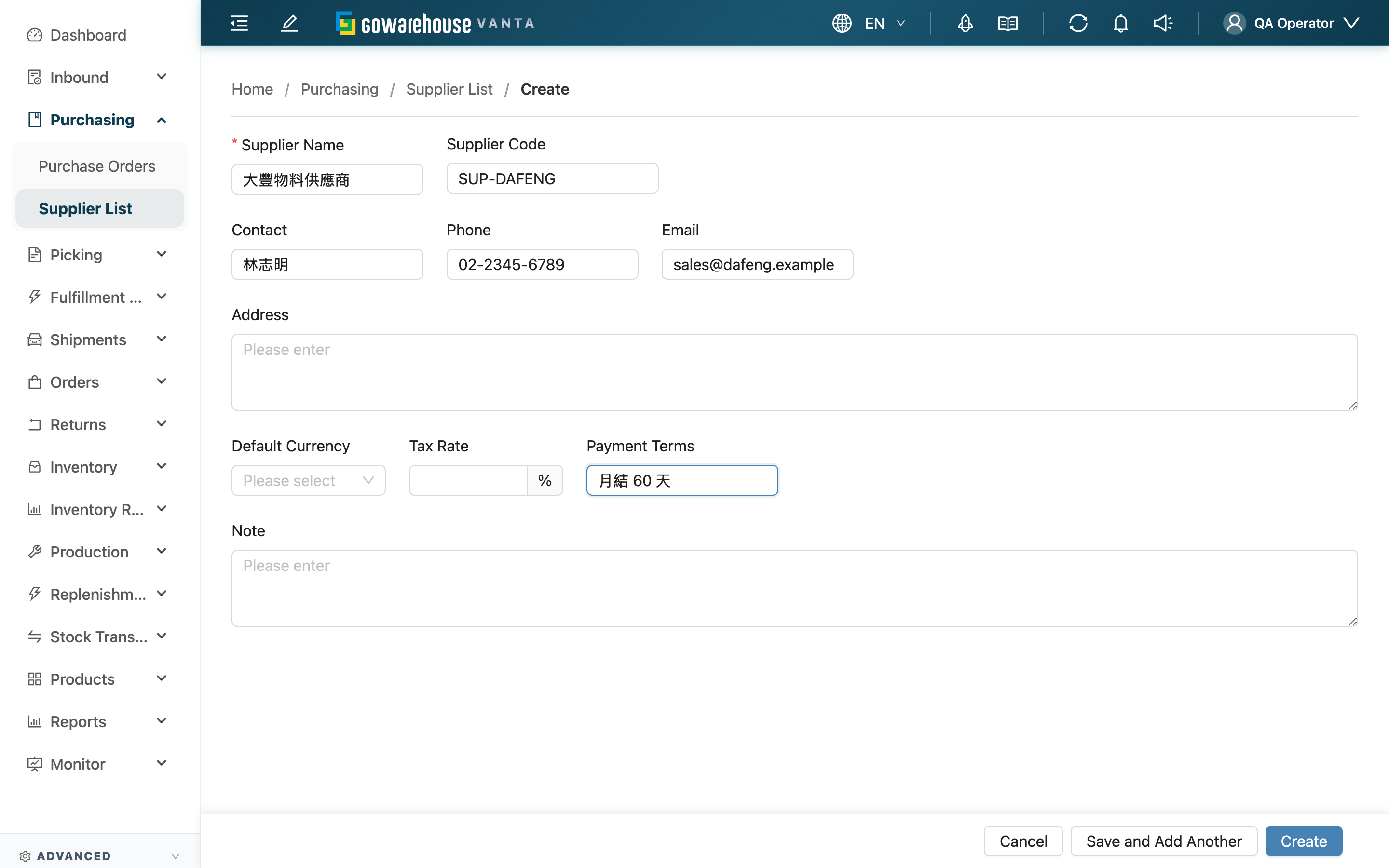
Create a new supplier, recording its contact info, payment terms, and the default currency and tax rate to fill in automatically on purchase orders. Once registered, it's selectable in the supplier dropdown on Create Purchase Order.
Quick jump: Select merchant | Form fields | Submit
1.1 Select Merchant
When you open Create Supplier, you'll first be asked to choose which merchant this supplier belongs to. Suppliers are maintained separately per merchant, and a supplier belongs to only one merchant. If you handle only a single merchant, the system fills it in automatically and you don't need to pick.
1.2 Form Fields
Fields marked with * are required
| Field | How to fill | Notes |
|---|---|---|
| *Supplier Name | Enter the supplier name | Must be unique within the same merchant |
| Supplier Code | Enter the supplier code | Optional, for your internal identification / reconciliation |
| Contact | Enter the contact person | Optional |
| Phone | Enter the contact phone | Optional |
| Enter the email | Optional; must be a valid email format if filled | |
| Address | Enter the address | Optional |
| Default Currency | Choose the default currency | Optional; filled in automatically when this supplier is picked on a purchase order |
| Tax Rate | Enter the tax rate percentage (e.g. 5 means 5%) | Optional; filled in automatically on purchase orders |
| Payment Terms | Enter payment terms (e.g. net-30) | Optional |
| Note | Enter a note | Optional |
1.3 Submit
When done, choose one of two ways to submit:
- Create: Creates the supplier and opens its Supplier Detail.
- Save and Add Another: Creates it and clears the form, making it easy to create several suppliers for the same merchant in a row.
A newly created supplier defaults to "Active" and is immediately selectable in the purchase order's supplier dropdown.
2. FAQ
2.1 FAQ
▪ Is only the supplier name required?
Yes. Only "Supplier Name" is required; the rest can be filled in later via Edit Supplier. But it's recommended to at least set "Default Currency" and "Tax Rate" so purchase orders can fill them in automatically.
▪ Why do I have to pick a merchant first?
Suppliers are maintained separately per merchant, and a supplier belongs to only one merchant. Picking the merchant first ensures the supplier is created under the correct merchant. With only a single merchant, the system fills it in automatically.
▪ Can I change the default currency and tax rate later?
Yes, anytime via Edit Supplier. But changes only affect purchase orders created afterward; existing purchase orders keep the values filled in at the time and won't change retroactively.
▪ Is email required? Any format restrictions?
Email is optional and can be left blank. But if filled, it must be a valid email format, otherwise it can't be saved.
▪ Can supplier codes be duplicated?
The supplier code (Supplier Code) is optional and for internal identification; the system does not enforce uniqueness on it. What must be unique is the supplier name within the same merchant.
2.2 Notices
⚠️ Important
- Supplier names must be unique within the same merchant; duplicates can't be saved
- If an email is filled, it must be a valid format to save
💡 Tip: To create several suppliers for the same merchant at once, "Save and Add Another" clears the form after saving so you can keep going.
3. Related Features
| Feature | Description | Link |
|---|---|---|
| Supplier List | View and maintain all suppliers | Go |
| Edit Supplier | Modify a supplier's record (field notes same as this page) | Go |
| Create Purchase Order | Create a purchase order with a supplier | Go |