
Support Access
Table of Contents
1. Use Cases
Quick links: Let support investigate remotely | Expose only some merchants to support
Case 1: Let support investigate a problem remotely
Situation: You are the warehouse supervisor. A fulfillment order is stuck in some status, or stock figures don't add up. You've described it over the phone or chat, but GoWarehouse support still can't diagnose it blind. Support needs to get into your system and look at the same order and screen you're seeing to find the problem.
Use this feature: Create a "operator.support_access.active.link_label" and send the link to your GoWarehouse support contact. Once support opens the link and enters your organization, they act as a temporary support account that can view your documents and inventory to investigate. Creating, renewing, and revoking the link are covered in Support access link.
Result: Support can enter your organization to help without you ever handing over an account or password; the moment the link expires or you revoke it, support can no longer get in.
Case 2: Expose only some merchants to support
Situation: Your organization fulfills products for several merchants at once, but this time support only needs to help with one merchant's fulfillment issue. You don't want to expose every merchant's data just to resolve one problem.
Use this feature: When creating the link, select only the merchants that need help under "operator.support_access.issue_modal.merchants_label", and leave "operator.support_access.issue_modal.all_merchants_label" off. The link covers only the merchants you select. See Create a support access link for how to set this.
Result: After entering, support can only see the merchant data you authorized; the other merchants stay invisible for this session, keeping the access scope of this support visit to a minimum.
2. Feature Overview
"Support access" lets you safely hand temporary access to your organization to the GoWarehouse support team when you need help. You create a support access link and send it to your support contact; once they enter through the link, they become a temporary support account in your organization that helps investigate. This account does not consume one of your operator seats, cannot see billing data, and is invisible to the other operators in your organization. The whole process requires no account or password to change hands, and you can revoke access at any time.
Quick jump: Support access link | Scope and merchant selection | Renew and revoke | History
2.1 Support access link
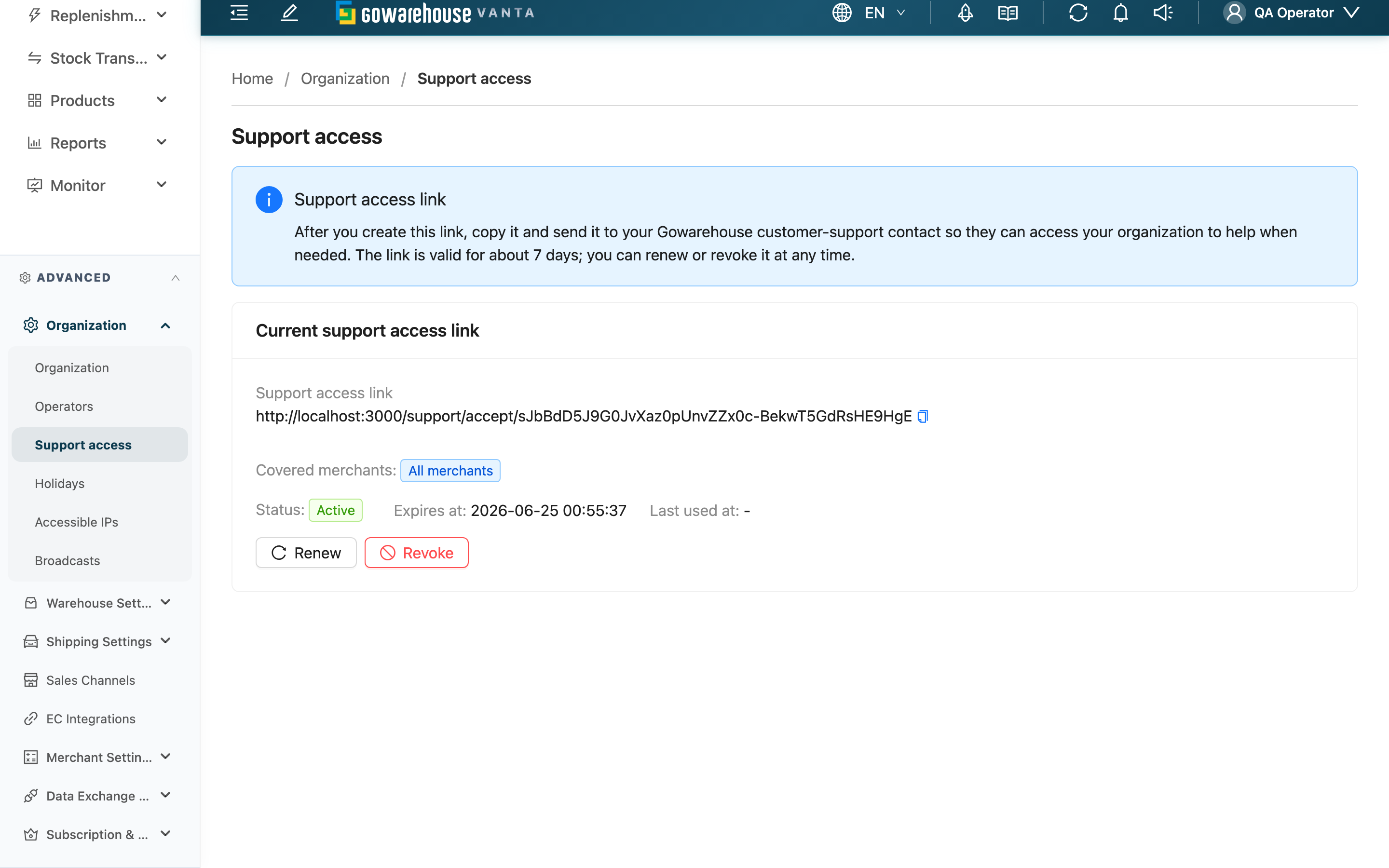
When you open the page, the top of the screen explains what the link is for. At any one time your organization can have only one active support access link:
- When no link exists yet: the page shows "No customer support currently has access to your organization. When you accept a collaboration invite in the support chat, it will appear here." and a "operator.support_access.buttons.create_link" button.
- When an active link exists: the page shows the "Current support access" card, listing the link URL, scope, status, expiry time, and last-used time.
Clicking "operator.support_access.buttons.create_link" opens the "operator.support_access.issue_modal.title" dialog; set the scope and submit to create the link. After it's created, use the copy button next to the link to copy the URL, then send it to your GoWarehouse support contact through your usual channel (message, email).
The link is valid for 7 days. After expiry, support can no longer enter through it. While valid, you can renew it to extend the period or revoke it early (see Renew and revoke).
2.2 Scope and merchant selection
When creating the link, the "operator.support_access.issue_modal.title" dialog lets you decide which merchants support can see this time:
Fields marked with * are required.
| Field | How to fill | Notes |
|---|---|---|
| operator.support_access.issue_modal.all_merchants_label | When on, the link covers every merchant currently in your organization | Turning it on disables the merchant selector below |
| *operator.support_access.issue_modal.merchants_label | Select the merchants to authorize from the list; multiple allowed | When "operator.support_access.issue_modal.all_merchants_label" is off, at least one merchant must be selected to create the link |
If neither is set (all-merchants off and no merchant selected), the "operator.support_access.buttons.create_link" button is disabled and shows "operator.support_access.issue_modal.empty_hint".
The scope determines which merchant data support can see after entering. Once created, the scope is shown on the link card under "Covered merchants": when "All merchants" is selected it shows the "All merchants" tag; otherwise it lists each selected merchant's name.
2.3 Renew and revoke
The link card offers two actions, both of which change state:
| Action | When available | What happens | Reversible? |
|---|---|---|---|
| Renew | When an active link exists | Extends the expiry to 7 days again; status stays active | Renewing only extends the period; it does not change the link URL |
| Revoke | When an active link exists | The link is invalidated immediately, and any support session in progress is cut off at once | Irreversible: once revoked the link is permanently void; to help again you must create a new link |
Before revoking, a confirmation appears: "Are you sure you want to revoke this support access? Once revoked, support staff can no longer access your organization.". After revoking, the link moves to history, its status is marked "Revoked", and the original link URL can no longer be used.
2.4 History
Links you previously created but that are no longer active (revoked or expired) are listed in the "History" table, so you can later audit when support entered and which merchants they were authorized for:
| Column | Description |
|---|---|
| Issued at | When the link was created |
| Expires at | When the link expires |
| Last used at | The last time support entered through this link; empty if never used |
| Covered merchants | The merchant scope the link authorized |
| Status | The link status |
3. FAQ
3.1 FAQ
▪ What can support do in my system after entering through the link?
After entering, support is a temporary support account that can view documents, inventory, and other data within the scope you authorized to investigate. However, billing-related features are always closed to support; they cannot see or touch your bills and billing data.
▪ Does this temporary support account use up one of my operator seats?
No. The support account created when support enters does not count toward your organization's operator seats, and does not appear in the "Operators" list; it is invisible to the other operators in your organization.
▪ How long is the link valid, and what happens when it expires?
The link is valid for 7 days. After expiry, support can no longer enter your organization through it. If support still needs to help within the period, use "Renew" to extend the period by another 7 days (see Renew and revoke).
▪ Why can I only have one active link at a time?
Support access links are designed so that an organization authorizes only one link at a time, avoiding the management trouble of multiple links being valid at once. If you already have an active link, pressing create again simply returns the existing one rather than opening another.
▪ When I revoke the link, is support kicked out immediately?
Yes. Revoking immediately invalidates every support member who entered through the link, so any session in progress is cut off right away, without waiting for the period to end (see Renew and revoke).
▪ Can I reuse the same link to let support back in after revoking?
No. Revoking is irreversible and the link is permanently void. If support needs to help again later, create a new link and send it to support.
▪ I fulfill for many merchants — can I let support see only some of them?
Yes. When creating the link, leave "operator.support_access.issue_modal.all_merchants_label" off and select only the merchants that need help under "operator.support_access.issue_modal.merchants_label" (see Scope and merchant selection). After entering, support can only see the merchant data you selected.
▪ What if I can't see the "Support access" feature?
"Support access" is an Enterprise-plan-only feature. If your plan does not include it, it will not appear in the menu; to enable it, contact your GoWarehouse representative. In addition, creating, renewing, and revoking links requires operator-management permission; if you can see the list but not the action buttons, ask your supervisor to check your permissions.
3.2 Notices
⚠️ Important
- Revoking a link is irreversible: the link is permanently void, any session in progress is cut off immediately, and helping again requires creating a new link.
- A support access link is a URL that grants direct entry into your organization — it is effectively a temporary key. Only share it through a trusted channel with a GoWarehouse support contact you have verified; do not post it publicly or forward it to unrelated people.
💡 Tip: When the help session is over and you don't expect support to return soon, it's safer to revoke the link to take access back rather than leaving it to expire on its own; just create a new one next time you need it.
4. Related Features
| Feature | Description | Link |
|---|---|---|
| Operators | Manage operator accounts and permissions in your organization | Go |
| Organization | View and configure your organization's basic settings | Go |
| Accessible IPs | Configure the IP allowlist for login | Go |