
Material Picking
Table of Contents
Section 1: Use Cases
Scenario 1: A work order is allocated and someone needs to retrieve its materials from the shelves
Situation: Today several work orders (for example, assembling loose parts plus packaging into gift boxes) have been confirmed by the merchant and their materials are fully allocated, so the status reads "Allocated". The materials are still sitting in various shelf locations, and someone has to physically retrieve them and bring them to the processing area before work can begin.
Use this feature: Every work order that has been confirmed and allocated automatically appears here as a picking task. You don't have to act on each work order one by one — just check the tasks you want to pick in this list and click "Generate Picking List" to hand them to a picker. See Generate Picking List.
Result: The system creates a picking list. From "Picking Lists", pickers can follow it to retrieve materials from the shelves into the picking tote, and the corresponding work order moves to "Processing".
Section 2: Feature Guide
A work order is a job ticket for "processing one batch of materials into another batch of finished goods." Once the merchant confirms a work order and the system allocates (reserves) its materials, those materials are still on the shelves and someone has to physically retrieve them before work can begin — Material Picking is the entry point for "retrieving the already-allocated materials from the shelves." This page consolidates all work orders waiting for picking; you select one or more and generate a picking list to hand to a picker, without going back to each work order one by one.
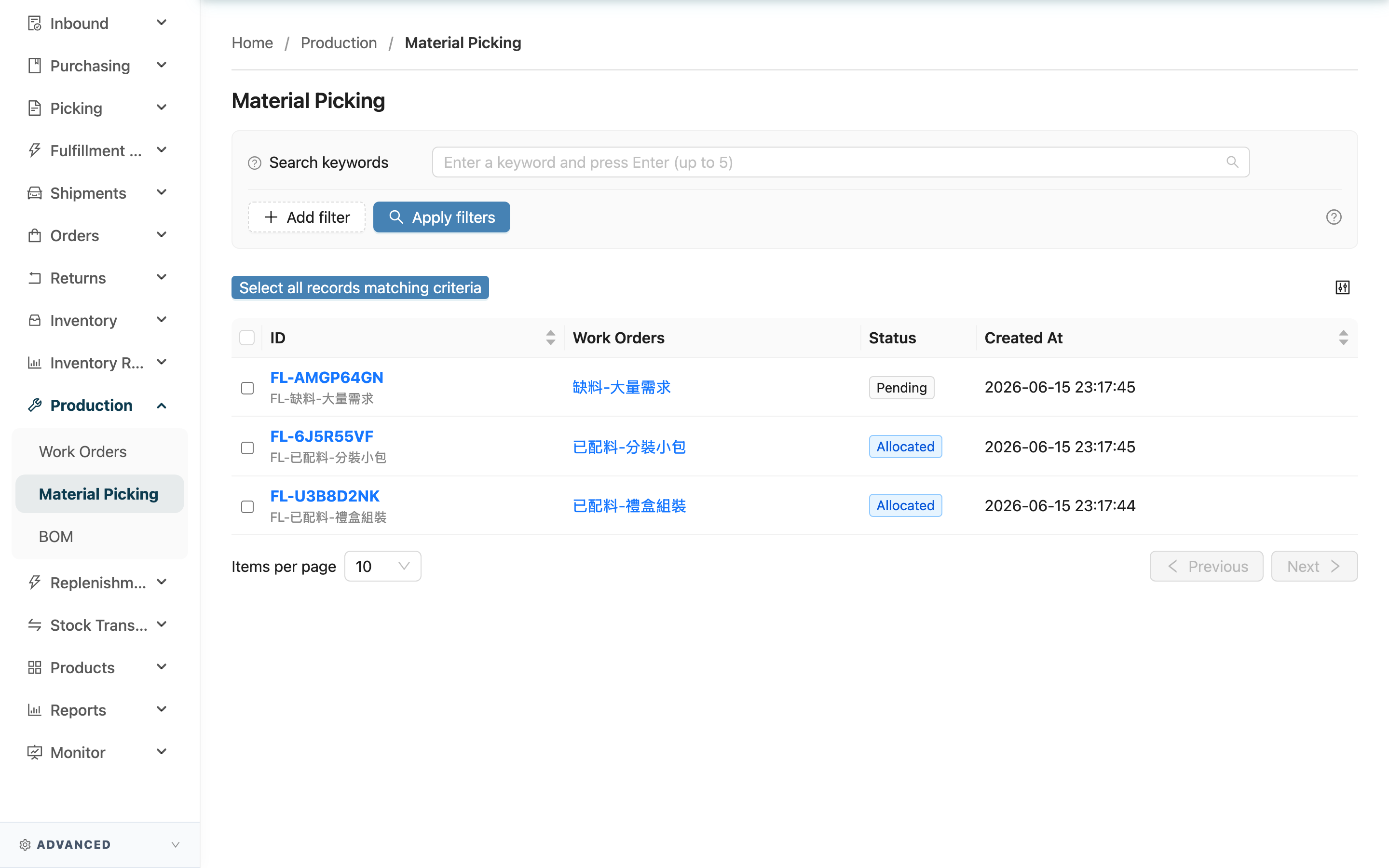
Quick Links: Search & Filter | List Columns | Generate Picking List
2.1 Search & Filter
The search box at the top matches by the beginning of the "Fulfillment Number", "Fulfillment Name", the related "Order Number", or "Receiver Name", to quickly locate a specific picking task.
| Filter | How to use |
|---|---|
| Merchant | Filter picking tasks by merchant, multi-select supported; this filter is hidden when you serve a single merchant |
2.2 List Columns
Click the "ID" to open the corresponding fulfillment detail, and click the number in the "Work Orders" column to jump to that work order.
| Column | Description |
|---|---|
| ID | The number and name of this picking task |
| Work Orders | Which work order this picking task comes from; one task may correspond to multiple work orders |
| Status | The current progress of the picking task; see the table below for status values |
| Created At | The date and time the task was created |
The status shows how far this material picking has progressed:
| Status | What it means |
|---|---|
| Allocated | Materials are fully allocated and reserved, waiting to be picked; only this status can generate a picking list |
| Processing | A picking list has been generated and pickers are retrieving the materials |
| Out of Stock | Materials are insufficient; you need to replenish first and have the merchant re-confirm the work order |
| Canceled | The corresponding work order was canceled and this picking task is voided |
2.3 Generate Picking List
This is the core action of Material Picking: handing the checked tasks to a picker to retrieve materials from the shelves.
Preconditions: Only tasks that are "Allocated" and not yet scheduled into any picking operation are included. Tasks already "Processing" (a picking list has already been generated) or not belonging to your current warehouse are automatically skipped even if checked together, so no duplicate list is created.
Action: Check one or more tasks → click "Generate Picking List" → select the "Merchant" in the popup (auto-filled when you serve a single merchant) → click OK.
Side effects: The system batches the checked, eligible tasks together and creates one picking list. Included tasks change to "Processing", and the corresponding work order moves to "Processing" as well. Pickers can go to "Picking Lists" to start picking.
Reversibility: It cannot be canceled from this screen once generated. To go back, you must terminate that picking list and return the picking tote in "Picking Lists"; only then does the task revert to a state where it can be picked again.
Section 3: FAQ
3.1 FAQ
▪ How do picking tasks appear here? Can I add one manually?
You cannot add one manually. Every picking task is generated automatically after a work order is confirmed and its materials are allocated. To add a source, go to "Work Orders" to create and confirm a work order; once allocation is done, the corresponding picking task appears here.
▪ Why can't I find some work orders here?
Only work orders whose materials are fully allocated, with the status "Allocated", wait for picking here. Work orders still in draft, or "Out of Stock" because of insufficient materials, are not yet allocated and do not appear. Please check the work order's status in "Work Orders" first.
▪ Can I retrieve materials for several work orders at once?
Yes. When preparing materials for a whole processing batch, check all the work orders starting together in the list and click "Generate Picking List". The system batches these tasks' materials into one pick, so materials in nearby shelf locations are retrieved in a single trip — saving more walking than picking one at a time. See Generate Picking List for what gets included.
▪ I checked several tasks, but the generated picking list seems to be missing some?
Only tasks that are "Allocated", not yet scheduled into any picking operation, and belonging to your current warehouse are included. Tasks already "Processing" or not in the current warehouse are automatically skipped — this prevents the same materials from being listed twice.
▪ Where do I go to pick after generating a picking list?
Go to "Picking Lists", find the picking list you just created, and pickers follow it to retrieve materials from the shelves into the picking tote.
▪ I generated the wrong picking list and want to redo it. What do I do?
There is no cancel button on this screen. Go to "Picking Lists", terminate that picking list, and return the picking tote. The task reverts to "Allocated", and you can generate a picking list again.
▪ Why do I have to select a merchant when generating a picking list?
A picking list must belong to a specific merchant. If you serve a single merchant, the system fills it in automatically and you won't see this option; when you manage multiple merchants, you need to specify in the popup which merchant these materials belong to.
▪ I can't see the "Material Picking" feature?
Material Picking belongs to the production processing flow. If you can't see it in the menu, please contact your administrator to confirm your permissions and whether this feature is enabled.
3.2 Notes
⚠️ Important
- Once a picking list is generated, the task is in the picker's hands and the status becomes "Processing". To go back, you can only terminate the picking list and return the picking tote in "Picking Lists" — there is no direct way to cancel from this list.
- When you check multiple tasks to generate a picking list, ineligible ones (not "Allocated", already in another picking operation, or not in the current warehouse) are automatically skipped. Afterward, verify the number of picking lists actually created in "Picking Lists".
Section 4: Related Features
| Feature | Description | Link |
|---|---|---|
| Work Orders | Create and confirm work orders, the source of picking tasks | Go |
| Picking Lists | View and execute the picking operations generated from picking tasks | Go |
| BOM | Set up processing recipes; material composition can be loaded when creating a work order | Go |