
Inventory Transformations
Table of Contents
1. Feature Overview
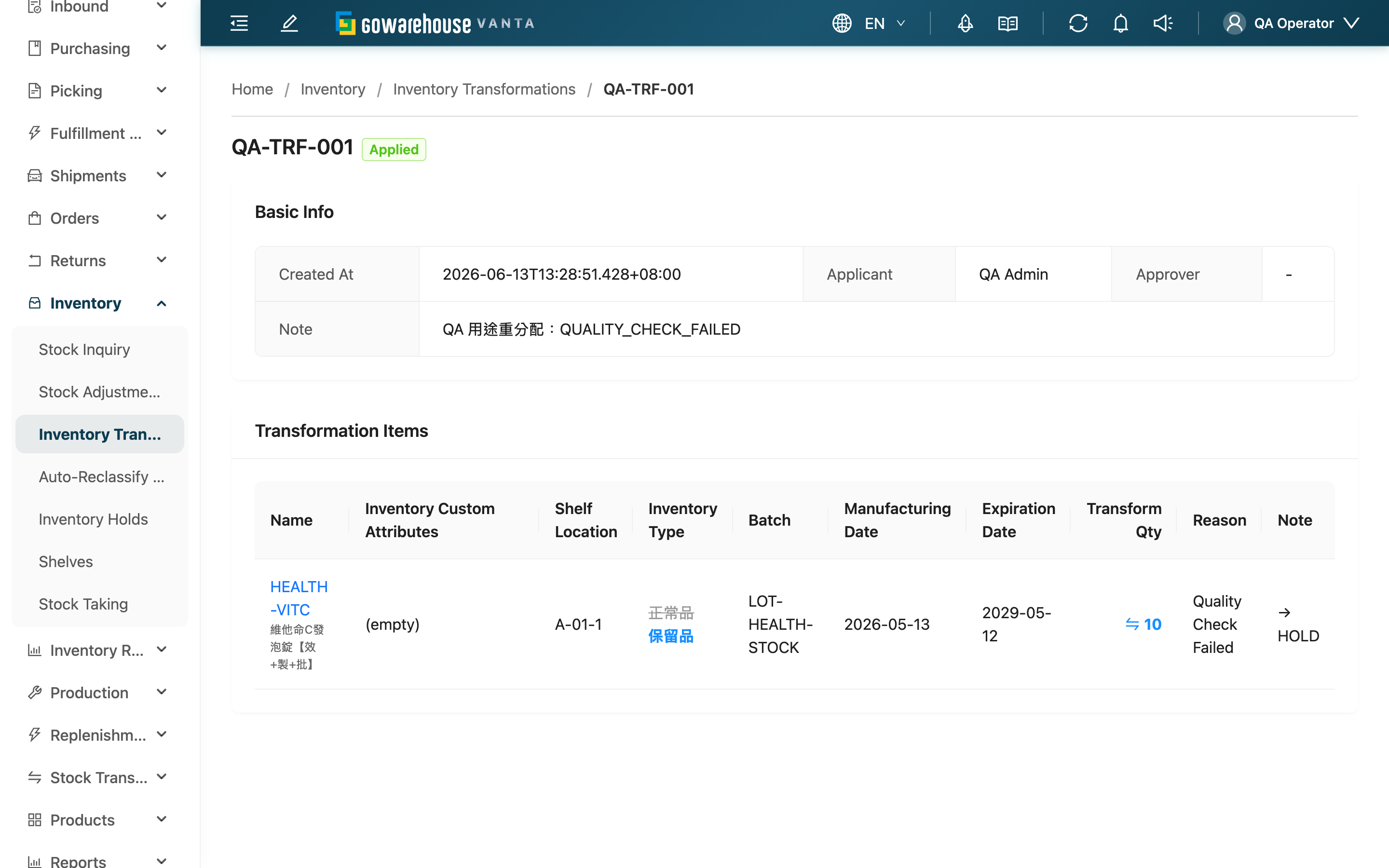
Review the full contents of an inventory transformation and, while it is pending, decide whether to approve or reject it. This page lists the entry's basic info, each transformation item's "source attribute → target attribute" diff, and (after it takes effect) each item's execution result. Approving immediately transforms the goods from the source identity to the target — it is the moment this entry actually changes inventory — while rejecting voids it with no effect on inventory.
Quick jump: Entry Info | Transformation Items | Approve & Reject | Remediating Partial Failures
1.1 Entry Info
The top of the page shows the number and current status tag, and the "Basic Info" section below lists:
| Field | Content |
|---|---|
| Created At | Created time |
| Applicant | The applicant (warehouse staff, seller, or system) |
| Approver | The approver; empty when not yet approved |
| Note | The note for the whole entry |
If this entry was triggered by an inventory auto-reclassify rule, a "Triggered rule" card also appears, recording which rule applied, what expiry threshold was used, and at what time it was judged to transform — so you know why the system opened this entry automatically.
1.2 Transformation Items
The item table lists the inventory this entry transforms, each row presenting the changed attributes as "old value → new value":
| Column | Content |
|---|---|
| Name | Product number and name; click to open the product page |
| Inventory Custom Attributes | The source-versus-target diff of custom attributes |
| Shelf Location | The shelf this batch sits at (unchanged before and after transformation) |
| Inventory Type | Source → target inventory type |
| Batch | Source → target batch |
| Manufacturing Date | Source → target manufacturing date |
| Expiration Date | Source → target expiry date |
| Transform Qty | The quantity this item transforms |
| Reason | The reason code for this transformation |
| Item note | The note for this item; if the item failed to execute, the failure reason shows here |
1.3 Approve & Reject
When the entry is in "Pending" status and you have approval permission, three buttons appear at the top: "Approve", "Reject", and "Edit".
Approve (Approve) — this is the action that actually changes inventory:
- Preconditions: The entry must be in Pending status, have at least one item, and every item must have a reason code selected; any custom attribute marked required among the target attributes must also have a value, otherwise it cannot be approved.
- Effect on inventory: After approval the system executes item by item — it first deducts the item's quantity from the source inventory identity, then adds the same quantity to the target identity (the target inventory is created automatically if it does not exist, or merged in if it already does). Quantity is conserved, the goods stay at the original shelf, and only the inventory type / batch / expiry and other attributes change.
- Reversibility: Irreversible. Once approved and in effect it cannot be undone and cannot be edited. A wrong direction can only be fixed by creating a new entry to convert it back.
Reject (Reject):
- Preconditions: Likewise only available for entries in Pending.
- Effect and reversibility: The entry becomes Rejected and nothing is executed and no inventory is affected. Once rejected the entry ends and cannot be changed back to pending.
1.4 Remediating Partial Failures
The system executes item by item independently, so after approval an entry may produce three outcomes: all succeed (Applied), all fail (Failed), or some succeed and some fail (Partially Applied). One failure does not block the other items that succeed.
When there are failed items, a yellow banner appears at the top of the page showing failed / total item counts and offering a "Create remediation transformation" button, letting you open a new entry to handle only the part that did not succeed. Failed items show a reason in the item note column (most commonly "insufficient available quantity").
2. FAQ
2.1 FAQ
▪ How does inventory change after approval?
The system transforms the goods item by item from the source identity to the target: deduct from the source, add the same quantity to the target. Throughout, quantity does not change and the goods stay at the original shelf — only the inventory type, batch, expiry, and other attributes change. If the target identity's inventory did not exist, the system creates one automatically.
▪ I approved it and then found it was wrong — can I undo it?
No. Once a transformation is approved and in effect it cannot be reversed and cannot be edited. If the direction was wrong, create a new transformation to convert it back to the original identity. So before approving, be sure to confirm each item's target attributes are correct.
▪ Why can't I click "Approve"?
Approval requires several conditions: the entry must be in Pending status, have at least one item, every item must have a reason code, and every required custom attribute among the target attributes must have a value. If any is unmet it is blocked. Also, if you cannot see the approve button, you do not have approval permission — contact your administrator.
▪ An entry shows "Partially Applied" — what about the part that did not succeed?
It means some items succeeded and some failed. Click the "Create remediation transformation" button in the top banner to open a new entry and transform only the failed inventory again. The failure reasons show in the note column of the original entry's items.
▪ What is the most common reason an item fails to execute?
The most common is "the quantity to transform exceeds what is currently available" — some goods are held by unshipped orders, or the available quantity at that shelf is not enough, so that item is blocked and marked failed without affecting the others that succeed. Check available and allocated quantity in the Stock Inquiry.
▪ What is the "Triggered rule" card?
It means this entry was not created by a person but generated automatically by an inventory auto-reclassify rule during a daily scan. The card records which rule applied, the expiry threshold, and the judging time, so you can trace why the system reclassified this batch automatically.
2.2 Notes
⚠️ Important Reminders
- Approving is the action that actually changes inventory, and once in effect it is irreversible — confirm each item before approving
- Approve, reject, and edit are only available in Pending status
- The system executes item by item independently, so a mix of success and failure can occur
- A rejected entry does not affect inventory, but once rejected it ends and cannot return to pending
3. Related Features
| Feature | Description | Link |
|---|---|---|
| Inventory Transformation List | View and track all transformations | Go |
| Edit Inventory Transformation | Modify a transformation still in pending status | Go |
| New Inventory Transformation | Create a remediation entry or a brand-new transformation | Go |
| Stock Inquiry | After approval, view the inventory the transformation result reflects into | Go |