
Import Products
Table of Contents
1. Features
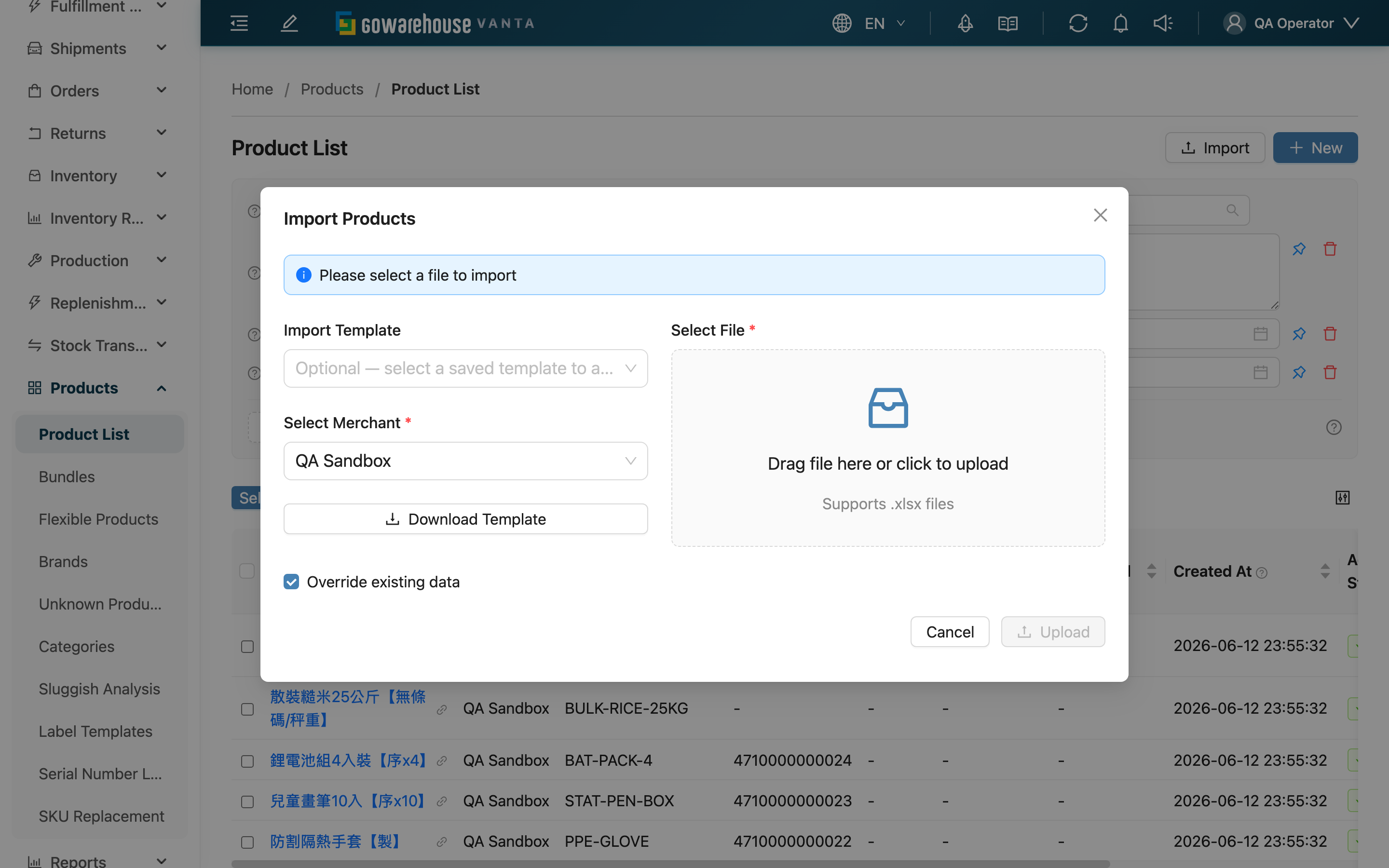
When you need to create or update a large number of products at once, importing is much faster than adding them one by one. On the Product List, click "Import" in the top-right corner to open the import window; download the template, fill in the whole batch, and upload, and the system creates or updates products row by row. Import matches products by SKU (SKU): if a SKU in the file isn't found under the merchant, a new product is created; if it is found, the existing one is updated.
Quick jump: Import Steps | Override Existing Data | Import Rules for Certain Fields
1.1 Import Steps
▸ Choose the merchant and download the template
In a multi-merchant environment, first choose which merchant this batch belongs to — the whole batch is imported under that merchant. Then click "Download Template" to get the template, whose header is the set of fields to fill. If the merchant has import templates configured, you can pick one from the dropdown, and the downloaded template will align with that template's field mapping.
▸ Fill in and upload the file
Fill in the products row by row per the template; each row is one product. When done, drag the file into the upload area or click to upload. Only Excel files (.xlsx, .xls) are accepted, with a 10 MB per-file limit.
▸ Submit and review results
Confirm the "Override Existing Data" checkbox state, then click "Upload". After submitting, check the result in the background-task notifications, which show how many were created, how many updated, how many failed, and the reason for each failed row.
1.2 Override Existing Data
The "Override Existing Data" checkbox at the bottom of the window determines how duplicate SKUs are handled:
| Checkbox state | Behavior |
|---|---|
| Checked | Products whose SKU already exists are updated with the file's contents |
| Unchecked | Rows whose SKU already exists are blocked and reported as "existing product found", and are not overwritten |
Either way, rows whose SKU isn't found under the merchant create a new product. SKUs also cannot repeat within the same file, or they are blocked.
1.3 Import Rules for Certain Fields
| Field | Rule |
|---|---|
| SKU | Required per row; used to match for create or update |
| Name | Required per row |
| Temperature | Must be a temperature value the system recognizes, or the row fails |
| Category | Enter a category name; if no matching category is found, the row fails |
| Default Shelf | Enter a shelf location; if no matching shelf is found, the row fails |
| Other Barcode | Multiple values separated by commas; a blank value clears the existing other barcodes; if the template has no such column at all, the original values are kept |
| Unit names | Cannot start with a digit |
Import processes row by row: an error on one row only skips that row, while the rest of the correct rows import as usual. The reasons for all failed rows are listed in the background-task results.
2. FAQ
2.1 FAQ
▪ Why did some rows fail to import?
There are four common causes: required fields (name, SKU) left blank; values the system can't find for temperature, category, or shelf; duplicate SKUs within the same file; and, when "Override Existing Data" is unchecked, products whose SKU already exists. The reason for each row is listed in the background-task results — fix per the message and re-import.
▪ Can I batch-update existing products via import?
Yes. Put the products to update in the file with SKUs matching the system, check "Override Existing Data", and the import updates the existing products instead of creating new ones.
▪ With "Override Existing Data" unchecked, what happens to duplicate SKUs?
Those rows are blocked and reported as "existing product found", leaving the original products untouched; rows with new SKUs still create normally.
▪ Can I change the template header myself?
Please fill in per the downloaded template header. If the merchant has import templates configured, the template downloaded after selecting one aligns with that template's fields — just fill it in accordingly.
▪ File upload fails with a file-type or size error?
Only Excel files (.xlsx, .xls) are accepted, and each file must not exceed 10 MB. If the file is large, split it into several files and import in batches.
▪ Will leaving the "Other Barcode" column blank clear the original barcodes?
Yes. If the template includes this column but a row leaves it blank, it is treated as clearing that product's other barcodes. To avoid changing existing barcodes, leave this column out of the template entirely.
2.2 Notices
⚠️ Important
- With "Override Existing Data" checked, products with matching SKUs are overwritten by the file's contents — verify the file is correct before importing.
- A blank "Other Barcode" column clears the existing barcodes; when you don't want to change barcodes, leave this column out of the template.
- The whole batch imports under the chosen merchant — in a multi-merchant environment, confirm the right merchant before importing.
💡 Tip: For a first import, test with just a few rows first; once the fields and values are confirmed correct, import the full file.
3. Related Features
| Feature | Description | Link |
|---|---|---|
| Product List | Back to the product list | Go |
| Add Product | Add a single product manually | Go |
| Brands | Maintain the brands to match during import | Go |
| Categories | Maintain the categories to match during import | Go |