
Brands
Table of Contents
1. Use Cases
Quick links: Group products by brand | Maintain brand data in one place
Case 1: Build a grouping dimension for products from different brands
Situation: Your warehouse stores products from many sources at once — your own brands plus goods from different suppliers. Product names alone make it hard to tell which brand an item belongs to, so picking, reconciliation, and reporting tend to get mixed up.
Use this feature: First create the brands you need here (go to create a brand), then attach the matching brand to each product. Products can then be grouped and filtered by brand.
Result: Every product has a clear brand attribution. Later, when you filter products by brand or count goods of the same brand, the scope is immediately clear.
Case 2: Maintain brand names and descriptions in one place
Situation: A single brand may be attached to dozens or hundreds of products. If brand information is scattered across each product, renaming a brand or adding notes means editing every product one by one — slow and easy to miss.
Use this feature: Brand data is maintained here only once. Each brand's name and description are managed centrally; when you need to adjust them, open the brand's detail page to edit.
Result: Brand information has a single source and a single point of maintenance. Every product attached to that brand references the same record, so you never have to edit products one by one.
2. Feature Overview
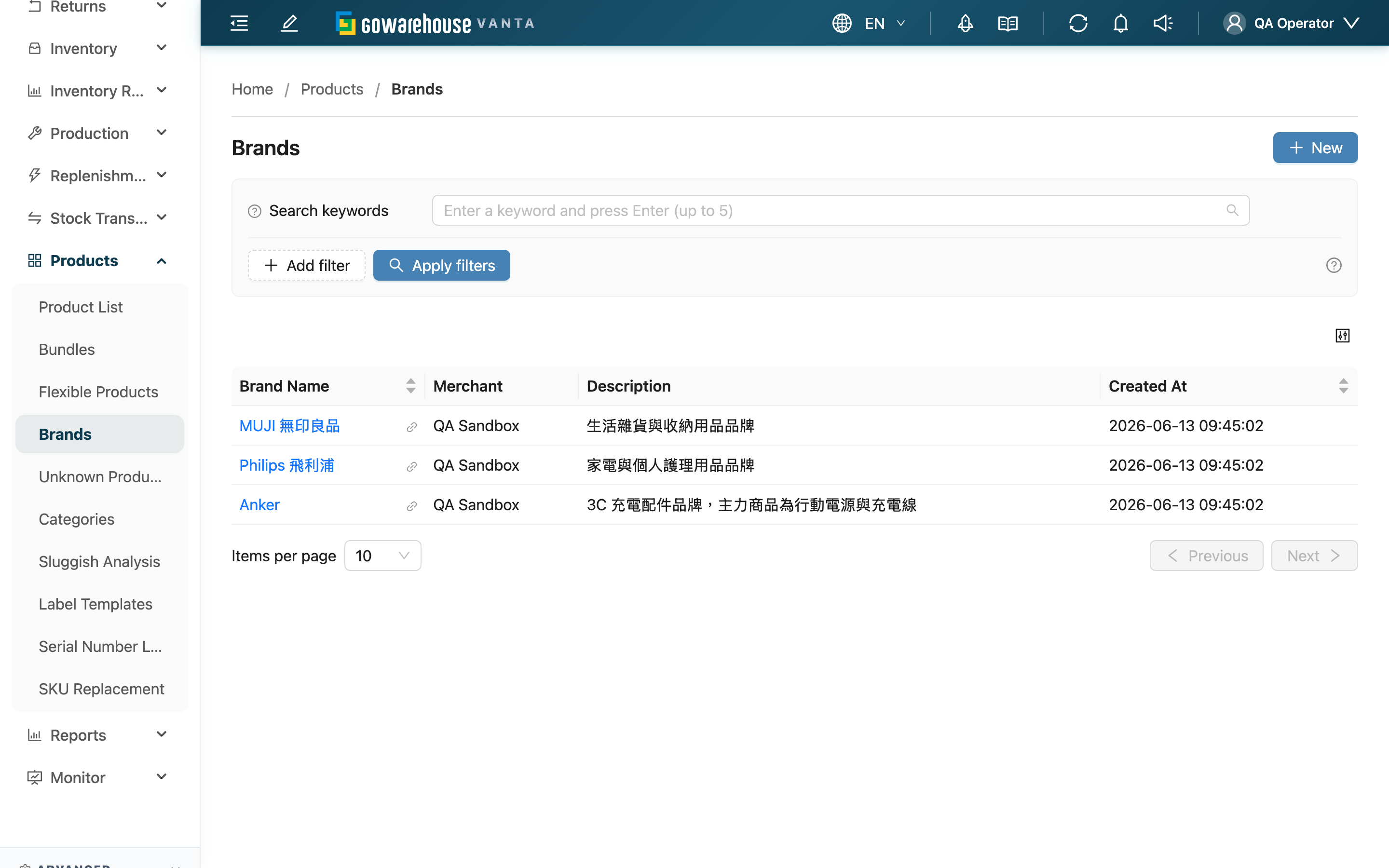
A brand is base data that gives a product an attribution of origin. Each brand belongs to exactly one merchant, and once created it can be attached to that merchant's products so they can be grouped, searched, and counted by brand. This list is the entry point for managing brand data — here you can browse existing brands, create new ones, and click into any record to view or edit it.
Quick jump: Search & Filter | List Columns | Create a Brand
2.1 Search & Filter
The search box at the top matches against Brand Name using prefix matching (it matches from the start of the name, so typing the first few characters brings up matching brands).
If you serve more than one merchant, the list shows an extra Merchant filter, which supports multiple selections, to view only the brands belonging to specific merchants. This filter does not appear when you serve a single merchant.
2.2 List Columns
| Column | Description |
|---|---|
| Brand Name | Click to open the brand detail page; sortable by this column |
| Merchant | The merchant this brand belongs to; shown only when serving multiple merchants |
| Description | Additional notes for the brand |
| Created At | When the brand was created; sortable by this column |
2.3 Create a Brand
Click New in the top right to open the create page. For how to fill in the fields and how to "create several in a row", see the Create Brand page.
3. FAQ
3.1 Questions
▪ Can brand names be duplicated?
Brand names cannot be duplicated under the same merchant. Different merchants do not affect each other and can each have a brand with the same name. When saving, if the merchant already has a brand with the same name, the system blocks it and shows a prompt.
▪ Why don't I see the "Merchant" column and filter?
When you serve only one merchant, all brands belong to the same merchant and need no distinction, so the merchant column and filter are not shown. They appear only when you serve multiple merchants.
▪ When I delete a brand, are the products attached to it deleted too?
No. Deleting a brand only clears the brand field on those products (they become products with no brand set). The products themselves and their inventory are kept. For the full impact of deletion, see the brand detail page.
▪ I can't find a brand by typing the middle characters of its name?
Search matches from the start of the name, so type from the first character of the brand name. Characters from the middle of the name will not match.
3.2 Notices
⚠️ Important Notes
- Brand names cannot be duplicated under the same merchant. Before creating, check whether that merchant already has a brand with the same name.
💡 Tip: Creating a brand only requires a name; the description can be left blank. Create your commonly used brands first, then attach brands to products later.
4. Related Features
| Feature | Description | Link |
|---|---|---|
| New Brand | Create a new brand; you can create several in a row | Go |
| Product List | Attach brands to products and filter products by brand | Go |
| Categories | Another product grouping dimension that can be used alongside brands | Go |