
BOM Details
Table of Contents
1. Features
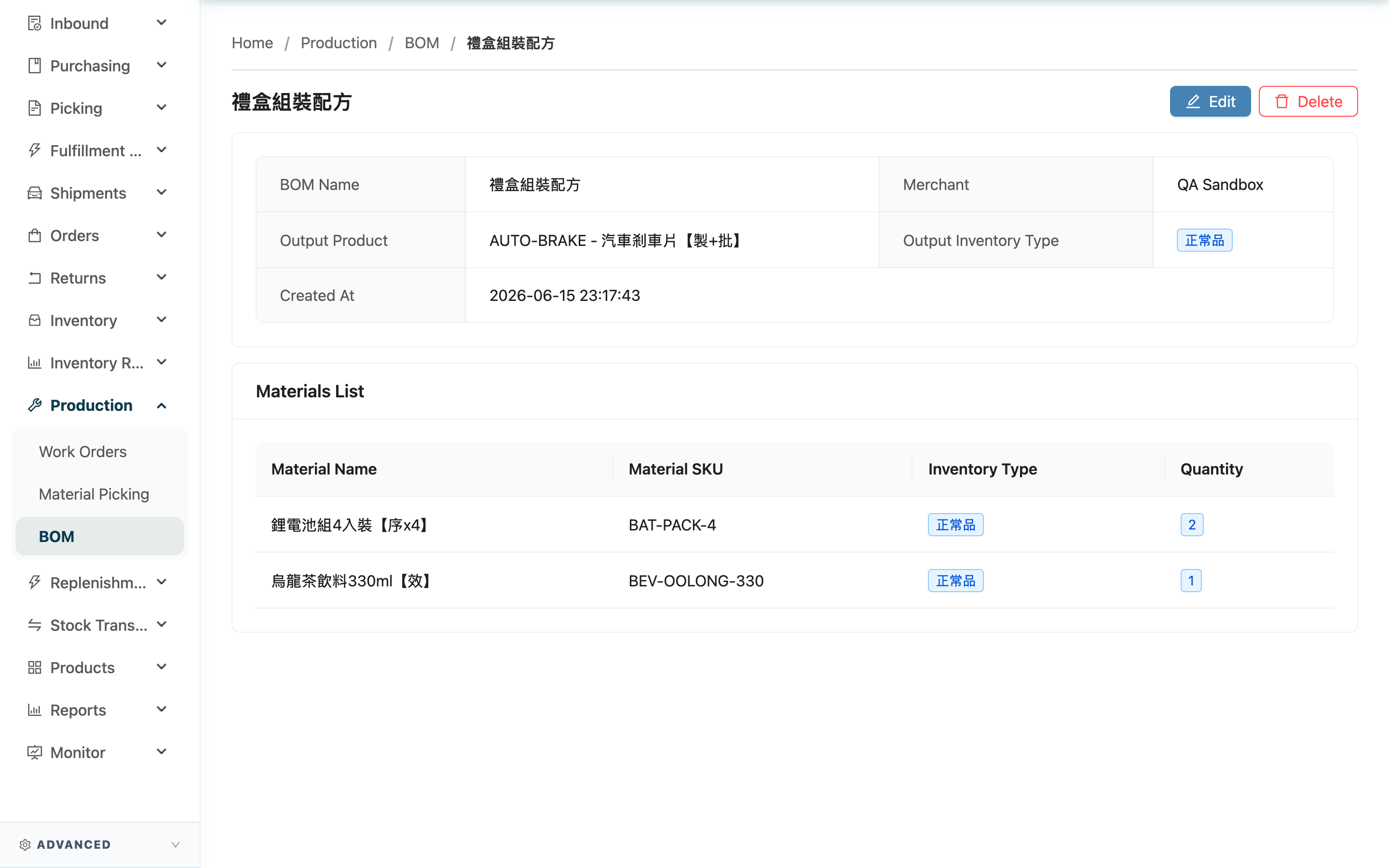
The recipe detail page lets you review a BOM recipe in full: the upper part shows what finished good this recipe produces, and the lower part shows which ingredients are needed and how many of each. Whether you want to confirm a recipe's content before creating a work order, or check that a recipe still matches current practice, you do it here. A recipe is only a template, so this page never touches any inventory.
Quick Jump: Basic Info | Ingredient List | Action Buttons
1.1 Basic Info
| Field | Description |
|---|---|
| Output Product | The finished good this recipe makes, shown as SKU and name |
| Output Inventory Type | The inventory type the finished good is stocked under; shows "Default" when unspecified |
BOM Name, Merchant (hidden with a single merchant), and Created At are self-explanatory from their names.
1.2 Ingredient List
The "Materials List" in the lower part lists every ingredient needed to make one set of the finished good:
| Field | Description |
|---|---|
| Inventory Type | The inventory type this ingredient is taken from; shows "Default" when unspecified |
| Quantity | How many of this ingredient are consumed to make one set of the finished good |
Material Name and Material SKU are self-explanatory from their names. When the recipe has no ingredients yet, this section shows "No materials yet".
1.3 Action Buttons
| Button | Description |
|---|---|
| Edit | Top-right of the page; opens Edit BOM to change recipe content. If you cannot see this button, contact your administrator to confirm permissions |
| Delete | Top-right of the page; deletes the whole recipe (including its ingredient list). A confirmation dialog appears before it takes effect. Deletion cannot be undone but does not affect existing work orders. If you cannot see this button, contact your administrator to confirm permissions |
2. FAQ
Quick Jump: FAQ | Important Notes
2.1 FAQ
▪ What does the quantity on the detail page mean?
It is the ingredient usage "per set of the finished good". For example, an ingredient quantity of 6 means each set produced consumes 6 of it. When applying the recipe on a work order, you enter how many sets to make, and the system multiplies this quantity by the set count.
▪ What does it mean when an ingredient's inventory type shows "Default"?
It means the ingredient has no specific inventory type set, so processing takes it from the default inventory type. If you need to consume from a specific type (such as near-expiry stock) first, set an inventory type for that ingredient in Edit BOM.
▪ If I change the recipe here, will earlier work orders change too?
No. When a work order applies a recipe, it copies the content at that moment, so existing work orders keep the ingredient data from when they applied it and are unaffected by later edits.
▪ Can I delete the whole recipe here?
Yes. The top-right of the detail page has a "Delete" button. Pressing it opens a confirmation dialog; once confirmed, the whole recipe (including its ingredient list) is removed from the list and cannot be undone. Deletion does not affect any existing work order — a work order copies the recipe content at the moment it is applied and is independent of the source recipe. If you only want to adjust the content rather than remove it entirely, use "Edit" instead.
▪ How do I use this recipe to create a work order?
On the work order, press "Apply BOM", select this recipe, and enter how many sets to make; the system brings in ingredients and output at once based on the recipe (see Create Work Order).
2.2 Important Notes
⚠️ Important Reminders
- A recipe is only a template and does not mean stock is sufficient: The detail page lists the recipe's requirements, not current inventory. Whether it can actually be made, and how many sets, is determined by the system based on inventory when applied on a work order.
- Deleting a recipe cannot be undone: After you press "Delete" and confirm, the whole recipe and its ingredient list are permanently removed; existing work orders are unaffected, but to use it again you must create a new one.
💡 Tip: Before a processing day, check on the detail page that the recipe's ingredients and quantities still match current practice, to avoid applying an outdated recipe.
3. Related Features
| Feature | Description | Link |
|---|---|---|
| Edit Recipe | Change this recipe's name, output product, and ingredient list | Go |
| BOM | Return to the recipe list to find other recipes | Go |
| Work Orders | Apply this recipe to run the actual processing job | Go |