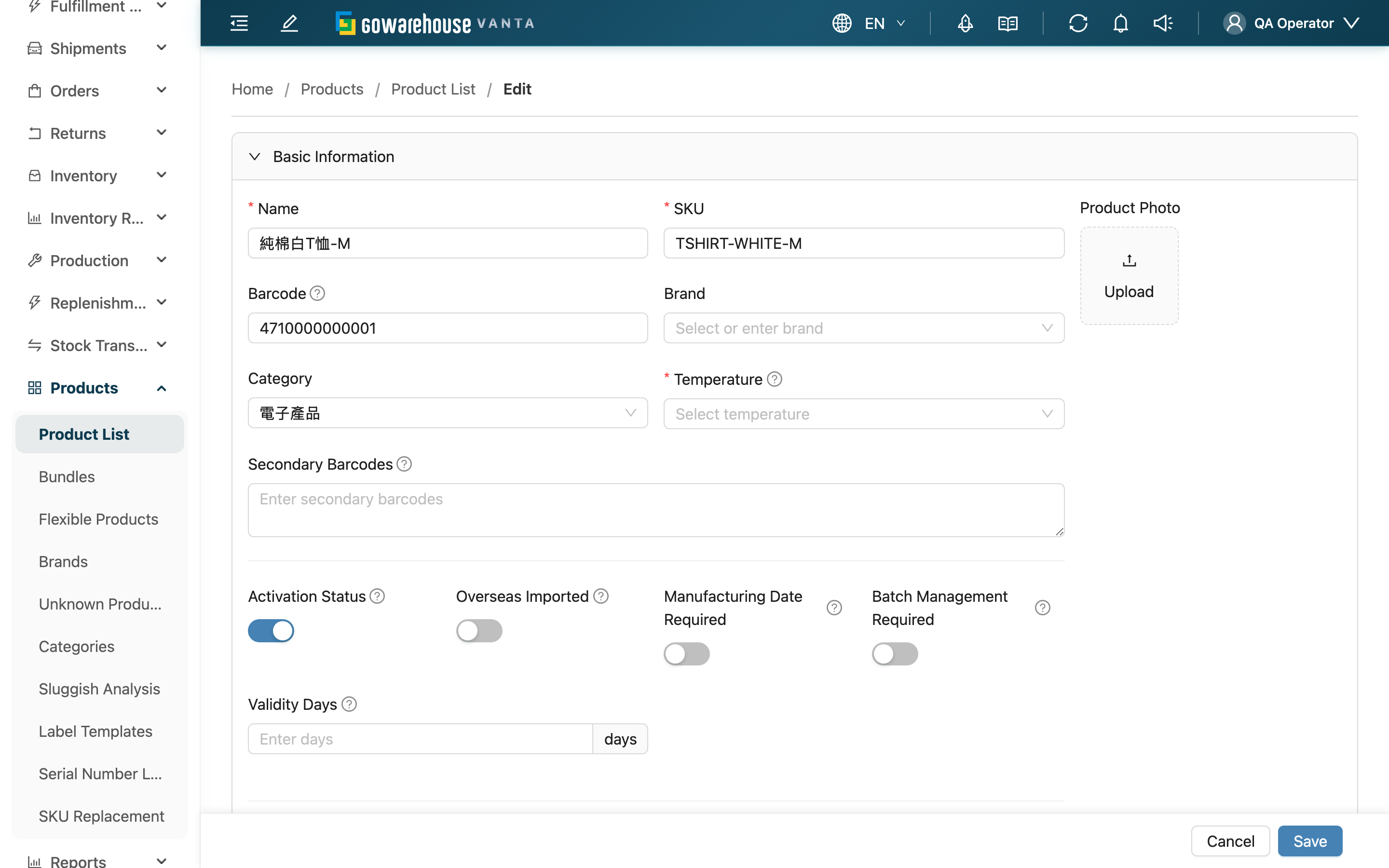
Edit Product
Contents
1. Use Cases
Quick Links: Update Product Barcode | Adjust Default Shelf | Update Customs Info
Scenario 1: Update Product Barcode
Situation: The supplier switched to new packaging and the product barcode changed; the system data needs updating.
What to do:
- Go to the product edit page
- Find the "Barcode" field
- Enter the new barcode
- If the old barcode still needs to work, add it to "Secondary Barcodes"
- Click "Save"
Result: The page navigates to the product details page showing the updated barcode information.
Scenario 2: Adjust the Product's Default Shelf
Situation: The warehouse layout changed and a product's default storage location needs adjusting.
What to do:
- Go to the product edit page
- Find the "Default Shelf (Preferred recommendation during inbound putaway; also used as fallback if no shelf is specified during inventory import)" field (shown in the "Basic Information" or "Shelf Information" section depending on your warehouse's shelf mode)
- Search for and select the new shelf
- Click "Save"
Result: During future inbound putaway, the system will recommend the new default shelf first.
Scenario 3: Update Export Customs Information
Situation: The product needs to be exported, and the merchant asks you to fill in the customs declaration title and HS Code.
What to do:
▸ Expand the Export Information section
- Go to the product edit page
- Expand the "Export Information" section
▸ Fill in customs data
- Fill in "Customs Declaration Name"
- Fill in "HS Code"
- Fill in "Manufacturer Country (2-letter code)"
- Click "Save"
Result: Export documents will automatically include this information.
2. Feature Guide
Come here whenever product data needs changing. Common cases include: the supplier changed packaging and the barcode needs updating, the warehouse layout changed and the default shelf needs adjusting, or the merchant asks you to add export customs info. Note: documents (picking lists, shipping documents) display product information directly from the product record, so after you change the name or barcode, related documents will also show the new content.
⚠️ Important: The merchant a product belongs to cannot be changed after creation. The SKU can be modified — the system immediately checks for duplicates within the same merchant; to change many SKUs at once, use the "SKU Replacement" feature.
Quick Jump: Action Buttons | Basic Information | Unit Information | Shelf Information | Substitute Information | Export Information
2.1 Action Buttons
| Button | Location | Description |
|---|---|---|
| Cancel | Action bar at the bottom of the page | Return to the previous page without saving |
| Save | Action bar at the bottom of the page | Save all changes |
2.2 Basic Information
Fields marked with * are required
| Field | How to fill | Notes |
|---|---|---|
| *Name | Enter the full product name; suggested format: brand + name + spec | - |
| *SKU | Enter the product's unique identifier (SKU) | Must be unique per merchant; the system checks immediately after input |
| Barcode | Enter the barcode on the product packaging | - |
| Secondary Barcodes | Fill in when the product has multiple barcodes, one barcode per line | - |
| Brand | Select from the dropdown | If missing, create it first in "Brands" |
| Category | Select from the dropdown | If missing, create it first in "Categories" |
| *Temperature | Select the storage temperature: Ambient, Controlled, Refrigerated, Frozen, Air Conditioned | Required |
| Default Shelf (Preferred recommendation during inbound putaway; also used as fallback if no shelf is specified during inventory import) | Search for and select a shelf | Shown in this section for warehouses using dedicated shelf mode; if missing, create it first in "Shelves" |
| Activation Status | Toggle enable/disable | Disabled products will not appear in order product selection |
| Overseas Imported | Enable for overseas-imported products | - |
| Manufacturing Date Required | When enabled, the manufacturing date must be entered during receiving | Recommended for products needing expiry management |
| Batch Management Required | When enabled, the batch must be entered during receiving | Recommended for products needing batch tracking |
| Validity Days | Enter the product's shelf life in days | Recommended for food products |
| Track Serial Numbers | When enabled, serial numbers must be scanned during receiving and shipping | Recommended for high-value items such as electronics |
| Required Serial Numbers | Enter how many serial numbers to record per item | Only shown when "Track Serial Numbers" is enabled |
| Box Serial Number Delimiter | When a carton barcode contains multiple serial numbers, the system splits them by this delimiter. Example: with barcode "SN01,SN02" and delimiter ",", the system reads two separate serial numbers. | Only shown when "Track Serial Numbers" is enabled |
| Serial Number Pattern | Enter the validation rule for serial numbers | Only shown when "Track Serial Numbers" is enabled |
| E-commerce Stock Sync | When enabled, this product's stock syncs to e-commerce accounts with sync enabled | - |
| Exceptions (optional) | Add exceptions here to disable sync for specific accounts or adjust their sync ratio | Only shown when sync is enabled |
| Product Photo | Upload a product photo | Improves picking accuracy |
| Note | Enter reminders for warehouse staff (e.g., fragile) | - |
📌 Note: If the merchant has defined custom product attributes, the corresponding custom fields also appear in the form — fill them in as the merchant requires.
2.3 Unit Information
▸ Base Unit (Small Unit)
| Field | How to fill |
|---|---|
| Base Unit Name | Use the smallest sales unit (e.g., piece, bottle, pack) |
| Length | Measure with a ruler, in centimeters |
| Width | Measure with a ruler, in centimeters |
| Height | Measure with a ruler, in centimeters |
| Weight | Weigh with a scale, in kilograms |
▸ Mid Unit
| Field | How to fill |
|---|---|
| Mid Unit Name | Use the common name for the middle package (e.g., set, strip, bag) |
| Items Per Mid Unit | Count how many base units are in one mid package |
| Mid Unit Barcode | Scan or read the barcode on the mid package |
▸ Large Unit (Carton)
| Field | How to fill |
|---|---|
| Large Unit Name | Use the common name for the outer carton (e.g., case, box) |
| Items Per Large Unit (Box Quantity) | Count how many base units are in one carton |
| Large Unit Barcode | Scan or read the barcode on the carton |
| Case Length | Measure the carton with a ruler, in centimeters |
| Case Width | Measure the carton with a ruler, in centimeters |
| Case Height | Measure the carton with a ruler, in centimeters |
| Case Weight | Weigh the full carton, in kilograms |
▸ Pallet Stacking (Optional)
| Field | How to fill |
|---|---|
| Large Units Per Layer | Stack one layer and count how many cartons fit |
| Layers Per Pallet | Fill in how many layers can be stacked per your warehouse standard |
| Total Large Units Per Pallet | Auto-filled from the two fields above; can also be edited directly |
⚠️ Important: Large unit conversion is relative to the base unit, not the mid unit. Example: 1 case = 24 bottles means you enter 24, not 2 (even if 1 mid unit = 12 bottles).
2.4 Shelf Information
This section only appears for warehouses using "dynamic shelf" management mode; for warehouses using "dedicated shelf" mode, the "Default Shelf (Preferred recommendation during inbound putaway; also used as fallback if no shelf is specified during inventory import)" is shown directly in the "Basic Information" section.
| Field | How to fill |
|---|---|
| Default Shelf | Search for and select the default storage location; if missing, create it first in "Shelves" |
2.5 Substitute Information
Set which products can be shipped instead when this product is out of stock.
| Item | Description |
|---|---|
| Purpose | When the main product is out of stock, the system finds an in-stock substitute by the priority of this list |
| How to use | Search and add other products of the same merchant; order can be adjusted |
2.6 Export Information
For products that need to be exported.
| Field | How to fill |
|---|---|
| Customs Declaration Title | Enter the product name used in customs declarations |
| Manufacturer Country (2-letter code) | Enter the manufacturing country code (e.g., TW, CN, JP) |
| HS Code | Enter the customs tariff code |
| Material | Enter the main material |
3. FAQ
Quick Jump: FAQ | Important Notes
3.1 FAQ
▪ Can I change the SKU?
Yes. The SKU is the product's unique identifier; after entering a new SKU, the system immediately checks for duplicates within the same merchant.
Before changing, make sure on-site labels and the merchant's reconciliation data will be updated accordingly, so SKUs don't get out of sync. To change many SKUs at once, use the "SKU Replacement" feature.
▪ How do I add multiple barcodes?
- In the "Secondary Barcodes" field, enter one barcode per line
- Click "Save"
▪ What if an error message appears when saving?
| Error type | Cause | Solution |
|---|---|---|
| Required field missing | Name, SKU, or Temperature is empty | Fill in all fields marked with * |
| Duplicate SKU | The new SKU is already used by another product of the same merchant | Use a different SKU, or check the duplicate product first |
▪ Why can't I see the "Shelf Information" section?
The "Shelf Information" section only appears for warehouses using "dynamic shelf" management mode. For "dedicated shelf" warehouses, "Default Shelf (Preferred recommendation during inbound putaway; also used as fallback if no shelf is specified during inventory import)" is shown directly in the "Basic Information" section; warehouses that don't manage shelves don't show it at all.
▪ How do I disable a product?
- Go to the product edit page
- Find the "Activation Status" field
- Toggle the switch off
- Click "Save"
After disabling:
- The product will not appear in order product selection
- It can still be found in the Product List (filter by "Activation Status" and select "Disabled")
- Existing inventory is not affected
▪ Will modifying product data affect existing orders?
Existing orders' quantities and inventory allocation will not change, but document displays of product information (name, barcode) read directly from the product record, so old documents will also show the new content when viewed later. Before changing, make sure this won't cause confusion during on-site verification.
3.2 Important Notes
⚠️ Permission Restrictions
- Most warehouse staff can only view product data, not edit it
- Contact your administrator if you need edit permission
- Some fields may not be editable due to permission settings
⚠️ Data Impact
- After changing the barcode, verify scanners can read the new barcode
- Changing the default shelf only affects newly received stock
- Changing unit information (e.g., box quantity) does not automatically adjust existing inventory
⚠️ E-commerce Sync
- When "E-commerce Stock Sync" is enabled, this product's stock syncs to e-commerce accounts with sync enabled
- To exclude an account from sync or adjust its sync ratio, add an exception in "Exceptions (optional)"
4. Related Features
| Feature | Description | Link |
|---|---|---|
| Product List | Search and filter products | Go |
| Product Details | View complete product information | Go |
| New Product | Create a new product | Go |
| SKU Replacement | Change product SKUs in batch | Go |
| Brands | Manage product brands | Go |
| Categories | Manage product categories | Go |