
Stock Taking Detail
Table of Contents
1. Features
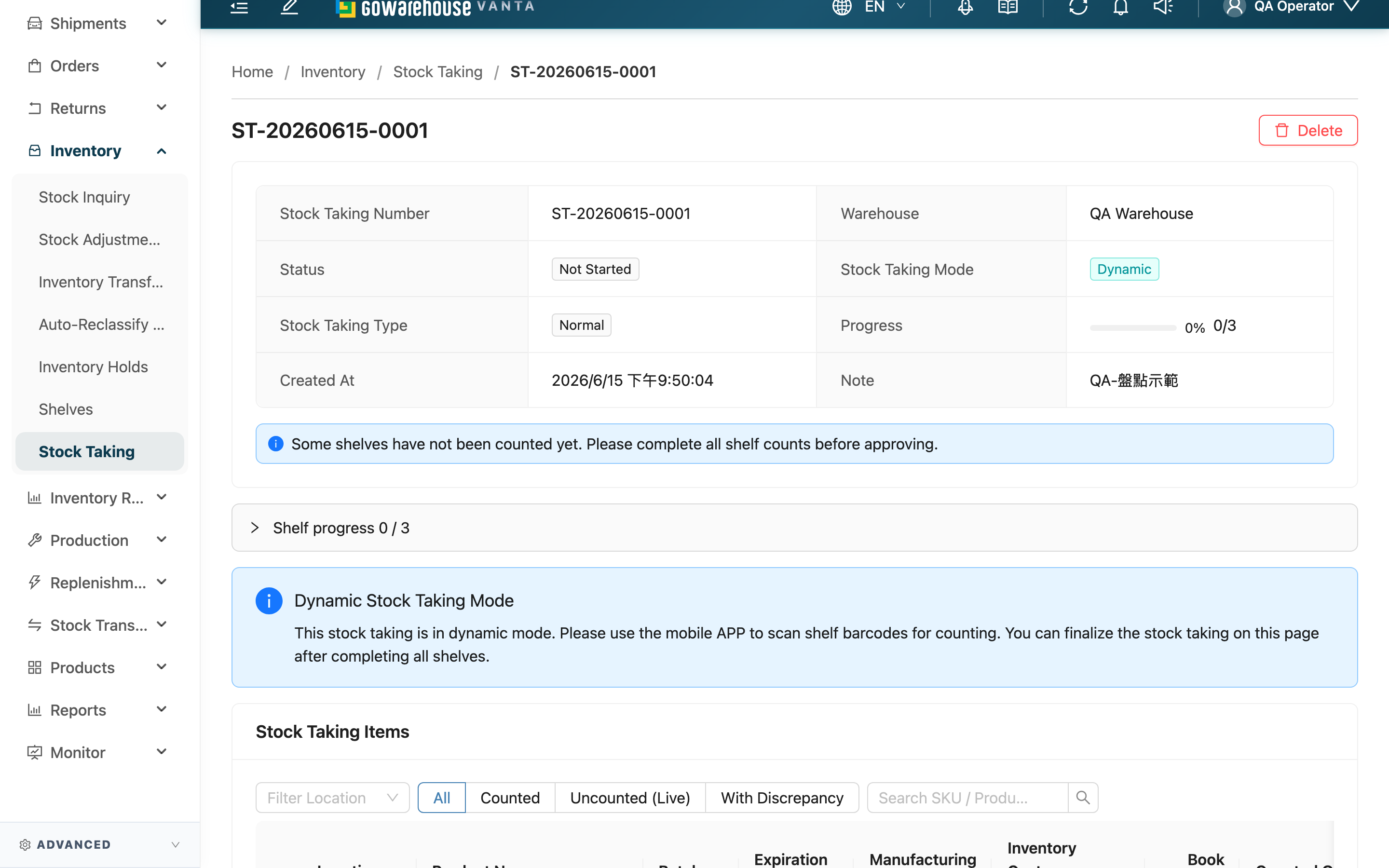
This is the workbench for running a single stock taking: the top shows record info and shelf progress, the middle is the count sheet where you record actual quantities, and finally Approve Stock Taking writes the differences back into inventory. A Static (the paper route) and a Dynamic (the phone route) let you do different things on this page, explained separately below.
Jump to: Record Info & Progress | Record Counts (Static) | Dynamic Count | Settle & Reject
1.1 Record Info & Progress
The top card shows the stock taking number, warehouse, Status, Stock Taking Mode, Stock Taking Type, Progress (completed shelves / total shelves), and the note.
The shelf progress section below can be expanded to list each shelf's current status; click a shelf name to filter the count sheet below to only that shelf. A shelf has three stages:
| Shelf status | What it means |
|---|---|
| Pending | This shelf has not been counted yet |
| First Count | The first count is done |
| Second Count | Verification is complete |
When a Static is just created, the system first snapshots inventory (Snapshot Status); the screen shows Preparing stock taking data, and the count sheet appears only after the snapshot completes. If it shows Data preparation failed, you can retry or contact your administrator.
1.2 Record Counts (Static / Paper)
A Static is designed for paper work — no phone needed, and the whole flow is done on this page. The row of buttons above the count sheet:
▸ Export and fill back
- Click Export Items to download an Excel — this is your paper count sheet; print it and write the actual quantity in each row on the floor.
- Back at the computer, fill the numbers into the Excel's counted quantity column (add a note if needed) and click Import Items to send the whole file back to the system.
- For just a few changes, you can skip Excel and type directly into the count sheet at the bottom of the page.
On import the system only recognizes the "ID" column in the first column of the Excel: a file missing the ID column is rejected entirely (re-export the latest file); a row whose ID does not belong to this stock taking is rejected; rows with a blank ID are skipped automatically (no need to delete trailing empty rows).
▸ Counting an item not on the list (record overage)
If you find on the floor an item that "is not on the sheet," adding a row in Excel yourself is useless (a row without an ID is skipped). Instead click Record Surplus: choose the shelf, then pick one of two — for an item the system can find, search Existing Inventory; for one with no record at all, choose New Batch and fill in the product, batch, and expiration. Once submitted it goes into settlement along with the other items.
▸ Items not actually counted
For items not actually counted, click Zero out uncounted to fill all items with no quantity yet to 0 at once (treated as a shortage). This is an explicit statement of intent, preventing missed items from being mistaken for "no difference." After marking 0, you still need to click Approve Stock Taking for it to actually deduct stock.
1.3 Dynamic Count
For a Dynamic, quantity entry can only be done on a phone: scan the shelf barcode, confirm the current inventory, and enter the actual quantity. On this web page the count sheet is read-only, providing an audit trail (counter, count time, verification count); once all shelves are verified, return to this page to settle.
1.4 Settle & Reject
Once the counts are fully recorded, finish up with the buttons at the top right. The system first previews inventory conflicts (a shortage exceeding the adjustable quantity); if there is a conflict, Approve Stock Taking is temporarily not clickable, and you must release the hold at shipping or inventory holds before returning.
| Action | What it does | Result |
|---|---|---|
| Approve Stock Taking | Compares line by line per the recorded quantities and adjusts inventory: adds overages, deducts shortages | Inventory updated, status becomes Approved, an inventory movement record is left |
| Reject | Does not adopt this result, touches no inventory | Status becomes Rejected, the count data is kept for audit |
Both are irreversible final actions, and a confirmation dialog appears when you click. The detailed preconditions, side effects, and reversibility of settle and reject are in the FAQ below.
2. FAQ
2.1 FAQ
▪ When can I click Approve Stock Taking?
A Static requires that "every count item has a recorded quantity" before settling — as long as any item is unfilled, the screen shows how many remain unrecorded and the settle button does not appear; the moment all are recorded, the settle button shows up. For items not actually counted, use Zero out uncounted to zero them out explicitly. A Dynamic can be settled only after shelves are verified one by one on the phone and the count has advanced to In Progress.
▪ Exactly which inventory does settlement change? How are overages, shortages, and uncounted items handled?
The system computes "counted quantity − book quantity" per line: more than the book (overage) adds inventory, less (shortage) deducts it, and a difference of 0 is left alone. When a Static settles, it treats all shelves as complete and submits them together — there is no "partial settlement," so before settling you either fill in a quantity for every item or zero them out with Zero out uncounted; nothing is silently skipped. A Dynamic only submits verified shelves; unverified shelves are not settled even if quantities were entered on the phone, to avoid bypassing verification.
▪ Can I undo a settlement if I made a mistake?
No. Once settlement is complete, the inventory adjustment cannot be undone or reverted, and the stock taking is locked — you can no longer import or change quantities. So always double-check the differences via the count sheet before settling. If you have not settled yet but realize this count should not be adopted, use Reject.
▪ What is the difference between Approve Stock Taking and Reject?
Settle makes the count result take effect and adjusts inventory by the differences; reject touches no inventory at all and only keeps the count data for future audit. Both are final and cannot be changed once done. In practice: use settle when you are sure you want to pull the book to the counted figures; use reject when this count was botched and you want to start over with a new stock taking.
▪ Why is the Approve Stock Taking button greyed out and unclickable?
It means the system has previewed an inventory conflict — some items' shortage exceeds the currently adjustable quantity (inventory is held by shipping or a hold). Release the hold at the relevant fulfillment or inventory hold, then the conflict list on this page refreshes, and the settle button becomes clickable once there are no conflicts.
▪ With a blind count, why can't I see the book quantity and the difference?
A Blind hides the book quantity and the difference before settlement, so staff focus on counting the actual stock without the book's nudge. After settling (or rejecting), it is revealed for easier audit comparison afterward.
▪ Is deleting a stock taking the same as rejecting it?
No. Only a count that has not been touched at all (Not Started) can be deleted, and deleting leaves nothing behind; a count already begun cannot be deleted and can only be closed with Reject (keeping the data for audit).
2.2 Notes
⚠️ Important
- Settlement is irreversible: the inventory adjustment cannot be reverted, and the record is locked after settling — always re-check the differences first.
- A static count has no partial settlement: settlement submits the whole stock taking at once; fill in unrecorded items first or zero them out with Zero out uncounted to avoid missing any.
- Save before leaving: if the count sheet has unsaved changes, the system blocks you and reminds you when you try to settle, reject, or delete.
💡 Tip: Use the "With Discrepancy" filter on the count sheet to quickly pull up items where counted and book do not match, and focus your pre-settlement review on those (this filter is unavailable for an unsettled blind count).
3. Related Features
| Feature | Description | Link |
|---|---|---|
| Stock Takings | View and manage all stock takings | Go |
| Inventory Movements | View the inventory changes produced by this settlement | Go |
| Inventories | View the latest inventory on each shelf after settlement | Go |