
Bundles
Table of Contents
1. Use Cases
Quick links: Selling a fixed gift-set bundle | Knowing how many sets you can ship | Swapping bundle contents
Case 1: Packing several single items into a fixed set to sell
Situation: The merchant launches a "Bath Gift Set" on a marketplace. One box always contains 1 bottle of shampoo and 2 bottles of body wash, and it is sold under a single SKU online — but what actually sits on your warehouse shelves is still the two single items, shampoo and body wash.
Use this feature: In "Bundles", create this gift set as a bundle, listing which single items it contains and how many of each per set (see New Bundle). Once created, whenever an order carries this gift set's SKU, the system automatically expands it into the single items inside; what you see on the picking list and shipment is the actual broken-down items and quantities.
Result: The warehouse never has to stock a physical "gift set" item — you just pick the shampoo and body wash off the picking list, and stock is deducted from those two single items.
Case 2: Checking how many sets a bundle can still make before shipping
Situation: The merchant warns that the weekend gift-set campaign will generate a large number of orders. You want to confirm upfront how many complete gift sets your current single-item stock can actually make, so you do not run out mid-campaign.
Use this feature: In the list, check the "Available Set Quantity" column to see how many complete sets each bundle can currently ship, and cross-check each single item's available stock in the "Bundle Items" column (see List columns).
Result: You can tell at a glance which bundle is stuck on which low-stock single item, and notify the merchant to restock or adjust the campaign in advance.
Case 3: The merchant swaps the gift set's contents at short notice
Situation: The merchant tells you to change the body wash in the gift set from 2 bottles to 3. The next batch of incoming orders should ship by the new recipe, but orders placed a few days ago that have not shipped yet must ship by the original recipe.
Use this feature: Go to the bundle's Edit Bundle page to change the contents and quantities. The change only affects orders placed after the edit; orders already placed recorded the recipe in effect at the moment they were created and are unaffected (see Editing bundle contents).
Result: New and old orders each ship by their own recipe — one edit will not retroactively change the orders you are already working on.
2. Feature Overview
A bundle is a setting that ties several single items together into one sales unit (such as a gift set, a kit, or buy-one-get-one). The bundle itself holds no physical stock — what sits on the shelf is always the single items inside. When an order carries the bundle's SKU, the system automatically expands it into the single items, and picking, shipping, and stock deduction all happen at the single-item level. This list is your entry point for managing all bundles: here you can view each bundle's available set quantity and contents, and create, import, or edit them.
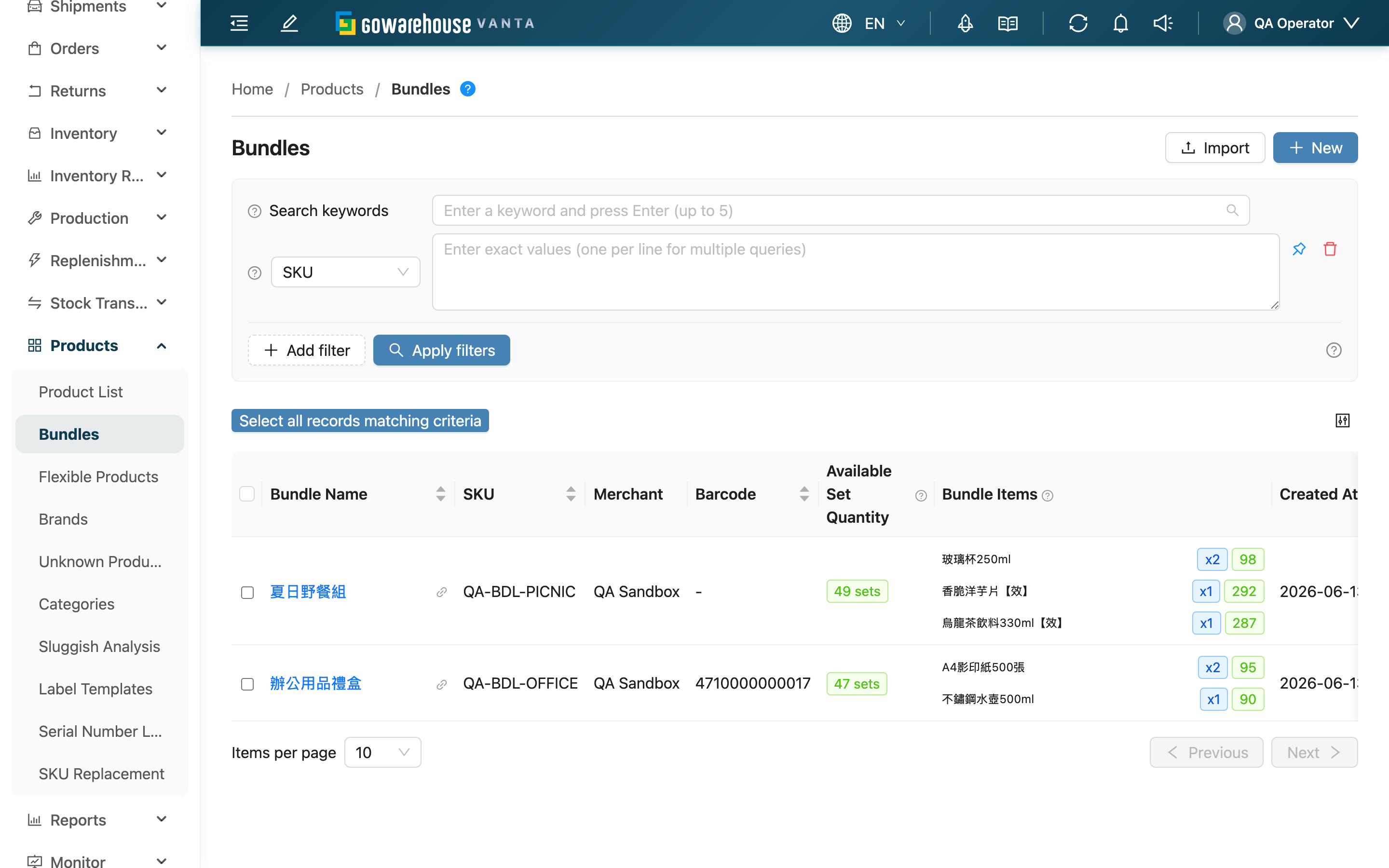
Jump to: Search & Filter | List columns | Batch actions
2.1 Search & Filter
The search box at the top matches by SKU, bundle name, or barcode as a prefix. After expanding the filters you can add the conditions below; enter the remaining fields by their names.
| Filter | How to use |
|---|---|
| Activated | Filter for enabled or disabled bundles; a disabled bundle has its operations suspended |
| Merchant | When managing several merchants, filter to a specific merchant's bundles first |
2.2 List columns
Only columns that are not self-explanatory are described below; the rest (bundle name, SKU, barcode, created at) are clear from their names.
| Column | Description |
|---|---|
| Available Set Quantity | Based on the current available stock of each single item in the bundle, how many complete sets can still be made. It is governed by the tightest single item — if any one item falls short, the whole bundle's shippable set count is capped by it. "—" means a single item in the bundle has no inventory type specified |
| Bundle Items | Lists each single item in the bundle. The blue tag is the quantity needed per set; the green/red tag is that item's current available stock (red means there is not enough to make one set); "—" means that item has no inventory type specified |
| Activated | Enabled means it can be sold normally; disabled means this bundle's operations are suspended |
Available stock here only counts stock meeting both conditions: the inventory type the bundle assigns to that single item (assign Good and Damaged stock is not counted in), and the expiration rule the merchant set for that inventory type (batches with insufficient remaining shelf life are excluded; items without an expiration date always count, and with no expiration mechanism configured expiration is not filtered). These two are the most common sources of discrepancy, so excluding them brings the figure much closer to reality — but it is still not the exact amount an order will allocate. It is calculated across all warehouses, and an order narrows it further by shipping warehouse, batch, and sales channel conditions. Conversely, if that channel defines a secondary inventory type, allocation can draw from it too, so the actual amount may be higher.
2.3 Batch actions
After selecting bundles in the list, use "Export" to export the selected bundles together with their contents to a file; check the result under "Import Records". The create and import entry points are in the top-right of the page (see Related Features).
3. FAQ
3.1 FAQ
▪ Does a bundle have its own stock?
No. The bundle itself holds no physical stock — what sits on the shelf is always the single items inside. The "Available Set Quantity" in the list is calculated live from each single item's stock, not a separate stock figure.
▪ When an order carries a bundle SKU, what shows on the picking list?
You see the expanded single items, not the bundle name. For example, if a customer orders "Bath Gift Set × 2", the picking list shows shampoo × 2 and body wash × 4 (each item's per-set quantity multiplied by the set count). Just pick the items and quantities on the picking list — no need to do the math yourself.
▪ Why is the available set quantity 0 when the single items are still on the shelf?
Available set quantity is governed by the tightest single item — check the red tags in the "Bundle Items" column to see which one is the bottleneck. Stock on the shelf but a count of 0 usually means that stock does not meet what this bundle asks for: the inventory type does not match (the bundle asks for Good but the batch on the shelf is booked as Damaged), or the remaining shelf life fails the rule the merchant configured. In both cases an order cannot be allocated either — the list is not miscalculating.
▪ Why does the available set quantity show "—" instead of a number?
A single item in the bundle has no inventory type specified. Which inventory type such an item is deducted from depends on the sales channel the order comes from, so it cannot be determined at the list level, and the system shows "—" rather than a number that could be wrong. To see the actual quantity, wait until the order is placed and check the inventory type marked on the picking list.
▪ If I change a bundle's contents, do already-placed orders change too?
No. An order records the bundle recipe in effect at the moment it is placed, so any later change to the bundle's contents only affects newly placed orders; the orders you are working on ship by the original recipe.
▪ What happens if the same single item is added twice in a bundle?
If the same single item is added on two rows with the same inventory type, the system automatically merges them into one row by summing the quantities; if the inventory types differ, they are kept separately.
▪ Can a single item in a bundle be pulled from a specific inventory type?
Yes. Each single item can be assigned an inventory type (e.g. good stock, near-expiry); after the order expands, the picking list marks the required inventory type, so pick from the matching location. Items with none specified follow the normal flow.
3.2 Notes
⚠️ Important reminders
- Disabling a bundle suspends this bundle's operations; make sure it has truly been delisted on the merchant's side before disabling.
- The single items and the assigned inventory type in a bundle must belong to the same merchant and be enabled, otherwise they cannot be added to the bundle.
💡 Tip: The list's "Available Set Quantity" updates live with single-item stock; scanning this column before a shipping peak helps you catch bundles that are about to run short.
4. Related Features
| Feature | Description | Link |
|---|---|---|
| New Bundle | Create a new bundle one at a time | Go |
| Import Bundles | Create or update many bundles at once with Excel | Go |
| Product List | Manage the single items inside a bundle | Go |
| Inventory List | View the actual stock of each single item | Go |