
Shelves
Table of Contents
1. Use Cases
Quick links: Set up a new rack | Find empty spots before put-away | Re-zone and adjust assignments
Scenario 1: A new rack arrives — turn physical spots into system shelves
Situation: The warehouse just installed a new rack. The physical spots exist, but the system has no shelves for them yet. Without shelves, receiving has nowhere to put away to, and picking cannot point operators to the right cell.
Use this feature: Add shelves from the top right to generate the whole rack at once by a row-column-layer numbering rule (see Batch Add Shelves). Then select those spots and generate shelf barcodes to print and stick onto the rack.
Result: The physical rack now has matching system shelves and barcodes, so receiving, put-away and picking can scan a barcode to land on the exact cell — no more relying on memory or hand-written notes.
Scenario 2: A refrigerated batch arrives — find empty cold spots first
Situation: A batch of refrigerated goods has arrived and is waiting to be put away. You need to know which Refrigerated spots are still empty, so the goods go into the correct temperature zone — not spoiled in the wrong zone, and not crammed into a cell that already holds other goods.
Use this feature: In Search & Filter, apply both "Temperature" = Refrigerated and "Inventory Status" = No Inventory, and the list shows only the empty cold spots.
Result: You get a ready list of available cold spots and route the arrival into the correct temperature zone, avoiding spoilage from a wrong-temperature placement.
Scenario 3: Re-zoning the warehouse — reassign a whole rack at once
Situation: The warehouse is being re-zoned — spots that used to be mixed together are split into an ambient zone, a refrigerated zone and a returns staging zone, or one whole rack moves from zone A to zone B. Such a change easily covers dozens or hundreds of cells, so opening each detail page one by one is not realistic. At the same time, a batch of emptied spots that will no longer be used should be retired.
Use this feature: Filter the rack by "Shelf Location", select the spots and use batch change to reassign them at once; redefining the temperature zone, locking the whole rack so no new goods go in, or marking the aisle-facing rack as "Pick Face" in one go, all live behind the same entry point. For the spots you have decided to retire, confirm "Current Stock" shows "-" (meaning no goods) and remove them with batch delete.
Result: The shelves' zone assignment matches the physical layout, so "Warehouse Zone" can filter a whole zone afterwards, and counting and picking can be scoped by zone. Changing the zone only re-labels the assignment — the goods on the shelf are never moved. As for retiring, any spot that still holds goods is automatically skipped even if accidentally selected.
2. Features
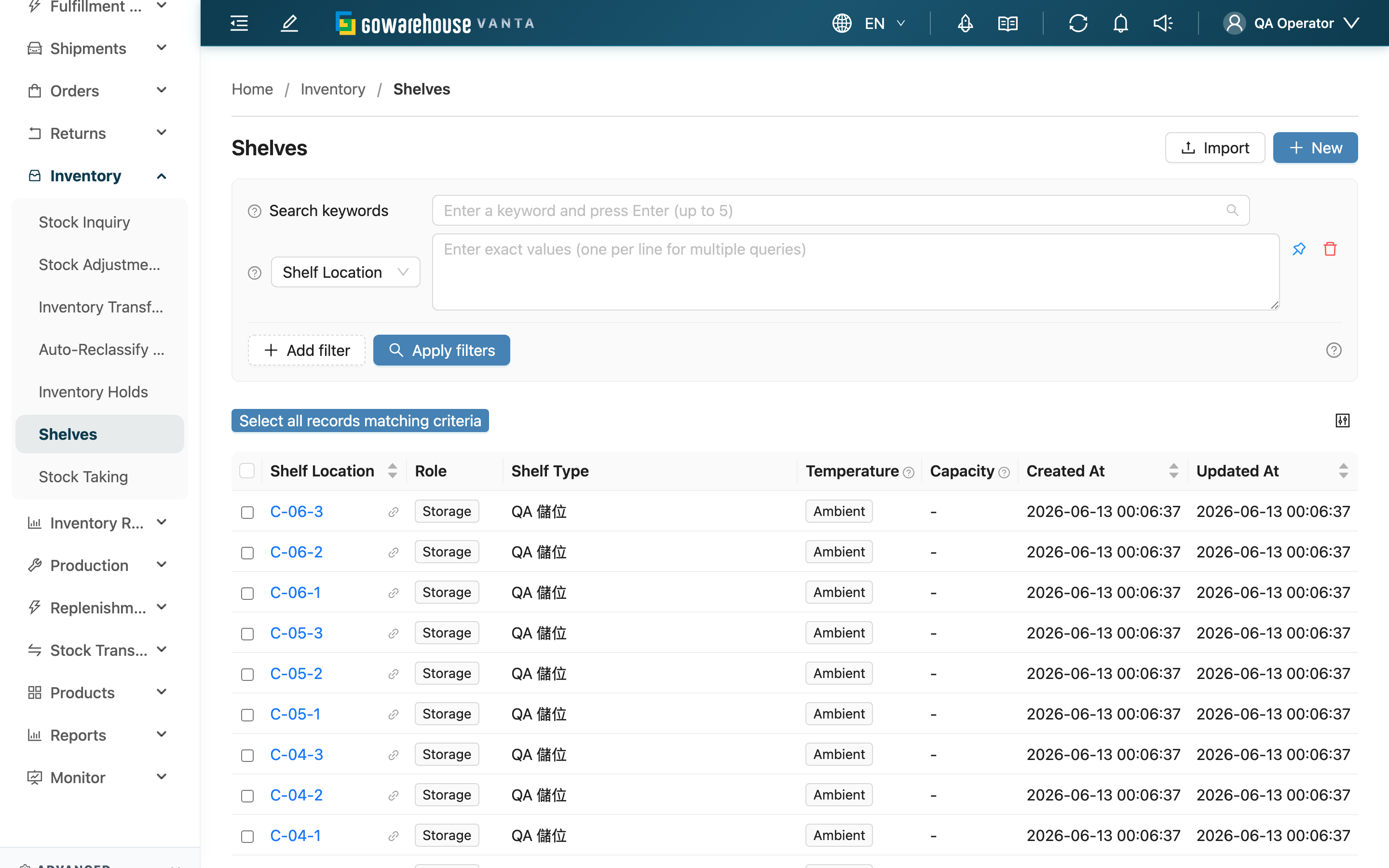
A shelf is every physical spot in the warehouse where goods are stored. Finding empty spots for put-away, knowing which cell holds the goods for picking, and verifying the quantity in each cell during a stock count — these daily tasks all start from this list. This page shows every shelf in your warehouse with its location, role, zone, type, temperature, whether it is a pick face and how much it currently holds. You can also batch-create new shelves, print shelf barcodes, batch-adjust zone / temperature / lock state / pick face, and retire unused empty spots here.
Quick jump: Search & Filter | List Columns | Actions
2.1 Search & Filter
The search box at the top does a prefix match on "Shelf Location" (type the first few characters). Expanding the filters lets you stack multiple conditions; the common ones are:
| Filter | How to use |
|---|---|
| SKU | Enter a product SKU to list every shelf holding that product — the most direct way to find "which cells still hold this product" |
| Inventory status | Choose "Has inventory" to see only occupied spots, or "No inventory" to find empty spots |
| Shelf role | Switch between Storage, Staging and Carrier; when left unset the list shows only storage shelves |
| Warehouse Zone | Lists only shelves belonging to the selected zone. Shelves with no zone assigned never appear under any zone — use another condition to find those. This filter only appears once your current working warehouse has zones |
Other conditions such as "Shelf Location", "Shelf Type" and "Temperature" are entered or picked from the list by name, and all support multiple values.
2.2 List Columns
| Column | Description |
|---|---|
| Location | The shelf's identifying code; click to open Shelf Detail and see what this cell holds; sortable |
| Shelf role | Distinguishes the spot's purpose (see below), shown as a colored tag |
| Warehouse Zone | The zone the spot belongs to (e.g. refrigerated zone, building A); "-" when unassigned. Zones are maintained in Warehouse Detail |
| Shelf type | A classification your organization defines (e.g. pallet rack, bin rack), maintained under "Shelf Type Management" |
| Temperature | The storage temperature condition of the spot, shown as a colored tag |
| Pick Face | Whether this cell is marked as a pick face ("Yes" / "No"). When the same product sits in several cells, picking suggestions point to the one marked "Yes" first |
| Capacity | How much the spot currently holds (sum of all inventory quantities), updated live with put-away and picking; "-" means empty. It is not the spot's upper limit |
| Created at | When the shelf was created; sortable |
| Updated at | When the shelf was last updated; sortable |
Click the settings icon at the top right to customize which columns are shown.
Shelf role explained
| Role | Description |
|---|---|
| Storage | Physical spots you create to store goods; editable and deletable |
| Staging | Holding spots used in flows such as receiving and inspection; system-managed |
| Carrier | Mobile containers such as picking carts and totes; system-managed |
The list shows only Storage shelves by default; to see Staging or Carrier, switch via the "Shelf role" filter.
2.3 Actions
▸ Add shelves
Click "New" at the top right to open the batch-create page and generate multiple shelves at once by a row-column-layer numbering rule. For the full how-to see Batch Add Shelves.
▸ Import shelves
Click "Import" at the top right, download the template in the dialog, fill in the shelf data and upload. After it finishes, check the result in the "Background Tasks" panel; successful shelves appear in the list.
▸ Generate shelf barcodes
Select the shelves to print, click "Generate Barcodes" and configure:
- Label content: "Barcode + shelf name" or "Barcode + details"
- Output mode: "Label paper (one per label)" (set label width and height) or "A4 Paper (multiple per sheet)" (set columns and rows per page)
- Click "Generate Barcode PDF"
When done, download the PDF from the "Background Tasks" panel, print and stick onto the matching rack.
▸ Batch change
Select the shelves and click "Batch change". The dialog only expands the available operations once opened; pick one per run:
| Operation | Description |
|---|---|
| Change warehouse zone | Apply one zone to every selected shelf. Confirming without picking any zone clears the zone assignment (they become unzoned). Only zones under your current working warehouse are offered; zones are created in Warehouse Detail |
| Change temperature | Apply one temperature. Unlike zone, temperature is required — there is no "clear temperature" |
| Lock shelves | Stop these shelves from being recommended during put-away (see below) |
| Unlock shelves | Lift that restriction and return the shelves to the put-away candidate pool |
| Mark as pick face | Mark these shelves as pick faces so picking suggestions point to them first (see below) |
| Unmark as pick face | Remove the pick face mark; these cells return to the normal suggestion order |
Shared behaviour:
- Changes the shelf, not the stock: All of them only change the shelf's own settings. Inventory on the shelf is never moved and no shelf movement record is created.
- What locking actually does: Locking only affects which spots the system recommends during put-away — a locked shelf is not recommended. It does not block scanning, picking or transfers, and goods already on the shelf move in and out as usual. To stop a specific batch of goods from shipping, use "Inventory Holds" instead.
- What "Pick Face" actually does: It only affects which cell the system tells pickers to go to first — when the same product sits in several cells, the pick face comes first in the suggested order. It does not restrict which cells can be picked, and it does not affect put-away recommendations.
- Result report: The change runs in the background; when done, the "Background Tasks" panel shows three counts — updated, unchanged, and not applicable (how to read them is in the FAQ).
▸ Batch delete
Select the shelves to retire, click "Batch Delete" and confirm.
- Deletion conditions: Only Storage shelves with no inventory at all are deleted. Spots that still hold goods, plus Staging and Carrier spots, are automatically skipped and never deleted by mistake.
- Result report: Deletion runs in the background; when done, the "Background Tasks" panel shows the actual deleted and skipped counts.
- Cannot be undone: A deleted shelf cannot be restored; recreate it if needed.
3. FAQ
3.1 FAQ
▪ What does the number in the "Current Stock" column mean?
It is "how much the spot currently holds" — the sum of all inventory quantities in this cell — and it updates live with put-away, picking and transfers. "-" means the cell is currently empty. It is not the spot's upper limit, so don't plan against it as a maximum capacity.
▪ Why can't I see staging areas or picking carts?
By default the list shows only the Storage shelves you use to store goods. Staging and Carrier spots are used by the system during receiving and picking; to view them, switch via the "Shelf role" filter.
▪ Why can't some shelves be deleted, or get skipped during batch delete?
Only Storage shelves with no inventory at all can be deleted. If a spot still holds goods, transfer or pick them out first. Staging and Carrier are system spots needed by the workflow and can never be deleted, to avoid disrupting ongoing receiving and picking. See Batch delete.
▪ Where do I manage "Shelf Type"?
"Shelf Type" classifies spots by purpose (e.g. pallet rack, bin rack). The options are created under "Shelf Types" and become selectable when you create or import shelves; if a type is missing, add it there first.
▪ Can I still change a shelf's location code or temperature after it's created?
Yes. For a single shelf, click the "Shelf Location" to open Shelf Detail; there you can edit the code, type, temperature, zone and more for a Storage shelf. To change many cells at once, use batch change on the list (it covers zone, temperature, lock state and pick face; location code and type have no batch edit — they can only be changed one by one). Staging and Carrier are system-managed and cannot be edited.
▪ Does changing the zone move the goods on the shelf? Do I have to empty it first?
No, and no. Changing the zone changes the "which zone this cell belongs to" label. The inventory stays exactly where it is, and the system creates no shelf movement record. You can change occupied spots directly, and afterwards those goods simply count under the new zone.
▪ Why is the number actually updated smaller than the number I selected?
The completion message splits the untouched shelves into two reasons; neither is a failure:
- Unchanged: These shelves were processed, but already held the value you picked (e.g. reassigning a shelf to the zone it is already in).
- Not applicable: You selected system spots such as Staging or Carrier, or the shelf does not belong to your current working warehouse — the system never touches those.
The split matters because if the updated count is 0 and everything landed under "not applicable", you selected the wrong targets (e.g. you are working in the wrong warehouse) rather than "everything was already correct". All three numbers appear in the "Background Tasks" panel.
▪ The zone I want isn't in the batch-change dropdown?
Zones are per warehouse. The dropdown only lists zones under your current working warehouse; zones of other warehouses never appear and cannot be assigned. To add a zone, go to "Warehouse Zones" in Warehouse Detail. If your current working warehouse has no zones at all yet, the "Warehouse Zone" filter won't appear on the list either.
▪ Can I find out afterwards who changed a cell's zone, temperature, lock state or pick face?
Yes — and it does not matter whether the change was made in bulk or one at a time; both entry points leave the same kind of record, with the before and after values, who changed it and when. There are two places to look:
- A single shelf: open Shelf Detail; the "History" section at the bottom is that cell's full history.
- Across shelves: "Audit Logs" lets you filter the whole organization's records by time, actor and action.
Only those four fields are recorded, and only when the value actually changed (including the ones counted as "unchanged" in a bulk run). Changes to location code and shelf type are not in this history. Overwrites via import do leave history for these four fields; for the import run itself and its row counts, check the import records.
▪ What does "Lock shelves" actually lock? Are the goods frozen?
Nothing is frozen. Locking has exactly one effect: during put-away the system stops recommending that cell as a place to put goods. Scanning, picking, transfers and stock counts all continue as normal, and goods already on the shelf can still ship.
It fits "stop sending new goods to this rack for now" — a rack about to be re-planned, under repair, or being emptied for a count. If what you need is "this batch of goods must not ship", that is an inventory-level concern: use "Inventory Holds" rather than locking the shelf.
▪ Does changing the temperature affect goods already stored there?
Inventory already on the shelf is untouched — the system neither blocks it nor asks you to move it. Temperature affects later operations: during put-away the system only recommends spots whose temperature matches the product. So setting an occupied spot to a mismatched temperature will not make the goods disappear, but that cell will no longer be recommended for that kind of product.
▪ When filtering by SKU, why are some spots that once held the product missing?
The "SKU" filter only lists spots that "currently hold that product (quantity greater than 0)". Spots where the goods have all been picked or moved out won't appear. To trace where this product has historically moved through, go to "Shelf Movements" for the movement records.
3.2 Notes
⚠️ Important Notes
- "Current Stock" is the live actual on-hand quantity, changing with receiving and shipping; it is not the spot's upper limit.
- A deleted shelf cannot be restored; only empty Storage shelves are deleted, while occupied spots and system spots are automatically skipped.
- Batch change (zone / temperature / lock / pick face) only changes the shelf's own settings. It never moves the inventory on the shelf and creates no shelf movement record; to physically relocate goods, use the transfer flow.
- "Lock shelves" only removes them from put-away recommendations — it is not an inventory freeze; locked shelves can still be picked and shipped from.
- Confirming a batch zone change without picking any zone clears the zone assignment on those shelves — check the shelf count shown in the dialog before confirming.
- Before put-away, always confirm goods go into a spot with the correct "Temperature" — a wrong temperature zone may spoil the goods.
💡 Tip: To find "which spots a product is spread across", use the "SKU" condition in Search & Filter — far faster than paging through manually. When adjusting a whole zone, narrow the list by "Warehouse Zone" or "Shelf Location" first and then select all — more reliable than ticking cell by cell.
4. Related Features
| Feature | Description | Link |
|---|---|---|
| Batch Add Shelves | Create multiple shelves at once by a numbering rule | Go |
| Warehouse Management | Create and maintain warehouse zones — the source of the batch zone change options | Go |
| Shelf Movements | View how goods move between shelves | Go |
| Inventory List | View live inventory and available quantity per product | Go |
| Stock Takings | Verify the actual quantity on a shelf against the system | Go |