
Auto-Picking Rules
Table of Contents
1. Use Cases
Quick Links: Pick with the same conditions every day | Save separate templates for different scenarios | Auto-generate picking lists at a fixed time
Scenario 1: Picking with roughly the same conditions every day, without resetting each time
Situation: The morning shift always picks "today, Black Cat home delivery" orders. Every time on Generate Picking Lists you have to click through the filter and split conditions again — time-consuming and easy to misclick.
Use this feature: Save this common set of conditions as a template, then apply it with one click on the Generate Picking Lists page later.
Result: You save the time of repeating the setup every day, and the conditions won't go wrong from manual clicking.
Scenario 2: Different scenarios need different conditions, to avoid mixed picking
Situation: Morning-shift shipments, convenience-store pickups, and orders from different carriers all use different filter and split conditions; picking them together causes problems.
Use this feature: Build a template for each scenario (for example "Morning Shift Shipments" and "Convenience Store Pickup"), and apply the matching template when needed.
Result: Each scenario generates picking lists with the right conditions, so the goods are consistent and lists don't get mixed downstream.
Scenario 3: Auto-generate picking lists at a fixed time, so there are lists to pick the moment staff start work
Situation: Every morning you want to start picking right away, without waiting for someone to set conditions and generate picking lists first.
Use this feature: Turn on Auto Schedule in the template, set the execution time and threshold, and the system will automatically turn matching fulfillments into picking lists at the specified time.
Result: There are picking lists ready the moment staff start work, with no one needed to watch over and generate them manually.
2. Features
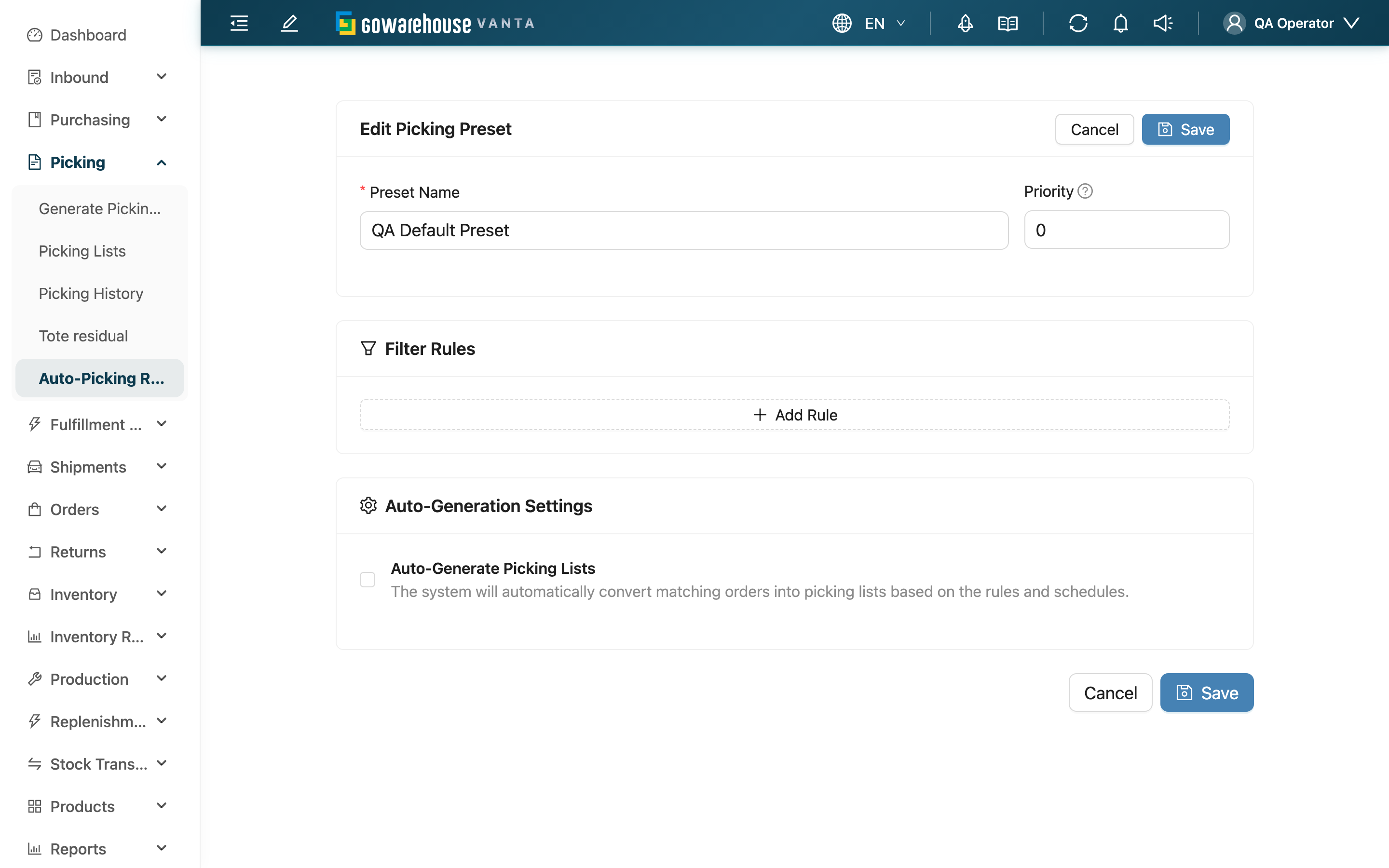
Filter templates save the whole set of "which fulfillments to pick, how to group into waves, how to split lists" for reuse. You can manually apply a template to Generate Picking Lists to skip resetting every time, or turn on auto schedule to let the system generate picking lists automatically at a fixed time. This feature is part of the advanced plan; the menu does not appear until it is enabled.
Quick Jump: List Columns | Filter & Split Settings | Auto Schedule | Simulate & Apply
2.1 List Columns
The New button at the top right creates a new template. List columns:
| Column | Description |
|---|---|
| Preset Name | Template name; click to open the editor |
| Merchant Name | The merchant it applies to (shown in multi-merchant operations) |
| Warehouse Name | The warehouse it applies to |
| Creator | The person who created this template |
| Priority | Priority; the smaller the number, the higher the priority; when schedule times are the same, this decides the order |
| Schedules | The configured automatic execution times |
| Next Run | The next automatic execution time |
2.2 Filter & Split Settings
When creating or editing a template, first set which fulfillments to pick in Filter Rules — you can stack multiple conditions (for example shipping method = Black Cat home delivery, AND sales channel = Shopee, AND order age within N days). The more precise the conditions, the cleaner the generated picking lists.
The date conditions (Requested Delivery Date, Scheduled Shipping Date) offer two comparisons, and each takes a different kind of value:
| Comparison | What to enter | Range matched |
|---|---|---|
| Equals | Pick one date | That single date only |
| Within N Days | A day count N | Within N days from today (today and day N included; 0 means today only) |
Both date conditions behave the same way in a template: only fulfillments whose order actually has that date filled in are pulled out. Orders without it, along with work orders and stock transfer orders (which have no order at all), are excluded — even when those types are selected under Source Type. If a schedule must also cover those types, do not add a date condition.
⚠️ This differs from the manual filter on the Generate Picking Lists page: the manual Shipping Date filter also pulls out orders with no shipping date, plus work orders and stock transfer orders; the Scheduled Shipping Date condition in a template does not.
Next, set wave grouping and list splitting in Optimization Options, using the same rules as Generate Picking Lists: the maximum number of shipments per wave, the maximum product types and item count per picking list, and whether to group waves by carrier / sales channel.
💡 We recommend building a separate template for each carrier or sales channel, to avoid picking different types of shipments mixed together.
2.3 Auto Schedule
After turning on Auto-Generate Picking Lists in Auto-Generation Settings, you can set the conditions for the system to generate picking lists automatically:
| Setting | Effect |
|---|---|
| Schedules | The times to run automatically each day; multiple times can be set |
| Auto-Generation Threshold | Runs only when the number of matching fulfillments reaches (is greater than or equal to) this threshold, to avoid generating fragmented picking lists when the volume is too low |
| Exclude Saturday / Sunday / holidays | Make the auto schedule follow warehouse working hours and not run on days off |
| Order Created Date (N Days Ago) | How many days back to pull orders created within |
2.4 Simulate & Apply
Once set up, there are two ways to use it:
- Simulate: Use Simulate for the template in the list to first preview which fulfillments currently match the conditions; after confirming, you can generate picking lists directly from the preview.
- Manual apply: On the Generate Picking Lists page, apply this template to bring in the filter and split conditions with one click, and fine-tune them further if needed.
3. FAQ
Quick Jump: FAQ | Important Notes
3.1 FAQ
▪ What is the difference between using a template and setting conditions directly on the generate page?
Setting directly is used just this once; a template saves the settings so you can reuse them and also set an auto schedule to generate at fixed times. Saving commonly used conditions as a template saves the time of resetting each time.
▪ What is auto schedule? What does it do automatically?
Once turned on, the system automatically uses this template's conditions to turn matching fulfillments into picking lists at the times you specify, with no manual operation needed. See 2.3 Auto Schedule for how to set it up.
▪ What is Auto-Generation Threshold for?
It sets a minimum number of fulfillments. The auto schedule only runs when the number of matching fulfillments reaches (is greater than or equal to) this threshold, to avoid generating fragmented picking lists when the volume is too low.
▪ Why did a date condition set to "Equals" appear to do nothing before?
Previously only "Within N Days" took effect on date conditions; choosing "Equals" skipped the condition entirely, so nothing was filtered. Both now take effect, and "Equals" asks you to pick a date from a date picker. If an older template stored "Equals" together with a number (for example 3), pick a real date and save again — otherwise the schedule will not run because the stored value is not a date.
▪ With "Within N Days", which day does the count start from?
From "today" in the timezone of the template's warehouse, including today and day N. Entering 0 means today only. Simulation and the auto schedule use the same calculation, so both give the same result.
▪ Does Simulate generate picking lists directly?
No. Simulating only lists the fulfillments that currently match the conditions for you to preview; only after confirming can you choose to generate on the preview screen.
▪ How is Priority used?
The smaller the number, the higher the priority. When several templates are scheduled to run automatically at the same time, the priority decides the order.
▪ Do I have to select a merchant first when creating a template?
Yes. A template is bound to a merchant; when creating one, you are first asked to choose the merchant it applies to before entering the settings.
▪ Why can't I find Filter Templates in the menu?
This feature is part of the advanced plan. The menu does not appear until it is enabled; please contact us to enable it.
3.2 Important Notes
⚠️ Important Reminders
- After turning on auto schedule, the system will automatically generate picking lists at the specified times; if you don't want it to run on a certain day, remember to exclude holidays or adjust the execution time.
💡 Tip: After setting the conditions for the first time, use Simulate to preview whether the pulled fulfillments match expectations before turning on the auto schedule, to avoid conditions that are too broad or too narrow.
4. Related Features
| Feature | Description | Link |
|---|---|---|
| Generate Picking List | Apply a template to quickly generate picking lists | Go |
| Picking Lists | View generated picking lists | Go |